Note
Access to this page requires authorization. You can try signing in or changing directories.
Access to this page requires authorization. You can try changing directories.
Estimated time: 5 minutes
Ask the agent to investigate an issue and watch it diagnose the root cause using your code, Azure resources, and the knowledge files it built during onboarding.
What you accomplish
By the end of this guide, you:
- Ask the agent to investigate a live issue in chat
- Watch it read source code, query Azure resources, and check logs in real time
- Receive a root cause diagnosis with code references and a recommended fix
Prerequisites
| Requirement | Details |
|---|---|
| Completed Steps 1–3 | Create your agent, Add knowledge, and Connect source code. |
| Code repository connected | The agent needs access to your source code to trace errors to specific files. |
Tip
You can still run an investigation without all data sources connected, but the results are richer with code and Azure resources. To complete your setup, see Complete your setup.
Start the investigation
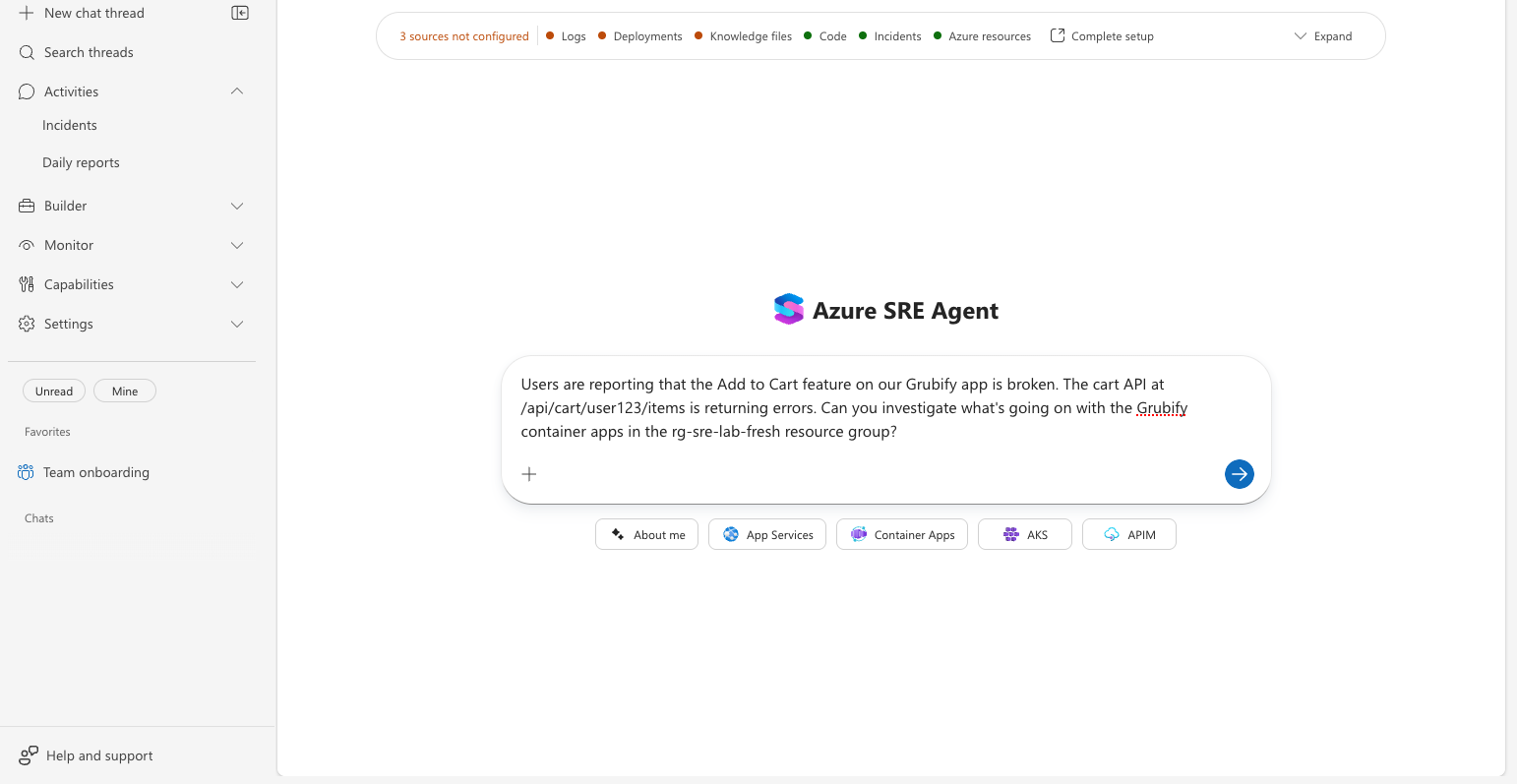
Open a new chat thread and describe the problem you want the agent to investigate.
Select New chat thread in the left sidebar.
Describe the problem you want investigated. Be specific about which service or resource group is affected. For example:
"Users report that the Add to Cart feature on our app is broken. The cart API returns errors. Can you investigate the container apps in the resource group?"
Select Send.
Watch the agent work
The agent builds an investigation plan and executes it step by step. You can watch each phase in real time.
Phase 1: Read context: The agent reads the knowledge files it built during onboarding, including architecture docs, team context, and runbooks, to orient itself.
Phase 2: Explore code: When you use deep context, the agent reads source files from your connected repository. It searches for code paths related to the issue, identifies error handlers, and traces the call chain.
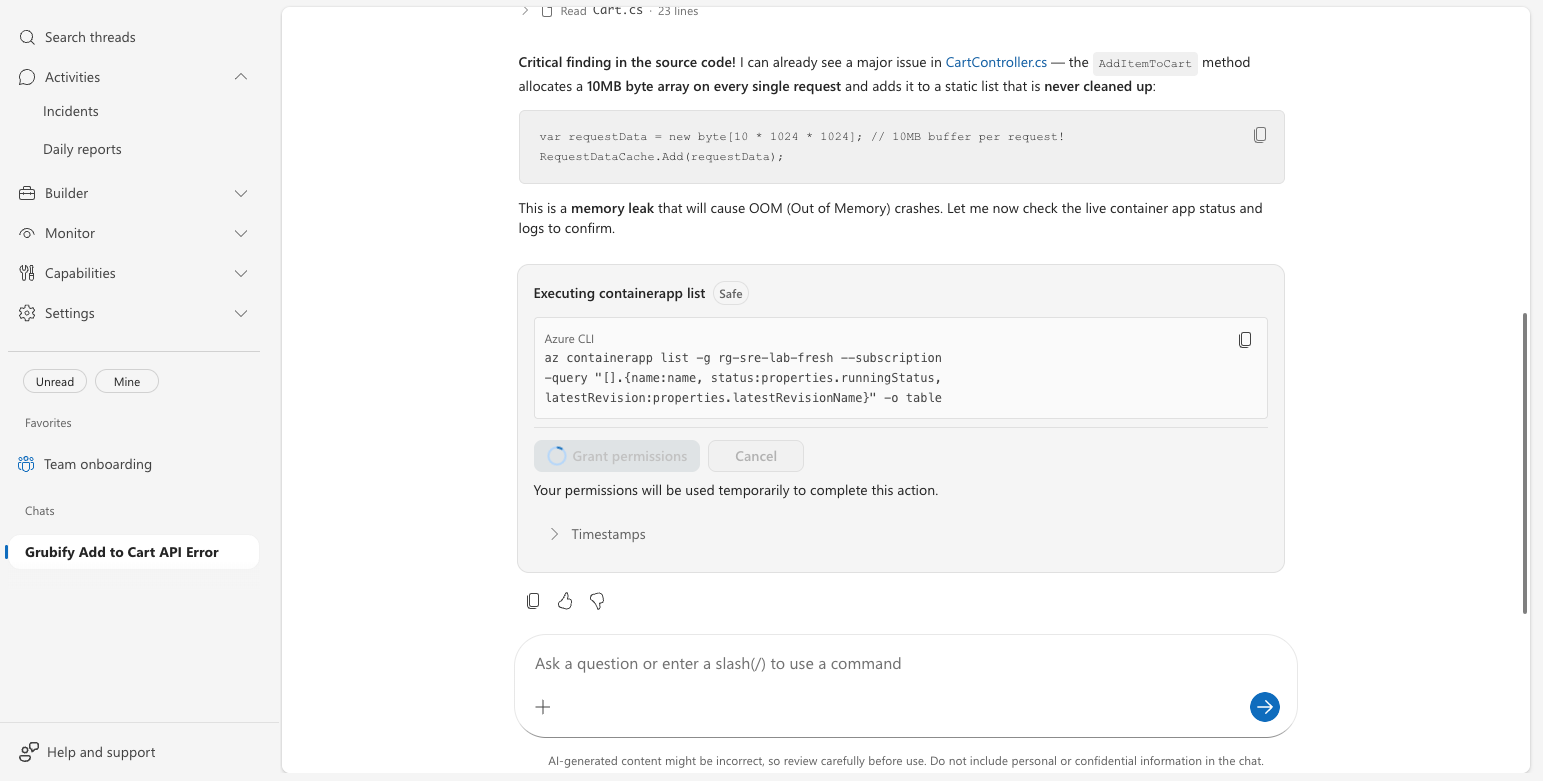
Phase 3: Query Azure resources: The agent runs Azure CLI commands to check live resource state, including container app status, memory and CPU limits, system logs, and console logs.
Phase 4: Deliver the diagnosis: The agent presents a structured diagnosis with the following details:
- Root cause: The specific code bug or configuration issue, with file and line number references.
- Evidence Code snippets, crash logs, and resource constraints that confirm the finding.
- Recommended fix: Exactly what to change, with a code diff showing lines to remove or modify.
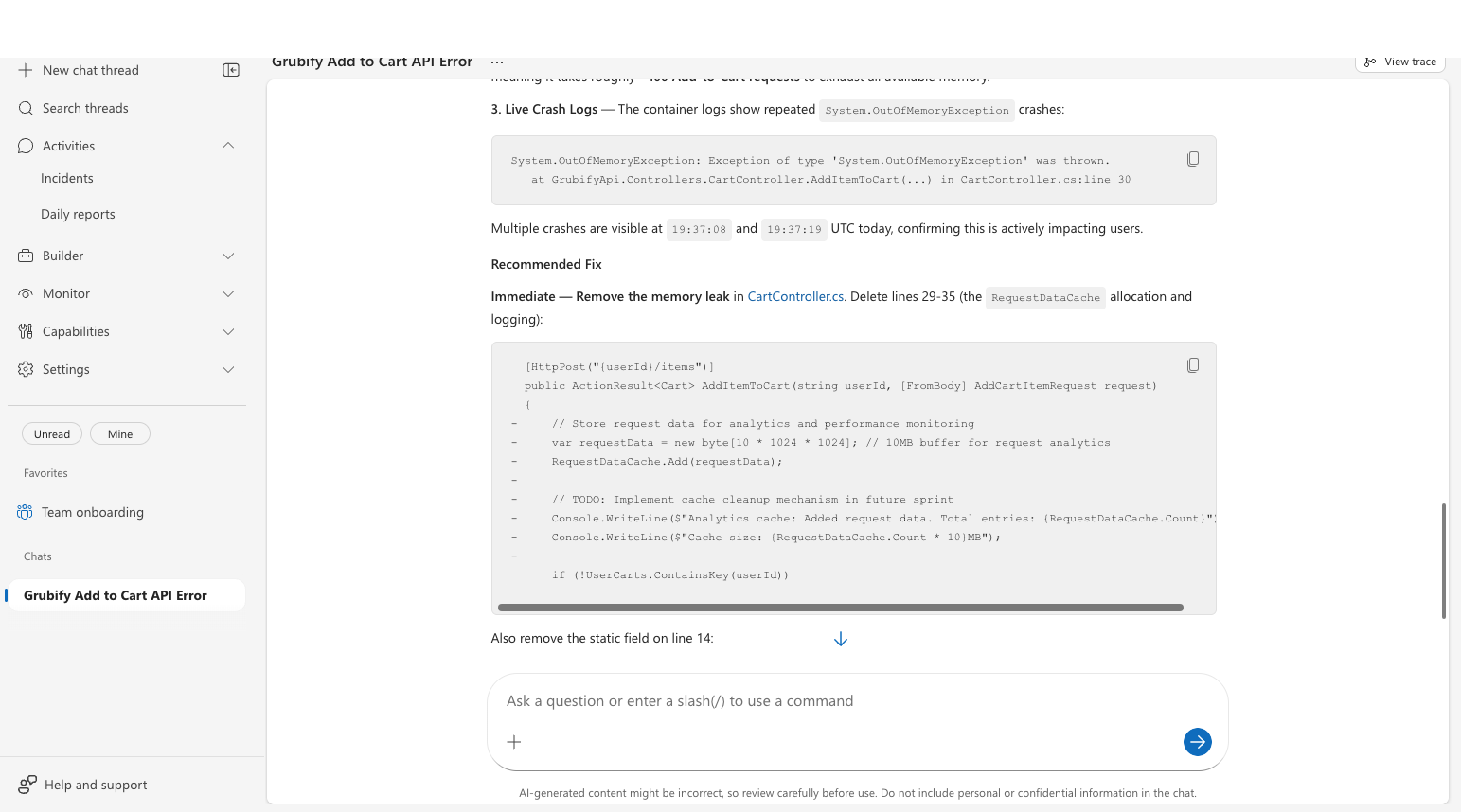
Checkpoint: The agent delivers a complete investigation with root cause, evidence from live logs, and a recommended code fix, all traced back to your actual source code and Azure resources.
Tip
Try asking about something real in your environment:
- "Check the health of the container apps in resource group X."
- "We're seeing 5xx errors on our API. Can you investigate?"
- "What recent changes were deployed to our backend service?"
Next step
Related content
- Workspace tools: How the agent reads, searches, and edits code.
- Root cause analysis: How the agent identifies root causes.
- Complete your setup: Connect any data sources you skipped.
- Ask the agent for help: More examples of what you can ask.