Note
Access to this page requires authorization. You can try signing in or changing directories.
Access to this page requires authorization. You can try changing directories.
Business Central integrates with Microsoft 365 to gain extra features. This article introduces some of these features.
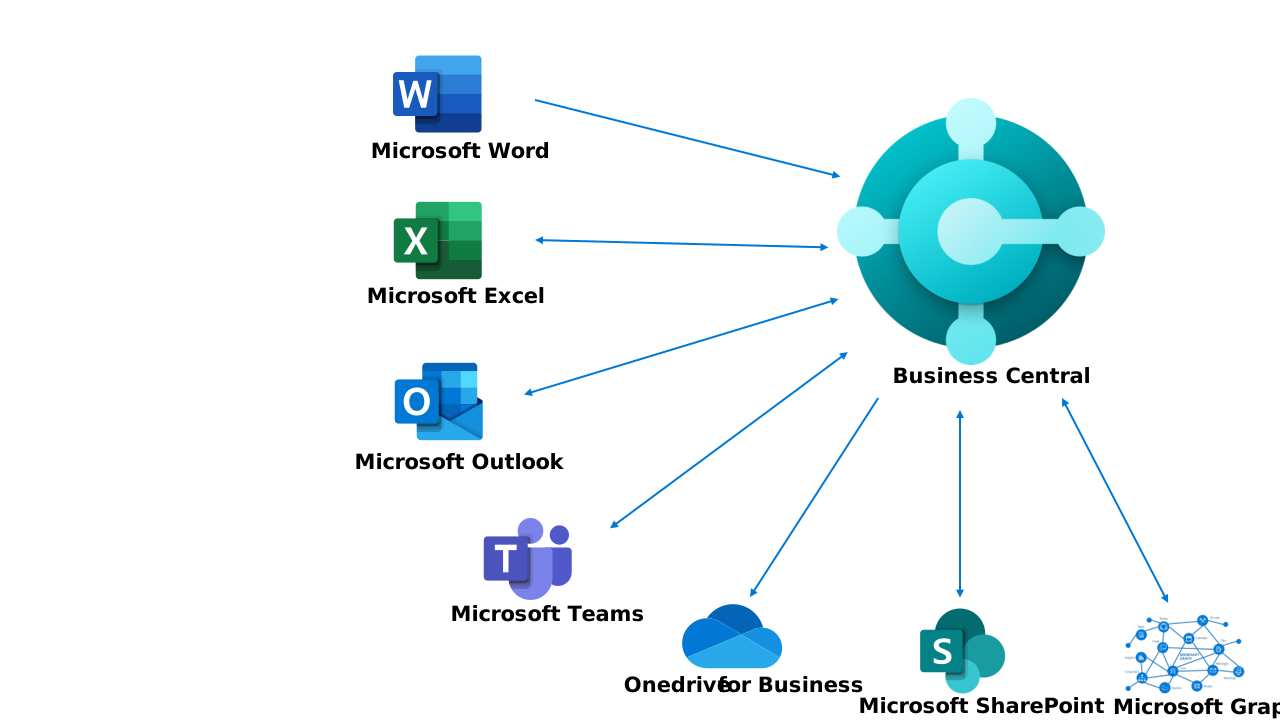
Using Microsoft Excel with Business Central
Microsoft Excel is used in Business Central in the following scenarios:
- View or edit Business Central data in Excel.
- Support analytical reporting.
- Manage G/L budgets (export to, or import from Excel).
- Import data from other systems.
With pages that display a list of records in rows and columns, like a list of customers, sale orders, or invoices, you can export the list to Microsoft Excel and work with it there. Depending on the page, there are two options:
- Open in Excel, where Business Central produces an Excel workbook with the data on the page. This option is useful for slicing and dicing the data for various analyses and keeping a copy.
- Edit in Excel also produces an Excel workbook with the data on the page. However, it goes a step further and uses the Business Central add-in for Excel to let you publish changes you make to the data in the workbook back to Business Central. For example, Edit in Excel is a fast way to update information in a large number of records.
Learn more at Viewing and Editing in Excel From Business Central.
Power users can use Excel as the design tool for the layout of analytical reports and then upload the Excel layout workbook to Business Central. Anyone who has access to these reports can run them. When the Business Central server generates the Excel report, it merges the Excel layout workbook with data and returns the resulting Excel workbook to you as a downloaded file. Learn more at Working with Microsoft Excel Layouts.
Tip
If you also enable integration to OneDrive for business, you can open Excel workbooks from Business Central in a browser by using Excel for the web.
If your organization uses G/L budgets, you can export a budget to Excel where you can process or analyze the budget data, and then import the data back to Business Central. Learn more at Exporting and importing G/L budgets with Excel.
You can import master data and some transactional data from other applications using configuration packages in Business Central. For example, you can export the configuration package to Excel and set up your data there. Then, you can import the data from Excel again. Learn more at Using Excel to import data from other systems.
Integrate with OneDrive
OneDrive for business is a cloud storage service that is included in Microsoft 365. Business Central makes it easy to store, manage, and share files with other people through OneDrive.
When an administrator enables OneDrive for business in Business Central, more features become available. For example:
- The Open in OneDrive and Share actions are available on most pages that contain files, such as the Report Inbox page or pages where you can attach files to records.
- The Open in Excel and Edit in Excel actions on list pages automatically copy the Excel file to OneDrive, then open it in Excel Online.
- The Send to Microsoft Excel document and Send to Microsoft Word document actions automatically copy the file to OneDrive, then open it in Excel or Word online.
Learn more at Business Central and OneDrive Integration.
Use Microsoft Outlook with Business Central
With Business Central, you can manage business interactions with your customers and vendors directly in Microsoft Outlook. Install the Business Central add-in for Microsoft Outlook to get the following capabilities:
- Contact insights: This add-in lets you look up Business Central customer or vendor information in Microsoft Outlook emails and calendar appointments. It also lets you create and send emails including Business Central business documents, such as a sales quote or invoice to a contact.
- Document view: When a business document is sent in an email, the add-in provides a direct link from the email to the actual business document in Business Central.
Learn more at Get the Business Central Add-in for Outlook.
Integrate with Microsoft Teams
Business Central offers an app that connects Microsoft Teams to the data in Business Central so that you can quickly share details across team members and respond faster to inquiries.
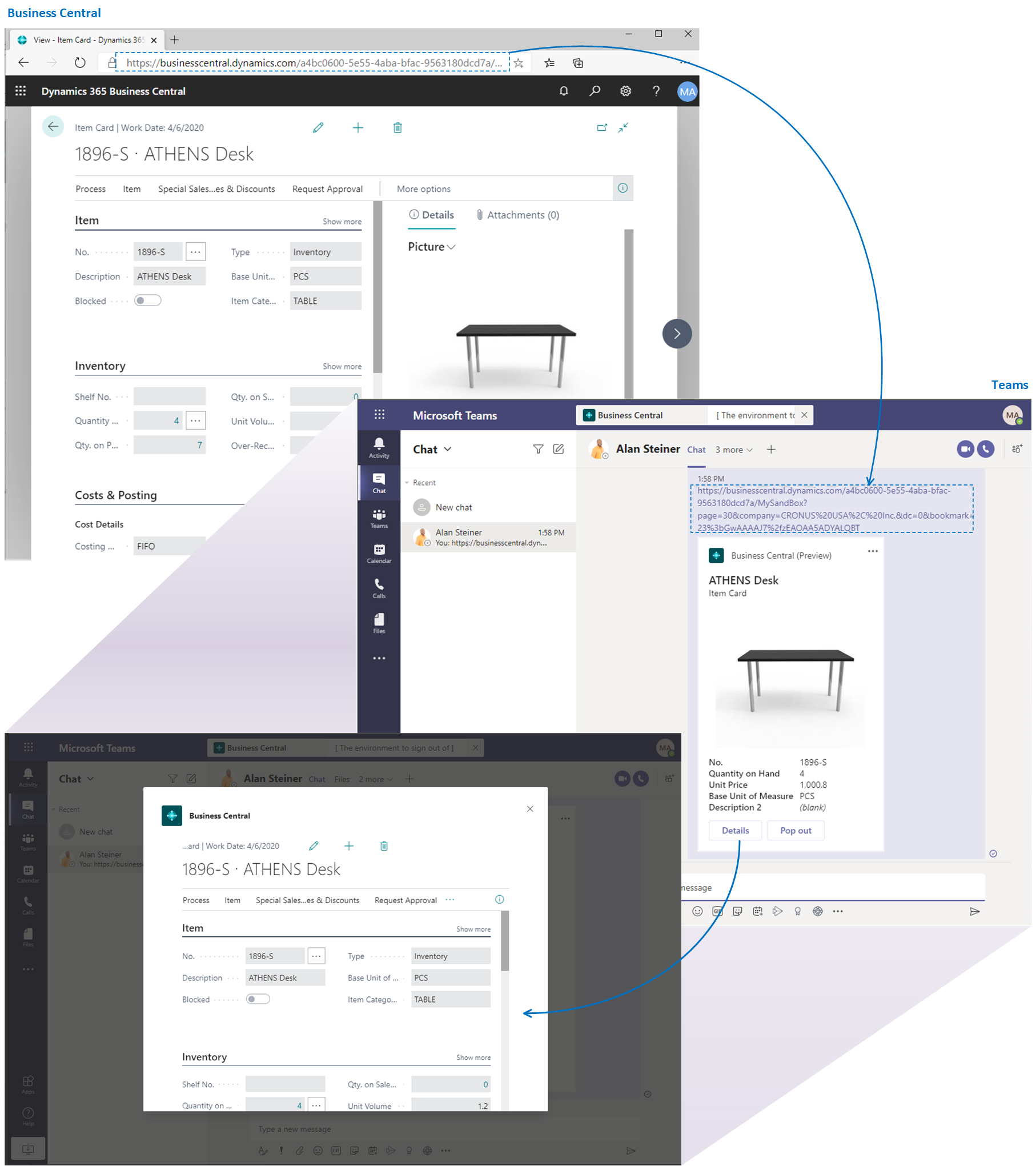
Learn more at Share Business Central records and page links in Microsoft Teams.
Using Microsoft Word with Business Central
Power users in Business Central can use Microsoft Word for the following scenarios:
- To change the layout of their outgoing documents.
- To make it easy to mass communicate in print or email.
If your organization wants to change the layout of its customer-facing documents, such as quotes, sales orders, or sales invoices, a power user can use Word as a design tool to change the layout. When Business Central generates the document report, it merges the Word layout with data and sends the resulting PDF document to the user as a downloaded file (or to a printer). Learn more at Work with Word Layouts.
To make it easy to mass communicate in print or email, power users can use mail merge commands in Word to use Word as the design tool to create the layout of the message. They can then upload the Word document to Business Central. When you run the campaign, the Business Central platform merges data from entities such as contacts, customers, and vendors with the template to produce the final documents to send to clients. Learn more at Using Word Templates for Bulk Communication.
Related information
Viewing and Editing in Excel From Business Central
Working with Microsoft Excel Layouts
Business Central and OneDrive Integration
Using Outlook with Business Central
Work with Word Layouts
Use Word Templates for Bulk Communication
Business Central integrations overview