Note
Access to this page requires authorization. You can try signing in or changing directories.
Access to this page requires authorization. You can try changing directories.
The Teams meeting option allows you to create an interactive online meeting experience where all attendees can share audio, video, or content. More information about Teams meetings: Meetings in Microsoft Teams.
After selecting Teams meeting v2 as the streaming provider for your event, you see a new option called Open settings. This opens a Teams meeting options pop-up in a separate window and allows you to access all of the meeting-related controls directly in Teams.
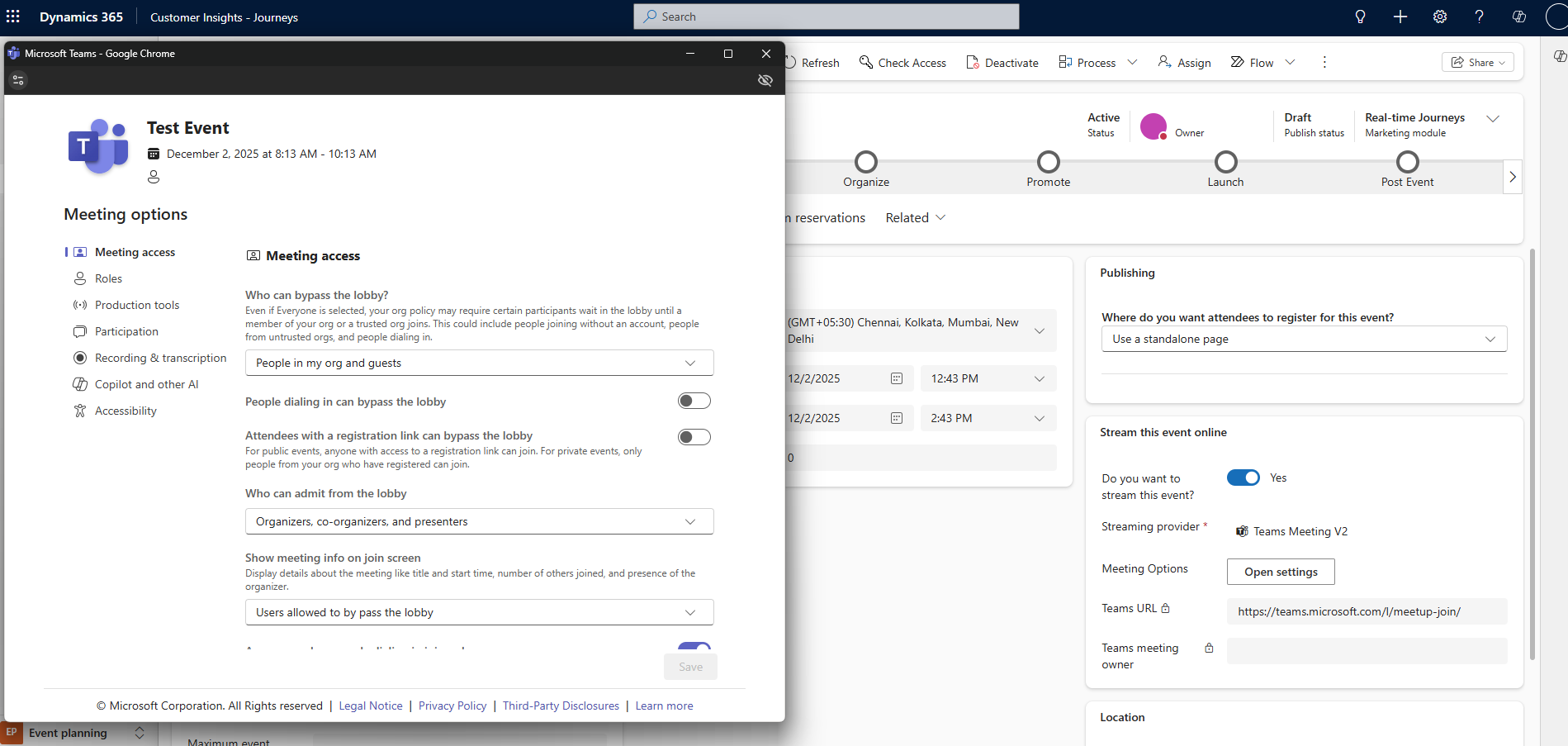
After you save your event, your settings are reflected in your Teams calendar item. As an organizer, you receive an automated email directly from Teams.
Accessing a Teams meeting attendee link
The Teams attendee URL is created when you save a Customer Insights - Journeys event that's being streamed with Teams. You can navigate to the Teams meeting using the attendee URL.
Note
To invite a registrant to join the event, don't share the attendee URL directly. Instead, use the email invitation method described below.
Calendar integration
Once a meeting is created or updated and the producers and presenters are added (by adding team members and speakers), the meeting shows up in their Outlook calendar and in their Teams calendar. The calendar item is a read-only version of the event. Changes made to the event from the Teams meeting owner's calendar won’t update the event in Customer Insights - Journeys. Speakers and team members can join the meeting from their calendars.
Note
Presenters that are guest users won't see the event on their calendar. To share the event link with guest users, send them the attendee link from the event in Customer Insights - Journeys.
Important
The calendar integration feature for producers and presenters isn't affected by the Calendar content field in the Additional information tab in the event planning work area. The Calendar content field only affects .ics files sent through the email designer. For more information, see Generate iCalendar files for events and sessions.
For on-premises mailboxes, you can't create a calendar item for the Teams webinar event organizer or for the speakers. This is a known limitation of Exchange REST APIs for on-premises mailboxes. In this case, you should share the event details (such as the Teams meeting URL) through a standard email to the event speakers.
Inviting registrants to attend the Teams event through email
After creating the event, going live with it, and gathering registrations, you should send the registrants an email to provide the attendee URL. In the Customer Insights - Journeys email designer, you find a Join in Teams option in the Link to menu for the element.
The Join in Teams button generates a unique attendee URL for each registrant. When the registrant selects the button, the Customer Insights - Journeys app creates a relevant check-in record for them, giving insights about the Teams event attendance in Customer Insights - Journeys. You can either set up the button to link to a specific event or selected session or, if you're using trigger-based journeys and one email template for multiple events, you can change the setting Select event/event registration from Event to Other source and pick an attribute relevant to your trigger.
Note
The Teams meeting owner is set to the user who creates the meeting in Customer Insights - Journeys. You can't change the owner once the event has been created. This is different from the owner of the event record in Customer Insights - Journeys.
Important
Synchronization between Teams and Customer Insights - Journeys works in one direction: Customer Insights - Journeys > Teams. The Teams calendar item for your event is read-only. Any changes you make in Teams may be overwritten by Customer Insights - Journeys. Make sure to manage and edit your meeting only from the Customer Insights - Journeys app.