Note
Access to this page requires authorization. You can try signing in or changing directories.
Access to this page requires authorization. You can try changing directories.
Microsoft regularly releases updates to Dynamics 365 Field Service and related solutions. Updates add new capabilities, enhance the performance and usability of existing features, and fix bugs. This article discusses how to update Field Service, including the related mobile app and resource scheduling solutions.
Multiple updates are released throughout the year.
Minor updates are released each month and include only minor bug fixes. Administrators receive a notification when an update is planned.
Major updates are released in April and October and include new features, enhancements, and bug fixes. Some changes to controls and user experiences can roll out more frequently. To get the latest updates to controls as soon as they're available, enable the monthly release channel for your environment. Changes to business logic and other backend-related items continue to roll out twice a year.
Hot fixes are rare, but occasionally a critical update is released outside the planned update schedule.
Tip
Find information about new features and changes for upcoming releases in the Dynamics 365 release plans.
Early Access update
The Early Access concept is deprecated and is replaced by the monthly release channel. Learn more about how to get early access updates by using the monthly release channel.
Choose your update path
Field Service updates roll out through release channels. Understanding your options helps you plan for changes in your production environment.
| Release channel | Feature delivery | Best for |
|---|---|---|
| Monthly channel | New features every month | Dev/test environments, organizations wanting the latest capabilities |
| Semi-annual channel | New features at general availability in April and October | Production environments preferring stability |
Learn more at Changing the release channel.
Configure the release channel
- Go to the Power Platform admin center.
- Select Environments > select your environment > Settings.
- Select Product > Behavior.
- Set the Release channel option to Monthly channel or Semi-annual channel.
- Select Save. Changes are applied immediately.
You can switch between channels at any time. The change controls feature visibility, not the underlying platform version.
Recommendations for production environments
- Use the Monthly channel in dev/test environments to preview features before they reach production.
- Keep the Semi-annual channel for production environments if your organization prefers fewer, predictable changes.
- Test in a sandbox first: Create a copy of your production environment on the Monthly channel to validate customizations and workflows against upcoming features.
- You can't permanently skip platform deployments. Microsoft deploys updates every week to all environments regardless of your channel setting. The release channel controls feature visibility only.
Learn more at Release channels for your model-driven app.
Dynamics 365 Field Service
The Field Service app updates automatically as part of platform updates.
You can also manually update the app right after release.
Open the Power Platform admin center and select the environment with the Field Service app you want to update.
In the top ribbon, select Resources > Dynamics 365 apps.
Select the Dynamics 365 Field Service app, and then select Update.
When you update the Field Service app, you also get the latest version of solutions that are part of the Field Service app.
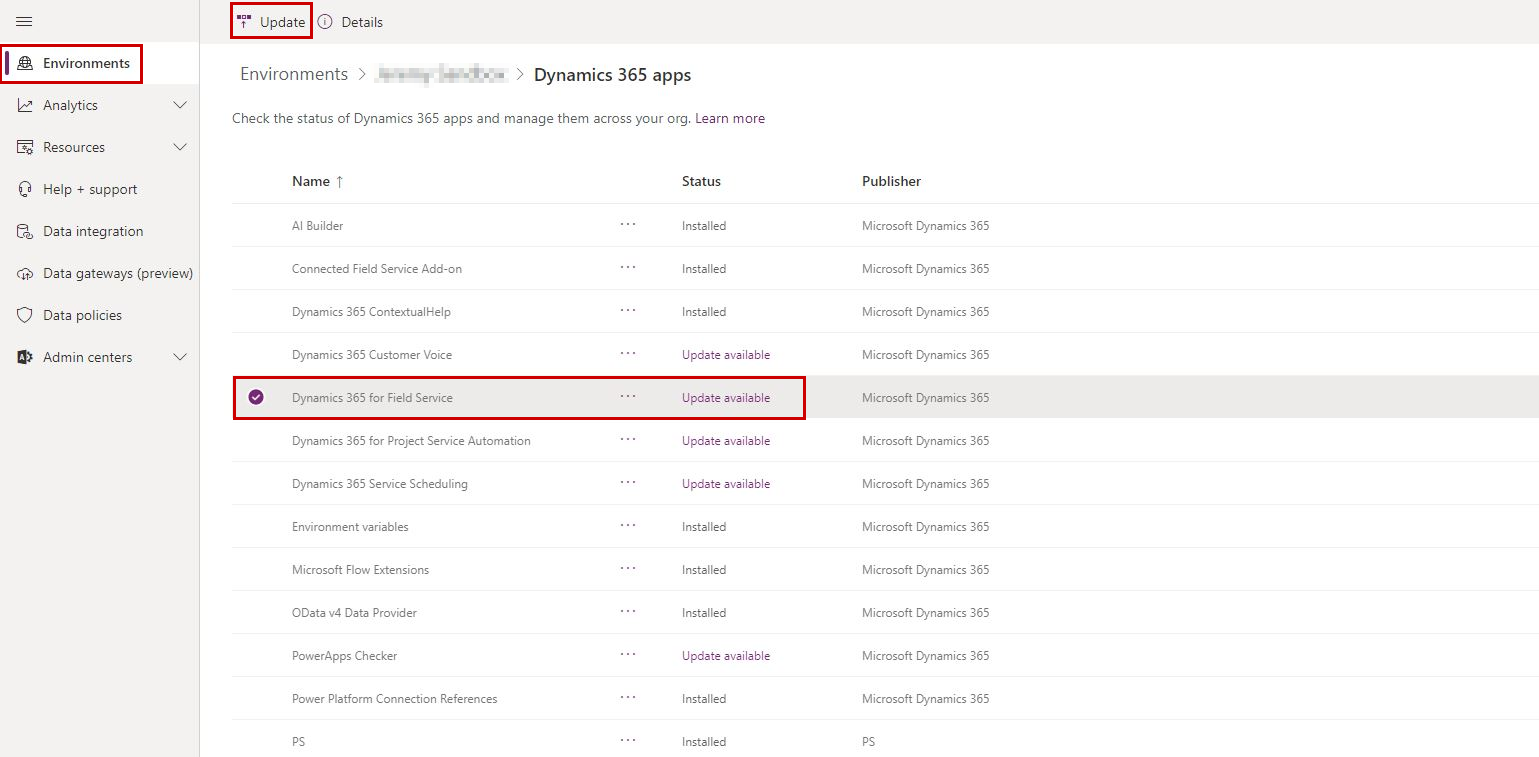
To find the version number of your Field Service app, look in the app details under Dynamics 365 apps in the Power Platform admin center.
Field Service mobile app
We recommend that you turn on automatic app updates on your mobile device. If you don't, you should regularly check your app store for mobile app updates and install the latest version.
Universal Resource Scheduling
Universal Resource Scheduling powers the scheduling capabilities in Field Service and other Dynamics 365 apps. You automatically get the latest version with updates for the Dynamics 365 app.
Updated Universal FetchXML queries
Occasionally, Universal Resource Scheduling releases include updates to the Universal FetchXML (UFX) queries. UFX queries control how the system fetches resources and requirements.
You can customize UFX queries. If you customize a UFX query, updates import the latest version, but they don't apply it automatically. Add your customizations to the new UFX query and apply them manually in the schedule board settings. To understand the differences between the old XML file with your custom queries and the updated XML file, consider using GitHub for version control.
Resource Scheduling Optimization add-in
The Resource Scheduling Optimization add-in automates scheduling of work orders, resources, and bookings. An administrator applies updates throughout the year.
Learn more in Deploy the Resource Scheduling Optimization Add-in for Dynamics 365 Field Service.
Update model-driven apps
To get the latest updates to controls and other frontend items, set the release channel for your environment or app. Microsoft regularly provides new and updated features for model-driven apps. The release channel defines how quickly updates in Power Apps roll out in your organization.
Learn more in Release channels for your model-driven app.
Update best practices
When upgrading Field Service to a newer version, follow these best practices to minimize risk and downtime:
Test in a staging environment first: Create a copy of your production environment and apply the upgrade there first. Verify that the schedule board, work orders, and custom workflows function correctly before upgrading production.
Run a solution health check: Use the Power Platform admin center solution health checker to identify any issues that might block or complicate the upgrade.
Schedule during off-peak hours: Users might experience temporary disruptions during the upgrade. For example, the schedule board might become unresponsive. Plan upgrades during maintenance windows and notify affected users in advance.
Monitor post-upgrade: After the upgrade completes, verify:
- The schedule board loads and responds to actions.
- Work orders can be created and updated.
- Custom plugins and workflows execute without errors.
- The Field Service Mobile app connects successfully.