Note
Access to this page requires authorization. You can try signing in or changing directories.
Access to this page requires authorization. You can try changing directories.
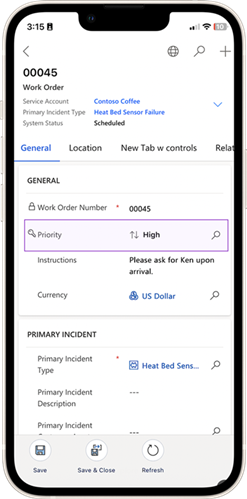
By default, lookup values in forms appear as hyperlinks, allowing users to open related records by selecting them. In some cases, you might want to prevent users from inadvertently navigating away from the current form. You can disable the clickthrough behavior on lookup fields to remove these hyperlinks. Configure this setting per form and per mobile or web app.
Open the form where you want to disable clickthrough on a lookup field.
Configure a Power Apps lookup component or access a current lookup field.
Go to the Components property under the created lookup.
Select + Component.
Search for the Lookup Control (not Look-up Control).
Select Disable lookup clickthrough for the Lookup clickthrough value.
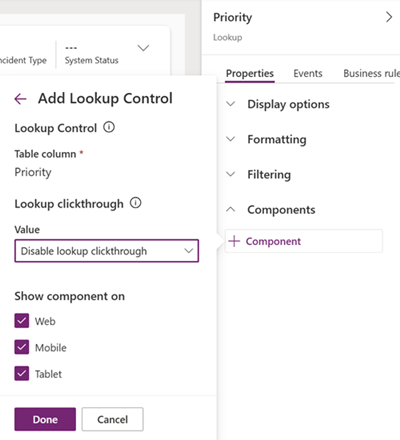
Select Done.
Save and publish the form. The mobile app reflects the change after the next sync.