Note
Access to this page requires authorization. You can try signing in or changing directories.
Access to this page requires authorization. You can try changing directories.
Note
Community interest groups have now moved from Yammer to Microsoft Viva Engage. To join a Viva Engage community and take part in the latest discussions, fill out the Request access to Finance and Operations Viva Engage Community form and choose the community you want to join.
In the Data management workspace, you can get an overview of target entities, related entity types and staging tables related to the Asset management module.
Click the Finance and operations button in the upper-left corner of the screen, and click Data management.
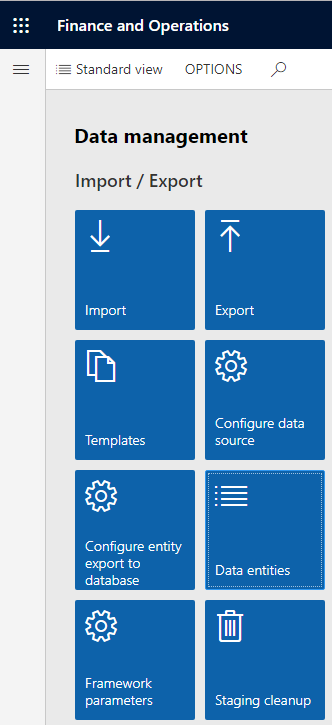
In the Import / Export section, click Data entities.
On the Target entities page, search for "asset management" in the filter, and press Enter to see a list of the entities related to Asset management.
The figure below shows some of the Asset management entities.
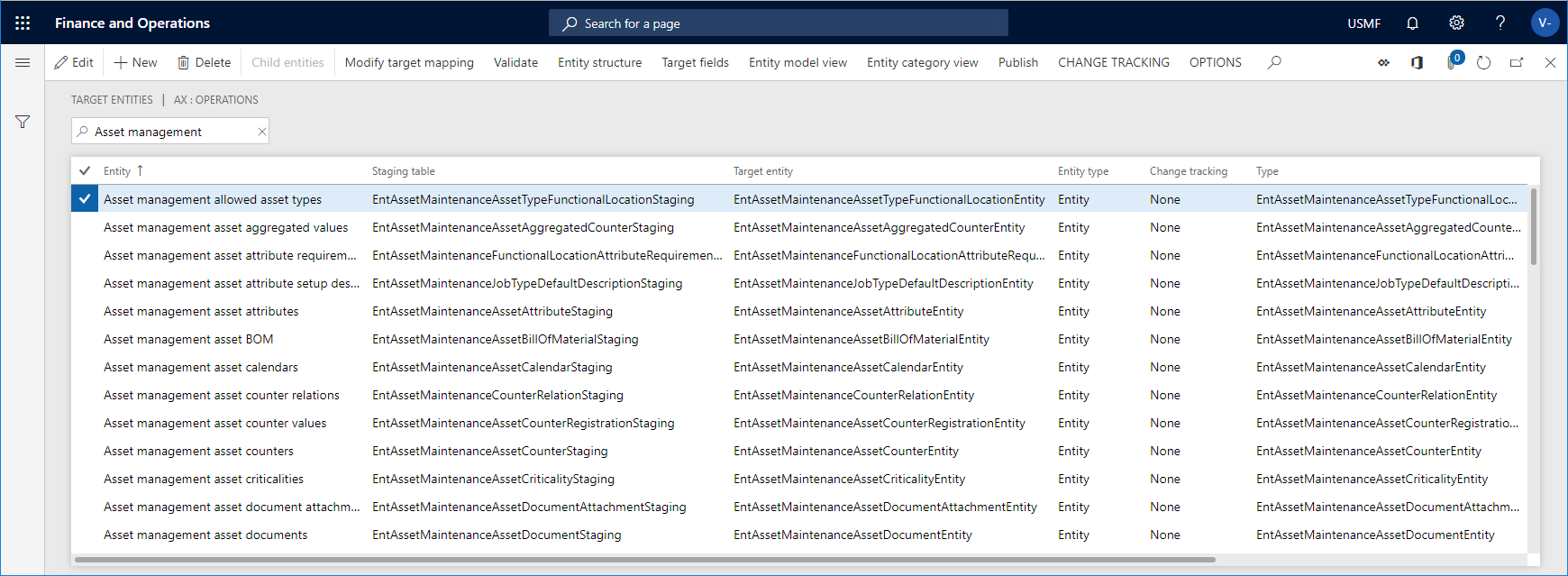
Select an entity and click Modify target mapping.
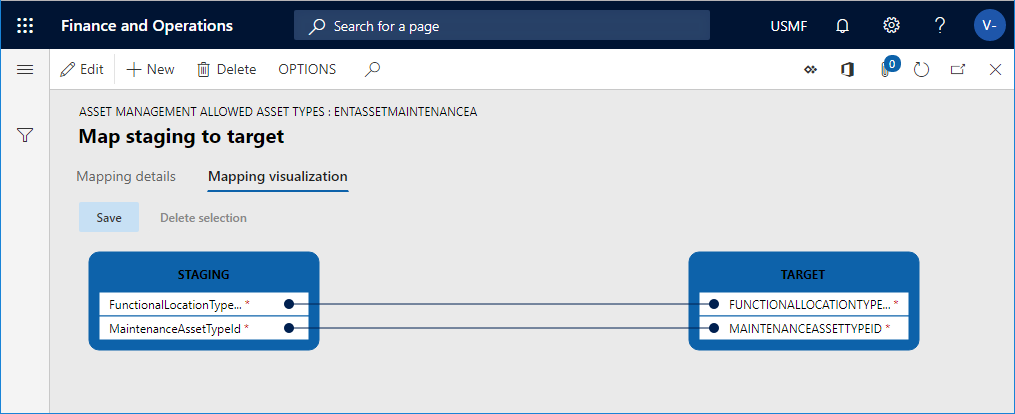
On the Map staging to target page, you see a list of the staging fields related to the selected entity. Click Mapping visualization to see a graphic overview of how staging data and target data are related.
In the figure below, a visualization of the fields related to the asset types entity is shown.