Note
Access to this page requires authorization. You can try signing in or changing directories.
Access to this page requires authorization. You can try changing directories.
By using the Fabric Data Engineering VS Code extension, the default agent in GitHub Copilot Chat helps you author Fabric notebooks with context-aware suggestions and code generation. You don't need to switch to the FabricNotebook custom agent.
Note
Fabric notebook assistance in GitHub Copilot Chat is currently in preview.
The extension provides Fabric notebook context to help the default agent understand Fabric notebook patterns. For example, it recognizes the built-in spark variable that represents your current Spark session, so it can suggest code that uses the existing session instead of creating a new one.
It also helps with common Fabric data access patterns, such as using relative paths for the default lakehouse and full ABFSS paths for nondefault lakehouses.
When to use GitHub Copilot Chat
Use the default agent in GitHub Copilot Chat when you need AI assistance for notebook authoring tasks, such as generating Spark code, refining notebook logic, and troubleshooting notebook code with Fabric-specific context.
Use more Fabric Data Engineering VS Code extension features when you need workspace and item operations, such as browsing Fabric items, opening notebooks, and managing resources. To learn what the extension is and what it supports, see What is the Fabric Data Engineering VS Code extension?.
Prerequisites
- Install the Fabric Data Engineering VS Code extension.
Set up GitHub Copilot Chat
Follow these steps to select the session type and model in GitHub Copilot Chat. Keep the default agent selected.
Make sure the Fabric Data Engineering VS Code extension is installed.
This extension provides the Fabric notebook context used by the default agent.
Open a Fabric notebook in Visual Studio Code.
Open GitHub Copilot Chat.
In the session type selector, choose Local.
This Fabric notebook workflow supports only the Local session type. Background and Cloud aren't supported for this workflow.
Use GitHub Copilot Chat
After you open a Fabric notebook and set up GitHub Copilot Chat, enter your own prompts by using the default agent. You don't need to use sample prompts to work with the agent.
The sample prompts and saved prompts are optional helpers in the FABRIC DATA ENGINEERING extension view.
In the Activity Bar, select the FABRIC DATA ENGINEERING extension view.
In that panel, expand AGENT PROMPTS - FABRIC DATA ENGINEERING to view sample prompts.
Sample prompts help you start common tasks quickly. For example, you can use prompts for exploring and validating data, cleaning and preparing data, and similar notebook workflows.
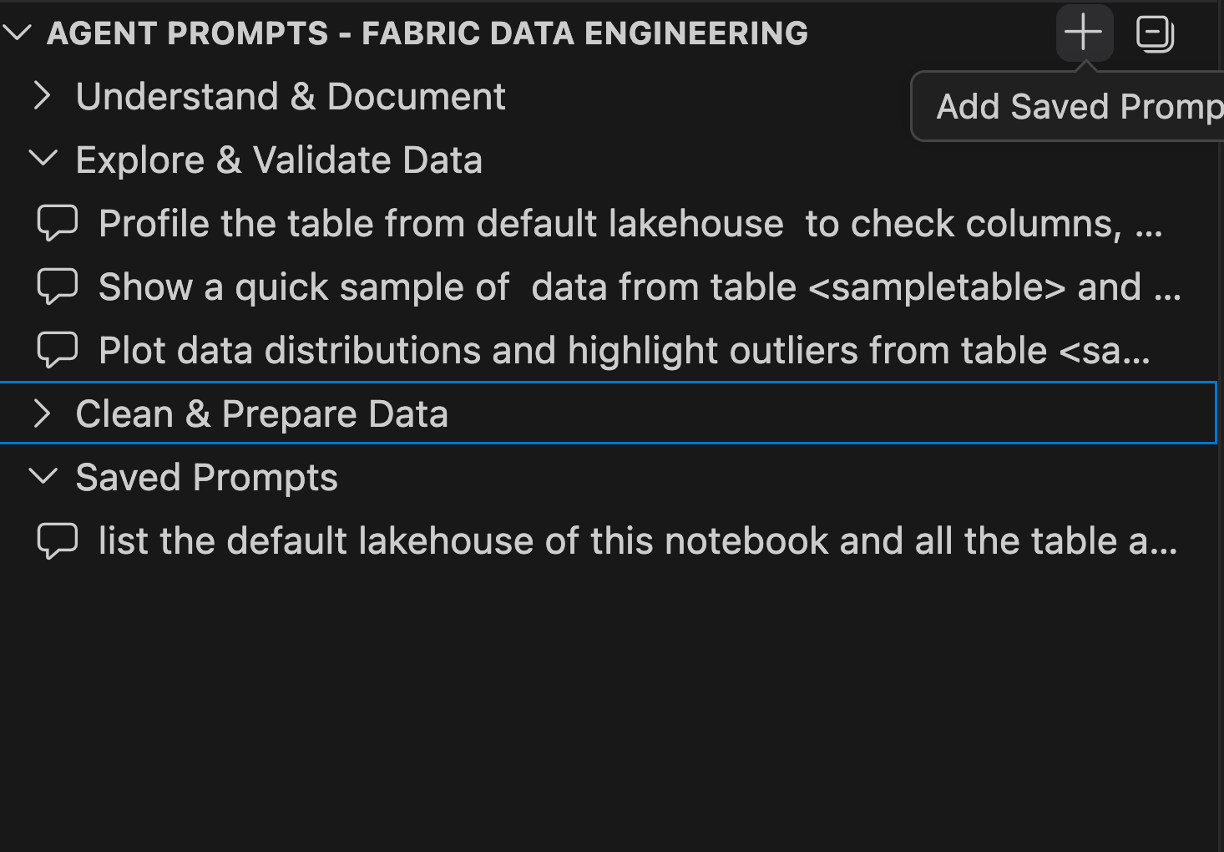
To save prompts for reuse, under AGENT PROMPTS - FABRIC DATA ENGINEERING, expand Saved Prompts.
Use this section to store your frequently used prompts and access them quickly later.
