Note
Access to this page requires authorization. You can try signing in or changing directories.
Access to this page requires authorization. You can try changing directories.
This article outlines the steps to create an Amazon Athena connection.
Supported authentication types
The Amazon Athena connector supports the following authentication types for copy and Dataflow Gen2 respectively.
| Authentication type | Copy | Dataflow Gen2 |
|---|---|---|
| Organizational account | n/a | √ |
Set up your connection for Dataflow Gen2
You can connect Dataflow Gen2 in Microsoft Fabric to Amazon Athena using Power Query connectors. Follow these steps to create your connection:
- Check capabilities to make sure your scenario is supported.
- Complete prerequisites for Amazon Athena.
- Get data in Fabric.
- Connect to Amazon Athena data.
- Check limitations and considerations for any current restrictions.
Capabilities
- Import
- DirectQuery (Power BI semantic models)
Prerequisites
- An Amazon Web Services (AWS) account
- Permissions to use Athena
- Customers must install the Amazon Athena ODBC driver before using the connector
Get data
To get data in Data Factory:
On the left side of Data Factory, select Workspaces.
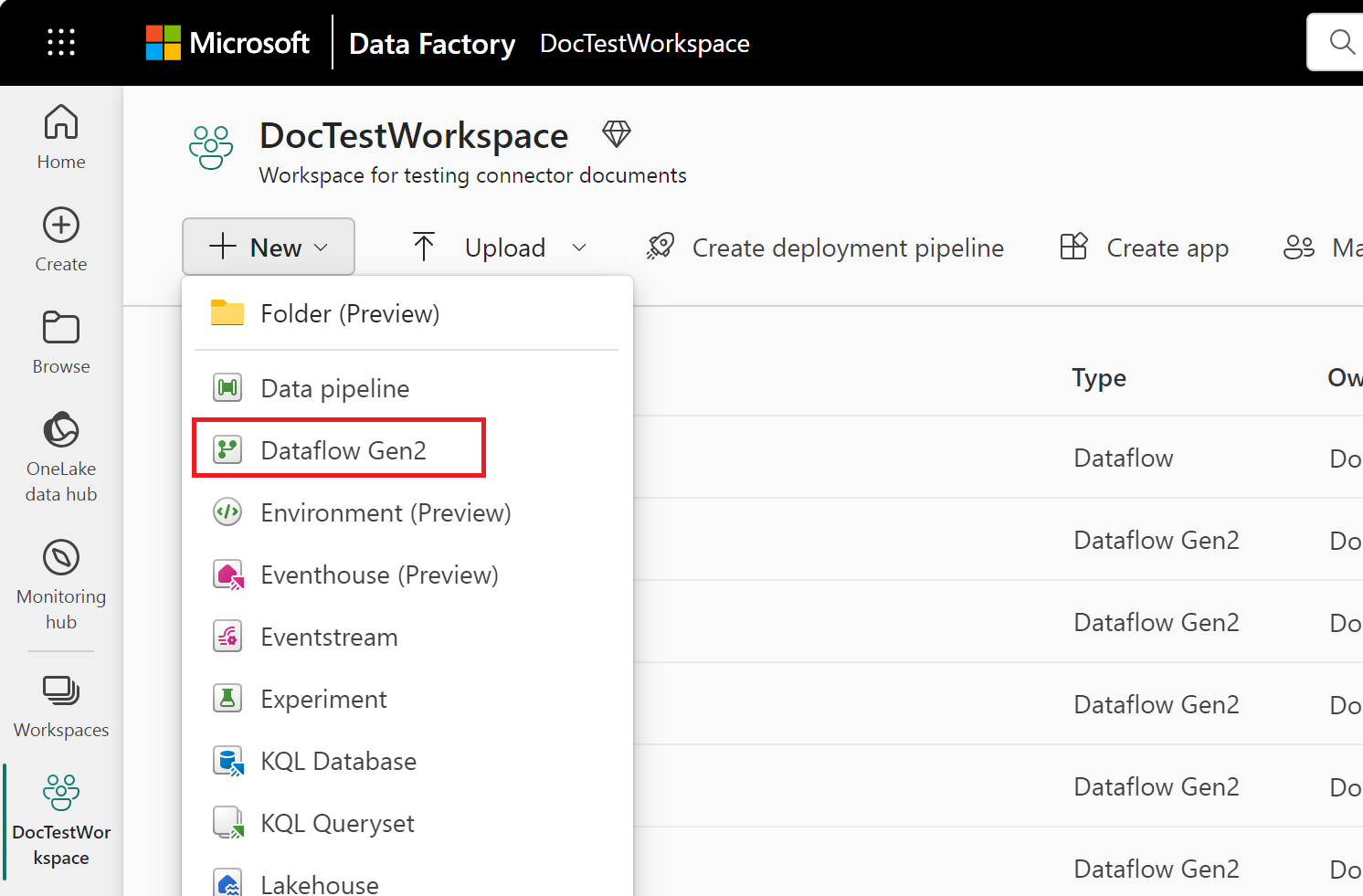
From your Data Factory workspace, select New > Dataflow Gen2 to create a new dataflow.
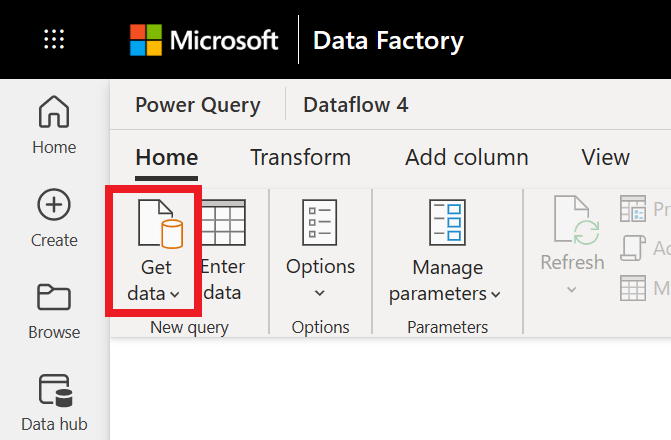
In Power Query, either select Get data in the ribbon or select Get data from another source in the current view.
In the Choose data source page, use Search to search for the name of the connector, or select View more to the right of the connector list to see all the connectors available in Data Factory.

If you choose to view more connectors, you can still use Search to search for the name of the connector, or choose a category to see a list of connectors associated with that category.


Connect to Amazon Athena data
To connect to Amazon Athena data:
Select Amazon Athena from the Power Query Connect to data source page.
In the Amazon Athena dialog, enter your DSN (Data Source Name) for the Athena ODBC connection.
Include the name of your on-premises data gateway.
Note
An on-premises data gateway is required because the Amazon Athena connector uses an ODBC driver that must be installed on the gateway machine.
Select the authentication kind, and provide your credentials.
Select Next to proceed.
In the Choose data page, select the data you require, and then select Transform data to transform the data in Power Query Editor.
Limitations and considerations
When you use the Amazon Athena Connector through an on-premises data gateway, driver information must be registered under the System Data Source Name (DSN), not the User DSN. If the driver is registered under the User DSN, a Data source name not found and no default driver specified error occurs when connecting through the on-premises data gateway. A Windows limitation causes this error. In Windows, User DSNs are stored in the HKEY_CURRENT_USER section of the Windows Registry. This means they're tied specifically to the user profile under which they were created. When an application runs as a Windows Service, it typically operates under a service account (for example, LocalSystem, NetworkService, or a custom domain account) with its own security context. These accounts don't load the interactive user's profile and therefore don't have access to that user's HKEY_CURRENT_USER registry section. For more information, go to the Amazon Athena ODBC v2 driver public documentation for Windows.
Set up your connection in a pipeline
Data Factory in Microsoft Fabric doesn't currently support Amazon Athena in pipelines.