Note
Access to this page requires authorization. You can try signing in or changing directories.
Access to this page requires authorization. You can try changing directories.
This article outlines the steps to create an Anaplan connection.
Supported authentication types
The Anaplan connector supports the following authentication types for copy and Dataflow Gen2 respectively.
| Authentication type | Copy | Dataflow Gen2 |
|---|---|---|
| Basic | n/a | √ |
| Organizational account | n/a | √ |
Set up your connection for Dataflow Gen2
You can connect Dataflow Gen2 in Microsoft Fabric to Anaplan using Power Query connectors. Follow these steps to create your connection:
- Check capabilities to make sure your scenario is supported.
- Complete prerequisites for Anaplan.
- Get data in Fabric.
- Connect to Anaplan data.
- Check limitations and considerations for any current restrictions.
Capabilities
The Anaplan Connector enables access to your Anaplan model exports. It also:
- Runs using Anaplan public data integration APIs.
- Loads export actions saved in your Anaplan models, directly into Power BI.
- Displays Anaplan models (those models not archived) in your default tenant.
- Creates semantic models in Power BI Desktop and exports or refreshes them to the Power BI service (cloud).
Prerequisites
There are system requirements to verify before you install Microsoft Power BI Desktop.
Get data
To get data in Data Factory:
On the left side of Data Factory, select Workspaces.
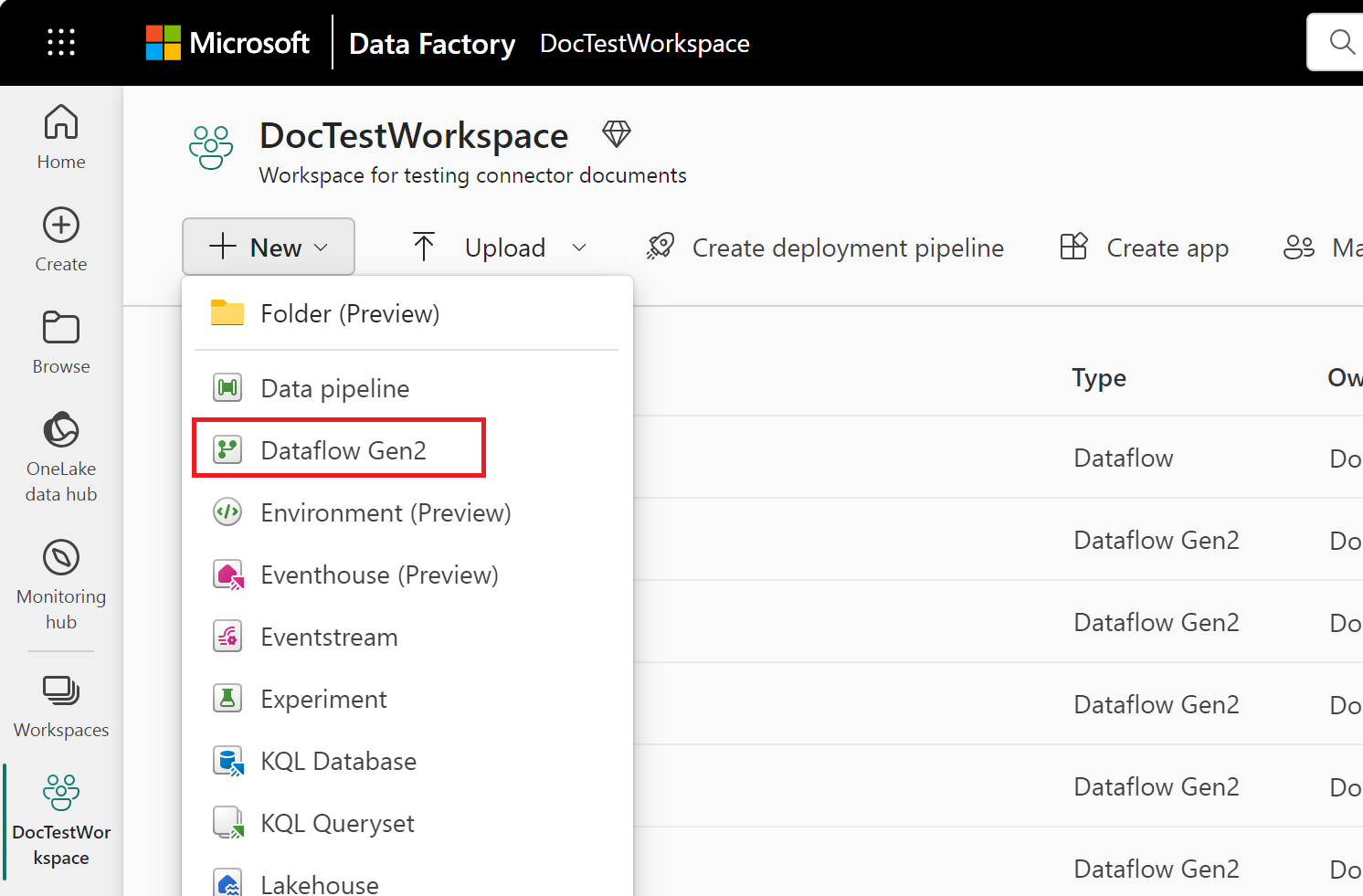
From your Data Factory workspace, select New > Dataflow Gen2 to create a new dataflow.
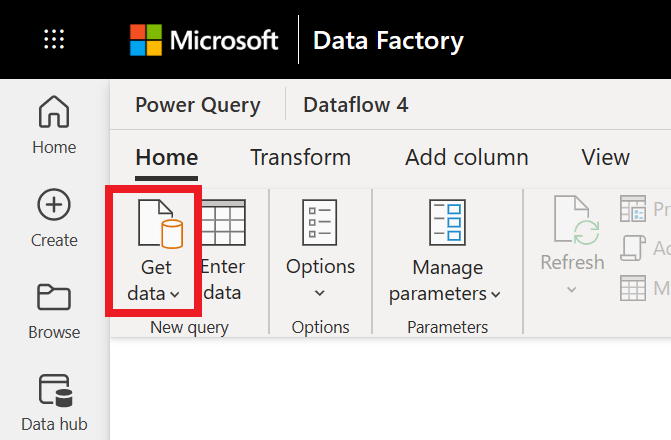
In Power Query, either select Get data in the ribbon or select Get data from another source in the current view.
In the Choose data source page, use Search to search for the name of the connector, or select View more to the right of the connector list to see all the connectors available in Data Factory.

If you choose to view more connectors, you can still use Search to search for the name of the connector, or choose a category to see a list of connectors associated with that category.


Connect to Anaplan data
To connect to Anaplan data:
Select Anaplan from the Power Query Connect to data source page.
In the Anaplan Connector dialog, enter the API URL and Authentication URL for your Anaplan instance.
Select your authentication kind, and enter your credentials or sign in as needed.
Once you successfully authenticate, select Next.
In the Choose data page, select the export actions you want to run, and then select Transform data to transform the data in Power Query Editor.
Limitations and considerations
You might get error messages. Here are some common scenarios and steps for resolution.
If you do get an error message, select the refresh icon. This refresh resolves the error in most cases.
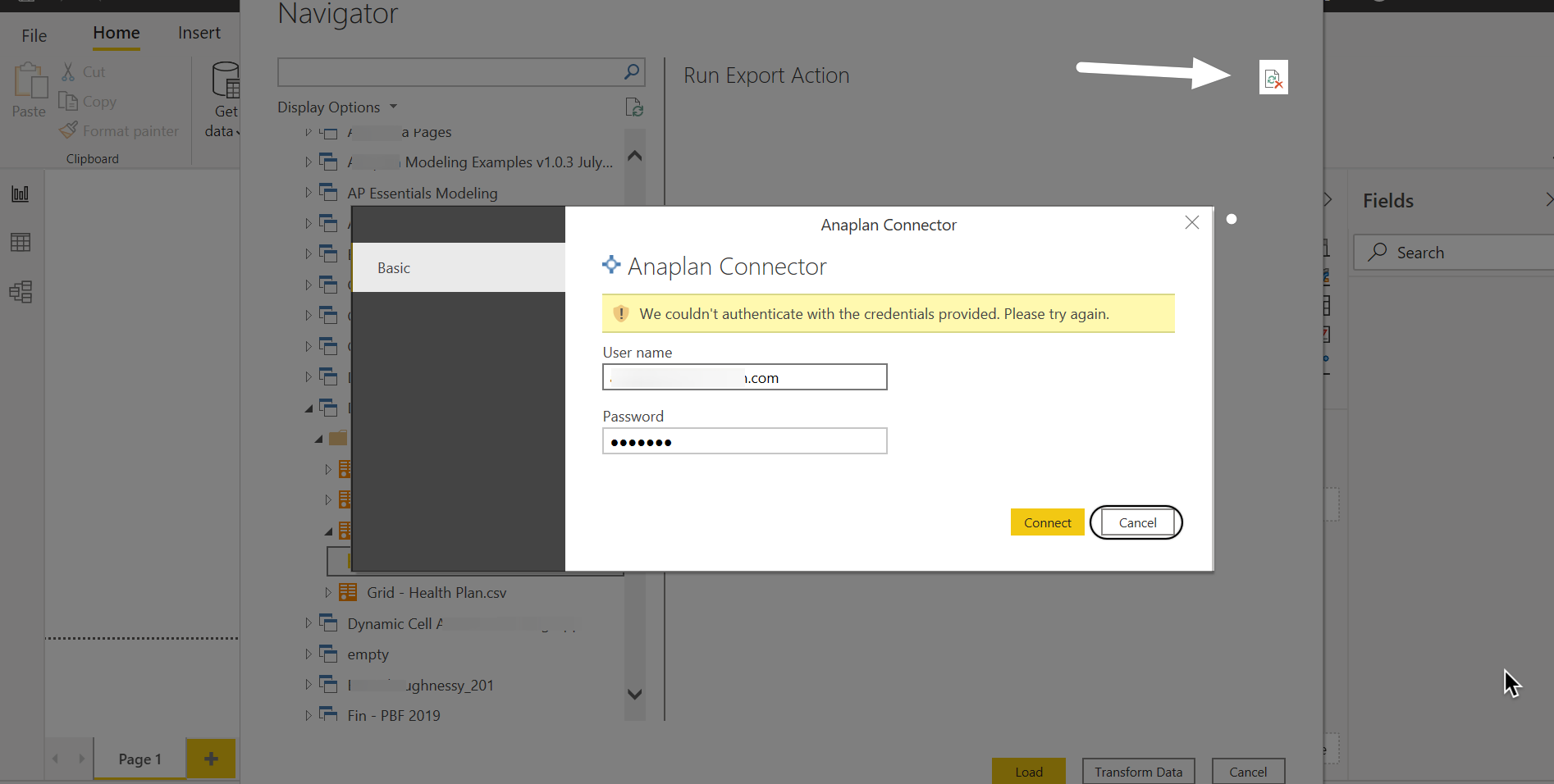
Credential error in the Navigator
We couldn't authenticate with the credentials provided, please try again.
To resolve such an error:
Select Refresh (top right).
Select File.
Select Options and settings.
Select Data source settings.
Select the permission Anaplan Connector from the list.
Select Clear Permissions.
Select Delete.
These steps remove expired Anaplan API tokens. You must reauthenticate to proceed.
Credential error in the Power Query editor
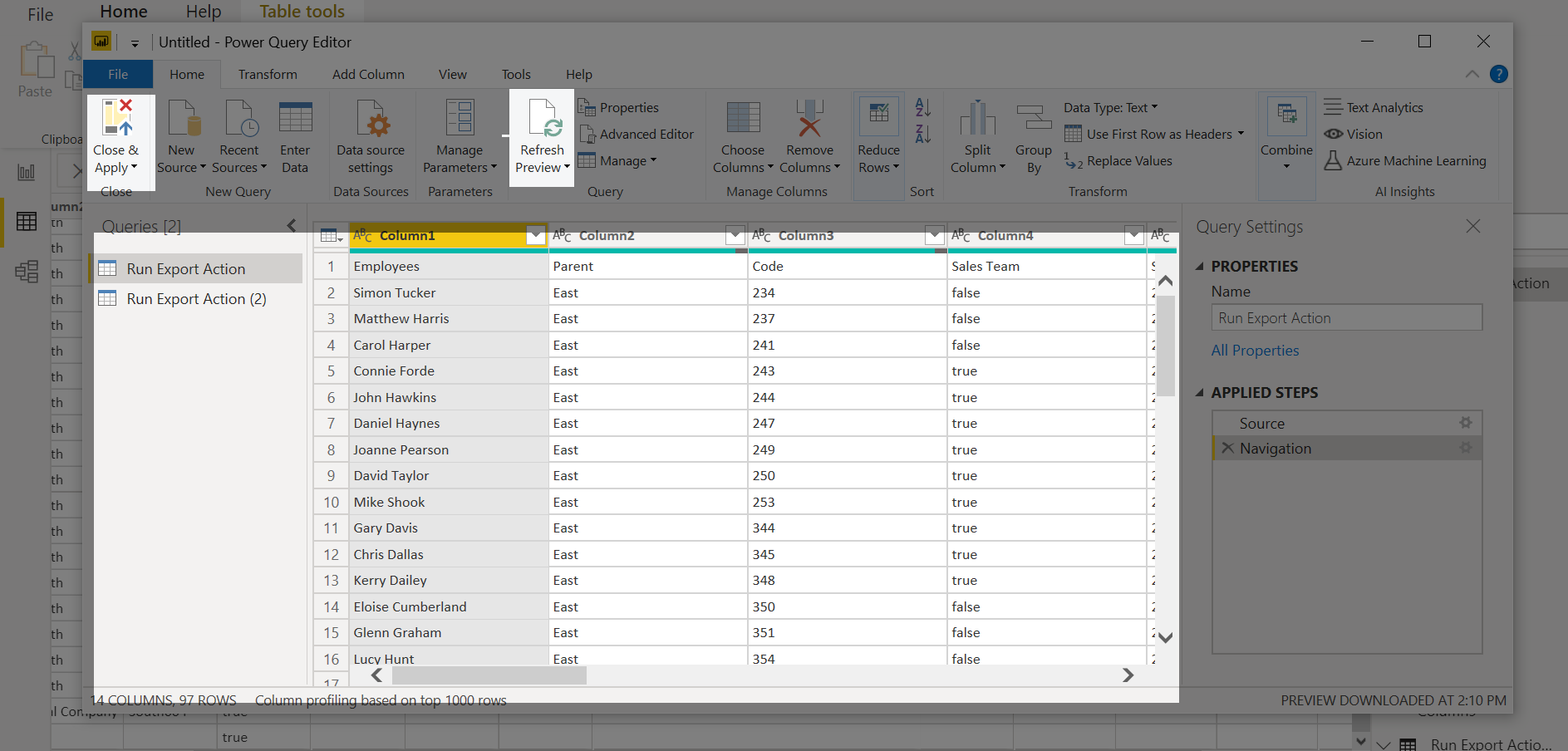
You might experience a credential error in the Power Query editor when you reopen a Power BI report or when you edit a prior data set.
To resolve this error, select either Close & Apply or Refresh Preview.
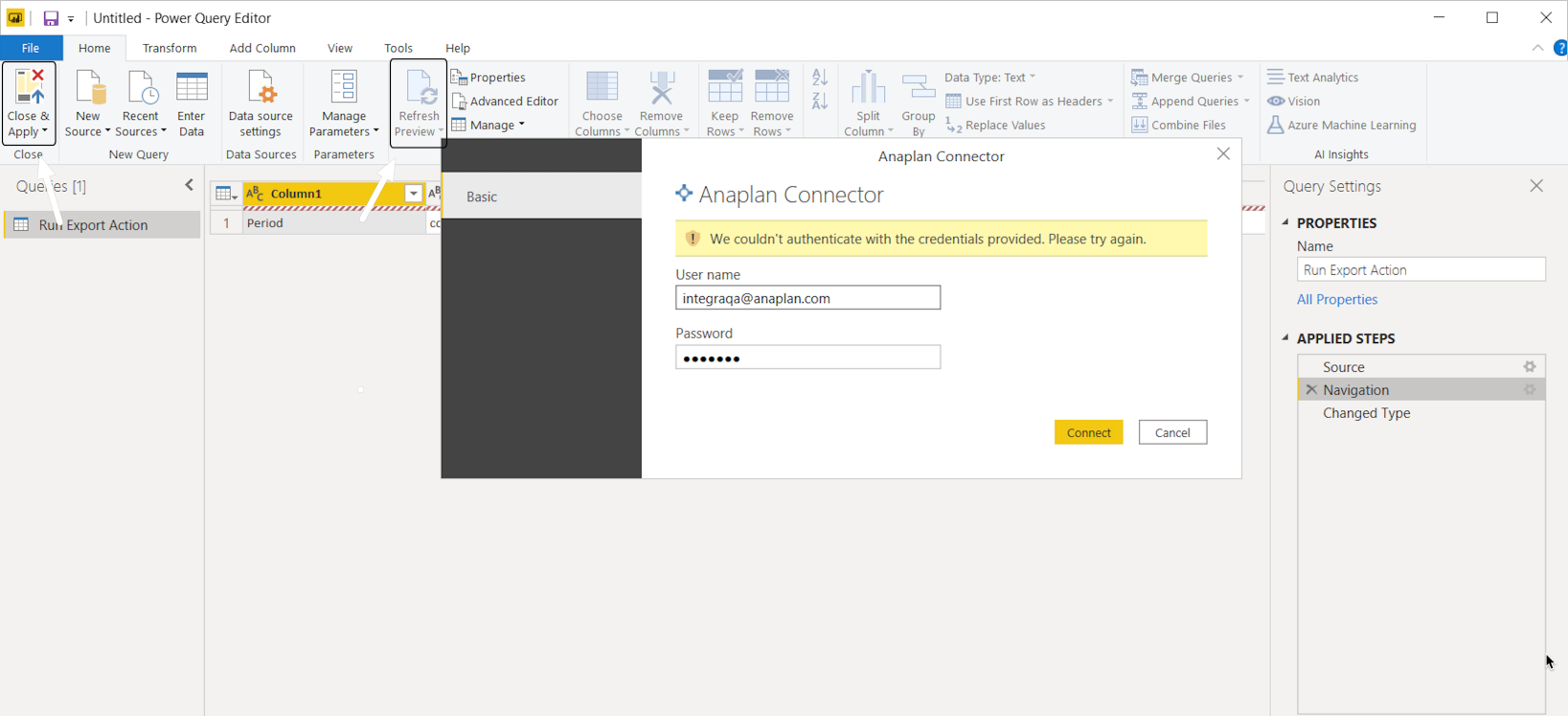
Your data then refreshes.
Integration list display error
Solution: If you don't see your complete list of integrations after you switch your Workspace, you can:
- Select the refresh button next to Integrations.
- Refresh your browser.
You can also:
Select Recent sources.
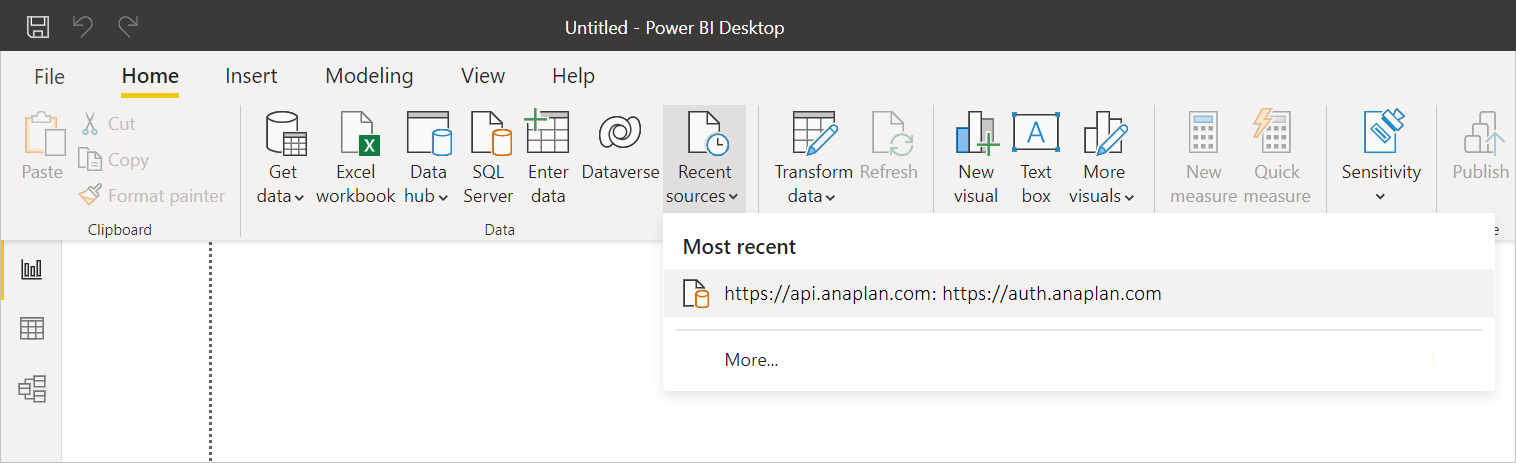
Select More.
Right-click on the connection.
Select Remove from list.
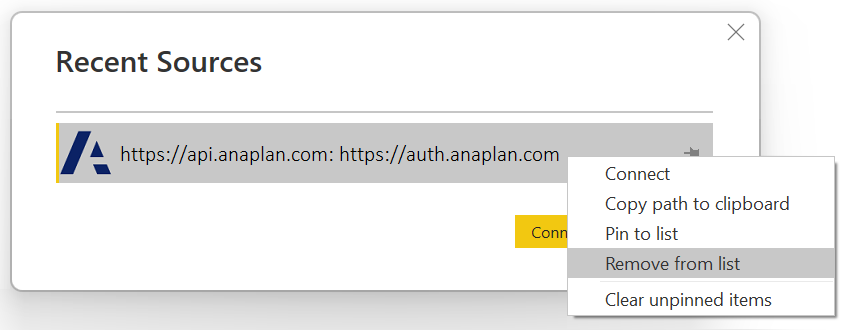
Connect to the export again. Your data then refreshes.
Power Query expression error
Expression.Error: The key didn't match any rows in the table.
Select Refresh Preview.
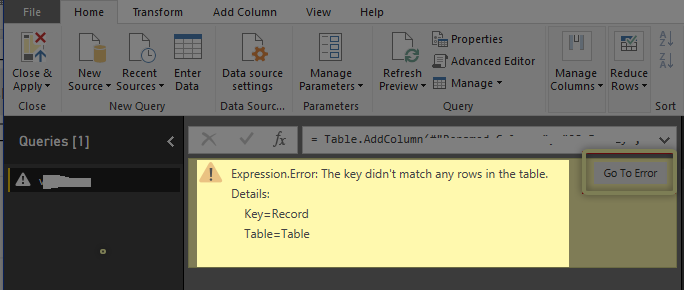
The first 1,000 rows of data then displays.
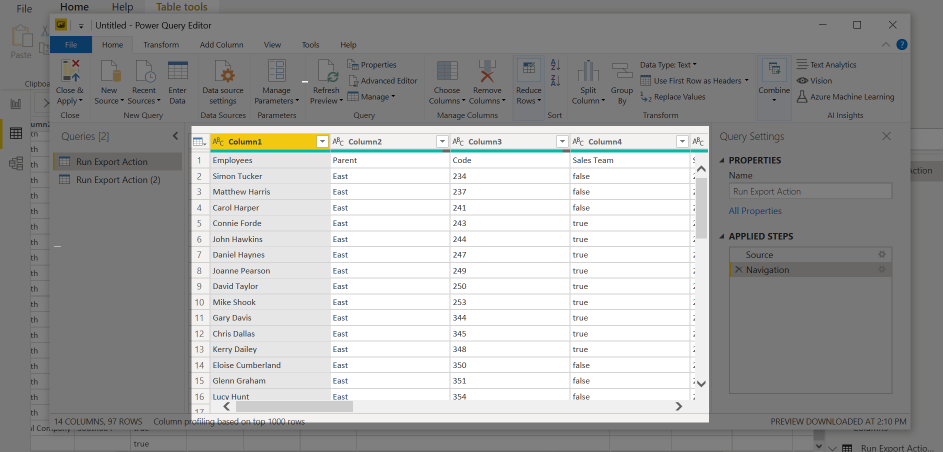
For more information, go to Power Query M expression functions.
Large file download error
If you go beyond the 5 gigabytes (GB) size limit, you get the following error.
Anaplan connector supports file downloads up to 5 GB in size.
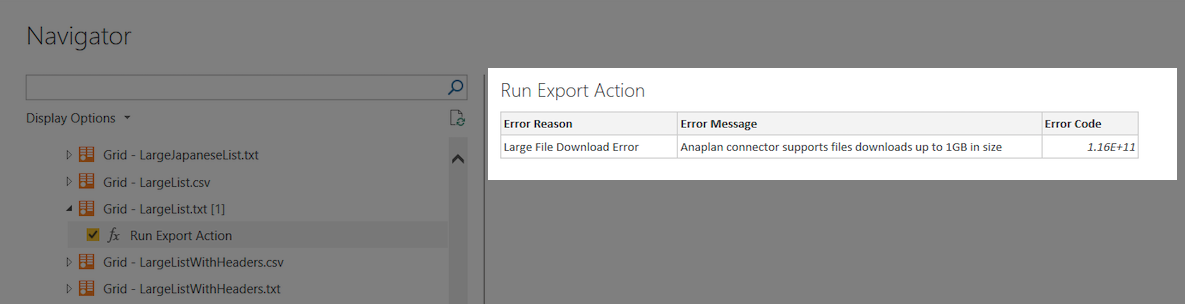
Return to your Anaplan model, decrease the size of your file, and try again.
Set up your connection in a pipeline
Data Factory in Microsoft Fabric doesn't currently support Anaplan in pipelines.