Note
Access to this page requires authorization. You can try signing in or changing directories.
Access to this page requires authorization. You can try changing directories.
This article outlines the steps to create a OneStream connection.
Supported authentication types
The OneStream connector supports the following authentication types for copy and Dataflow Gen2 respectively.
| Authentication type | Copy | Dataflow Gen2 |
|---|---|---|
| Organizational account | n/a | √ |
Set up your connection for Dataflow Gen2
You can connect Dataflow Gen2 in Microsoft Fabric to OneStream using Power Query connectors. Follow these steps to create your connection:
- Check capabilities to make sure your scenario is supported.
- Complete prerequisites for OneStream.
- Get data in Fabric.
- Connect to OneStream data.
Capabilities
The OneStream Connector enables secure access to your OneStream applications. With the connector you can:
- Access cube and relational data from OneStream applications, directly into Power BI.
- Access metadata members and all their OneStream properties.
- Easily recreate your full hierarchy structures in Power BI.
- Automate data loads to Power BI service.
Prerequisites
OneStream platform version 8.2 or higher is required. There are system requirements to verify before you install Microsoft Power BI Desktop.
Get data
To get data in Data Factory:
On the left side of Data Factory, select Workspaces.
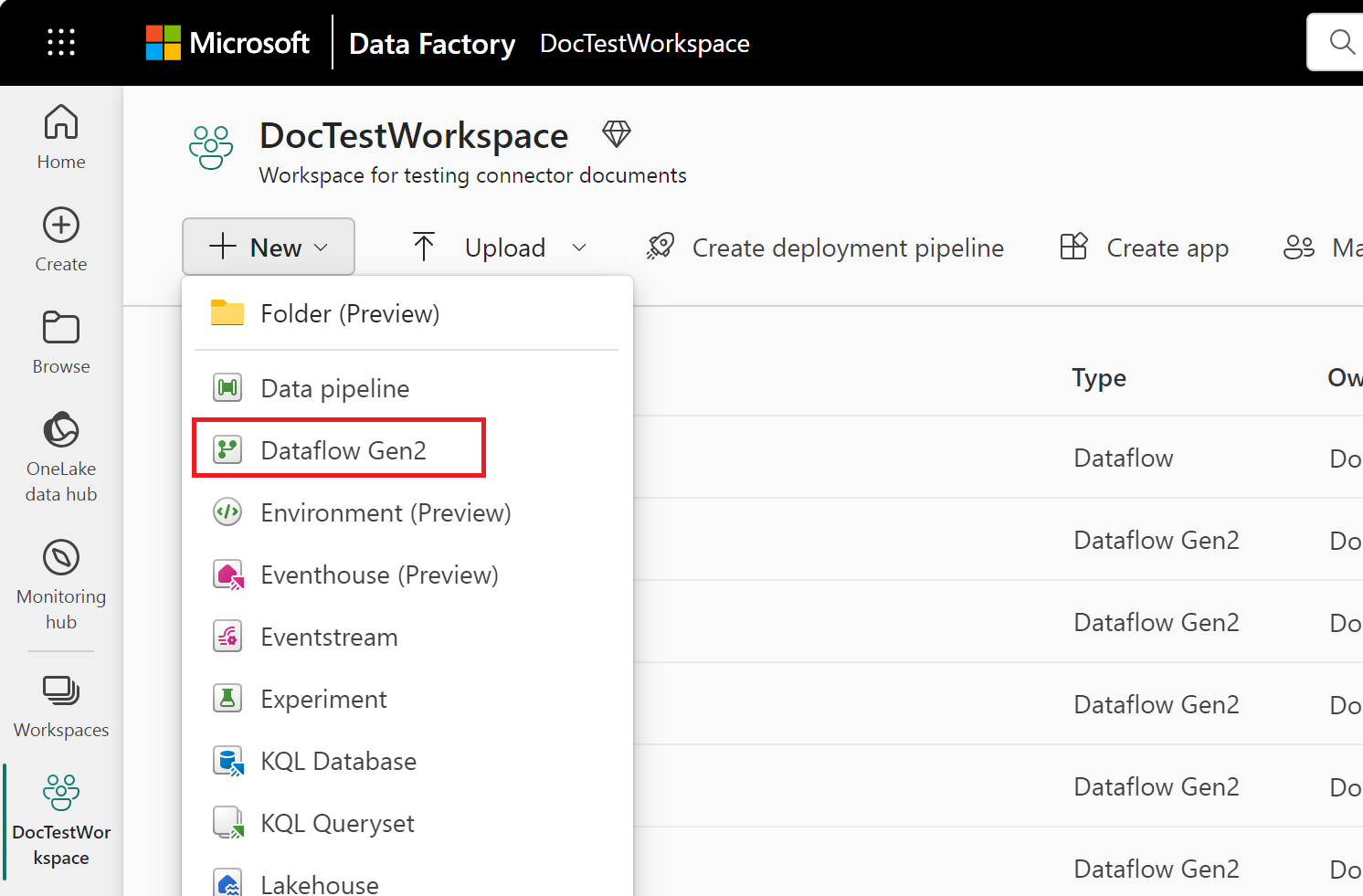
From your Data Factory workspace, select New > Dataflow Gen2 to create a new dataflow.
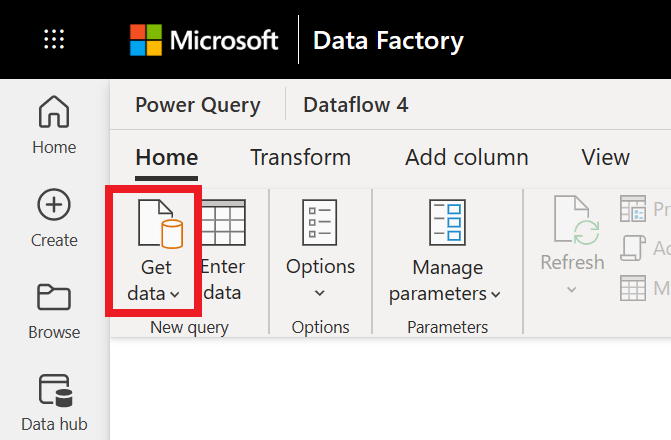
In Power Query, either select Get data in the ribbon or select Get data from another source in the current view.
In the Choose data source page, use Search to search for the name of the connector, or select View more to the right of the connector list to see all the connectors available in Data Factory.

If you choose to view more connectors, you can still use Search to search for the name of the connector, or choose a category to see a list of connectors associated with that category.


Connect to OneStream data
To connect to OneStream data:
Select OneStream from the Power Query Connect to data source page.
In the OneStream dialog, enter the Environment URL for your OneStream instance. Include the
https://prefix.Select Sign in to sign in with your organizational account. You're redirected to the OneStream Identity Server to enter your credentials.
Once you successfully sign in, select Next.
In the Choose data page, select the functions you want to run (such as Get Cube, Get Custom Adapter, Get Dimension, or Get Member Properties), and then select Transform data to transform the data in Power Query Editor.
Set up your connection in a pipeline
Data Factory in Microsoft Fabric doesn't currently support OneStream in pipelines.