Note
Access to this page requires authorization. You can try signing in or changing directories.
Access to this page requires authorization. You can try changing directories.
The following guide outlines how to design a user-friendly interface that aligns with the Dragon Copilot experience.
Recording state
To make sure users can easily distinguish if the application is recording or not, the record buttons should visually reflect different states.
Use the following event listeners to track the recording status:
DragonCopilotSDK.dragon.recording.events.addEventListener("recordingStarted", ...)DragonCopilotSDK.dragon.recording.events.addEventListener("recordingStopped", ...)
These events allow you to determine when recording begins and ends. Don't assume that calling DragonCopilotSDK.dragon.recording.toggleRecording/startRecording/stopRecording immediately starts and stops recording. Use the recordingStarted and recordingStopped events to update the recording state shown to the user and keep the UI state aligned with the SDK's recording state. Allowing the UI state to become misaligned with the recording state can make users think that recording has stopped when it's still on, and vice versa.
For more information, see Record audio.
Examples of images the UI can use to indicate recording status on the record button:
Not recording -

Recording -

Dictation processing
To indicate if dictation is still being processed, use the following event listeners:
DragonCopilotSDK.dragon.recording.dictation.events.addEventListener("dictationProcessingStarted", ...)DragonCopilotSDK.dragon.recording.dictation.events.addEventListener("dictationProcessingStopped", ...)
Dictation processing might continue even after recording has stopped.
These events apply only to dictation. Ambient recording doesn't trigger processing events.
Example of a dictation record button with a processing indicator -

VU meter
A VU meter provides visual feedback to help users confirm that their voice is being recorded.
To monitor volume levels, subscribe to the following event:
DragonCopilotSDK.dragon.recording.events.addEventListener("recordingVolumeChanged", ...)The volume is between 0 and 100.
Example of a dictation record button with a processing indicator and VU meter (pulsing around the button) -

Ambient recording
The ambient recording button should follow the same principles as the dictation record button, including visual indicators for recording state and a VU meter to show microphone activity.
However, processing is handled differently. To track when the ambient recording has been successfully uploaded (meaning the user is free to navigate away) use the following event:
DragonCopilotSDK.dragon.recording.ambient.events.addEventListener("ambientRecordingUploadStatusChanged", ...)
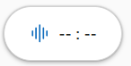
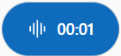
Examples of images the UI can use to indicate recording status on the ambient recording button:
Not recording -
Recording -
For more information, see Start ambient recording.