Note
Access to this page requires authorization. You can try signing in or changing directories.
Access to this page requires authorization. You can try changing directories.
This article is for IT pros and Teams administrators who want to set up Shared Call History for auto attendants.
Planning and licensing review
Planning
Licensing
Shared Call History template
The Shared Call History template is used for both call queues and auto attendants.
This Shared Call History for auto attendants article describes the auto attendant options highlighted in the following image:
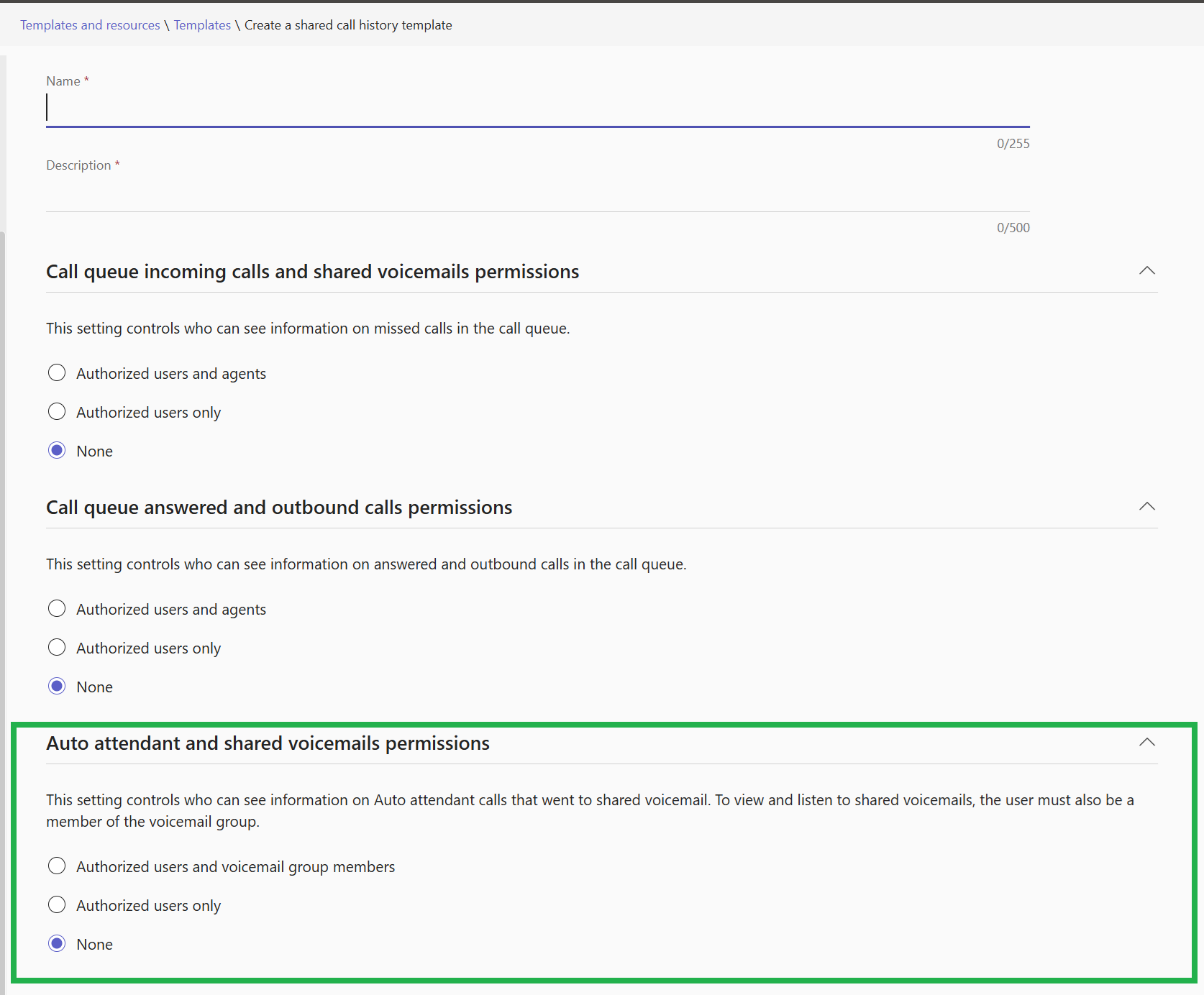
See Shared Call History for call queues for details on configuring Shared Call History for call queues.
Auto attendants - shared voicemail
Authorized users and voicemail group members can see an evolving history of shared voicemails.
Note
Authorized users and voicemail group members require Queues App to see the Shared Call History for auto attendant information.
Shared Call History templates
A Shared Call History template defines who can see the auto attendant shared voicemail history.
The same Shared Call History template can be used across multiple auto attendants.
When a Shared Call History template is changed, all the auto attendants that reference the template are also changed.
Create the Shared Call History template
- In the Teams admin center, go to Voice > Templates and resources.
- Select Templates.
- Select Shared Call History as the template type.
- Select Add to create a new Shared Call History template.
- Enter a name for the template.
- Enter a description for the template.
- Select the appropriate Auto attendant and shared voicemails permissions level.
- Select Save.
Assign the template to the auto attendant
- In the Teams admin center, go to Voice > Auto attendants.
- Select the auto attendant you want to configure Shared Call History for.
- At any location where calls are redirected to Voicemail, the Shared Call History template is shown.
- Select the appropriate Shared Call History template from the dropdown.
- Select Submit.
Note
It's not possible to have a different Shared Call History template on the Business hours, After hours, or Holiday call flows if the same shared voicemail destination is used.