Note
Access to this page requires authorization. You can try signing in or changing directories.
Access to this page requires authorization. You can try changing directories.
Before you add code to enable single sign-on (SSO), ensure to configure your app and bot resource in Microsoft Entra admin center.
You need to configure your app's code to obtain an access token from Microsoft Entra ID. The access token is issued on behalf of the bot app.
Note
If you've built your Teams app using Microsoft Teams Toolkit, you can enable SSO for your app using the instructions in the Tools and SDKs module. For more information, see add single sign-on to Teams app. Teams Toolkit supports SSO for JavaScript, TypeScript, and C# apps in Visual Studio Code.
This section covers:
- Update development environment variables
- Initialize the app with OAuth
- Handle sign-in and token receipt
- Handle sign-in failures
- Handle app user sign out
Update development environment variables
You've configured client secret and OAuth connection setting for the app in Microsoft Entra ID. You must configure the code with these values.
To update the development environment variables:
Open the bot app project.
Open the environment file (
.env) for your project.Update the following variables:
- For
CLIENT_ID, update the bot ID from Microsoft Entra ID. - For
CLIENT_SECRET, update the client secret. - For
CONNECTION_NAME, update the name of the OAuth connection you configured in Microsoft Entra ID. - For
TENANT_ID, update the tenant ID.
Note
You can customize the OAuth redirect URL for your bot and identity provider based on your data residency requirements, irrespective of whether your bot is in the public cloud, Microsoft Azure Government cloud, or Microsoft Azure operated by 21Vianet. For OAuth URLs and data residency list, see OAuth URL support in Azure AI Bot Service.
- For
Save the file.
You've now configured the required environment variables for your bot app and SSO. Next, initialize the app with OAuth.
Initialize the app with OAuth
The Teams SDK simplifies app initialization with a single App class that handles server lifecycle, authentication, and token exchange internally.
using Microsoft.Teams.Apps;
using Microsoft.Teams.Apps.OAuth;

var builder = WebApplication.CreateBuilder(args);

var connectionName = builder.Configuration["CONNECTION_NAME"]
    ?? throw new InvalidOperationException("Missing required configuration value: CONNECTION_NAME");

builder.Services.AddTeamsBotApplication(options =>
{
  options.AddOAuthFlow(connectionName);
});

var app = builder.Build();
var teams = app.UseTeamsBotApplication();

OAuthFlow auth = teams.GetOAuthFlow(connectionName);
Note
The App class handles all adapter configuration, middleware, error handling, and server setup internally.
Handle sign-in and token receipt
The Teams SDK uses simple event-driven handlers for authentication. Use IsSignedIn to check authentication status, SignIn() to trigger the SSO flow, and subscribe to the signin event to handle successful authentication.
teams.OnMessage(async (context, cancellationToken) =>
{
  string? token = await auth.SignInAsync(context, cancellationToken);
  if (token is null)
    {
        return;
    }

  await context.SendAsync($"You are signed in. Token length: {token.Length}", cancellationToken);
});

auth.OnSignInComplete(async (context, tokenResponse, cancellationToken) =>
{
  await context.SendAsync("Successfully signed in! You can now use the bot.", cancellationToken);
});
Note
The SDK handles the token exchange and validation internally. You no longer need to manually manage OAuthPrompt, WaterfallDialog, or MainDialog classes.
Handle sign-in failures
When using SSO, if the token exchange fails, Teams sends a signin/failure invoke activity to your app. The SDK includes a built-in default handler that logs a warning with actionable troubleshooting guidance. You can optionally register your own handler to customize the behavior:
auth.OnSignInFailure(async (context, failure, cancellationToken) =>
{
    Console.WriteLine($"Sign-in failed: {failure?.Code} - {failure?.Message}");
    await context.SendAsync("Sign-in failed. Please try again.", cancellationToken);
});
Handle app user sign out
Call the signout method to remove the user's authentication token from the User Token service cache, effectively signing them out. The Teams SDK replaces the previous pattern of using DialogContext, UserTokenClient, and CancelAllDialogsAsync with a simple method call.
teams.OnMessage("/signout", async (context, cancellationToken) =>
{
  await auth.SignOutAsync(context, cancellationToken);
  await context.SendAsync("You have been signed out.", cancellationToken);
});
Consent dialog for getting access token
The user needs to consent to the permissions requested by the bot app to get the access token. The consent dialog appears based on the scope of the app.
One-on-one chats
When the app user is using the application for the first time and user consent is required, the following dialog box appears:

When the user selects Continue, one of the following events occurs:
If the bot UI has a sign-in button, the sign-in flow for bots is activated. You can determine the permissions that require app user's consent. Use this approach if your app requires Graph permissions other than
openid.If the bot doesn't have a sign-in button on the OAuth card, app user consent is required for a minimal set of permissions. This token is useful for basic authentication and to get the app user's email address.
The consent dialog that appears is for open-id scopes defined in Microsoft Entra ID. The app user must give consent only once. After consenting, the app user can access and use your bot app for the granted permissions and scopes.
Group chats
Here are the two scenarios for authentication in group scope:
Microsoft Entra ID consent is required
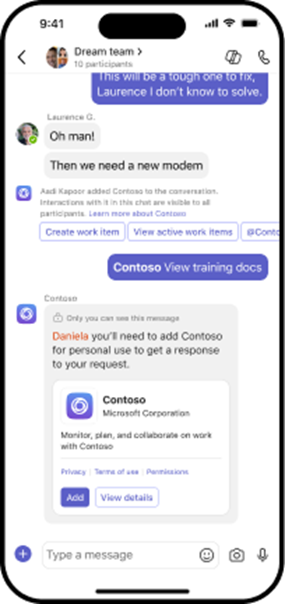
When a bot is added to a group chat for the first time and consent is required for a particular user, a consent dialog box appears only to the user who @mentions the bot. The user must give one-time consent to the permissions requested by the bot app to get the access token.
The user @mentions the bot. An Adaptive Card appears to request the user's consent.
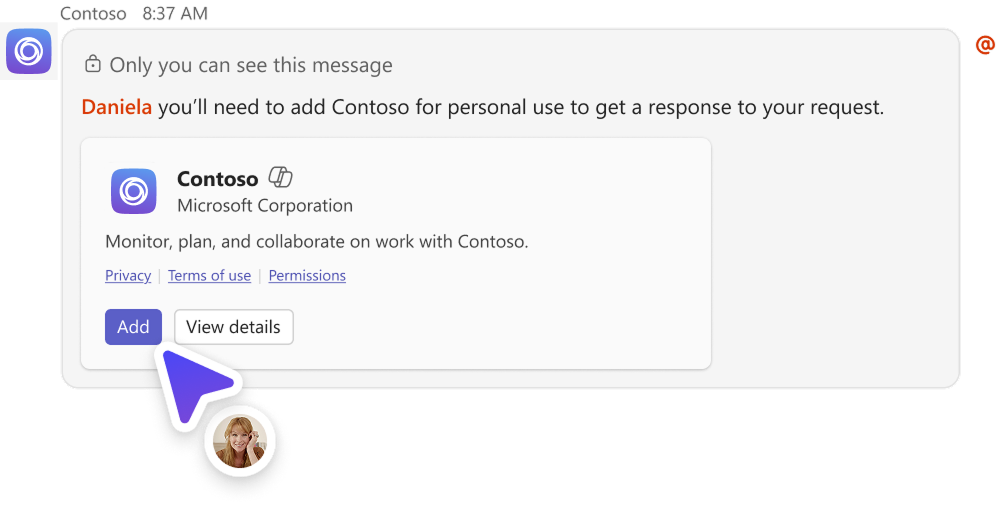
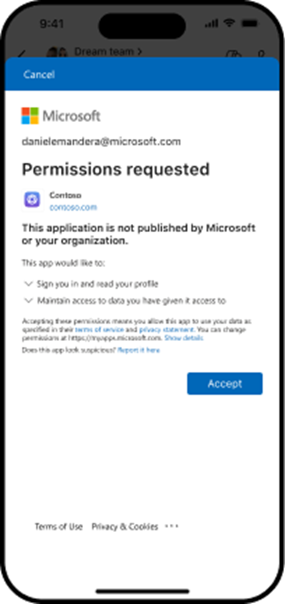
If the user selects Add, a permissions dialog box appears.
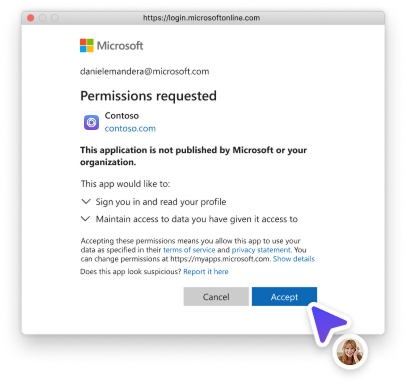
The user must select Accept to give consent.
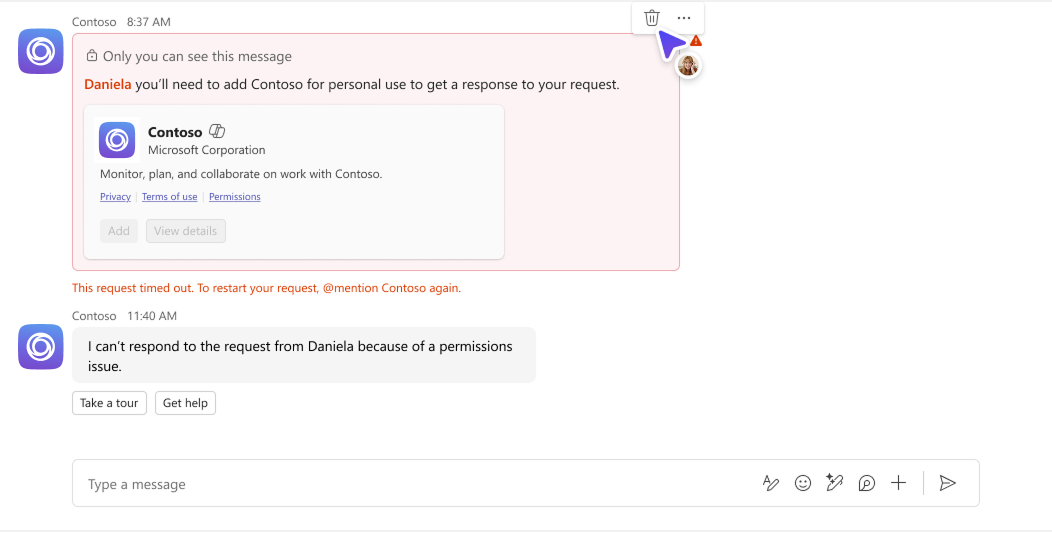
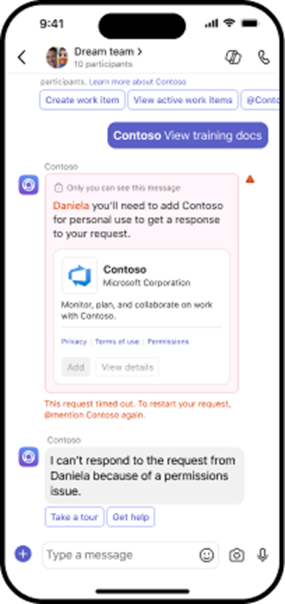
If the user declines, or the request times out, the user must @mention the bot again to grant permission for token acquisition. The group is able to see a bot message that the authentication wasn't successful.
Microsoft Entra ID consent is not required
If the user permissions are granted by default or for trusted apps, the user who @mentions the bot can directly interact with the bot without needing to give consent.
Note
After the app user consents, they're not required to consent again for any other permissions. If the permissions defined in Microsoft Entra scope are modified, then the app user might need to consent again. If, however, the consent prompt fails to let the app user access, the bot app falls back to sign-in card.
Important
Scenarios where consent dialogs aren't needed:
- If the admin grants consent on behalf of the tenant, app users don't need to be prompted for consent at all. This means that the app users don't see the consent dialogs and can access the app seamlessly.
- If your Microsoft Entra app is registered in the same tenant from which you're requesting an authentication in Teams, the app user can't be asked to consent, and is granted an access token right away. App users consent to these permissions only if the Microsoft Entra app is registered in a different tenant.
If you encounter any errors, see Troubleshoot SSO authentication in Teams.
Code sample
| Sample name | Description | .NET | Node.js |
|---|---|---|---|
| Bot conversation SSO quick start | Quickly set up Teams bot with SSO for seamless user authentication for one-on-one and group chats. | View | View |
Next step
Collaborate with us on GitHub
The source for this content can be found on GitHub, where you can also create and review issues and pull requests. For more information, see our contributor guide.
Platform Docs