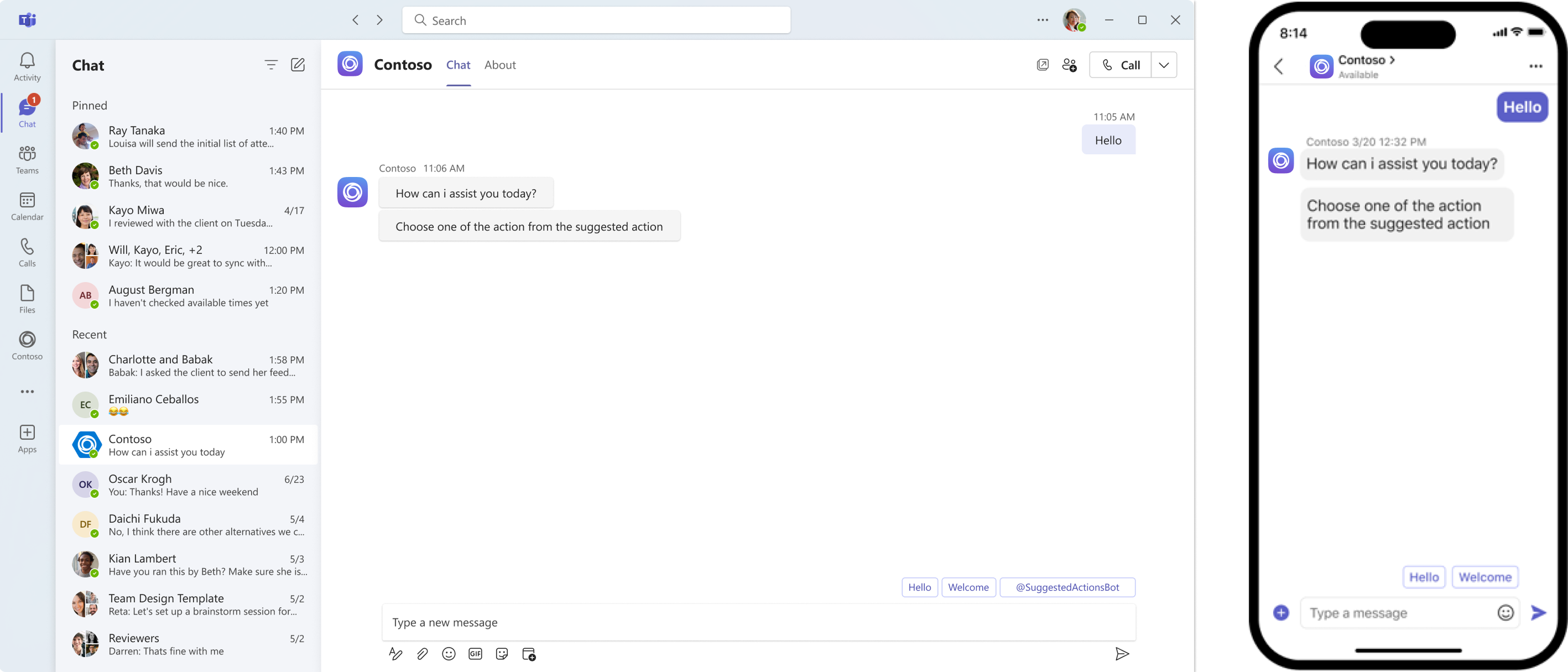
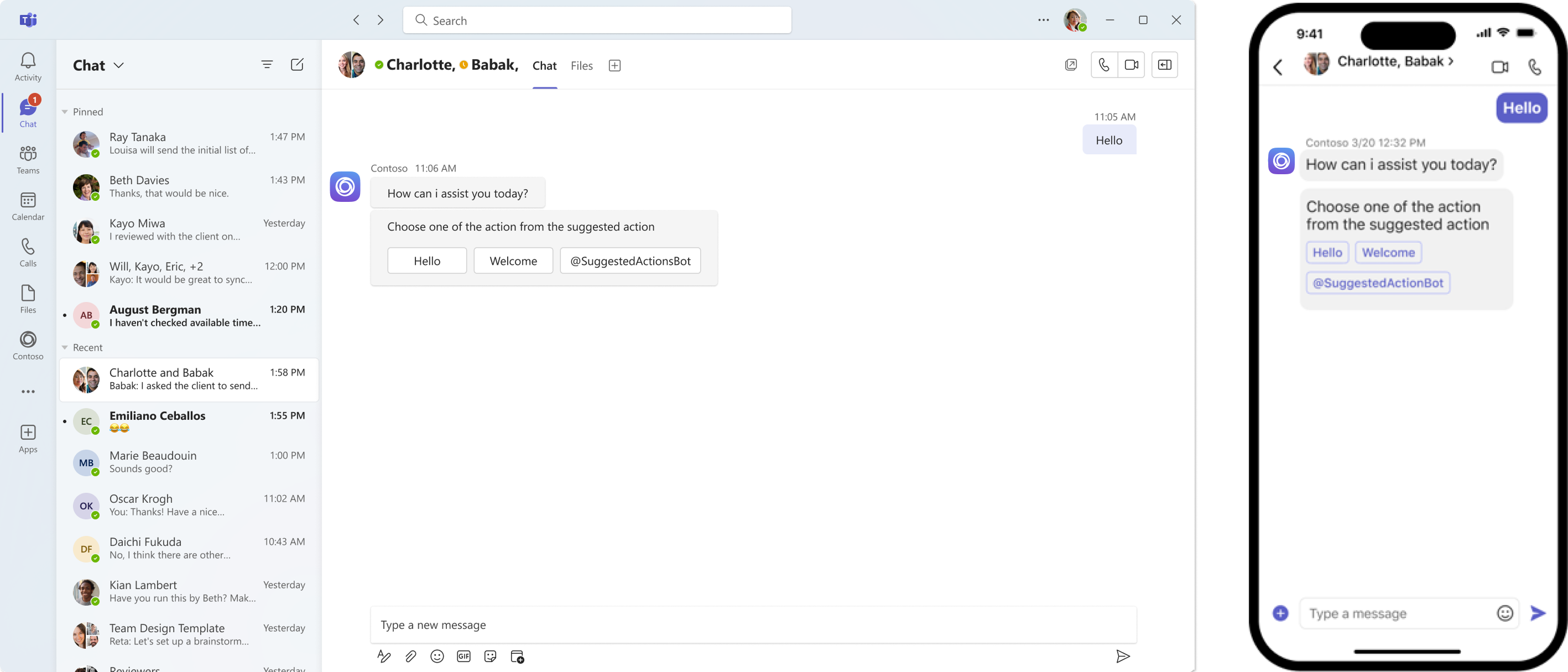
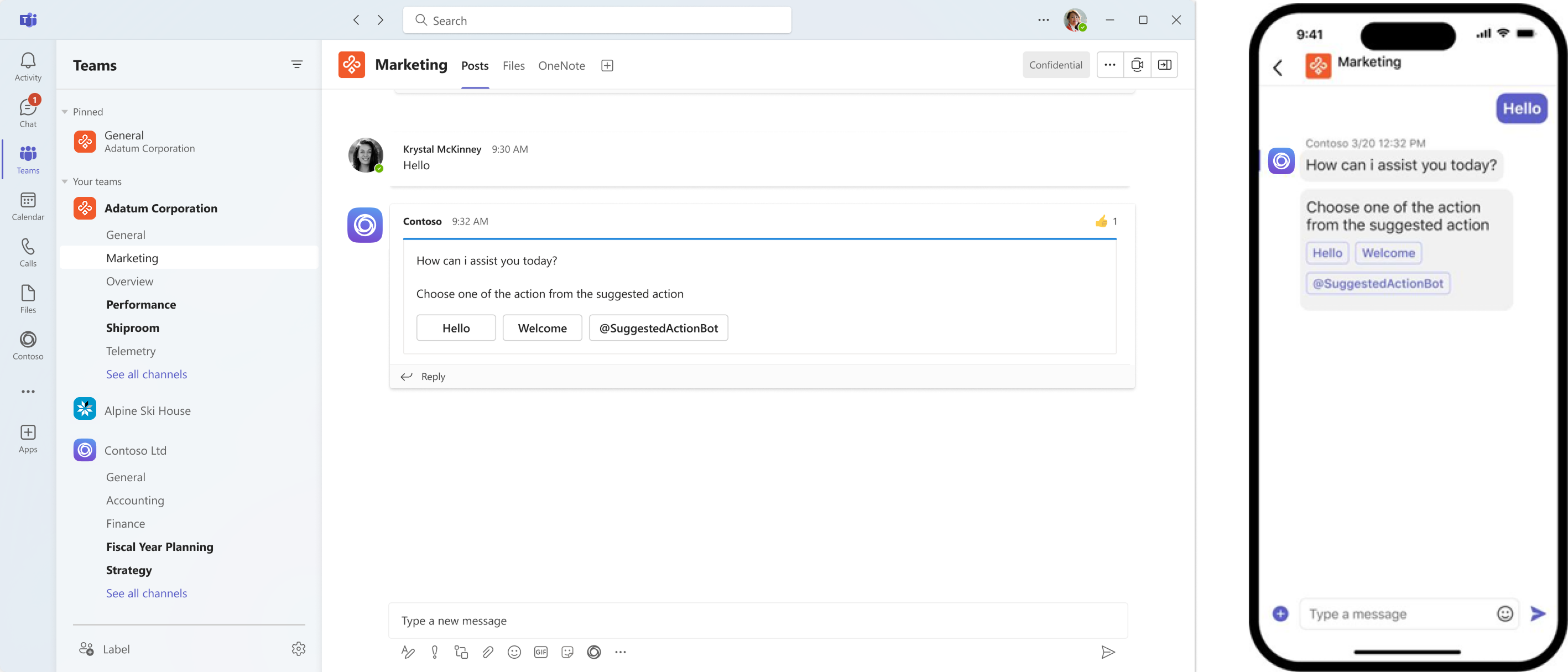
Suggested actions help users continue conversations with your bot by presenting context-specific next steps in the chat.
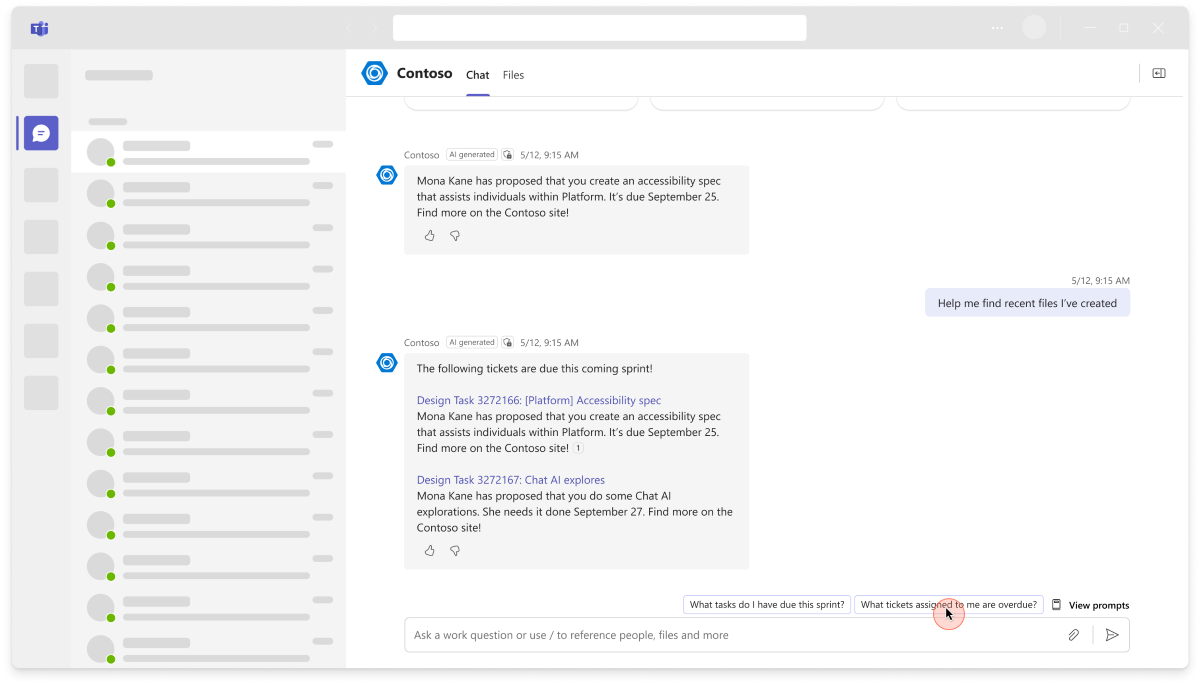
For guidance on commands that help users start a conversation, see Create prompt starters.
Suggested actions
Suggested actions help users with ideas of what to ask next, based on the previous response or conversation. Your agent or bot should offer context-specific suggestions to the user, rather than generic or fixed ones. You can use your agent's or bot’s large language model (LLM) to generate up to three suggestions along with its responses. Then, you can extract these suggestions and present them as options for the user to choose. You can build the following suggested actions in your agent or bot:
imBack: Use imBack to add suggested actions, set activity.suggestedActions to a list of card actions (buttons) to show the user.Action.Compose: Use Action.Compose to prefill the compose box with a message (including tags, @mentions, and rich content like emojis, GIFs, and other semantic objects).Action.Submit: Use Action.Submit for suggested action buttons in agent responses for slash commands that trigger server-side logic via an invoke activity (no user-visible chat message).
Important
The bot can parse up to three actions. Even if you include more than three actions, Teams displays only the first three.
When a user selects a button, it remains visible and accessible on the rich cards. Suggested actions are supported in all scopes:
personal: In one-on-one chats, actions are shown as smart replies, so only the actions from the last message appear.team and groupChat: In group chats and channels, actions are always saved with the message.
Note
SuggestedActions aren't supported for chat bots with attachments for any conversation type.
Here are some examples that show how to implement and experience suggested actions using imBack, Action.Compose, and Action.Submit:
To add suggested actions to a message, specify a list of card action objects that represent the buttons to be displayed to the user for the suggestedActions property of the activity object.
The following is an example to implement suggested actions using imBack:
{
  "type": "message",
  "from": {
    "id": "12345678",
    "name": "sender's name"
  },
  "conversation": {
    "id": "abcd1234",
    "name": "conversation's name"
  },
  "recipient": {
    "id": "1234abcd",
    "name": "recipient's name"
  },
  "text": "What are the tasks for the day.",
  "inputHint": "expectingInput",
  "suggestedActions": {
    "actions": [
      {
        "type": "imBack",
        "title": "Create a new query identifying overdue tasks",
        "value": "Create a new query identifying overdue tasks"
      },
      {
        "type": "imBack",
        "title": "Create a new work item for this feature",
        "value": "Create a new work item for this feature"
      }
    ]
  },
  "replyToId": "5d5cdc723"
}
You can use the Action.Compose to insert a message in the compose box, which helps you add a new action type. This action enables you to include semantic objects like tags, mention users in the chat or channel, and other rich objects like emojis and gifs.
The following code snippet shows an example of implementing Action.Compose:
{
  Type: “Action.Compose”,
  Title: “button title”,
  Value: {
      type: “Teams.chatMessage”,
      data: <GraphAPI Chat Message Object>
  }
}
The value object must follow the chatMessage object in the Graph API.
For more information, see code sample.
Note
If the message is received in a hub that doesn't support it, the app shows an error message. The bots are aware of the channel to which its posting.
Use Action.Submit for suggested action buttons that run server-side agent or bot logic without posting a user-visible message. When a user selects the button, Teams sends an invoke activity instead of a regular message activity. Include a structured payload in value so your app can route and process the action consistently through existing invoke handlers.
Use Action.Submit to add suggested action buttons to agent responses to slash commands, so users can choose a next step without disrupting the conversation.
This pattern is particularly useful for the targeted messages workflow where an agent asks whether a targeted message should be resent as public. For more information, see Targeted messages in Teams.
Bot payload (outgoing from bot):
{
  "suggestedActions": {
    "actions": [{
      "type": "Action.Submit",
      "title": "Approve",
      "value": {
        "vote": "approve"
      }
    }]
  }
}
Note
The value is an object (not a string) that carries the data.
Bot handler (incoming to bot):
The agent or bot receives a standard Bot invoke activity:
case "suggestedAction/submit":
  const vote = context.activity.value;  // { vote: "approve" }
  // Process the action...
  return { status: 200 };
The agent or bot can dispatch on activity.name and read the structured payload from activity.value. This matches how agents and bots handle other named invokes, such as adaptiveCard/action and handoff/action.
Teams SDK implementation
Use the page pivot to view Teams SDK snippets for creating and handling Action.Submit suggested actions.
Note
The Action.Submit APIs are currently marked as experimental in Teams SDK.
#pragma warning disable ExperimentalTeamsSuggestedAction
using System.Text.Json;
using System.Text.Json.Nodes;
using Microsoft.Teams.Apps;
using Microsoft.Teams.Apps.Schema;

teams.OnMessage(async (context, cancellationToken) =>
{
    var reply = new MessageActivityInput()
        .WithText("Approve or reject the request:")
        .WithSuggestedActions(new SuggestedActions().AddActions(
            new SuggestedAction
            {
                Type = ActionTypes.Submit,
                Title = "Approve",
                Value = JsonNode.Parse("""{"vote":"approve"}""")
            },
            new SuggestedAction
            {
                Type = ActionTypes.Submit,
                Title = "Reject",
                Value = JsonNode.Parse("""{"vote":"reject"}""")
            }));

    await context.SendAsync(reply, cancellationToken);
});

teams.OnSuggestedActionSubmit(async (context, cancellationToken) =>
{
    var payload = context.Activity.Value is JsonElement value
        ? value.GetRawText()
        : "<none>";

    await context.SendAsync($"Got vote: {payload}", cancellationToken);
});
#pragma warning disable ExperimentalTeamsSuggestedAction
using System.Text.Json;
using Microsoft.Teams.Api;
using Microsoft.Teams.Api.Activities;
using CardAction = Microsoft.Teams.Api.Cards.Action;
using CardActionType = Microsoft.Teams.Api.Cards.ActionType;

var reply = new MessageActivity("Approve or reject the request:")
{
    SuggestedActions = new SuggestedActions
    {
        Actions =
        {
            new CardAction(CardActionType.Submit) { Title = "Approve", Value = new { vote = "approve" } },
            new CardAction(CardActionType.Submit) { Title = "Reject", Value = new { vote = "reject" } }
        }
    }
};

await context.Send(reply);

teams.OnSuggestedActionSubmit(async (ctx, cancellationToken) =>
{
    var payload = ctx.Activity.Value is JsonElement value
        ? value.GetRawText()
        : "<none>";
    await ctx.Send($"Got vote: {payload}", cancellationToken);
});
import { MessageActivity, type SuggestedActions } from "@microsoft/teams.api";

const reply = new MessageActivity("Approve or reject the request:");
reply.suggestedActions = {
  to: [],
  actions: [
    { type: "Action.Submit", title: "Approve", value: { vote: "approve" } },
    { type: "Action.Submit", title: "Reject", value: { vote: "reject" } }
  ]
} satisfies SuggestedActions;

await send(reply);

app.on("suggested-action.submit", async ({ send, activity }) => {
  const payload = activity.value != null ? JSON.stringify(activity.value) : "<none>";
  await send(`Got vote: ${payload}`);
});
import json
from microsoft_teams.api import MessageActivityInput
from microsoft_teams.api.models.card.card_action import CardAction
from microsoft_teams.api.models.card.card_action_type import CardActionType
from microsoft_teams.api.models.suggested_actions import SuggestedActions

reply = MessageActivityInput(text="Approve or reject the request:").with_suggested_actions(
    SuggestedActions(
        to=[],
        actions=[
            CardAction(type=CardActionType.SUBMIT, title="Approve", value={"vote": "approve"}),
            CardAction(type=CardActionType.SUBMIT, title="Reject", value={"vote": "reject"}),
        ],
    )
)

await ctx.send(reply)

@app.on_suggested_action_submit
async def handle_suggested_action_submit(ctx):
    payload = json.dumps(ctx.activity.value)
    await ctx.send(f"Got vote: {payload}")
See also