Note
Access to this page requires authorization. You can try signing in or changing directories.
Access to this page requires authorization. You can try changing directories.
This article is not available for the selected development language.
Before going through this guide, please make sure you have completed the setup and prerequisites guide.
Setup
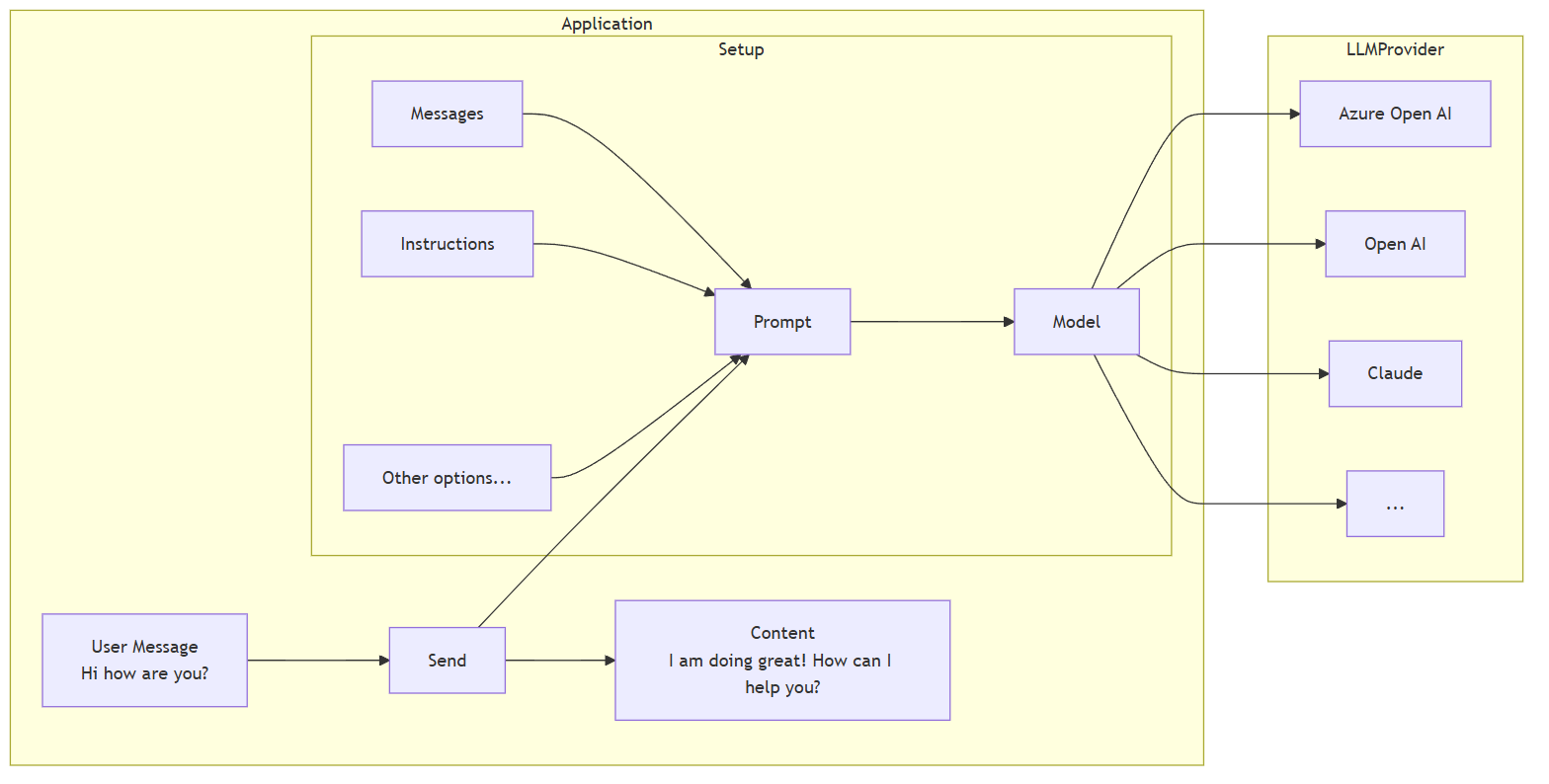
The basic setup involves creating a ChatPrompt and giving it the Model you want to use.
Simple chat generation
Chat generation is the the most basic way of interacting with an LLM model. It involves setting up your ChatPrompt, the Model, and sending it the message.
Import the relevant namespaces:
// AI
using Microsoft.Teams.AI.Models.OpenAI;
using Microsoft.Teams.AI.Prompts;
// Teams
using Microsoft.Teams.Api.Activities;
using Microsoft.Teams.Apps;
using Microsoft.Teams.Apps.Activities;
using Microsoft.Teams.Apps.Annotations;
Create a ChatModel, ChatPrompt, and handle user - LLM interactions:
Import the relevant objects:
import { OpenAIChatModel } from '@microsoft/teams.openai';
using Microsoft.Teams.AI.Models.OpenAI;
using Microsoft.Teams.AI.Prompts;
using Microsoft.Teams.AI.Templates;
using Microsoft.Teams.Api.Activities;
using Microsoft.Teams.Apps.Activities;
using Azure.AI.OpenAI;
using System.ClientModel;
// Configuration
var azureOpenAIModel = configuration["AzureOpenAIModel"]!;
var azureOpenAIEndpoint = configuration["AzureOpenAIEndpoint"]!;
var azureOpenAIKey = configuration["AzureOpenAIKey"]!;
var azureOpenAI = new AzureOpenAIClient(
new Uri(azureOpenAIEndpoint),
new ApiKeyCredential(azureOpenAIKey)
);
// AI Model
var aiModel = new OpenAIChatModel(azureOpenAIModel, azureOpenAI);
// Simple chat handler
teamsApp.OnMessage(async (context, cancellationToken) =>
{
var prompt = new OpenAIChatPrompt(aiModel, new ChatPromptOptions
{
Instructions = new StringTemplate("You are a friendly assistant who talks like a pirate")
});
var result = await prompt.Send(context.Activity.Text);
if (result.Content != null)
{
var messageActivity = new MessageActivity
{
Text = result.Content,
}.AddAIGenerated();
await context.Send(messageActivity, cancellationToken);
// Ahoy, matey! 🏴☠️ How be ye doin' this fine day on th' high seas? What can this ol' salty sea dog help ye with? 🚢☠️
}
});
import { ChatPrompt } from '@microsoft/teams.ai';
import { MessageActivity } from '@microsoft/teams.api';
import { App } from '@microsoft/teams.apps';
import { OpenAIChatModel } from '@microsoft/teams.openai';
// ...
app.on('message', async ({ send, activity, next, log }) => {
const model = new OpenAIChatModel({
apiKey: process.env.AZURE_OPENAI_API_KEY || process.env.OPENAI_API_KEY,
endpoint: process.env.AZURE_OPENAI_ENDPOINT,
apiVersion: process.env.AZURE_OPENAI_API_VERSION,
model: process.env.AZURE_OPENAI_MODEL_DEPLOYMENT_NAME!,
});
const prompt = new ChatPrompt({
instructions: 'You are a friendly assistant who talks like a pirate',
model,
});
const response = await prompt.send(activity.text);
if (response.content) {
const activity = new MessageActivity(response.content).addAiGenerated();
await send(activity);
// Ahoy, matey! 🏴☠️ How be ye doin' this fine day on th' high seas? What can this ol' salty sea dog help ye with? 🚢☠️
}
});
Declarative Approach
This approach uses attributes to declare prompts, providing clean separation of concerns.
Create a Prompt Class:
using Microsoft.Teams.AI.Annotations;

namespace Samples.AI.Prompts;

[Prompt]
[Prompt.Description("A friendly pirate assistant")]
[Prompt.Instructions("You are a friendly assistant who talks like a pirate")]
public class PiratePrompt
{
}
Usage in Program.cs:
using Microsoft.Teams.AI.Models.OpenAI;
using Microsoft.Teams.Api.Activities;
// Create the AI model
var aiModel = new OpenAIChatModel(azureOpenAIModel, azureOpenAI);
// Use the prompt with OpenAIChatPrompt.From()
teamsApp.OnMessage(async (context, cancellationToken) =>
{
var prompt = OpenAIChatPrompt.From(aiModel, new Samples.AI.Prompts.PiratePrompt());
var result = await prompt.Send(context.Activity.Text);
if (!string.IsNullOrEmpty(result.Content))
{
await context.Send(new MessageActivity { Text = result.Content }.AddAIGenerated(), cancellationToken);
// Ahoy, matey! 🏴☠️ How be ye doin' this fine day on th' high seas?
}
});
Note
The current OpenAIChatModel implementation uses chat-completions API. The responses API is coming soon.
Streaming chat responses
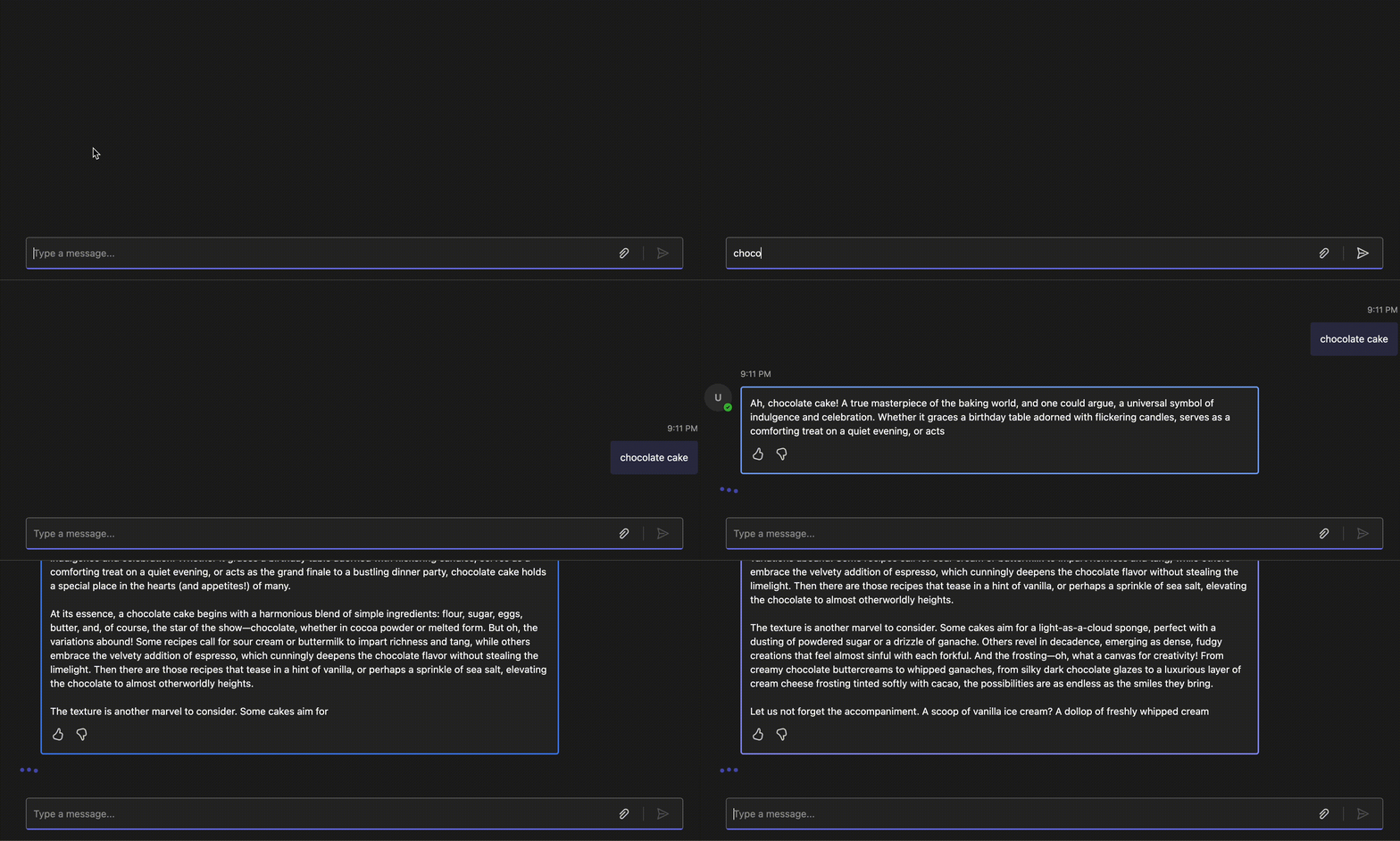
LLMs can take a while to generate a response, so often streaming the response leads to a better, more responsive user experience.
Warning
Streaming is only currently supported for single 1:1 chats, and not for groups or channels.
// Streaming handler
teamsApp.OnMessage(async (context, cancellationToken) =>
{
    var match = Regex.Match(context.Activity.Text ?? "", @"^stream\s+(.+)", RegexOptions.IgnoreCase);
    if (match.Success)
    {
        var query = match.Groups[1].Value.Trim();
        var prompt = new OpenAIChatPrompt(aiModel, new ChatPromptOptions
        {
            Instructions = new StringTemplate("You are a friendly assistant who responds in extremely verbose language")
        });

        var result = await prompt.Send(query, (chunk) =>
        {
            context.Stream.Emit(chunk);
            return Task.CompletedTask;
        });
    }
});
import { ChatPrompt } from '@microsoft/teams.ai';
import { MessageActivity } from '@microsoft/teams.api';
import { App } from '@microsoft/teams.apps';
// ...

app.on('message', async ({ stream, send, activity, next, log }) => {
  // const query = activity.text;

  const prompt = new ChatPrompt({
    instructions: 'You are a friendly assistant who responds in extremely verbose language',
    model,
  });

  // Notice that we don't `send` the final response back, but
  // `stream` the chunks as they come in
  const response = await prompt.send(query, {
    onChunk: (chunk) => {
      stream.emit(chunk);
    },
  });

  if (activity.conversation.isGroup) {
    // If the conversation is a group chat, we need to send the final response
    // back to the group chat
    const activity = new MessageActivity(response.content).addAiGenerated();
    await send(activity);
  } else {
    // We wrap the final response with an AI Generated indicator
    stream.emit(new MessageActivity().addAiGenerated());
  }
});