Note
Access to this page requires authorization. You can try signing in or changing directories.
Access to this page requires authorization. You can try changing directories.
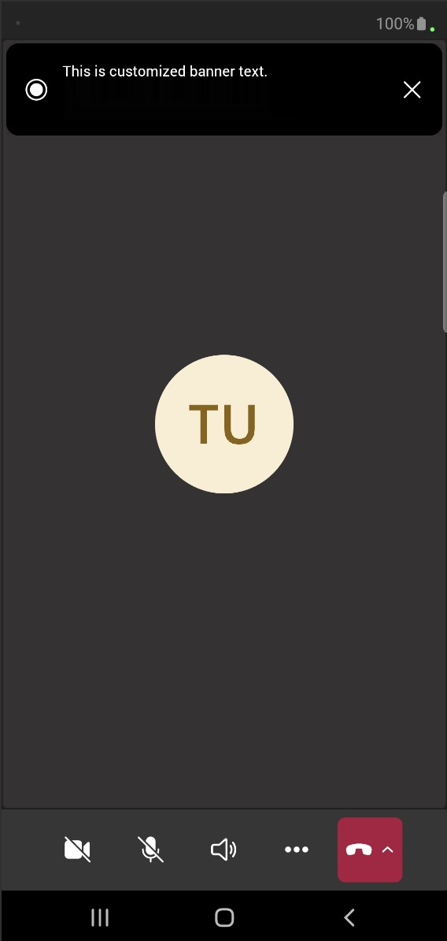
The Compliance Recording Custom Banner feature in Microsoft Teams enables admins to configure custom banner text that's displayed to participants in meetings, two-party calls, and group calls when compliance recording is enabled.
You can assign custom banner text to individual users or groups by using Teams compliance recording policies. For more information, see CsTeamsComplianceRecording Policy.
This article describes how to create and configure custom banner text for compliance recording.
Create and configure custom banner text
To create and assign custom banner text to users or groups, follow these steps:
- Create custom banner text.
- Retrieve the banner text identifier.
- Associate the banner text identifier with a compliance recording policy.
Step 1: Create custom banner text
Use the New-CsTeamsCustomBannerText cmdlet to create custom banner text.
| Parameter | Details |
|---|---|
-Description |
Optional. Description to identify the banner text. |
-Id |
Optional. Unique identifier (GUID) for the banner text. If you don't provide a value, a GUID is generated automatically (recommended). If you choose to provide your own value, specify a unique GUID for each banner text entry you create. |
-Text |
Required. The banner text that's displayed when the call or meeting is being recorded. Maximum length: 1,000 characters. |
Example:
New-CsTeamsCustomBannerText -Description "Sample_Description" -Text "Sample custom banner text"
Step 2: Retrieve the banner text identifier
You can create multiple custom banner text entries for a given tenant. To associate banner text with a compliance recording policy, first retrieve the banner text identifier by using the Get-CsTeamsCustomBannerText cmdlet.
This cmdlet doesn't require any parameters and returns a list of custom banner text entries created in your tenant.
Example:
Get-CsTeamsCustomBannerText
In the output, each custom banner text entry includes the following properties:
- Id
- Identity
- Description
- Text
Locate the entry that you want in the output and copy the value of the Id property.
For example, running Get-CsTeamsCustomBannerText returns the following output:
{
   {
     Id: 0bff88a9-6af1-4d59-92dd-59856154e186
     Identity: Global
     Description: “Custom Banner Text for Finance Team”
     Text: “Sample custom banner text for Finance Team”
   },
   {
     Id: c42881ae-6981-4aa2-8596-96dda2f6b5ba
     Identity: Global
     Description: “Custom Banner Text for Engineering Team”
     Text: “Sample custom banner text for Engineering Team”
   },
   {
     Id: 8a19f66a-8ece-4c38-9dde-22fdfb60ac10
     Identity: Global
     Description: “Custom Banner Text for Sales Team”
     Text: “Sample custom banner text for Sales Team”
   }
}
To choose the banner text that was created for the Sales team, copy the value of the Id property, which is 8a19f66a-8ece-4c38-9dde-22fdfb60ac10.
Step 3: Associate the banner text identifier with a compliance recording policy
You can associate custom banner text with a new or existing compliance recording policy by using the New-CsTeamsComplianceRecordingPolicy or Set-CsTeamsComplianceRecordingPolicy cmdlets.
Example:
Set-CsTeamsComplianceRecordingPolicy -Identity SampleComplianceRecordingPolicy -CustomBanner <GUID>
Custom banner text takes effect only when compliance recording is enabled through the policy and valid compliance recording application settings are configured in the policy.
How compliance recording policies determine banner text in meetings and calls
Meetings
Meetings include scheduled and ad hoc meetings. All other multiparty calls are treated as group calls.
An external user belongs to a different organization than the meeting organizer. PSTN users are also considered external users. An internal user belongs to the same organization as the meeting organizer.
For meetings, the banner text of an external compliance-recorded user is never displayed.
Banner text policy behavior
The meeting organizer's effective compliance recording policy determines the banner text that's displayed. The policy can be either a user policy or the global policy.
The banner text is shown to all participants, regardless of whether they're enabled for compliance recording, as long as at least one internal compliance recording user joins the meeting.
If the meeting organizer has banner text configured but compliance recording isn't enabled, the organizer's banner text is still displayed when an internal compliance recording user joins the meeting.
Here are some examples:
- If the meeting organizer’s compliance recording policy includes custom banner text, it's displayed when an internal compliance recording user joins the meeting.
- If the meeting organizer’s policy doesn't include custom banner text, Teams uses the global compliance recording policy. If the global policy includes custom banner text, that banner is used even if the global policy isn't enabled.
Two-party calls and group calls
Two-party calls
When a two-party call is established, the effective policy of the caller is used. If it's not set, the effective policy of the callee is used. If neither policy includes custom banner text, Teams uses the following order.
Caller → Callee → Caller's delegators → Transferor → Transferor’s delegator → Callee's delegator → Callee's forwarder
If no banner text is configured for any of these users, the generic banner is used.
If the call becomes a multiparty call, the banner text isn't updated based on the policy of the newly added user. Once the banner text is selected, it remains unchanged for the remainder of the call.
Note
If the user whose custom banner was displayed leaves the call, Teams displays the generic banner as long as compliance recording users are still being recorded. This occurs only after the call becomes a group call with more than one participant.
Group calls
For group calls initiated from a group chat (not a meeting), Teams checks the group call initiator's policy and:
- If no banner text is configured in their policy, the generic banner is displayed if other compliance recording users are in the call.
- If banner text is configured in their policy, the custom banner is displayed to all users if another compliance recording user is in the call.
Note
The effective policy can either be a user policy or the global policy. Teams checks the user policy first. If it's not set, the custom banner text in the global policy is used.
User experience
Teams desktop

Teams mobile