Note
Access to this page requires authorization. You can try signing in or changing directories.
Access to this page requires authorization. You can try changing directories.
Add-ins may require users to sign in or sign up to access features. Common authentication controls include username and password fields and buttons that start non-Microsoft credential flows. A simple, efficient authentication experience helps users get started quickly.
Best practices
| Do | Don't |
|---|---|
| Before sign-in, describe the value of your add-in or demonstrate functionality without requiring an account. | Expect users to sign in without understanding the value and benefits of your add-in. |
| Guide users through authentication flows with a primary, highly visible button on each screen. | Draw attention to secondary and tertiary tasks with competing buttons and calls to action. |
| Use clear button labels that describe specific tasks like "Sign in" or "Create account". | Use vague button labels like "Submit" or "Get started". |
| Use a dialog to focus users' attention on authentication forms. | Overcrowd your task pane with a first-run experience and authentication forms. |
| Find small efficiencies in the flow, like auto-focusing input boxes. | Add unnecessary steps to the interaction, like requiring users to click into form fields. |
| Provide a way for users to sign out and reauthenticate. | Force users to uninstall to switch identities. |
Authentication flow
Use this flow to guide users from first-run experience to a completed sign-in.
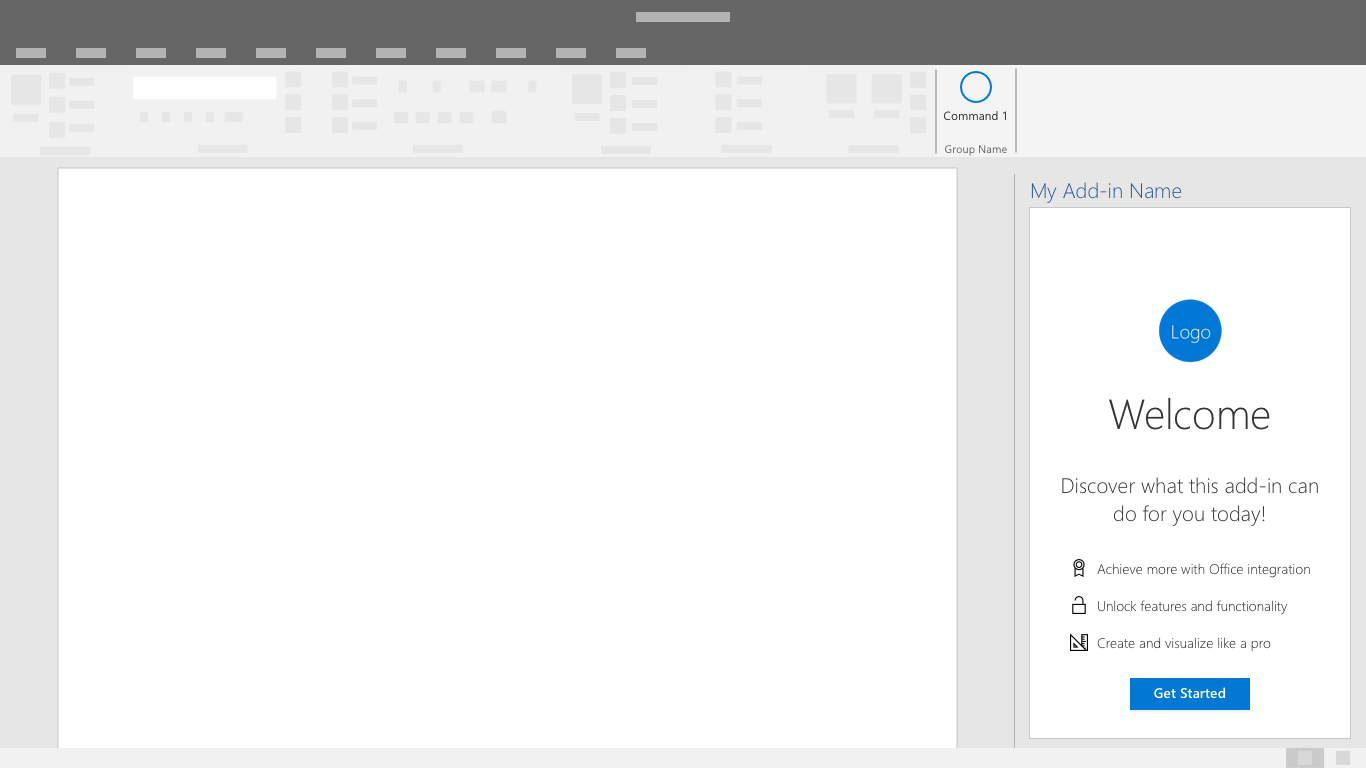
First-run placemat: Place your sign-in button as a clear call to action in your add-in's first-run experience.
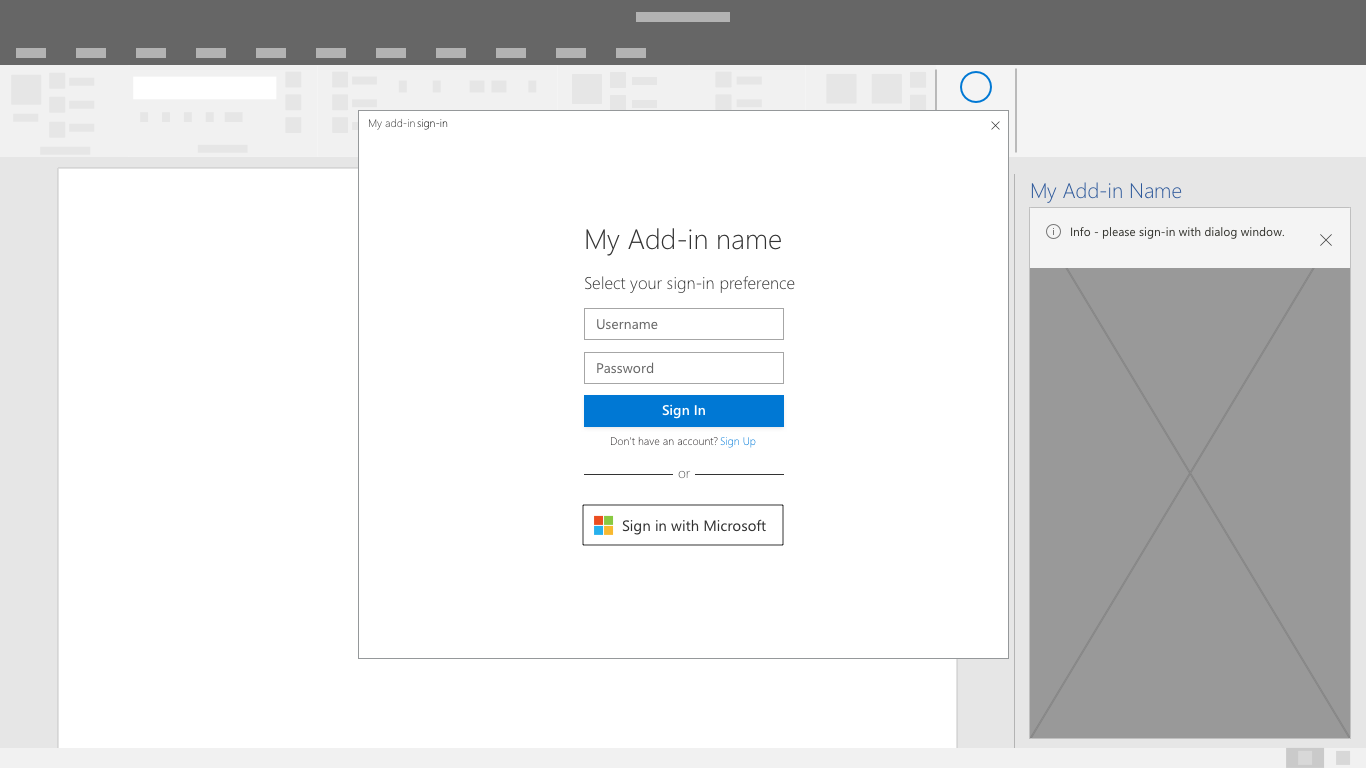
Identity provider choices dialog: Display a clear list of identity providers, including a username and password form if applicable. Your add-in UI might be blocked while the authentication dialog is open.
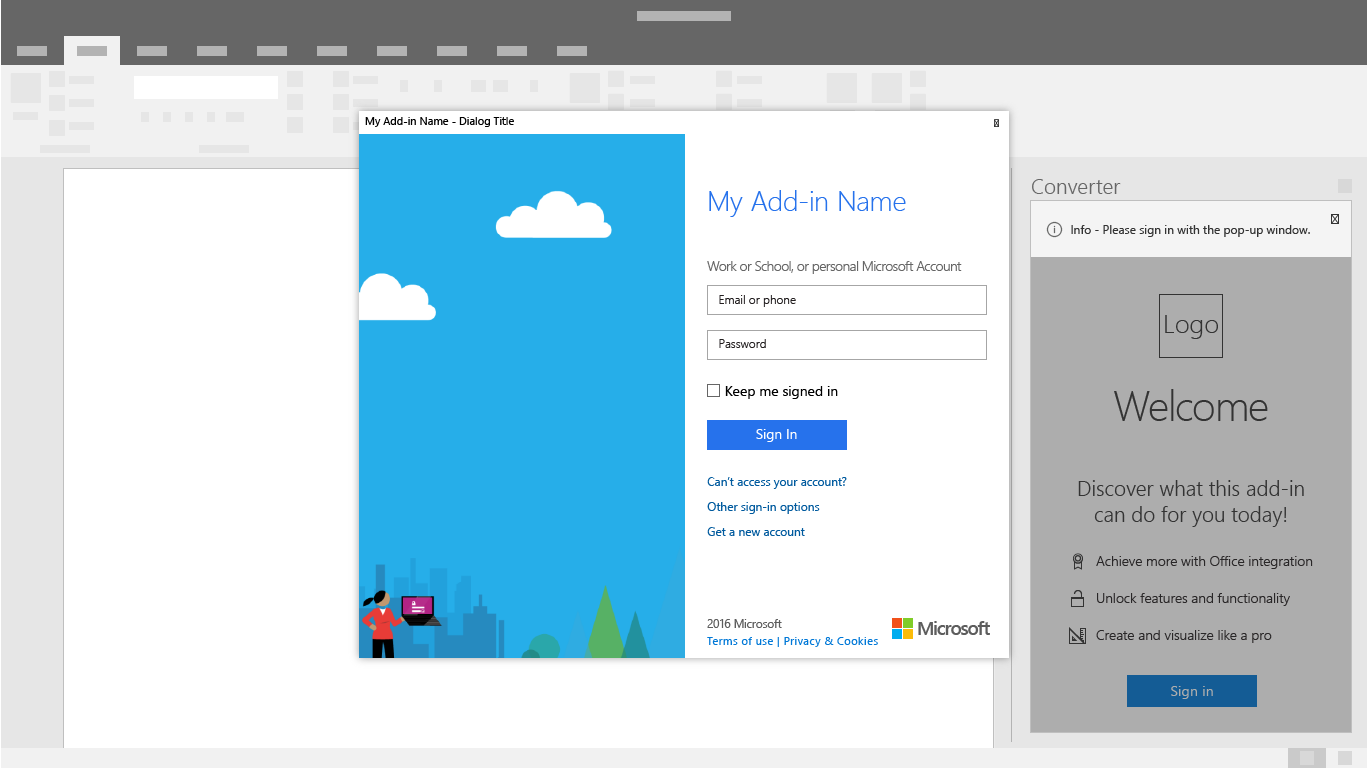
Identity provider sign-in: The identity provider has its own UI. Microsoft Entra ID supports customization of sign-in and access panel pages to keep the look and feel consistent with your service. For more information, see Configure your company branding.
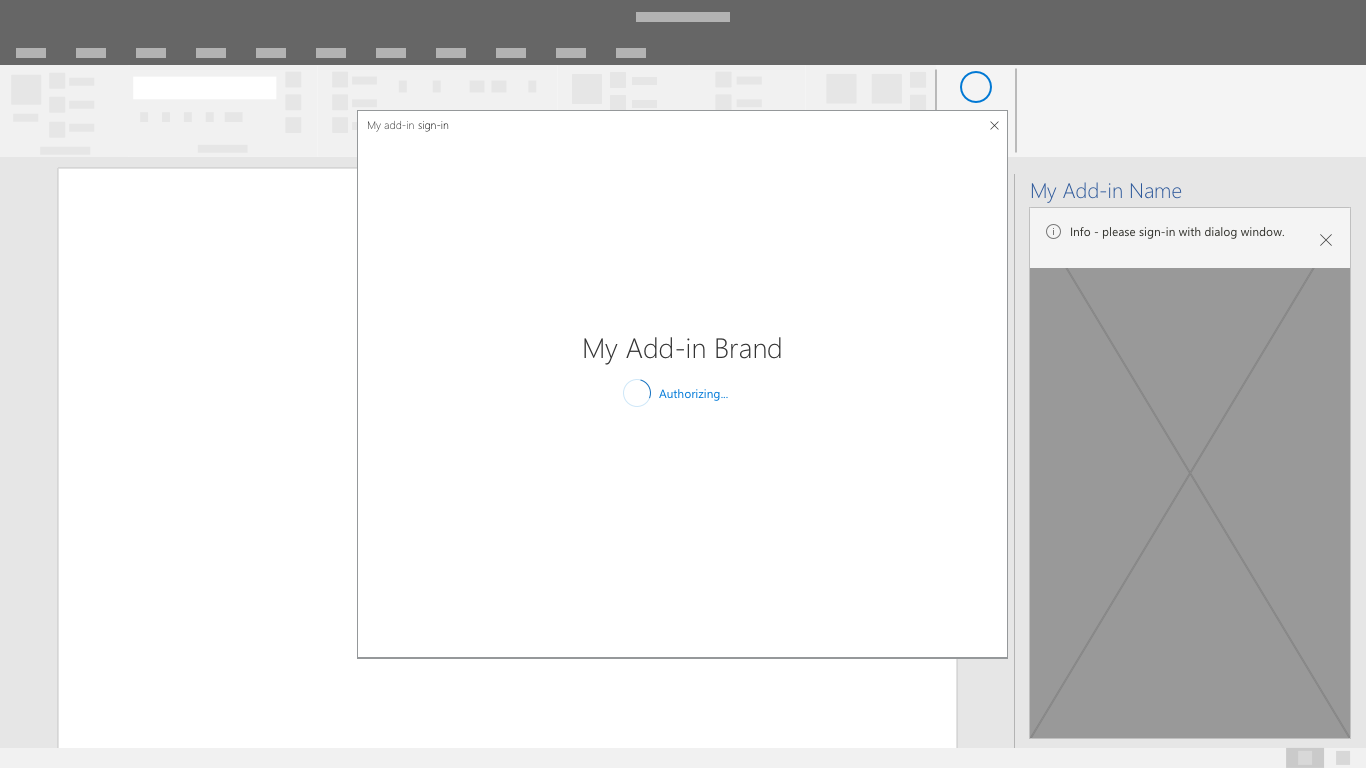
Progress: Indicate progress while settings and UI load.
Note
When using Microsoft Entra ID, you can use a branded sign-in button that's customizable for light and dark themes. For more information, see Microsoft identity platform and OAuth 2.0 authorization code flow.
Single sign-on authentication flow
Note
The single sign-on API is currently supported for Word, Excel, Outlook, and PowerPoint. For more information about single sign-on support, see IdentityAPI requirement sets. If you're working with an Outlook add-in, be sure to enable modern authentication for the Microsoft 365 tenancy. For information about how to do this, see Enable or disable modern authentication for Outlook in Exchange Online.
Use single sign-on for a smoother end-user experience. The user's identity within Office (either a Microsoft Account or a Microsoft 365 identity) is used to sign in to your add-in. As a result users only sign in once. This removes friction in the experience making it easier for your customers to get started.
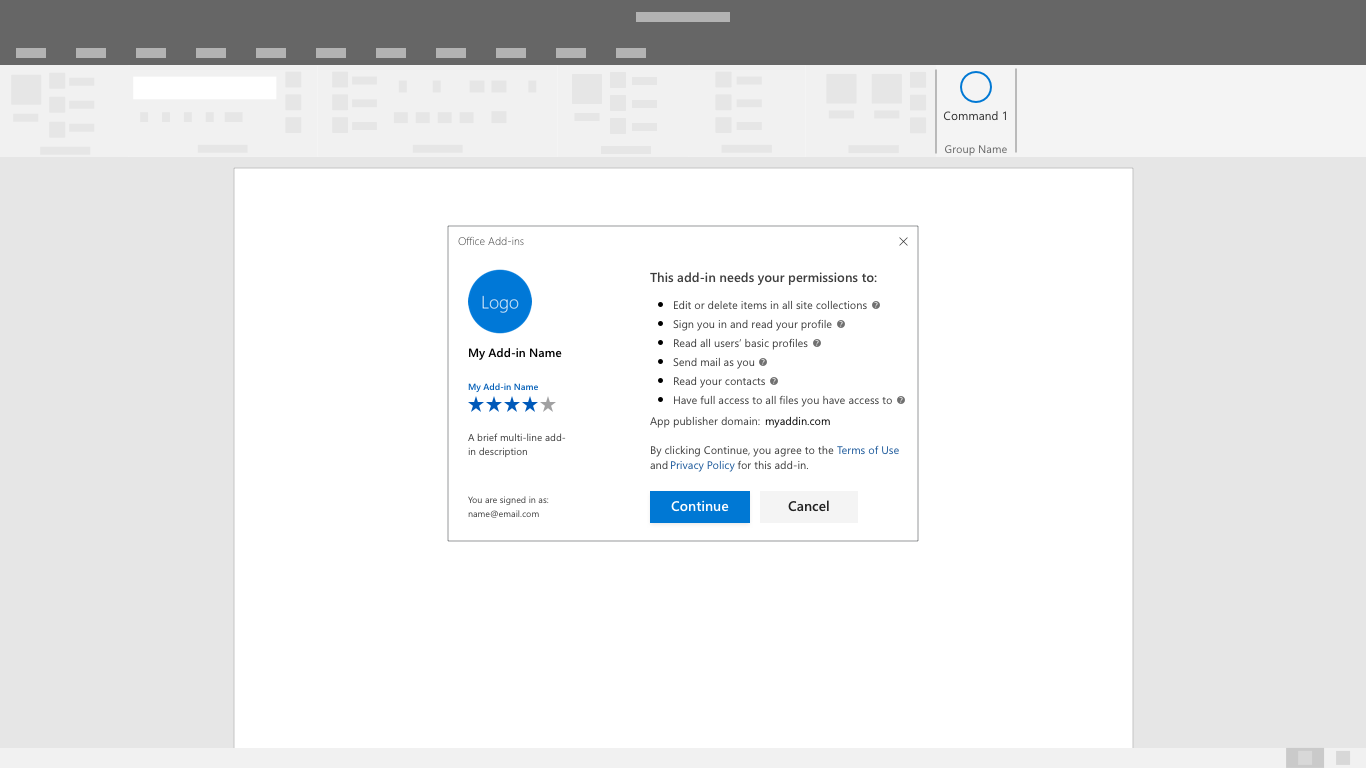
When an add-in is installed, the user sees a consent window similar to the following:
Note
The add-in publisher controls the logo, strings, and permission scopes included in the consent window. Microsoft preconfigures the consent window UI.
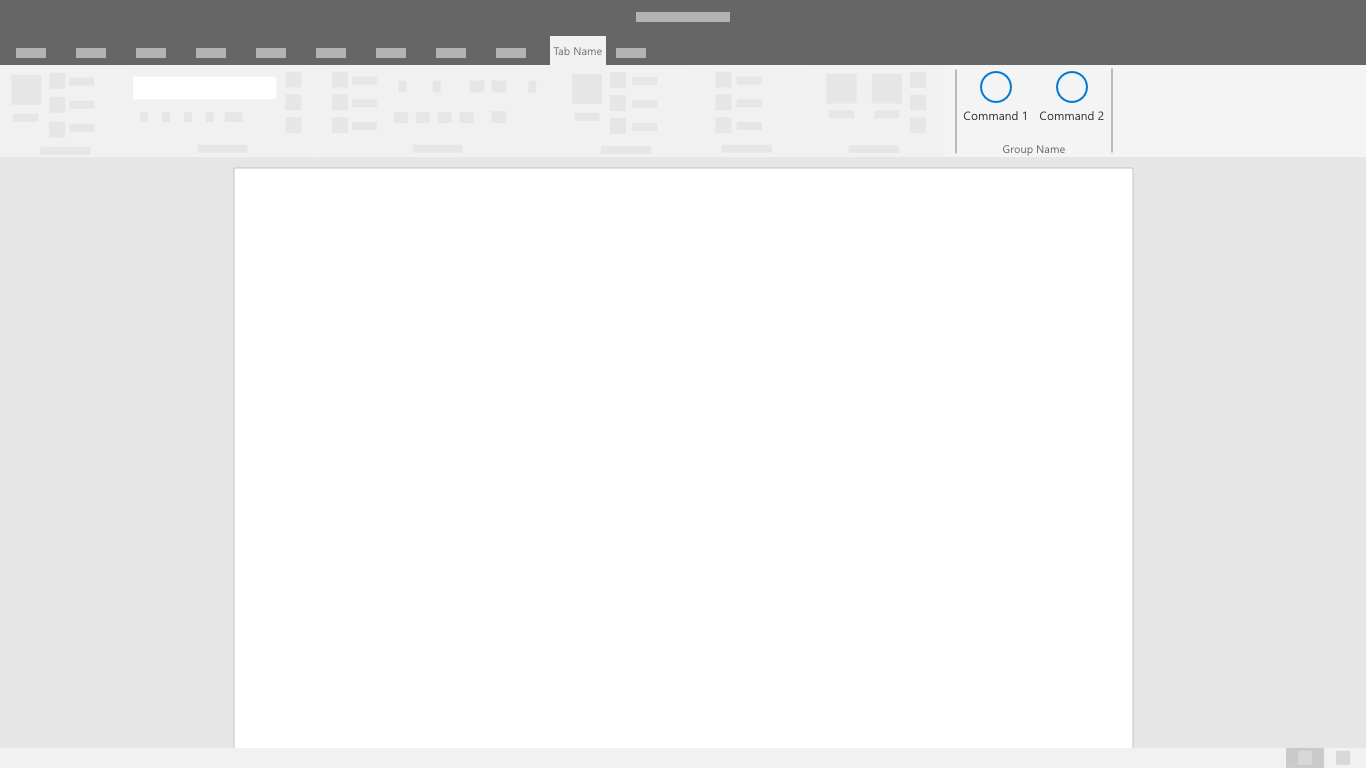
After the user consents, the add-in loads and can extract and display user-specific information.
See also
Collaborate with us on GitHub
The source for this content can be found on GitHub, where you can also create and review issues and pull requests. For more information, see our contributor guide.
Office Add-ins