Note
Access to this page requires authorization. You can try signing in or changing directories.
Access to this page requires authorization. You can try changing directories.
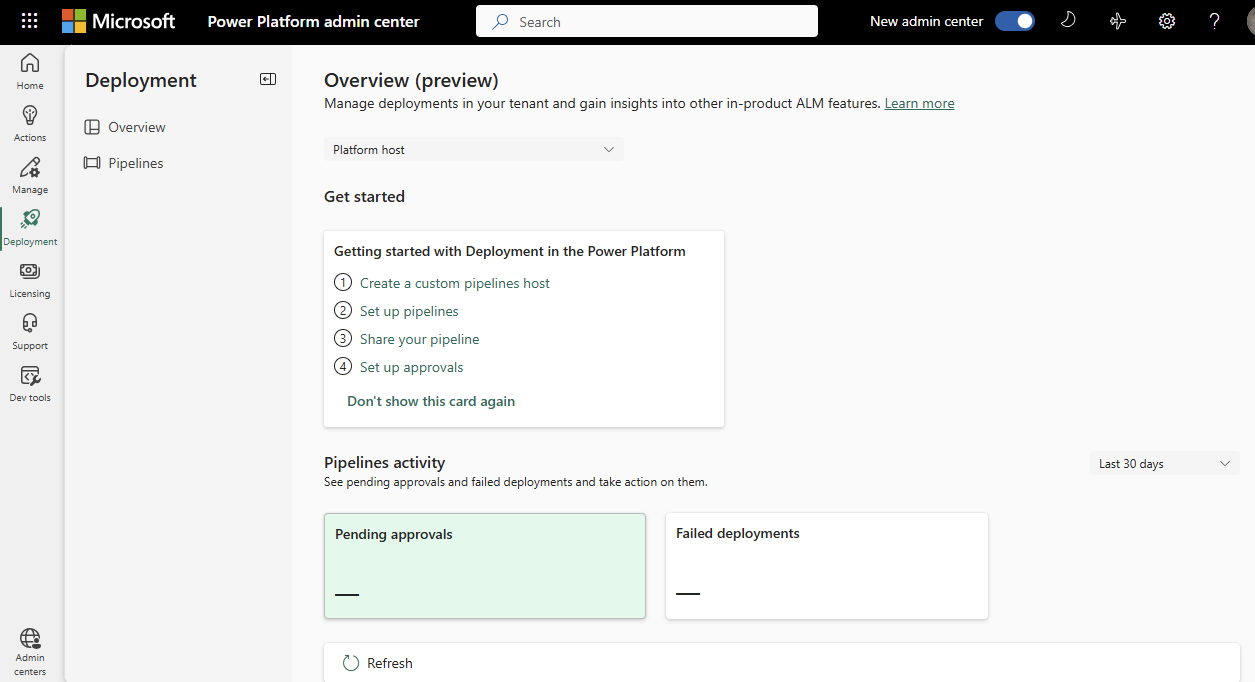
The Deployment page in the Power Platform admin center provides a streamlined experience to help administrators navigate the complexities of managing Power Platform application lifecycle management (ALM) workloads, including managing pipelines deployments at enterprise scale. Admins have visibility to all the deployments in their tenant and can approve deployment requests and troubleshoot issues.
Note
Currently the deployment page doesn't have all the capabilities available within the Deployment Pipelines Configuration app.
Use the deployment page
- Sign in to the Power Platform admin center.
- In the navigation pane, select Deployment.
- Select the desired pipelines host. Deployment data isn't currently aggregated across hosts.
Learn about the ALM process in Power Platform
The Get started section provides helpful learning content and guidance to set up deployments using best practices.
Manage deployments from one central location
Pipelines in Power Platform allow you to manage the end-to-end deployment process across your organization. The deployment page makes it easy to view all the pipelines and deployment activity within the tenant.
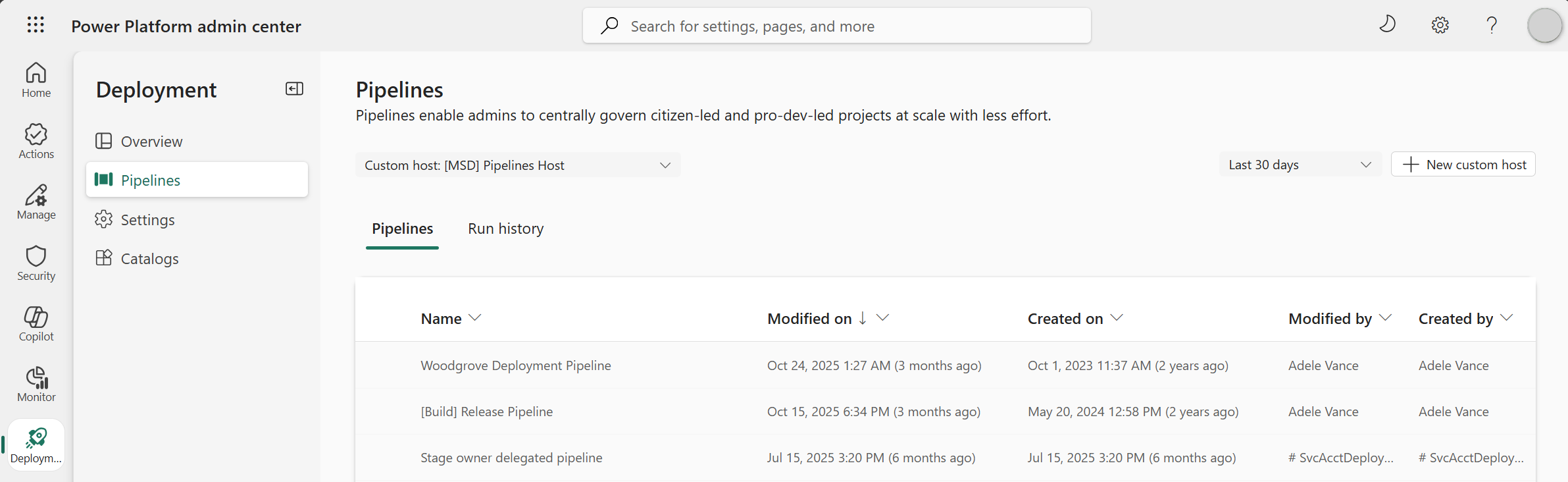
Admins can view all pipelines host environments in the tenant, including the platform host, and select a host to view all the pipelines and deployment history managed by that host.
Select Pipelines on the left navigation pane to view all active pipelines within the pipelines host.
Note
- You can view up to the last 365 days by changing the filter.
- Additional information and advanced pipeline configuration can be accessed by navigating to the pipelines host environment and opening the Deployment Pipelines Configuration app.
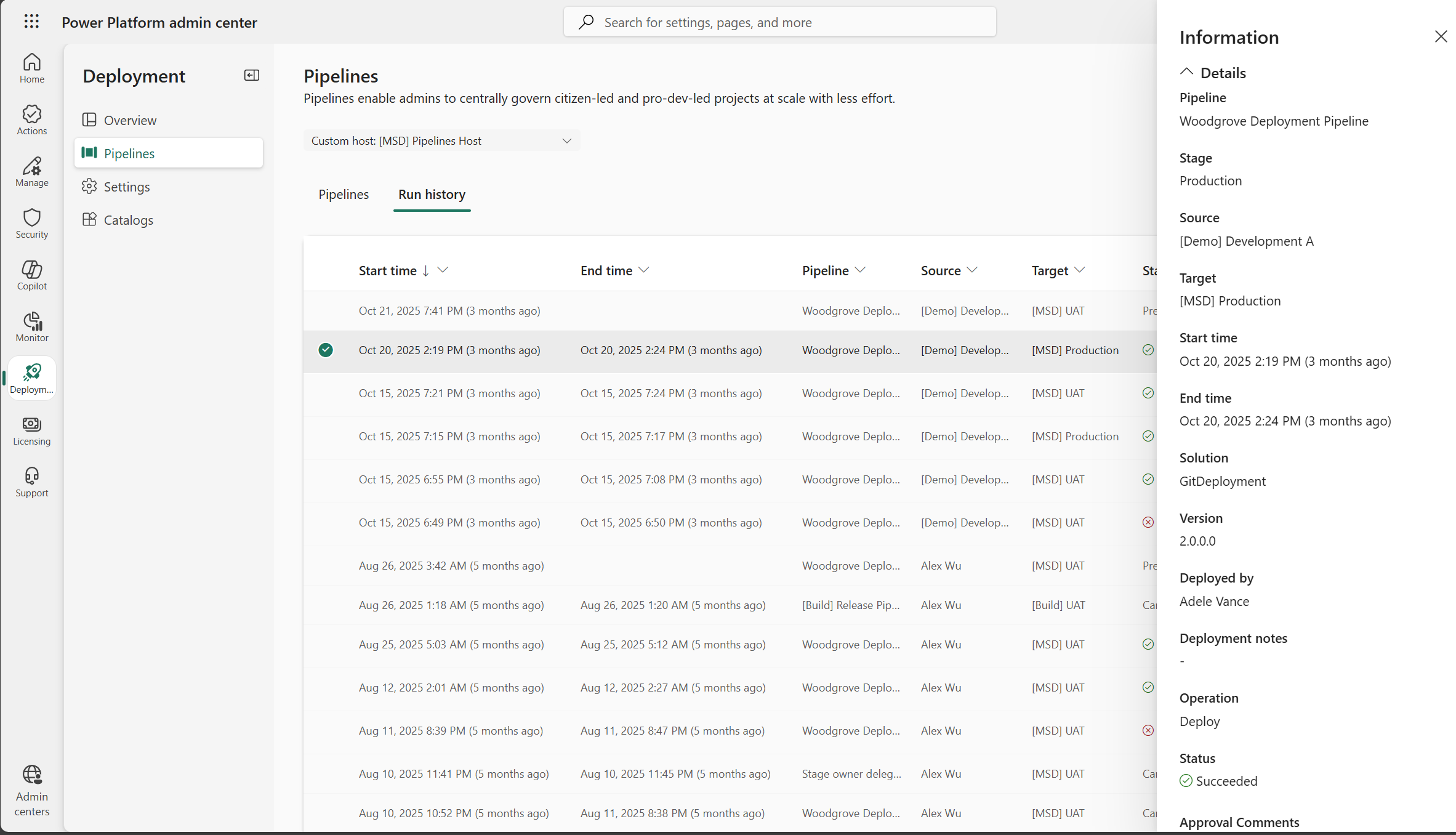
The Run history view shows all deployment activity managed by the selected pipelines host including:
The Start time and End time for every deployment.
Pipeline that facilitated each deployment.
Source is the development environment where the solution was developed and exported from.
Target is the destination environment where the pipeline is deployed. For example, for integration testing, user acceptance testing (UAT), production, and so on.
Status indicates whether the deployment is in-progress, succeeded, failed, or canceled.
Solution is the name of the artifact and the Version deployed to the target environment.
Important
- All target environments used in a pipeline must be enabled as managed environments.
- Tenant admins can enable automatic conversion of pipelines environments to managed environments.
Manage deployment settings
Admins can manage these Settings within the selected pipelines host (settings are managed separately for each host):
Enable automatic conversion of pipelines environments to managed environments. This ensures pipelines environments meet Microsoft compliance standards automatically. When makers deploy to this environment, it gets automatically converted to a managed environment.
Solution deployments across regions: Admins can opt in to allow deployments between environments in different geographic locations. For example, when the host and production environments are in North America but the development environment is in India.
Important
This setting enables data to be shared across geographical regions within your tenant.
Allow makers to import shared solution deployments: Deployed solution backups are stored in the pipelines host. This setting allows nonadmins to import solutions that were shared with them, in addition to the ability to import solutions that they deployed.
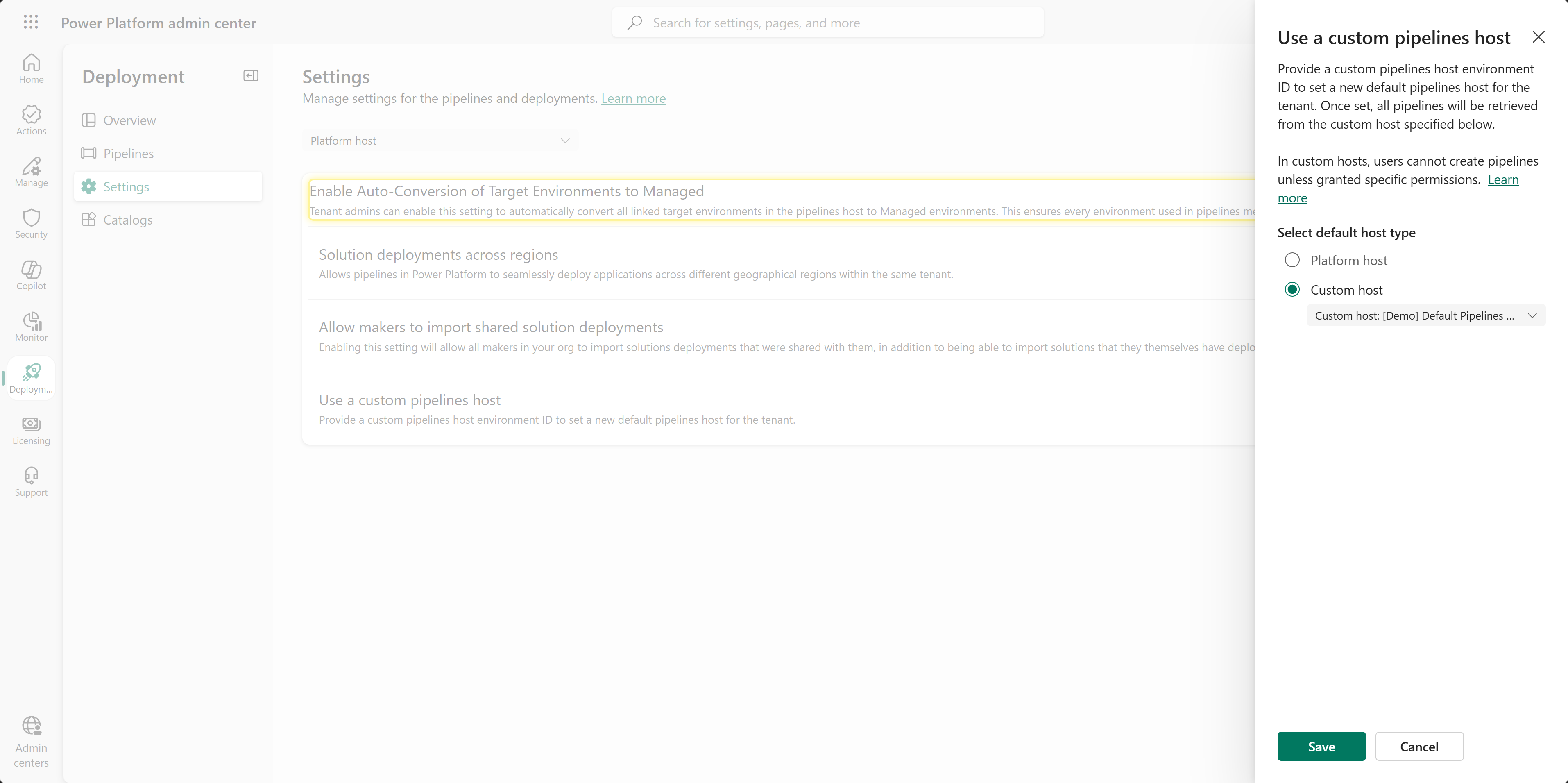
Use a custom pipelines host: Allows you to set one default host for the entire tenant. This replaces personal pipelines - meaning admins control who can access pipelines and makers can no longer create personal pipelines in the platform host. It's also useful when a central team manages deployments for the entire tenant. This setting is only visible when the Platform host is selected in the host picker.
Review and approve deployment requests
On the deployment page, admins approve or reject deployment requests assigned to them. You’ll first need to setup delegated deployments with service principals, which is recommended as the secure way to securely deploy to production environments.
It’s important admins review changes in the solution and the sharing request. Once approved, the solution is deployed, and solution objects and security roles are shared automatically. Notice other types of approvals within the pipelines host environment can also be managed.
Retry failed deployments
A dedicated Failed deployments view helps admins quickly identify and troubleshoot failures. Deployments shown as Failed in the run history view can be retried by selecting Retry in the details panel if the operation was Deploy. A confirmation message appears when you confirm the retry.
FAQ
Are managed environments required for deployment pipelines, and what does this mean for my organization?
Yes. All target environments used in Power Platform deployment pipelines have always been required to be managed environments for compliant usage. This requirement helps your organization benefit from enhanced governance, improved security, and streamlined license management.
What happens when pipelines deploy to unmanaged target environments starting in October 2026?
Starting in October 2026, the admin deployment page notifies admins when pipelines deploy to an unmanaged target environment. Admins must approve enabling managed environments for the target within 30 days of the notification to prevent future pipelines deployments from being blocked.
Admins can enable managed environments for deployment targets individually or turn on automatic enablement. If more time is needed, admins can request one additional 30-day extension for each environment. After the grace period or extension expires, the system blocks pipelines deployments to the unmanaged target environment.
What can makers without tenant-administrator permissions do?
Makers can view affected targets, continue deploying during the allowed period, and acknowledge the one-time extension, but they can't enable managed environments. Ask your tenant administrator to enable managed environments before the countdown expires; enabling it removes the deployment block.
Can automatic enablement prevent this deployment block?
Yes. Power Platform or Dynamics 365 administrators can enable automatic conversion under Deployment > Settings for each pipelines host, so unmanaged targets become managed on their next deployment. Turning automatic conversion off doesn't remove the requirement for pipeline targets to be managed environments.
Where can administrators find and enable managed environments for affected targets?
In the Power Platform admin center, open Deployment, select a pipelines host, and review Environments to convert. Power Platform and Dynamics 365 administrators can select one or more environments and enable managed environments. Review each pipelines host separately.
Will managed environments checks affect solutions that are already deployed?
These pipeline checks block new deployments; they don't disable anything already deployed. Separate licensing requirements still apply - review your license coverage, capacity, and auto-claim policy.
Can I restrict access to personal pipelines?
Yes. Go to the Power Platform admin center > Deployments > Settings > Use a custom pipelines host, and then select a custom pipelines host. If there's no existing custom host, create one. Save the setting.
This overrides the platform host behavior, and nonadmins can't use pipelines unless you grant access in the custom host environment.