Note
Access to this page requires authorization. You can try signing in or changing directories.
Access to this page requires authorization. You can try changing directories.
Note
Denodo owns and provides this connector.
Summary
| Item | Description |
|---|---|
| Release state | General availability |
| Products | Power BI (semantic models) Power BI (Dataflow) Fabric (Dataflow Gen2) |
| Authentication types supported | Basic Windows Organizational account |
Note
Some capabilities might be present in one product but not others, due to deployment schedules and host-specific capabilities.
Prerequisites
To use this connector, install and configure the Denodo platform, and start its service. If you have a connection that uses an ODBC data source name (DSN), you must correctly configure the connection in the ODBC data source administrator.
Capabilities supported
- Import
- DirectQuery (Power BI semantic models)
Connect to an ODBC data source from Power Query Desktop
To make the connection, take the following steps:
To connect to data, from the Home ribbon, select Get Data. In the Database section, select Denodo.
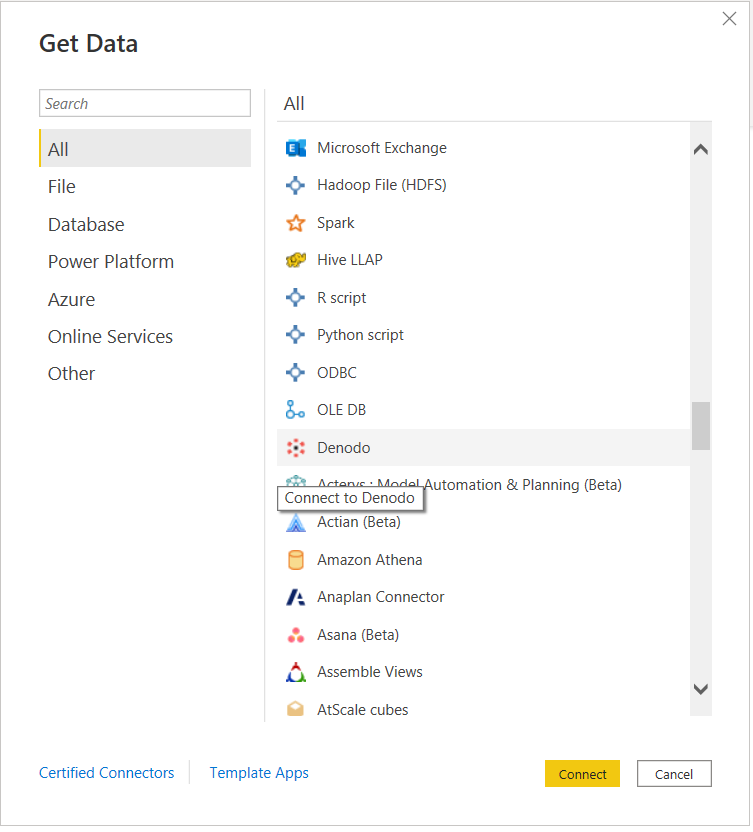
There are two ways to connect to the data source of your choice:
- DSN (ODBC data source name)
- Connection string
In the Denodo Connector dialog, in the DSN or Connection String section, provide the data source name or the connection string, depending on the type of connection you prefer.
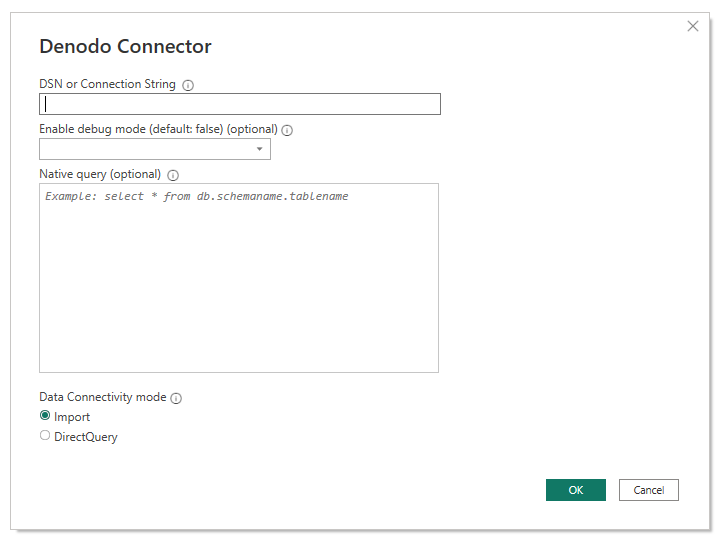
When you're creating a Denodo-compatible connection string, you must omit the Driver field, because this field is transparently set at connection time by the connector itself.
The connection string must contain three mandatory parameters:
SERVER,PORT, andDATABASE.SERVER=<Server name>;PORT=<Port number>;DATABASE=<Database name>Additionally, it can contain an optional parameter:
SSLmode.SERVER=<Server name>;PORT=<Port number>;DATABASE=<Database name>;SSLmode=<SSL mode>Omit authentication parameters. You configure authentication in later steps.
Note
When you write the connection string, be aware of the following requirements:
- The connection string must keep the correct order of its parameters:
SERVER,PORT,DATABASE, andSSLMode. - The name of these parameters must always be written in the same way. For example, if you choose to write them in uppercase, they must always be written in uppercase. If you decide to write them with the first letter of a word in uppercase and the rest of the letters in lowercase, they must always be written that way.
Otherwise, Power BI might not recognize different Denodo datasets in a report as belonging to the same Denodo data source. As a result, Power BI might request separate authentication credentials for each of them.
The second section, Enable debug mode, is an optional field that allows you to add trace information to log files. Power BI Desktop creates these files when you enable tracing in the application, by using the Diagnostics tab on the Options menu. The default value for Enable debug mode is false, and in this scenario, there's no trace data in the log files from the Denodo Power BI custom connector.
The third section, Native Query, is an optional field where you can enter a query. If you use this query field, the dataset is the result of the query instead of a table or a set of tables.
You can write a query that queries only one of the databases that the data source is associated with.
SELECT title, name FROM film JOIN language ON film.language_id = language.language_id WHERE film.language_id = 1If you want to write a query that queries more than one database, you must specify in the query the database that owns each table.
SELECT i_item_sk, country FROM sakila.country, ewd.itemThe last section in Denodo Connector is Data connectivity mode, where you can choose between Import mode or DirectQuery mode.
When you finish, select OK.
Now you're asked for authentication. The Denodo Power BI custom connector supports three authentication types:
Windows: When you choose to use Windows authentication, Power BI Desktop connects to Virtual DataPort through Kerberos authentication.
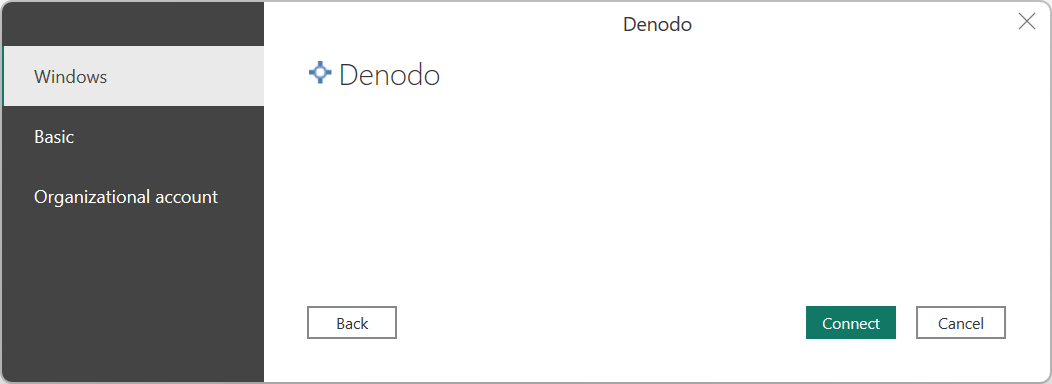
In this case:
Kerberos authentication must be enabled in the Virtual DataPort server.
The Denodo Virtual DataPort database that the data source connects to must be configured with the option ODBC/ADO.net authentication type set to Kerberos.
Power BI Desktop must be running in the Windows domain, because the ODBC driver requests the Kerberos ticket from the operating system's ticket cache.
Make sure the Advanced Options page of the DSN configuration contains all the needed configuration for using Kerberos as an authentication method.
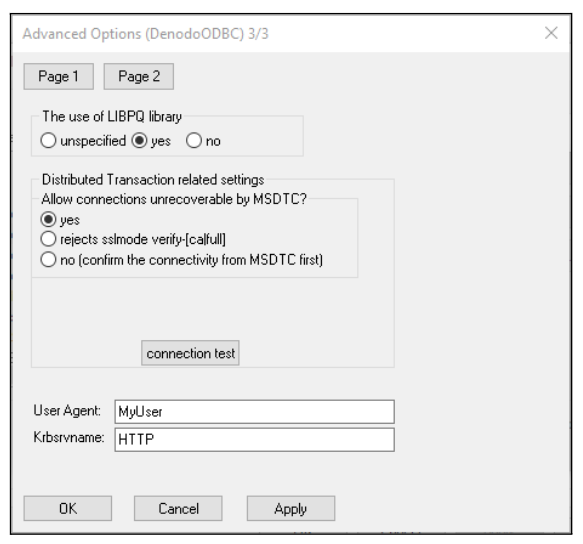
Basic: This authentication type connects Power BI Desktop to your Virtual DataPort data through your Virtual DataPort server credentials.
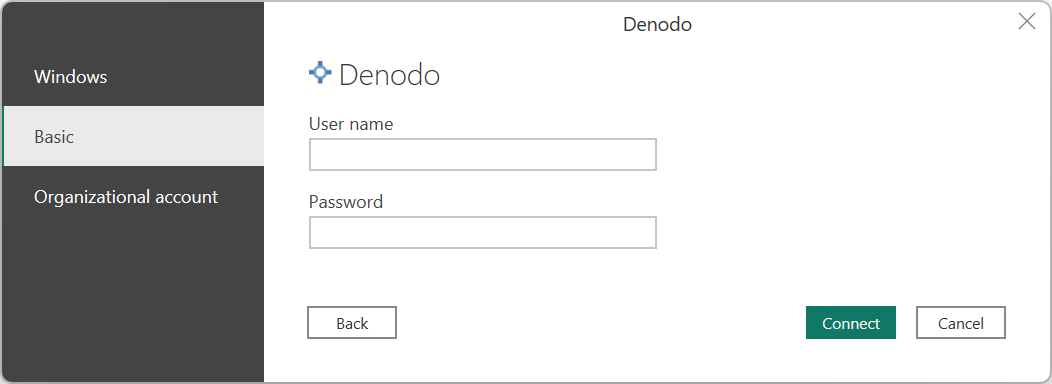
Note
Older versions of the Denodo connector required you to escape certain password characters. As of version 1.0.8, this rule is no longer required.
Organizational account: This authentication type connects Power BI Desktop to your Virtual DataPort data through a specific set of Microsoft credentials. This option is a specialized version of OAuth for Microsoft Entra ID.
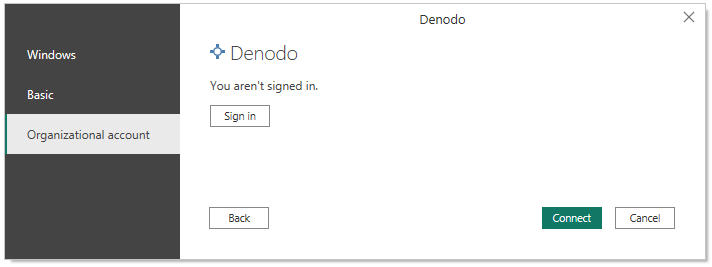
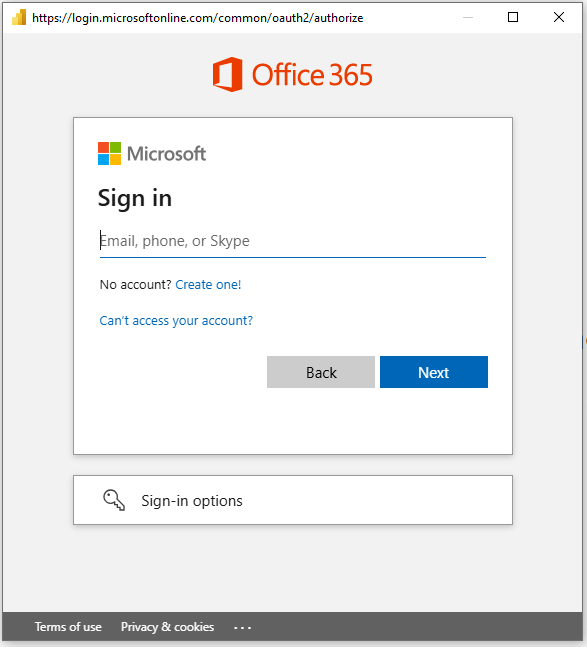
When you select Sign in, a sign-in tab opens. Enter the Microsoft credentials to be used for this data source.
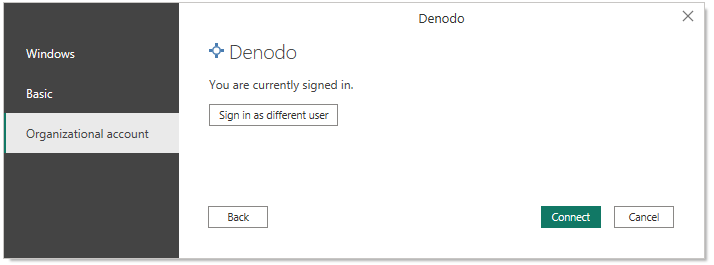
When you're signed in, select Connect. You then see the navigator screen for the table selection.
Note
To access Virtual DataPort databases, you must create a user in Denodo. The user's name must be the same as the email used in Power BI when the user signs in to the organizational account. When you create the user in Denodo, you must select EXTERNAL as the authentication type. The permissions given to this user on the Denodo databases determine which databases can be accessed from Power BI Desktop.
When you finish, select Connect.
In Navigator, select the database and data you want, and then select Load. Alternatively, if you're going to modify the incoming data, select Transform Data.
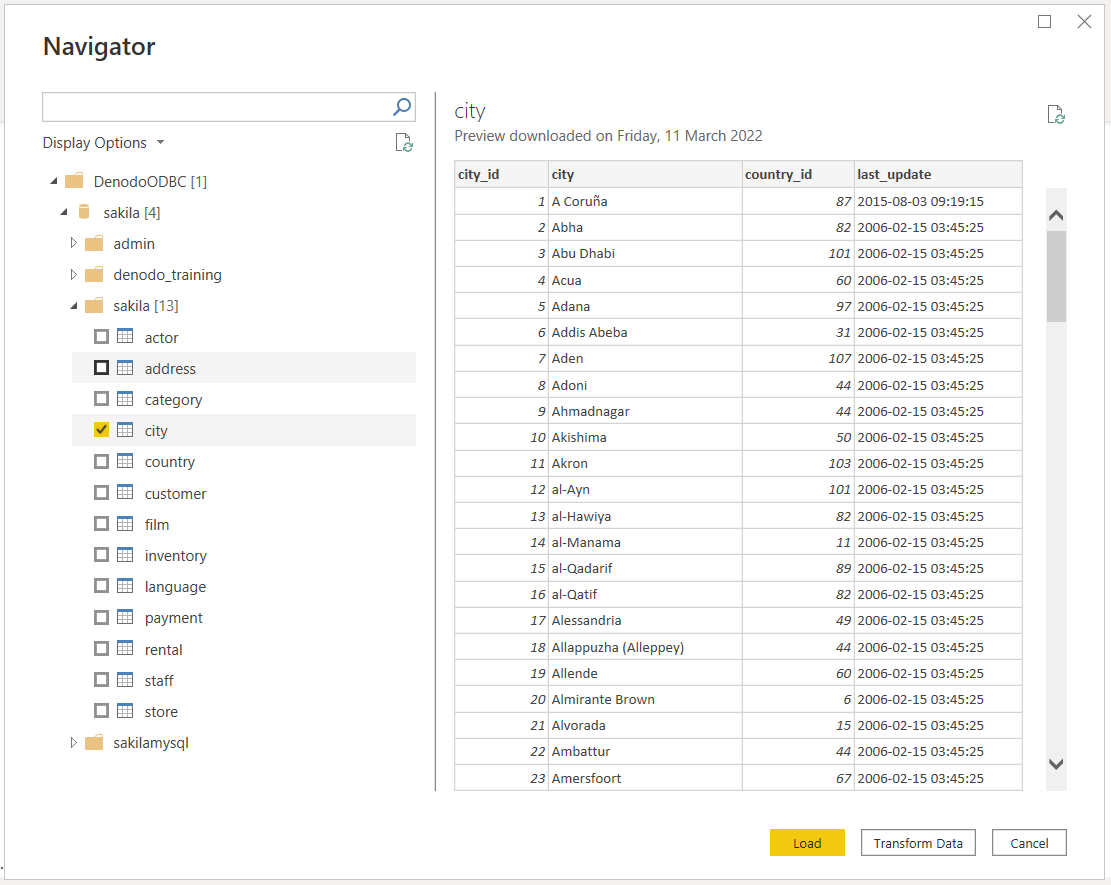
Connect to an ODBC data source from the Power BI service
For this connection method, you use the on-premises data gateway. Follow these steps:
Configure the on-premises data gateway (enterprise gateway). This gateway provides quick and secure data transfer between on-premises data (data in your Power BI Desktop application, not in the cloud) and the Power BI service.
Sign in and register your gateway. In the on-premises data gateway app, select the Status tab to verify that your gateway is online and ready to be used.
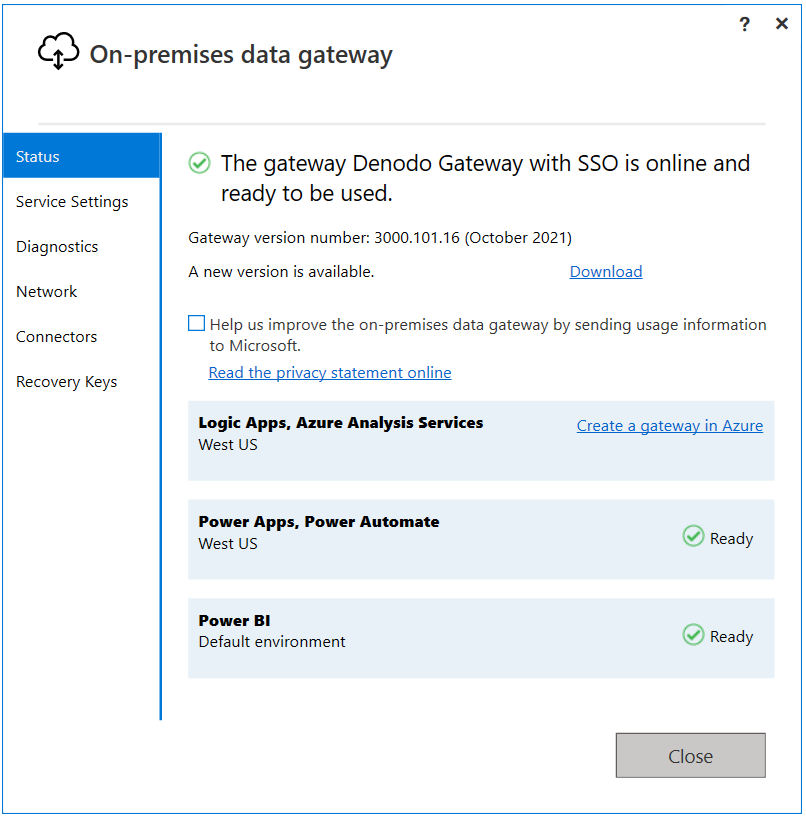
In the Power BI service, on Data Source Settings, create a data source for the Denodo Power BI custom connector.
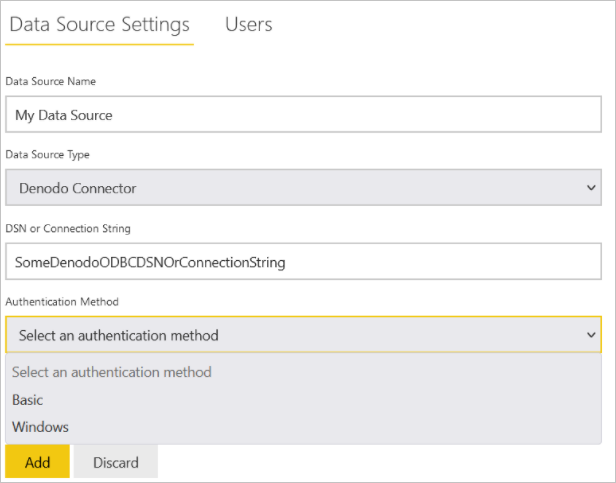
To create the data source, you have to specify the way to connect to the data source of your choice:
- DSN
- Connection string
Note
We recommend DSN. It provides many configuration options that might not be directly available when you use a connection string.
You also have to specify the authentication mode. The available authentication methods are:
Windows: The Power BI service connects to Virtual DataPort through Kerberos authentication.
- In Data Source Settings, enter the username and password to create the Kerberos ticket.
- In the Virtual DataPort server, enable Kerberos authentication.
- The Denodo Virtual DataPort database that the data source connects to must be configured with the option ODBC/ADO.net authentication type set to Kerberos.
- Make sure the Advanced Options page of the DSN configuration contains all the needed configuration for using Kerberos as an authentication method.
Basic: You can create a data source in the Power BI service to connect to your Virtual DataPort data, through your Virtual DataPort server credentials.
Oauth: You can create a data source in the Power BI service to connect to your Virtual DataPort data, through Microsoft credentials.
Note
To access Virtual DataPort databases, you must create a user in Denodo whose name is the same as the email used in Power BI when signing in to the organizational account. When you create the user in Denodo, you must select EXTERNAL as the authentication type. The permissions given to this user on the Denodo databases determine which databases can be accessed from Power BI.
If you use Windows authentication, under Advanced settings for the data source, you can enable the single sign-on (SSO) authentication schema. You can then use the same credentials of the user accessing your reports in Power BI for accessing the required data in Denodo.
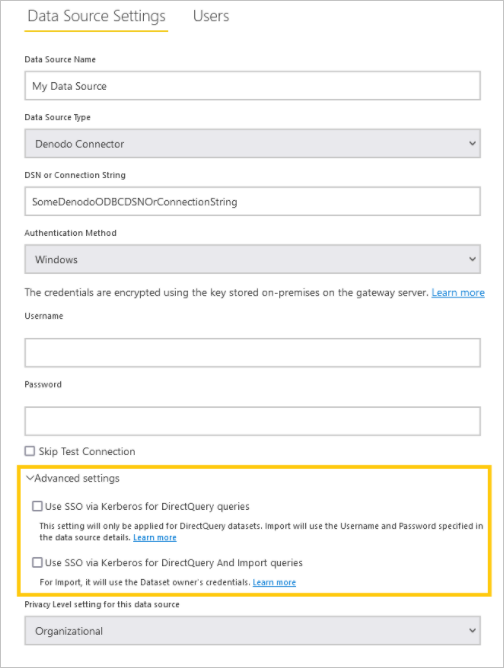
There are two options for enabling SSO: Use SSO via Kerberos for DirectQuery queries and Use SSO via Kerberos for DirectQuery And Import queries. If you're working with reports based on DirectQuery, both options use the SSO credentials of the user that signs in to the Power BI service. If you're working with reports based on Import, the former option uses the credentials entered in the data source page (Username and Password fields), while the latter uses the credentials of the dataset owner.
There are particular prerequisites and considerations that you must take into account in order to use the Kerberos-based SSO. Some of these requirements are:
You must enable Kerberos constrained delegation for the Windows user running the Power BI gateway. Also, configure both the local Active Directory and Microsoft Entra ID environments according to the instructions offered by Microsoft for this purpose.
By default, the Power BI gateway sends the user principal name (UPN) when it performs an SSO authentication operation. You need to review the attribute that you use as a login identifier in Denodo Kerberos authentication. If it's different from
userPrincipalName, adjust the gateway settings according to this value.The Power BI gateway configuration file is
Microsoft.PowerBI.DataMovement.Pipeline.GatewayCore.dll.config, located in\Program Files\On-premises data gateway. This file has two properties, calledADUserNameLookupPropertyandADUserNameReplacementProperty, that allow the gateway to perform local Microsoft Entra ID lookups at runtime.ADUserNameLookupPropertymust specify against which attribute of the local Active Directory it must map the user principal name that comes from Microsoft Entra ID. So, in this scenario,ADUserNameLookupPropertyshould beuserPrincipalName. Then, when the user is found, theADUserNameReplacementPropertyvalue indicates the attribute that should be used to authenticate the impersonated user (the attribute that you use as the login identifier in Denodo).Changes in this configuration file are at the gateway level, and these changes affect any source with which SSO authentication is done through the Power BI gateway.
After you create a data source for the Denodo connector, you can refresh Power BI reports. To publish a report on powerbi.com:
- Open the report in Power BI Desktop.
- Select File > Publish > Publish to Power BI.
- Save the report on the computer.
- Select the workspace where you want to publish.
Advanced configuration
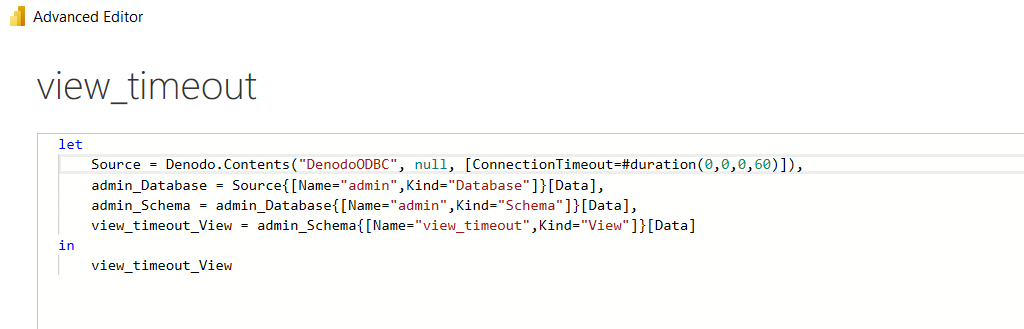
Use of the ConnectionTimeout parameter
If you want to control how long to wait before abandoning an attempt to make a connection to a server, you can use the ConnectionTimeout parameter.
Use this parameter only from the advanced editor. To do so, the ConnectionTimeout parameter must be added in the record options, associating a value of type duration to it.
Learn more about the duration type in this article.
Use of the QueryTimeout parameter
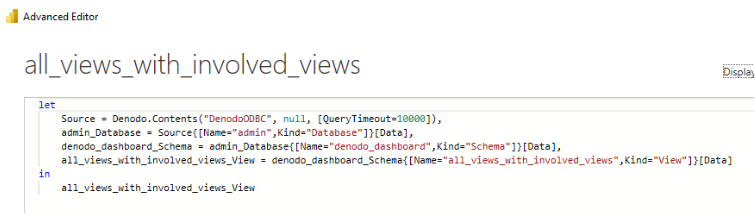
If you want to control how long to wait before abandoning an attempt to make the execution of a query, you can use the QueryTimeout parameter.
Use this parameter only from the advanced editor. To do so, the QueryTimeout parameter must be added in the record options, associating a value of type number to it. This numeric value is represented in milliseconds (for example, 10000 equals 10 seconds).
Use of the UserAgent parameter
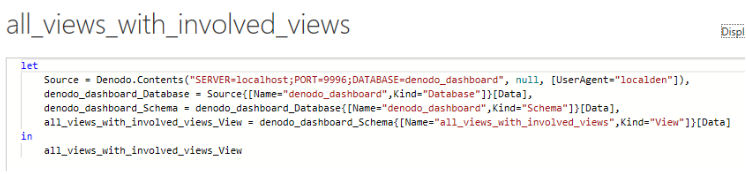
If you want to specify the name of the client application, you can use the UserAgent parameter.
Use this parameter only from the advanced editor. To do so, the UserAgent parameter must be added in the record options, associating a value of type text.
Use of the Compression parameter
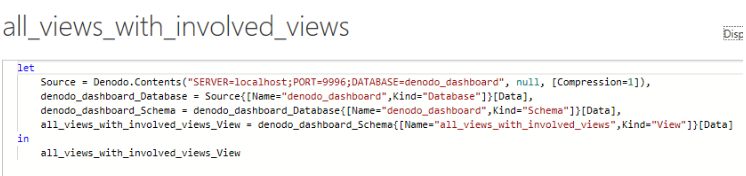
We recommend that you activate this setting when the client application and the Denodo server are connected through a WAN. In these cases, you can expect significant performance improvements when the client application reads moderate or large data volumes.
Use this parameter only from the advanced editor. To do so, the Compression parameter must be added in the record options, associating a value of type number (0 or 1).
Troubleshooting
If a Denodo view being imported as a data source into Power BI has more than 42 relations with other views, Power BI might display the following error when you try to access the data transformation window:
Preview.Error: The type of the current preview value is too complex to display.
This error is due to a limitation in the Power Query platform. To work around it, select the failing data source (query) in the data transformation window, and select View > Advanced Editor. Then edit the data source expression in M language, adding the following property to the options argument of the Denodo.Contents function call:
CreateNavigationProperties=false
So your call would look similar to:
Source = Denodo.Contents(<dsn>, null, [CreateNavigationProperties=false])
This property instructs Power BI not to try to generate navigation properties from the relationships registered for the Denodo view accessed in this data source. If you need some of these relationships to be present in your Power BI data model, you must manually register them afterward.