Note
Access to this page requires authorization. You can try signing in or changing directories.
Access to this page requires authorization. You can try changing directories.
The Migrate SQL Server feature in SQL Server Management Studio (SSMS) helps you assess SQL Server instances, compare Azure SQL migration targets, review migration readiness, get target sizing and pricing recommendations, and start a migration to Azure.
| Azure Arc enabled | Details |
|---|---|
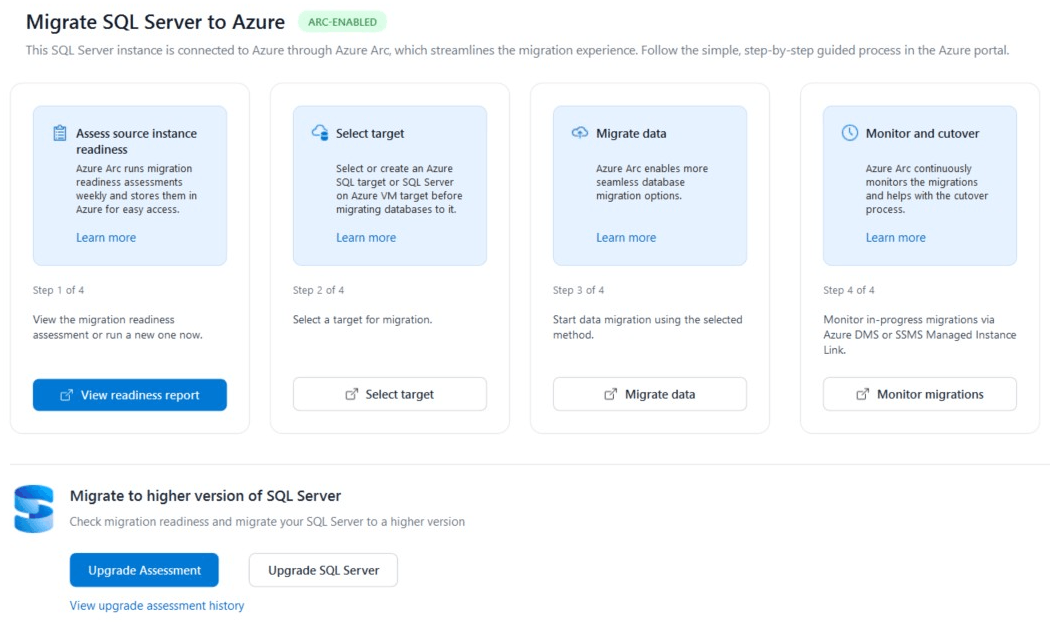
| Yes | SSMS uses readiness assessments collected from Azure Arc. These assessments include compatibility findings, target sizing, pricing estimates when available, and recommended migration paths. |
| No | SSMS runs an assessment and compares supported Azure SQL targets. The report can include migration readiness, compatibility findings, sizing recommendations, pricing estimates, and recommended migration paths. From the results, you can start a migration by using SQL Managed Instance link, native backup and restore, or Azure Database Migration Service (Azure DMS). |
You can also provision Azure SQL targets and monitor migrations from SSMS or the Azure portal.
Prerequisites
- SQL Server Management Studio 22 or a later version.
- A SQL Server instance login with sysadmin permissions to perform a migration.
For assessment-only permissions, see Permissions.
Installation and configuration
- Install the latest version of SQL Server Management Studio (SSMS) by using Visual Studio Installer.
- In Visual Studio Installer, select Modify for your SSMS installation.
- Select the Hybrid and Migration workload.
- Select Install while downloading, and then select Modify to complete the installation.
Migration process
The workflow depends on whether your SQL Server instance is enabled by Azure Arc.
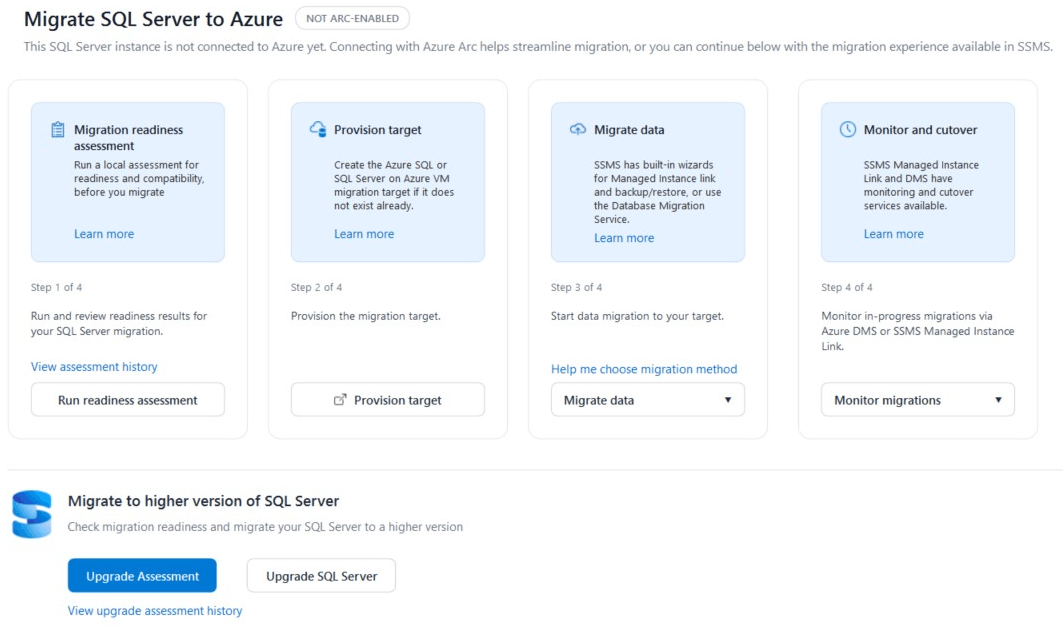
This workflow is suitable for SQL Server instances not enabled by Azure Arc.
Connect to SQL Server
Start the migration workflow from SSMS.
- Open SSMS.
- Connect to your source SQL Server instance.
- Right-click your SQL Server instance in Object Explorer, and select Migrate SQL Server.
This action opens the Migration landing page, where you can assess the source environment, compare targets, and open the appropriate migration experience.
Assess readiness for migration
Assess migration compatibility and generate target recommendations.
The migration landing page opens to the Database Assessment phase.
Azure Migration Readiness assesses your SQL Server environment and helps you select an appropriate Azure SQL target. The assessment evaluates migration compatibility and can provide target, sizing, and pricing recommendations.
To run an assessment:
Select Run Assessment from the Migration landing page.
When the assessment completes, open the generated HTML report.
Review the available migration targets and recommendations for:
- Migration readiness
- Compatibility findings
- Recommended Azure SQL target
- Minimum target configuration
- Compute and storage sizing
- Estimated monthly cost
- Available pricing options
The report can compare these targets:
- Azure SQL Database
- Azure SQL Managed Instance
- SQL Server on Azure Virtual Machines
Migration readiness categories
The assessment uses the following user-facing migration readiness categories:
| Category | Description |
|---|---|
| Ready | The database can be migrated to the target with no conditions to review. |
| Ready with conditions | The database has conditions to review before migration, including issues, warnings, affected objects, and recommended remediation. |
A target shown as Ready with conditions can include findings that require remediation. Open the target details to review the affected databases and objects before planning the migration.
Target sizing recommendations
When sizing information is available, the report can include:
- Recommended service tier
- Recommended compute configuration in vCores
- Recommended storage
- Database-level sizing (for Azure SQL Database targets)
- Target-specific storage configuration
- Reasons for the recommendation, based on the assessment's compute, memory, storage, and I/O inputs
Sizing represents a recommended minimum target configuration based on the assessment data available at report-generation time. Validate the recommendation against expected production workload, growth, resiliency, and operational requirements before provisioning the target.
Tip
Review the recommendation details to understand the sizing factors that influenced the recommended configuration. Depending on the assessment data available, these factors can include compute, memory, storage, IOPS, and I/O throughput.
Pricing recommendations
When pricing information is available, the report provides an estimated monthly cost for each evaluated target. The estimate can include:
- Compute cost
- Storage cost
- Total estimated monthly cost
- Pricing region
- Currency
- Pricing basis
- Available reservation or savings plan pricing
Commitment pricing can affect compute charges, while storage can continue to be priced separately. If pricing isn't available for a target or pricing option, the report displays the value as unavailable rather than calculating an assumed discount.
Important
Prices in the assessment report are estimates. Actual Azure charges can vary based on usage, configuration, region, offer, licensing selection, discounts, taxes, and changes to Azure pricing. Use the Azure pricing tools and your organization's commercial agreement to validate costs before provisioning.
Select target
Compare targets from the assessment before you provision.
When the assessment finishes, compare the available migration targets before provisioning your destination.
For each target, review:
- Migration readiness
- Compatibility findings
- Estimated monthly cost
- Minimum recommended target configuration
- Recommended service tier
- Compute and storage recommendations
- Recommendation details
The report highlights a recommended migration target. Select View details to review database readiness, assessment findings, target configuration, sizing information, and pricing information before you decide.
After selecting a target:
Select Provision Target to access the Azure SQL hub.
Create the Azure SQL target that fits your migration requirements:
- Azure SQL Database
- Azure SQL Managed Instance
- SQL Server on Azure VM
Validate the provisioned configuration against the recommendation and your production requirements.
Migrate data
Select the migration method that fits your target, downtime requirements, and operational needs.
From the Migration landing page, select Migrate data.
SQL Managed Instance link
Use a SQL Managed Instance link to continuously replicate data between SQL Server and Azure SQL Managed Instance.
Consider this method for online migrations that require minimal downtime.
Backup and restore
Use SSMS backup and restore functionality for SQL Server migration.
Consider this method when downtime is acceptable and the source and target support the required backup and restore path.
Azure Database Migration Service
Use Azure Database Migration Service for supported migration scenarios.
Use offline or online migration options when supported by the selected source and target.
Consider Azure DMS for large-scale or complex migrations.
Monitor migration
Track migration progress through the appropriate monitoring experience.
Track migration progress and cut over:
- For Azure DMS migrations, use the Azure DMS monitoring experience.
- For Managed Instance link migrations, monitor the SQL Managed Instance link.
SQL Server upgrade
In addition to Azure migration, SSMS provides database compatibility upgrade capabilities. The upgrade assessment identifies compatibility issues related to breaking changes, behavior changes, and deprecated features. The report also provides a feature-parity check for cross-platform database migration.
Upgrade assessment
- Select Upgrade Assessment from the Migrate to higher version of SQL Server section.
- Allow the tool to evaluate compatibility-level upgrade readiness.
- Review breaking changes and deprecated features in the report.
Database upgrade
- Select Upgrade SQL Server from the Migrate to higher version of SQL Server section.
- Follow the Upgrade Database steps.
- Test and complete the compatibility-level upgrade.
Best practices
Run an assessment before planning the migration.
Review both target-level and database-level readiness.
Treat Ready with conditions as an instruction to review and address the associated findings, not as an automatic approval to migrate.
Validate target sizing against representative workload data, expected growth, resiliency, and performance requirements.
Validate pricing estimates against the intended region, licensing model, commercial agreement, and current Azure pricing.
Choose an online migration method when the production workload requires minimal downtime and the method supports your scenario.
Test the migration and application behavior in a nonproduction environment.
Monitor performance during and after migration.
Plan the cutover during an approved change window.
Migration options comparison
| Migration method | Primary target | Downtime profile | Consider when |
|---|---|---|---|
| SQL Managed Instance link | Azure SQL Managed Instance | Minimal | Requires continuous replication and an online cutover. |
| Backup and restore | Supported SQL Server and Azure SQL targets | Moderate to high | A planned outage is acceptable. |
| Log shipping | Azure SQL Managed Instance in supported integrated scenarios | Low to moderate | A log-based migration approach meets the scenario requirements. |
| Azure DMS | Supported Azure SQL targets | Depends on the selected migration mode | Requires centralized migration orchestration. |
Known issues
Assessment fails
- Verify connectivity to the source database.
- Check that the login has the permissions required for assessment.
- Ensure SSMS and the migration components are up to date.
- Review assessment errors in the generated report.
Sizing or pricing recommendation is unavailable
- Confirm that the assessment completed successfully.
- Review the report for missing assessment or pricing data.
- Verify that the selected target, region, currency, and pricing option are supported by the recommendation data.
- Don't interpret an unavailable price as a zero-cost recommendation.
Migration performance is slow
- Check network bandwidth and latency between the source and Azure.
- Review the target sizing recommendation.
- Validate compute, storage, IOPS, and throughput requirements.
- Consider Azure ExpressRoute when it fits the network architecture and migration requirements.
Cutover validation fails
- Verify data integrity checks.
- Review application compatibility with the target platform.
- Review unresolved conditions and migration errors.
- Confirm that replication or synchronization is healthy before cutover.
Permissions
To perform a migration, your SQL Server instance login requires sysadmin permissions.
To run an assessment without running or monitoring a migration, you need the following minimum permissions.
| Object type | Database or object name | Privilege |
|---|---|---|
| Server | CONNECT ANY DATABASE |
|
| Server | CONNECT SQL |
|
| Server | VIEW ANY DATABASE |
|
| Server | VIEW ANY DEFINITION |
|
| Server | VIEW SERVER STATE |
|
| Database | All databases | SELECT sys.sql_expression_dependencies |
| Database | msdb |
EXECUTE dbo.agent_datetime |
| Database | msdb |
SELECT dbo.syscategories |
| Database | msdb |
SELECT dbo.sysjobhistory |
| Database | msdb |
SELECT dbo.sysjobs |
| Database | msdb |
SELECT dbo.sysjobsteps |
| Database | msdb |
SELECT dbo.sysmail_account |
| Database | msdb |
SELECT dbo.sysmail_profile |
| Database | msdb |
SELECT dbo.sysmail_profileaccount |
| Database | msdb |
SELECT dbo.syssubsystems |
| Database | msdb |
DB DATA READER |
| Database | msdb |
EXECUTE |