Assess item relationships
Assess item relationships
Trace item ledger, value, and general ledger entries
To analyze an inventory transaction, follow this sequence:
- Open the item ledger entry to review quantity and amounts.
- Open related value entries to review detailed costs and amount entries.
- Open related general ledger entries to review financial posting.
Review item ledger entries for quantity
Check these fields on the item ledger entry:
- Posting Date - Transaction date.
- Entry Type - Type of movement (Purchase, Sale, Positive Adjmt., Negative Adjmt., Transfer and other).
- Location Code and Variant Code - Dimension context.
- Quantity and Remaining Quantity - Stock movement and current status.
- Cost Amount (Actual) - Posted cost.
- Cost Amount (Expected) - Provisional cost before final invoice.
- Sales Amount (Actual) - Posted Sales.
- Sales Amount (Expected) - Provisional sales before final invoice.
Review value entries for cost
Check these fields on the value entry:
- Entry Type – Direct Cost, Revaluation, Rounding and other.
- Adjustment – Yes if the system added the entry during cost adjustment job.
- Cost Amount (Actual) - Posted cost.
- Cost Amount (Expected) - Provisional cost before final invoice.
- Cost Posted to G/L - Posted amount in general ledger entries.
- Expected Cost Posted to G/L - Posted amount in general ledger entries if company use Expected Cost Posting to G/L in Inventory Setup.
- Valued Quantity - Quantity used for valuation.
- Item Ledger Entry No. - Link to the source transaction.
Review general ledger entries for financial posting
To validate financial posting:
- Open the value entry.
- Navigate to the related general ledger entries.
- Verify inventory, interim, adjustment, COGS account, and Sales account assignments match setup.
- Verify posting date and amount align with the value entry.
To compare inventory values against General Ledger balances you can use the Inventory - G/L Reconciliation report.
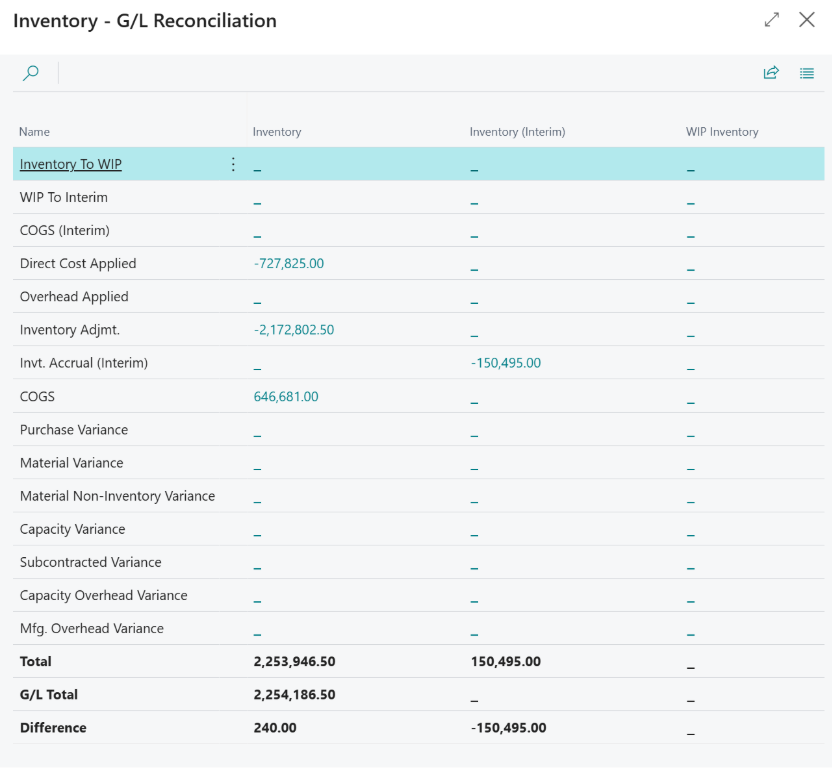
If you notice discrepancies between entries:
- Run Adjust Cost – Item Entries – the report checks and creates adjustments in value entries according to item costing method.
- Run Post Inventory Cost to G/L - the report creates general ledger entries based on value entries.
Common item quantity adjustment scenarios
- Negative adjustment (damaged item):
- Item ledger entry: quantity decrease.
- Value entry: cost reduction.
- General ledger entry: inventory value decrease.
- Positive adjustment (physical count correction):
- Item ledger entry: quantity increase.
- Value entry: inventory value increase.
- General ledger entry: inventory increase and balancing account posting.
- Reclassification (location transfer):
- Item ledger entries: outbound and inbound movement.
- Value entries: valuation impact by entry.
- General ledger: impact depends on financial dimensions or valuation change.
Common item cost adjustment transactions
- Purchase invoices are posted after shipments.
- Item charges are assigned later.
- Production costs change.
- Revaluations are posted.
- Average cost calculations must be updated.
Regular execution of the Inventory Cost Adjustment process helps maintain accurate inventory valuation, financial reporting, and reconciliation between inventory and the General Ledger.
Troubleshooting
When users report inventory discrepancies:
- Confirm transaction and quantity on item ledger entries and amounts.
- Confirm valuation details on value entries.
- Confirm accounting impact on general ledger entries.
- Review setup if the posting path is incomplete or incorrect.
The Inventory Cost Adjustment page provides tools for monitoring and managing inventory cost calculation processes. The page displays item cost adjustment statuses and allows users to control how inventory cost updates are processed and posted to the General Ledger.
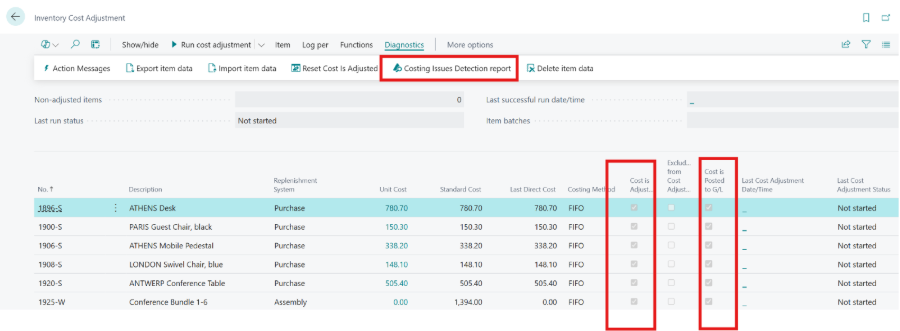
Cost is Adjusted
Indicates whether the inventory costs for the item have already been adjusted. When enabled, Business Central recognizes that the item entries have been processed through the cost adjustment routine and the inventory valuation is updated.
Cost is Posted to G/L
Specifies whether the adjusted inventory costs have been posted to the General Ledger. This ensures synchronization between inventory value entries and general ledger entries.
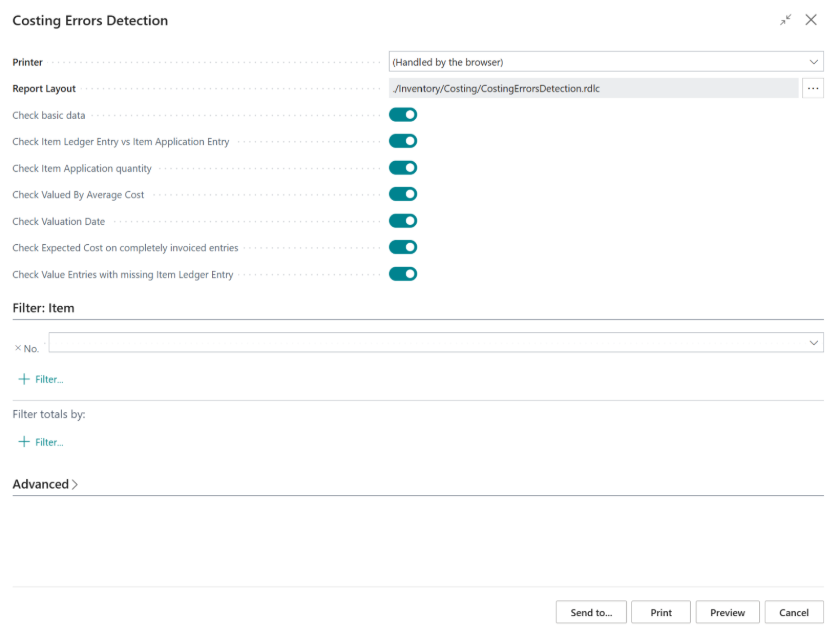
Costing Issues Detection Report
Opens a diagnostic report used to identify potential inventory costing problems: