Protect meetings with sensitivity labels
Sensitivity labels extend beyond documents and emails to protect Teams meetings and calendar events. A labeled meeting controls:
- Who can bypass the lobby
- Who can present
- Whether the meeting can be recorded
- Whether the video and audio stream is encrypted
These settings enforce protection automatically based on the label, so organizers don't need to configure each meeting individually.
This matters because meetings are where sensitive decisions happen in real time. A board strategy session and a team standup have different security needs. Sensitivity labels let you define those differences once at the label level and apply them consistently across every meeting of that type.
What meeting labels control
When you apply a sensitivity label to a meeting, the label can enforce any combination of these settings:
| Setting | What it controls | When to use it |
|---|---|---|
| Who can bypass the lobby | Controls whether participants join directly or wait for the organizer to admit them. | Use restrictive settings for meetings where uninvited attendees shouldn't overhear content. |
| Who can present | Limits who can share their screen or present content. | Restrict to organizers for one-way briefings; allow all participants for working sessions. |
| Who can record and transcribe | Controls whether recording and transcription are available and who can start them. | Disable for meetings with content that shouldn't persist beyond the live discussion. |
| Encryption for meeting video and audio | Applies end-to-end encryption to the meeting stream. | Use for the most sensitive discussions. Encryption disables some features like recording, live captions, and breakout rooms. |
| Automatically record | Forces recordings to start when the meeting begins. | Use when your organization requires a record of all discussions at a certain sensitivity level. |
| Video watermark | Overlays the participant's email address on shared content and camera feeds. | Deters unauthorized screen capture when visual content is sensitive. |
| Prevent copying and forwarding of chat | Blocks copy, forward, and download actions in the meeting chat, live captions, and transcripts. | Use when chat content is as sensitive as the meeting itself. |
The sensitivity label doesn't extend to related meeting items such as recordings, transcripts, whiteboard, and tasks. Those items follow their own protection rules.
Note
Sensitivity labels can be applied to meeting invites in Outlook and Teams across supported versions on Windows, macOS, iOS, and Android. There are limitations, including encryption restrictions, mailbox and calendar requirements, and specific behaviors for shared calendars. See Limitations for details.
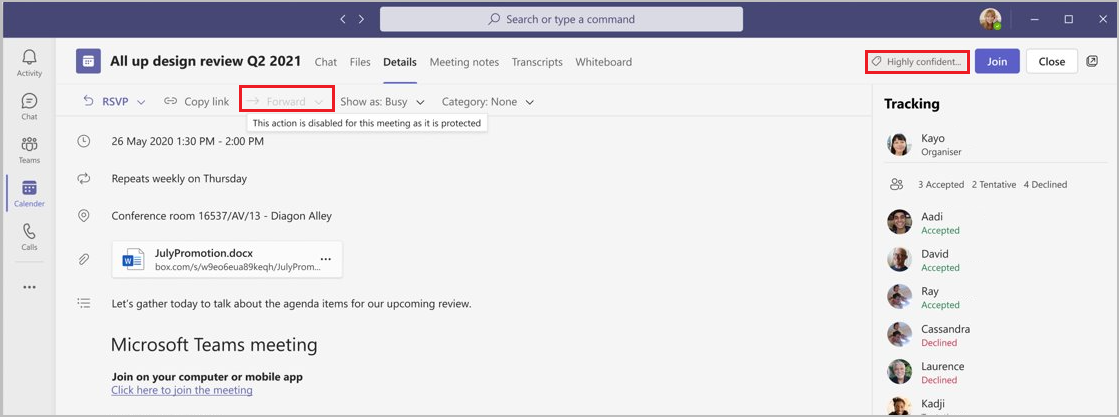
Here's an example of a Teams meeting invite labeled Highly confidential, where the label applies encryption and prevents forwarding:
Configure a label for meetings
Creating a meeting label requires selecting the right combination of scopes and protection settings. Think about the types of meetings in your organization and what protection each type needs before you start.
In the Microsoft Purview portal, create or edit a sensitivity label. Select Files & other data assets, Emails, and Meetings from the Items scope.
All three options are required because of their interdependency. A meeting consists of several items that all need the same sensitivity label for consistent protection:
- Calendar event
- Invitation and responses
- Related attachments
- Related emails
- The actual Teams meeting
On the Choose protection settings for labeled items page, select the settings you need: encryption, content marking, and Teams meeting/chat protection.
Configure encryption, content marking, and Teams-specific settings based on what this sensitivity level requires.
Complete the label configuration. If you need different meeting behaviors for different sensitivity levels, create additional labels with different settings.
Publish the label to both meeting organizers and participants. If only the organizer has access to the label, participants won't see or benefit from the protection settings.
Label policies for meetings
Label policies for calendar items, Teams meetings, and chat work independently from email label policies. Choices you make for email defaults don't affect meetings. You can configure policies to:
- Apply a default label to new and updated calendar events in Outlook and new events in Teams. Existing unlabeled meetings in Teams aren't automatically relabeled.
- Require users to label their meetings and events before sending.
Label inheritance from shared meeting files
When files are shared in the meeting chat or uploaded to the Shared tab, Teams can automatically apply or recommend that the meeting inherit the highest-priority sensitivity label from those files, if label is published to the meeting organizer. This helps ensure the meeting's protection level matches the sensitivity of the content being discussed. A meeting that already has a higher-priority label won't be overridden.
Apply labels to channel meetings
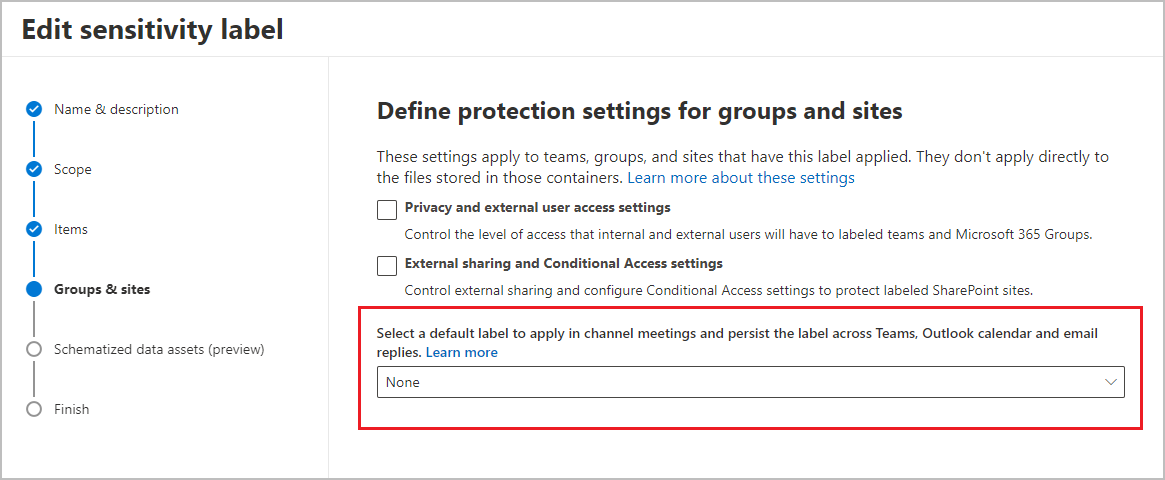
Channel meetings and chats can inherit labels from the team's container label. This approach ensures consistent protection without relying on individual meeting organizers to apply the right label.
To set this up, edit a label that's already configured with the Groups & sites scope. In the container label settings, select a sensitivity label configured to protect calendar items, Teams meetings, and chat. Every channel meeting and chat in teams with that container label then inherits your meeting protection settings automatically. Users can't change the inherited label.