Understand workspaces
A Power BI workspace is a collaborative environment within Power BI service where users can create, manage, and share reports, dashboards, and datasets. It acts as a container for Power BI content, allowing teams to work together on analytics projects.
Types of Workspaces
There are two types of workspaces: My Workspace, which is private to an individual user, and Shared workspaces, which can be accessed by multiple users with assigned roles. Workspaces allow you to organize your content, apply role-based access control, and create Power BI apps.
Create a workspace
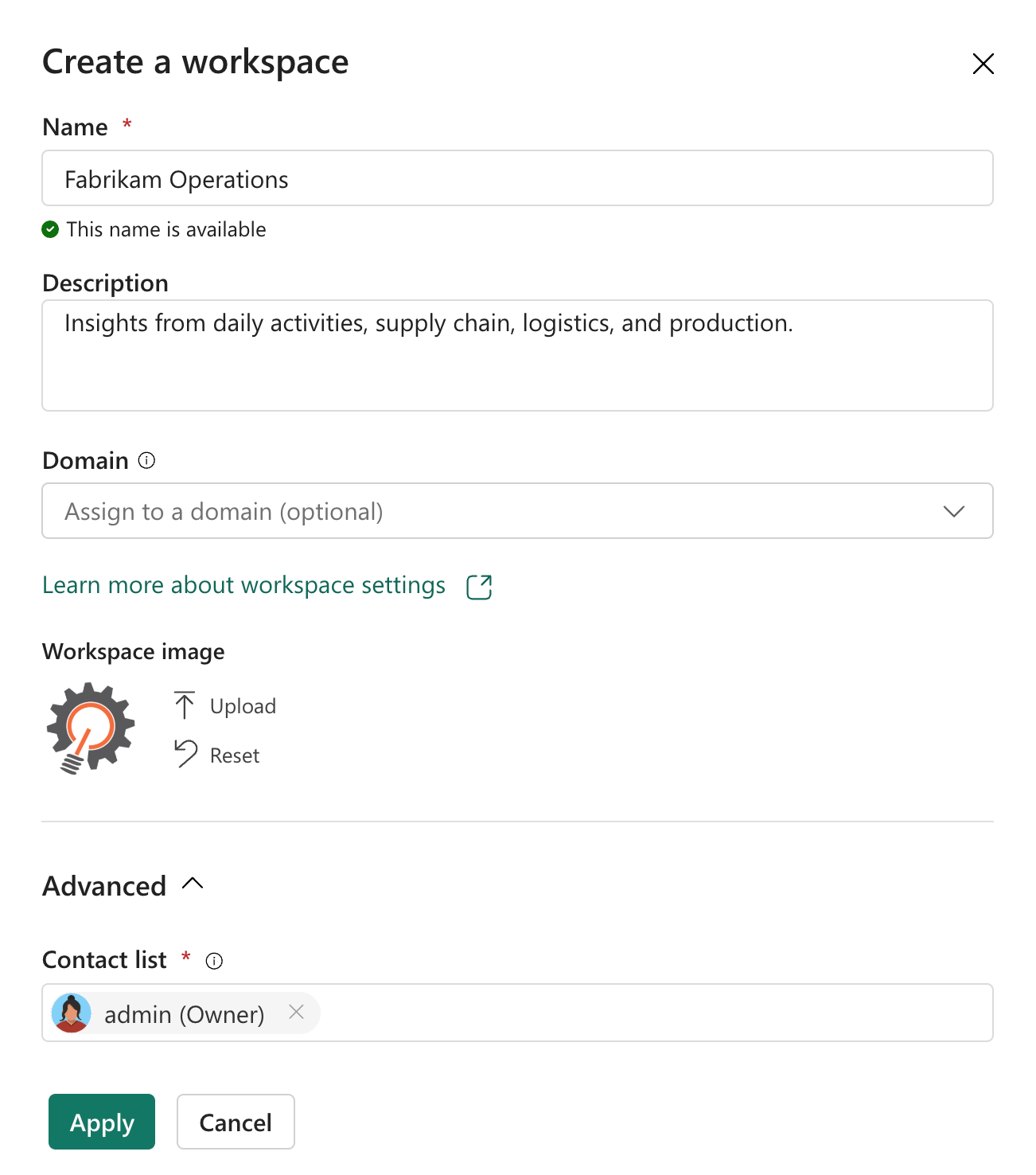
When you create a workspace, you have to choose a unique name for it. You can also enter an optional description to help others understand the purpose of the workspace. A workspace image can be uploaded as a .png or .jpg file. The name, description, and icon are important for identifying the workspace and its content. The Contact list allows you to identify the people who are responsible for the workspace.
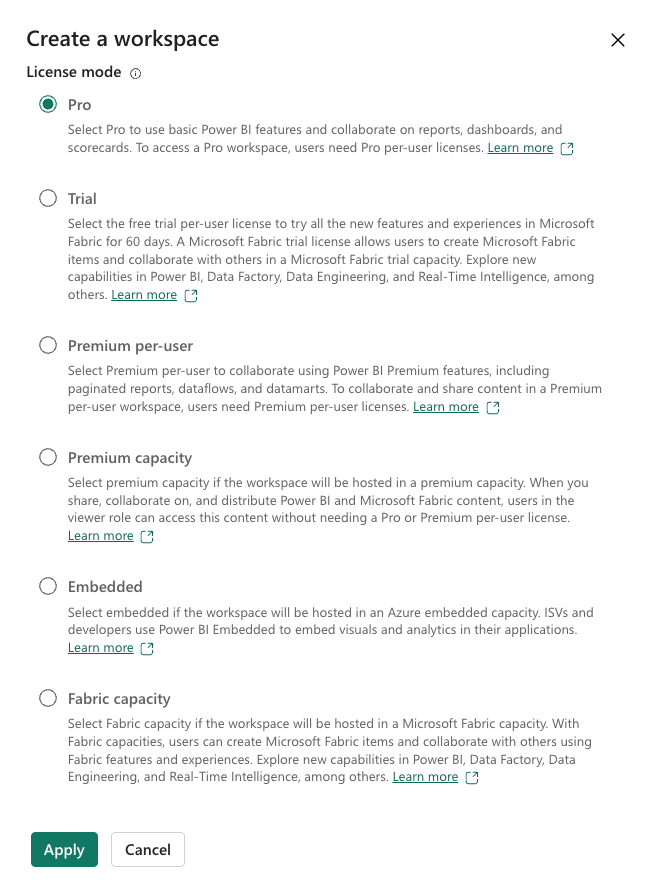
Choose a workspace type for your workspace
You also have to choose a workspace type. The workspace type determines how the content in the workspace can be shared and consumed.
A Power BI Pro workspace type allows users to create workspaces and share content, but all users who access the workspace must have a Power BI Pro or Premium Per User (PPU) license. It's suitable for small to medium teams needing collaboration within Power BI service. However, it doesn't support advanced features like larger model sizes or AI capabilities.
A Premium Per User (PPU) workspace type provides all Pro features plus advanced capabilities such as up to 48 scheduled data refreshes per day, AI-powered features, and larger semantic model sizes. Unlike Pro, PPU workspaces can only be accessed by other PPU-licensed users, making it less flexible for broad sharing. It's ideal for individuals or teams needing Premium features without committing to full Fabric Capacity.
A Fabric Capacity workspace type provides enterprise-grade performance and scalability by allocating dedicated cloud resources (a capacity). This option supports all advanced features, including real-time streaming, larger semantic models, and enhanced AI capabilities. Users can create dataflows, pipelines, data warehouses, and other Fabric content.
Once a workspace has been created, the diamond icon  identifies Fabric workspaces. Premium Per User workspaces are identified by this diamond icon
  .
.
Note
In this learn module, we won't cover Fabric topics. For more information about Fabric, see Microsoft Fabric concepts and licenses.
Grant access to a workspace
Roles let you manage who can do what in a workspace, so teams can collaborate. Workspaces allow you to assign roles to individuals, and also to user groups such as security groups, Microsoft 365 groups, and distribution lists.
Viewers has read-only access, allowing them to view and interact with reports and dashboards without making changes.
Contributors can create, edit, and delete content but lacks control over app publishing, sharing, and workspace settings.
Members can manage content, publish and update apps, share items, and modify data settings but can't delete the workspace or manage Admin roles.
Admins have full control, including managing workspace settings, updating or deleting the workspace, adding or removing users, and controlling app publishing.
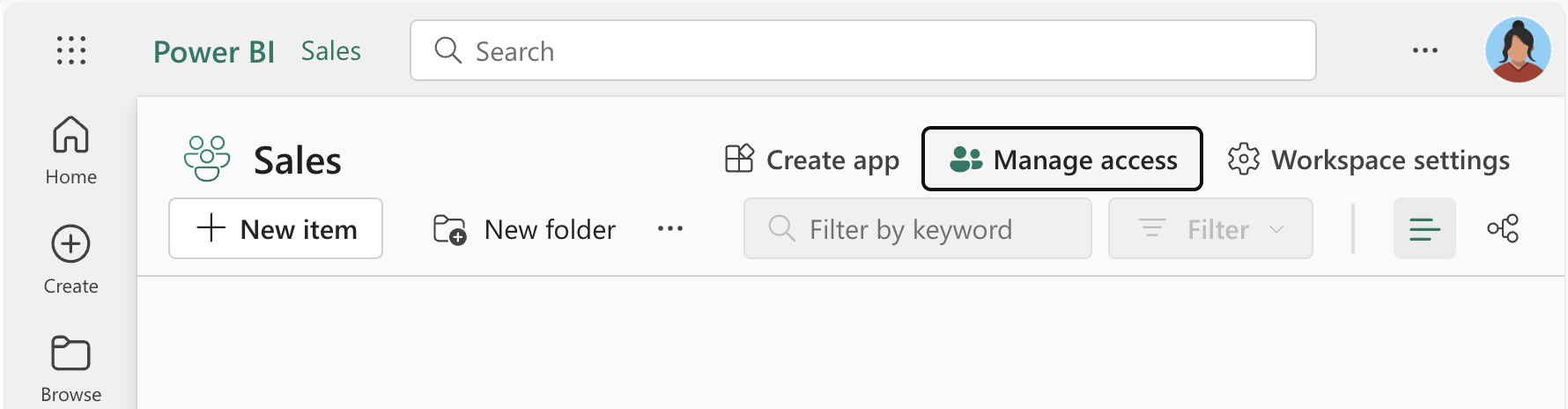
Select the Manage access option to add people or groups to the workspace. You can also remove people or groups from the workspace.