Publish to Power BI service
Imagine you have created a report in the Power BI Desktop and now you want to share it to your colleagues. Sending the .pbix file via email isn't the best option, as the file might be too large, and it can be difficult to keep track of the latest version. Also, your colleagues might not have the same version of Power BI Desktop installed, which could lead to compatibility issues.
Instead, you can publish the report to the Power BI service, where your colleagues can access it online. This process is called publishing.
Publish from Power BI Desktop
In Power BI Desktop, choose File > Publish > Publish to Power BI or select Publish on the Home ribbon.

If you aren't signed in yet with your Microsoft Entra ID (work or school account), you're prompted to do so. After signing in, you'll see a dialog box that allows you to select the workspace where you want to publish the report.
When publishing is complete, you receive a link to your report. You can also find the report in the Power BI service by navigating to the workspace you selected during the publish process.
Notice the semantic model is also published with the report. This means that the data model, including tables, relationships, and measures, is now available in the Power BI service. You can use this semantic model to create new reports or dashboards based on the same data.
When you make a change to a report in Power BI Desktop and then republish it, a message shows you how many workspaces, reports, and dashboards are potentially impacted by the change. Power BI then asks you to confirm that you want to replace the currently published semantic model with the one you modified.
Upload a Power BI report
There's another way to add a report to a workspace. You can upload a Power BI report (.pbix file) directly to the workspace. This is useful if you have a report that was created in Power BI Desktop and you want to add it to the workspace without publishing it from Power BI Desktop. The following image shows the menu options.
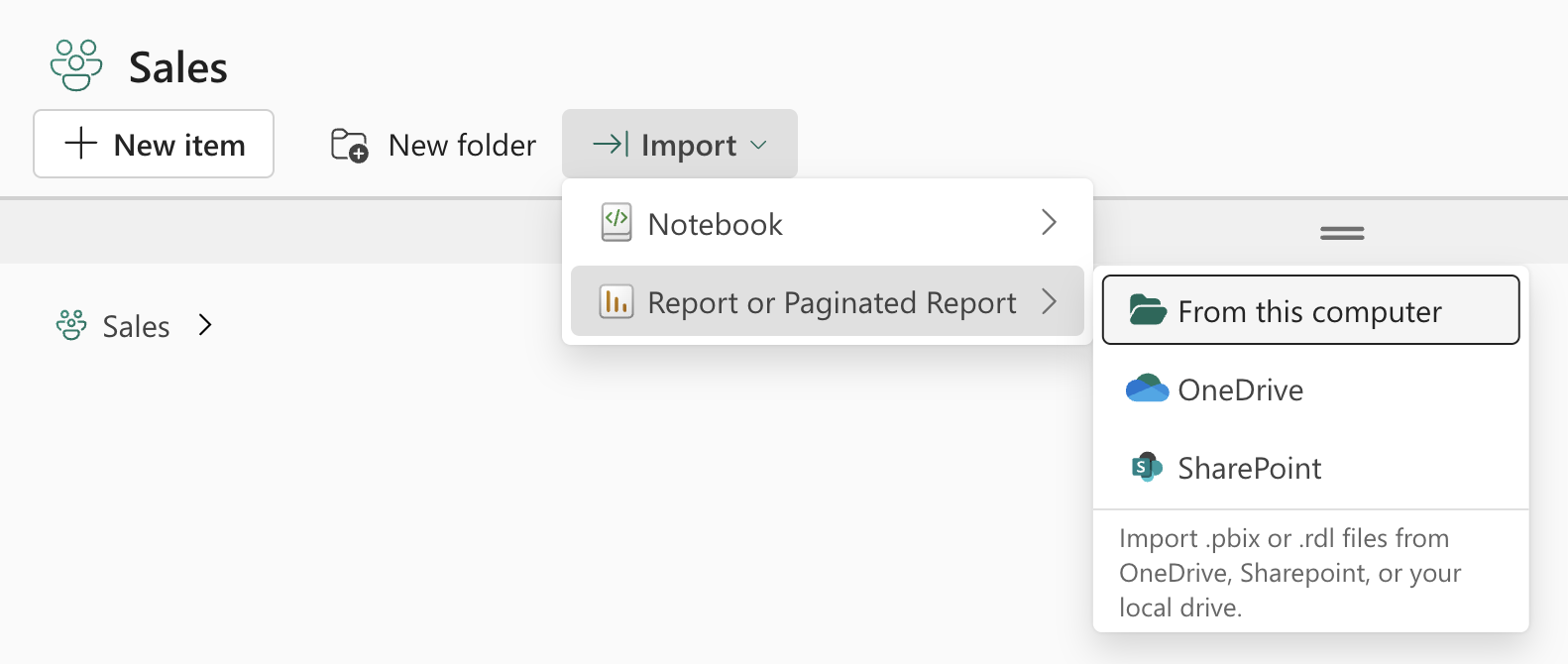
You can use the dropdown menu to connect to files stored in OneDrive for work or school or any SharePoint site to which you have access, or you can upload them from your computer through the Browse menu option.
If you use the OneDrive for work or school or SharePoint option, the Power BI service creates a connection to the file and as you make changes to the file in SharePoint, Power BI can automatically sync those changes approximately each hour.
Organize items in folders
Folders are organizational units inside a workspace that enable users to efficiently organize and manage artifacts in the workspace. Select New folder and assign it a name.
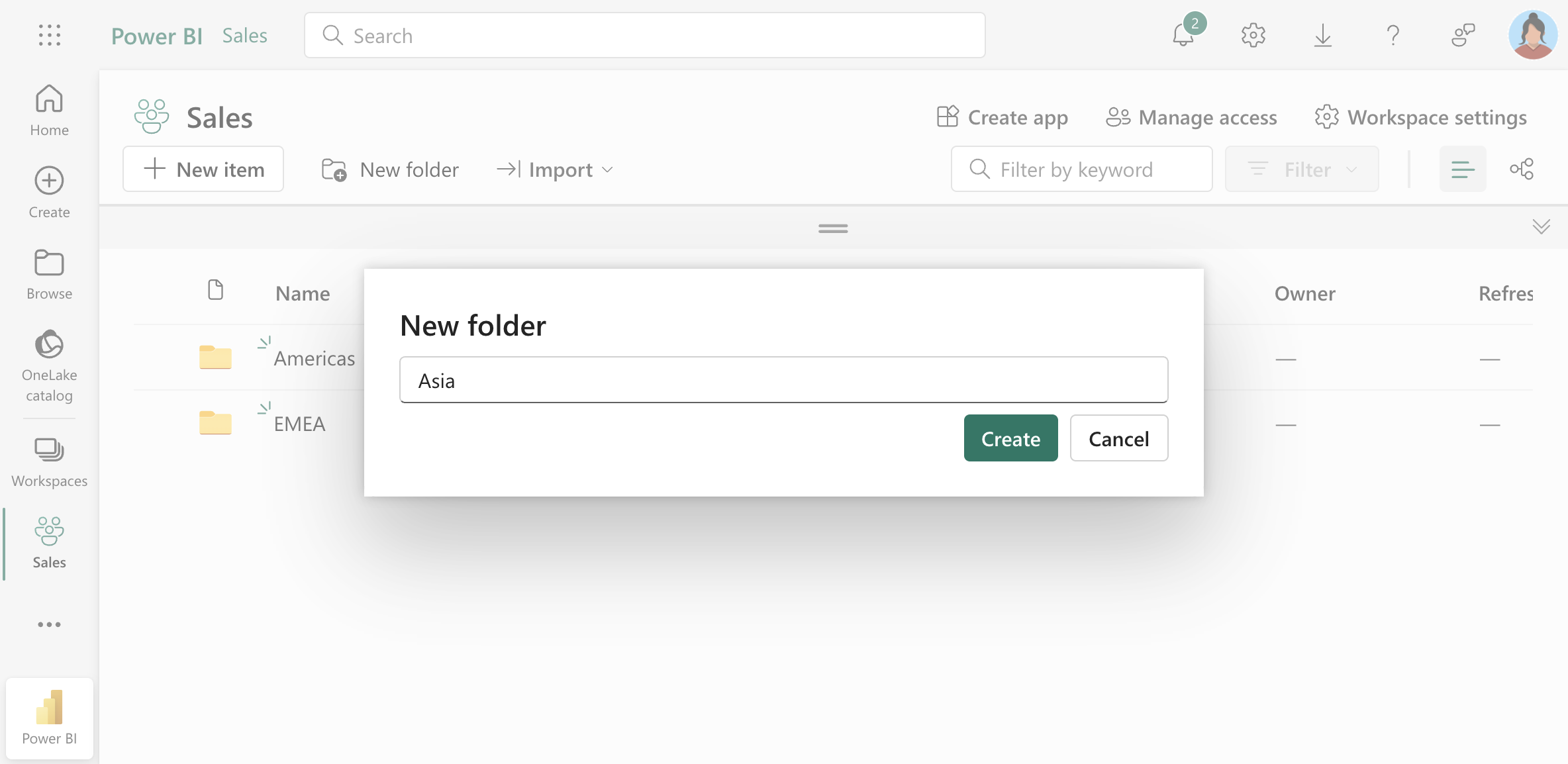
You can create nested subfolders in a folder in the same way, up to 10 levels deep. You can also move a single or multiple items to folders and subfolders.
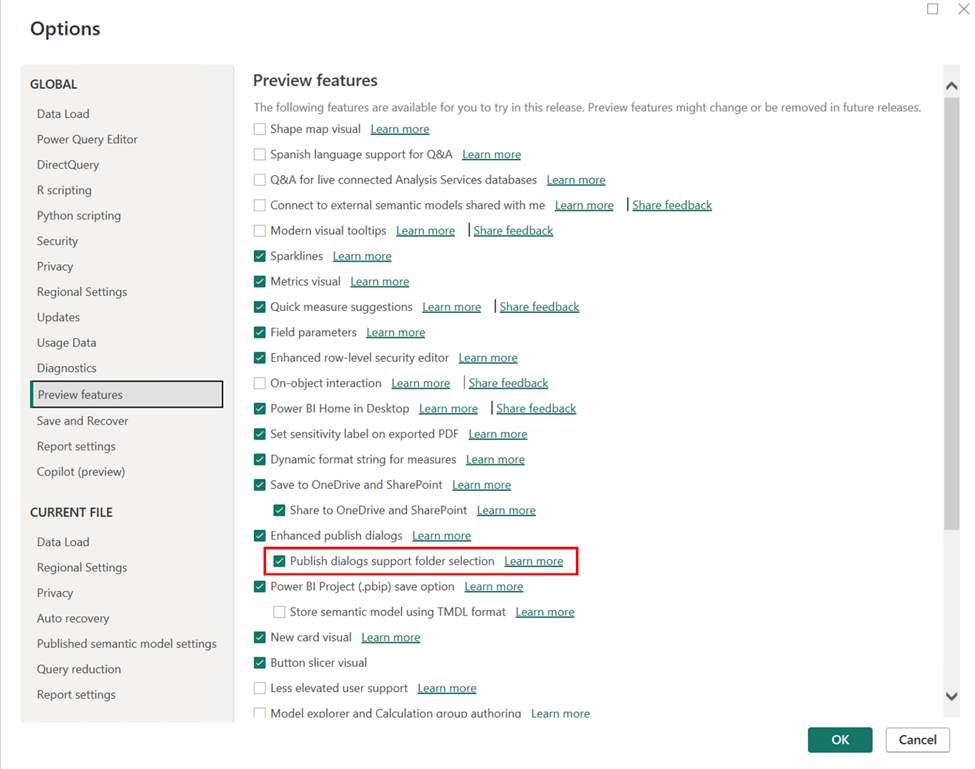
To publish reports from Power BI Desktop to a specific folder in the service (preview), make sure that the Publish dialogs support folder selection setting is enabled in the Preview features tab in the options menu.