Control network access to your storage account
By default, storage accounts accept connections from clients on any network. To limit access to selected networks, you must first change the default action. You can restrict access to specific IP addresses, ranges, or virtual networks.
Private endpoints
For maximum network isolation, use a private endpoint for your storage account. A private endpoint assigns a private IP address from your virtual network to the storage account. Network traffic between clients in the virtual network and the storage account travels over the virtual network and a private link on the Microsoft backbone network—it never reaches the public internet.
With a private endpoint, you can also configure the storage account firewall to block all access over the public endpoint, ensuring data is reachable only from within your virtual network or connected on-premises networks (via VPN or ExpressRoute). Private endpoints incur extra costs but provide the strongest network isolation option.
Note
Creating a private endpoint doesn't automatically block the public endpoint. You must explicitly configure the storage firewall to deny public access if you want all traffic to flow only through the private endpoint.
Important
Changing network rules can affect your application's ability to connect to Azure Storage. If you set the default network rule to deny, you block all access to the data unless specific network rules grant access. Before you change the default rule to deny access, be sure to use network rules to grant access to any allowed networks.
Manage default network access rules
You can manage default network access rules for storage accounts through the Azure portal, PowerShell, or the Azure CLI.
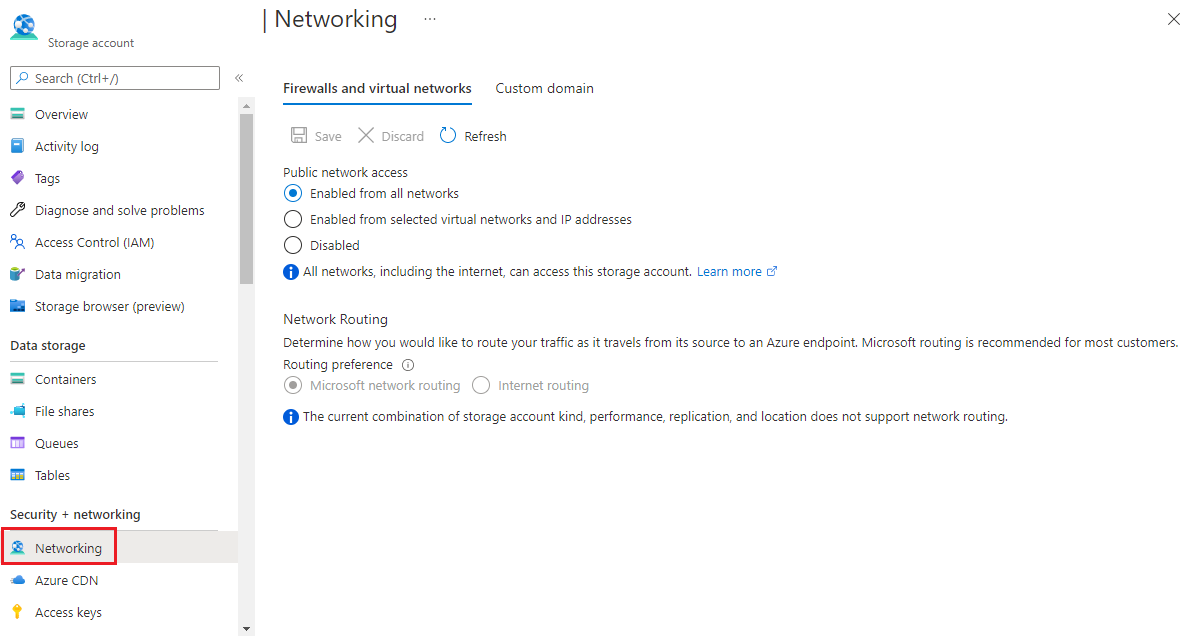
Follow these steps to change default network access in the Azure portal.
Go to the storage account you want to secure.
Select Networking in the left-hand pane.
To restrict access to only selected networks and IPs, select Enabled from selected virtual networks and IP addresses. To enable public network access for all networks, including the internet, select Enabled from all networks.
To apply your changes, select Save.