Exercise: Personalize and refine prompts
In this activity, learn how to create personalized prompts and refine them to get the best results. By the end of this exercise, you'll be more comfortable using AI to enhance your everyday tasks.
Note
Your experience with Microsoft 365 Copilot may differ from what is presented in this exercise. See What Copilot license do I have? for reference.
Before you start
In this module, you use Microsoft Copilot to interact with generative AI. To follow along and complete the exercise, you need to do a few things to get set-up.
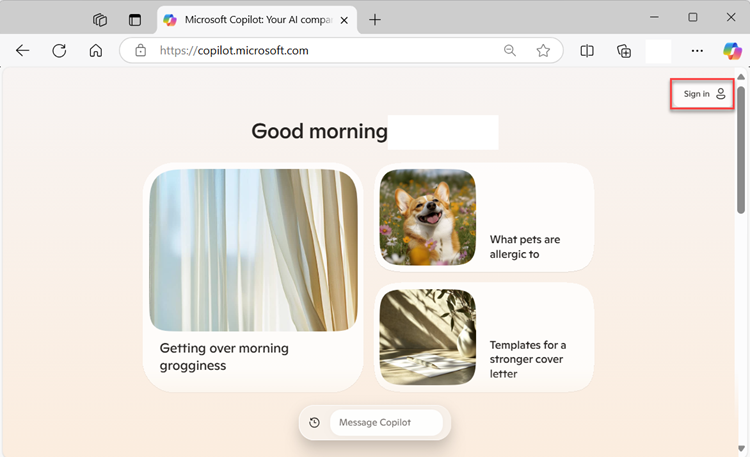
In your browser, navigate to copilot.microsoft.com. For this tutorial you need to use Copilot in the full browser, not in the browser sidebar.
Sign in to Copilot with your personal Microsoft Account (such as an outlook.com account).
Personalize sample prompts
To start, you practice creating personalized prompts using a few fill-in-the-blank examples. Your task is to fill in the blanks with specific details such as goals, timelines, topics, or other relevant information. This helps you create clear and effective prompts for Copilot.
Generate recommendations
- Copy the sample prompt and paste it into the chat box in copilot.microsoft.com.
- Personalize the prompt by updating the content in brackets to whatever suits you.
- Submit the message to Copilot.
Important
In this exercise, bracketed text indicates where you should replace the bracketed text with your own ideas. After personalizing the prompt, remove the brackets.
Sample prompt:
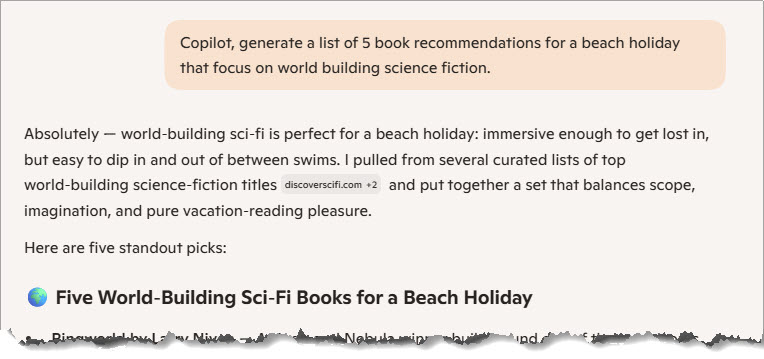
Copilot, generate a list of [5 book recommendations] for [a beach holiday] that focus on [world-building science fiction].
The following screenshot shows the start of what Copilot might generate.
Tip
Iterate and expand. Remember that you can iterate, and ask Copilot to refine the ideas, generate more ideas, or provide more information about your list. Use Copilot's suggestions to dig deeper. For example, ask Copilot: "Can you recommend similar books by diverse authors?", or "What makes these books stand out in terms of world-building?"
Analyze your results
Now that you submitted your personalized prompts to Copilot, it's time to analyze the results. Take a moment to review the response you received. Consider the following questions as you evaluate the results:
- Did Copilot understand your prompt correctly?
- Is the response relevant and useful for your needs?
- Are there any areas where the response could be improved?
Tip
As you review the results, make a note of what you liked about the responses and any areas that could be refined.
If you like, take a few minutes to personalize some more prompts, and analyze the results. Don't worry, you won't overwrite earlier prompts and responses.
Sample prompts:
- Copilot, list [10 TV shows] for [weekend binge-watching] that are [comedy and family-friendly].
- Copilot, create a [playlist] for [studying] that features [calm and focus-enhancing music].
- Copilot, generate a list of [10 book recommendations] for [summer reading] that focus on [self-improvement and personal growth].
Expand results using Think Deeper
Iteration is a key part of creating effective AI prompts. In this step, you refine your original results to get expanded information using Think Deeper.
Note
Think Deeper unlocks the power of deep reasoning in Microsoft Copilot. It can handle more complex questions by taking time to craft a plan, gather and comprehend all relevant context, and check its work before providing a thorough response.
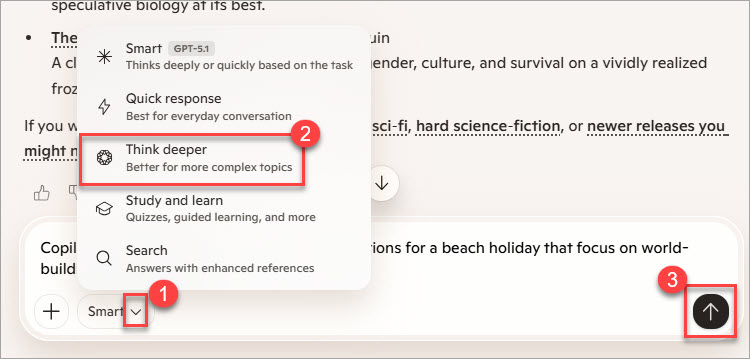
First, try one of your earlier prompts with Think Deeper. Add your prompt to the chat box again, and then follow these steps:
- Select the drop-down menu in the prompt area.
- Choose Think Deeper from the available options.
- Submit to Copilot and review the results.
How does it compare to the earlier response to the same prompt?
Now, go ahead and ask a follow-up question for more detailed information.
Sample prompt: I'd like to dive into the central themes and motifs of each book, to understand the underlying messages and connections between the stories.
This might take Copilot around 30 seconds to return your results.
Review the output from Think Deeper. Consider how it compares to standard responses.
Note
Build your AI habit: Now that you know what it takes to craft clear, specific, and goal-oriented prompts, try to identify tasks in your own daily routine where AI might help you save time or be more creative. Commit to a daily experiment, such as one prompt to try every day. Remember to iterate as much as you want to perfect your prompt.
Congratulations on completing the exercise! You created personalized prompts, analyzed the results, and used Think Deeper to unlock deep reasoning. Keep experimenting with different prompts in your daily tasks to see how AI can make your work easier and more efficient.