Simplify workflows and automate tasks with Agents in Copilot Chat (Basic)
Agents are specialized AI assistants in Copilot Chat (Basic) designed to help users automate tasks, streamline workflows, and provide intelligent assistance. Think of them as expert teammates embedded in your Copilot Chat experience — each one focused on a specific type of work.
Why Use Them?
- Automate repetitive tasks
- Access real-time information (e.g., customer details, instructions)
- Personalize workflows for your needs
Tip
Reach for an agent when you need consistent, specialized help for a repeated task — for example, always getting responses in a specific format or always drawing from a particular knowledge source. For one-off questions or general research, regular Copilot Chat works just as well.
Important
Your experience with Microsoft Copilot may differ from what is presented in this training based on your version. See What Copilot License do I have? for reference.
Get started with Agents
Agents are created and managed through the Copilot Chat (Basic) interface, either in the browser or app version of Microsoft 365. Alternately, you can access the Agent Store to view prebuilt agents from Microsoft, partners, and internal teams.
Note
Agent creation is only available if your organization admin has enabled this capability. Microsoft Copilot Chat (Basic) has both agents that can be used at no additional cost and agents that are billed based on metered consumption. If you find yourself wanting agents that reason over your work data—emails, meetings, SharePoint sites, or CRM records—that's a clear signal you're ready to advance. With a Microsoft 365 Copilot license, you unlock comprehensive access to agents grounded in your organizational data, including Microsoft's Analyst and Researcher advanced reasoning agents and custom agents built on Microsoft Graph.
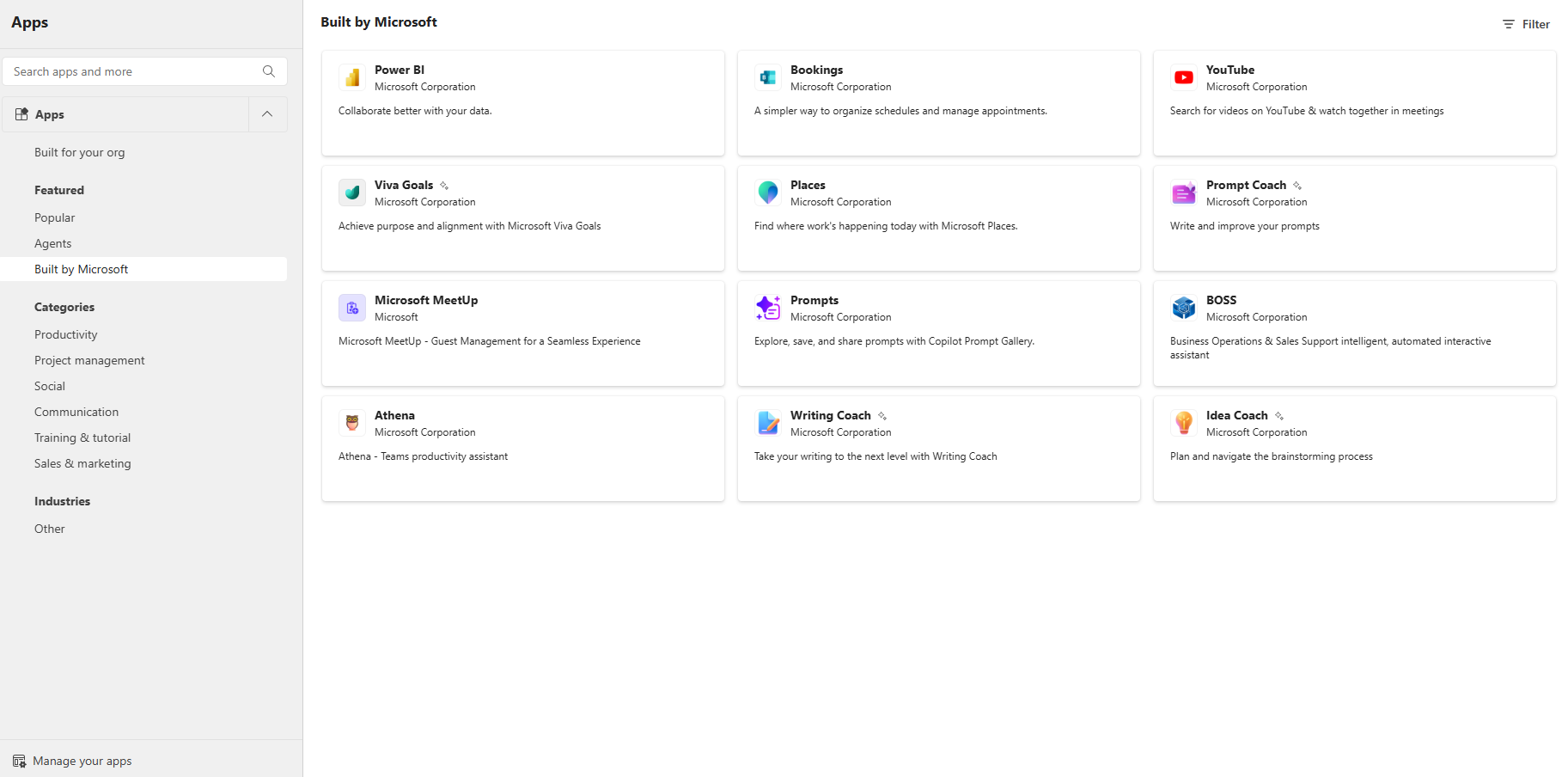
- Agent Store: Accessible via the Copilot App, the Agent Store provides a curated marketplace of prebuilt agents from Microsoft, partners, and internal teams. Microsoft-built agents include options like Writing Coach, Prompt Coach, and Visual Creator — each focused on a specific productivity scenario. Browse and install agents that fit your workflow without building anything from scratch. Advanced agents like Researcher and Analyst are also in the store but require a Microsoft 365 Copilot license.
- Create a new agent: Ideal for scenarios requiring tailored workflows or business processes. You can describe your agent in natural language or configure it manually using templates. This approach gives you greater control over the agent’s behavior, knowledge sources, and instructions.
Tip
Prebuilt agents cover many common tasks, but creating your own lets you tailor Copilot to your team's specific processes, use your preferred knowledge sources, and set a tone and format that fits your needs.
Tip
Once you've used agents, you can filter your Copilot Chat conversation history by agent to quickly find and resume previous interactions with a specific agent.
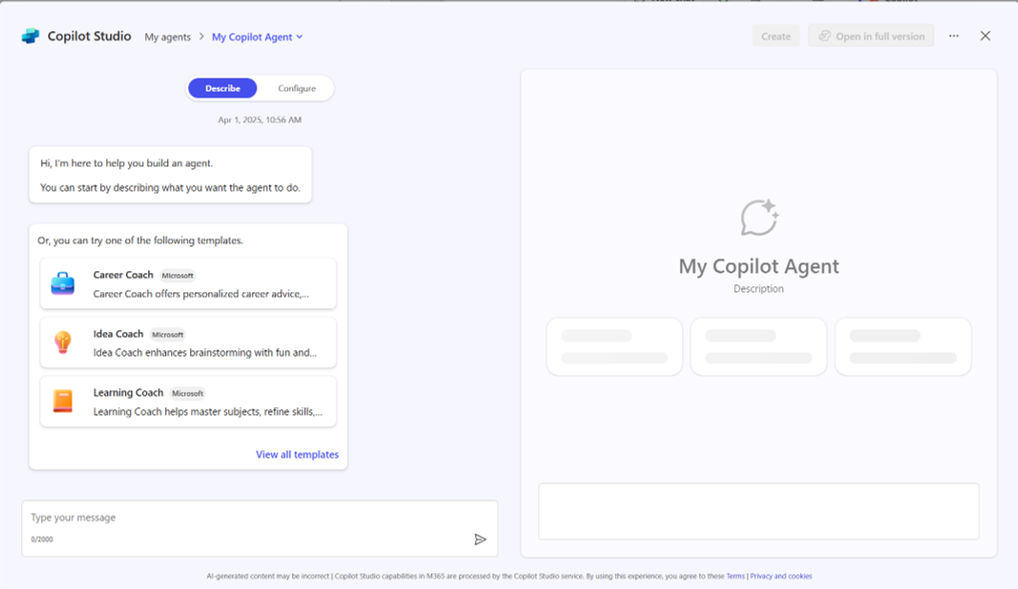
Configure your agent
Once you start building an agent, use the Configure tab to define exactly how it behaves:
- Details: Give your agent a name, description, and optional icon so it's easy to identify and share.
- Instructions: Tell Copilot who the agent is (its persona), what it should do (tasks and goals), and how it should respond (tone and format). For example, "Act as a financial analyst. Analyze quarterly sales data and respond in a clear, professional tone using bullet points."
- Knowledge: Attach public websites so the agent gives accurate, context-aware answers grounded in web content. Grounding agents in organizational data like SharePoint or OneDrive files requires metered consumption billing or a Microsoft 365 Copilot license.
- Capabilities: Turn on Code Interpreter to let the agent run calculations and data analysis, or Image generator to generate visuals like charts and diagrams based on your prompts.
- Suggested prompts: Provide a few example prompts so others know how to interact with the agent, such as Summarize this report or Create a project timeline.
Note
With a Microsoft 365 Copilot license, you can extend an agent's knowledge further with Copilot connectors. Connectors bring additional enterprise and external data sources—such as Salesforce, ServiceNow, or Jira—into Microsoft Graph, so your agent can reason over that content too. Connectors are set up by your organization and remain subject to your organization's configuration, permissions, and governance.
Share your agent
Once your agent is created, it stays private until you choose to share it — and you don't need administrator approval to do so.
- Open the agent in Copilot Chat (Basic).
- Open the sharing options for your agent.
- Choose whether to share with specific people or groups, or make it available to your entire organization.
- Assign a role to each person you share with: Viewer (can use the agent) or Editor (can modify its instructions, prompts, and sources).
Note
If you edit suggested prompts after sharing your agent, anyone with access needs to reinstall the agent to see the updated prompts. Every agent you build or use in Copilot Chat (Basic) adds to your understanding of how AI can automate real work. That experience is a natural stepping stone—when your automation needs outgrow web-grounded data, the full Microsoft Copilot experience is the next skill level to pursue.
To learn more about the benefits of agents and how to create custom agents, take the course Transform your everyday business processes with agents on Microsoft Learn.