Note
Access to this page requires authorization. You can try signing in or changing directories.
Access to this page requires authorization. You can try changing directories.
Summary
This article describes how to troubleshoot some common problems you might encounter with certificates on Azure Front Door.
Common problems
*.azureedge.net certificate intermittently returned
Symptoms
Requests that are sent to your custom domain through Front Door sometimes generate a certificate error and return a
*.azureedge.netcertificate instead of the expected one.This problem occurs in a specific geographic area.
Cause
This problem can occur for one of the following reasons:
You just deployed the custom domain, and the certificate is still propagating to all the Front Door edge servers.
One of the Front Door edge servers doesn't have the expected certificate loaded.
Troubleshooting
You just deployed the custom domain and the certificate is still propagating to all Front Door edge servers:
Wait up to one hour for the new certificate to fully propagate.
One of the Front Door edge servers doesn't have the expected certificate loaded:
To verify that the certificate is deployed correctly to all Front Door edge servers, follow these steps:
In the Azure portal, check the deployment status for the custom domain to make sure the Certificate state is Deployed.
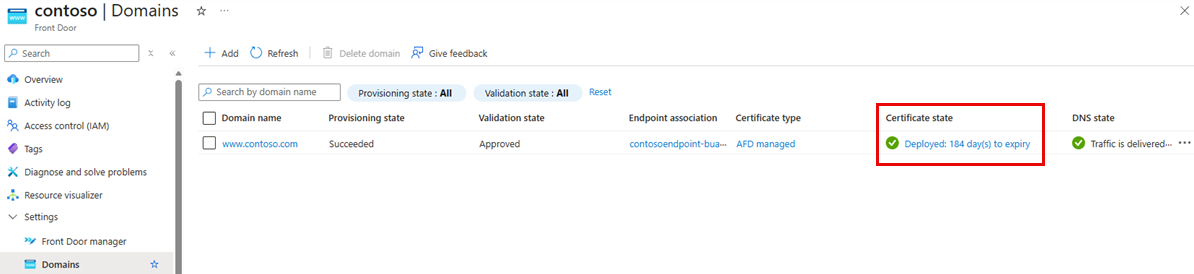
In a browser from an affected user, access the site. View the certificate, and verify that it's:
*.azureedge.net.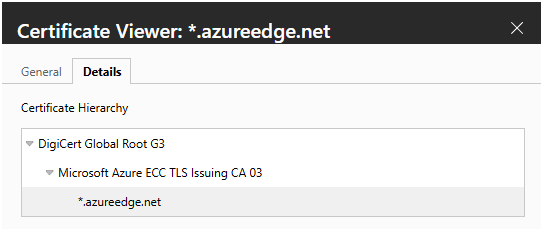
Continue to load the site while you capture the traffic in the browser by using your browser's developer tools. You might have to temporarily bypass any certificate errors to load the site for troubleshooting.
Make sure that the response headers contain an
x-azure-refheader to show that the request went to Front Door.
Create a support request if the following conditions are true:
The custom domain is deployed successfully for at least one hour.
Affected users intermittently receive a
*.azureedge.netcertificate instead of the expected custom domain certificate.The response from the site contains
x-azure-refheaders. This condition indicates that the traffic was handled by Front Door.
Include all your gathered data in the support request, including the geographic area where users are affected.
The returned certificate for a custom domain is expired
Symptoms
Requests that are sent to your custom domain through Front Door get an expired certificate and fail.
The certificate for the custom domain isn't expired.
Cause
This problem might occur for one of the following reasons:
The custom domain uses a managed certificate, but there's no CNAME that delegates the custom domain to the Front Door endpoint hostname.
The custom domain uses a certificate that's deployed from an Azure Key Vault, but the certificate isn't rotated in the Key Vault.
Troubleshooting
The custom domain uses a managed certificate, but there's no CNAME delegating the custom domain to the Front Door endpoint hostname:
To verify that the CNAME for the custom domain is correctly pointing to the Front Door endpoint, follow these steps:
Test DNS resolution of the custom domain by using a DNS lookup tool such as
dig. Verify that your custom domain has no direct CNAME to the Front Door endpoint. The following example of adigquery shows that the custom domain doesn't currently resolve to a CNAME that points to the Front Door endpoint:dig contoso.fabrikam.com CNAME ; <<>> DiG 9.18.39-0ubuntu0.22.04.2-Ubuntu <<>> contoso.fabrikam.com CNAME ;; global options: +cmd ;; Got answer: ;; ->>HEADER<<- opcode: QUERY, status: NXDOMAIN, id: 55070 ;; flags: qr rd ra; QUERY: 1, ANSWER: 0, AUTHORITY: 1, ADDITIONAL: 1 ;; OPT PSEUDOSECTION: ; EDNS: version: 0, flags:; udp: 4096 ;; QUESTION SECTION: ;contoso.fabrikam.com. IN CNAME ;; AUTHORITY SECTION: fabrikam.com. 300 IN SOA ns1-03.azure-dns.com. azuredns-hostmaster.microsoft.com. 1 3600 300 2419200 300 ;; Query time: 123 msec ;; SERVER: 0.0.0.0#53(0.0.0.0) (UDP) ;; WHEN: Fri Mar 06 16:18:53 CST 2026 ;; MSG SIZE rcvd: 132If the CNAME is missing, go to Settings > Domains in your Front Door profile, and then select the link that's associated with the DNS state.
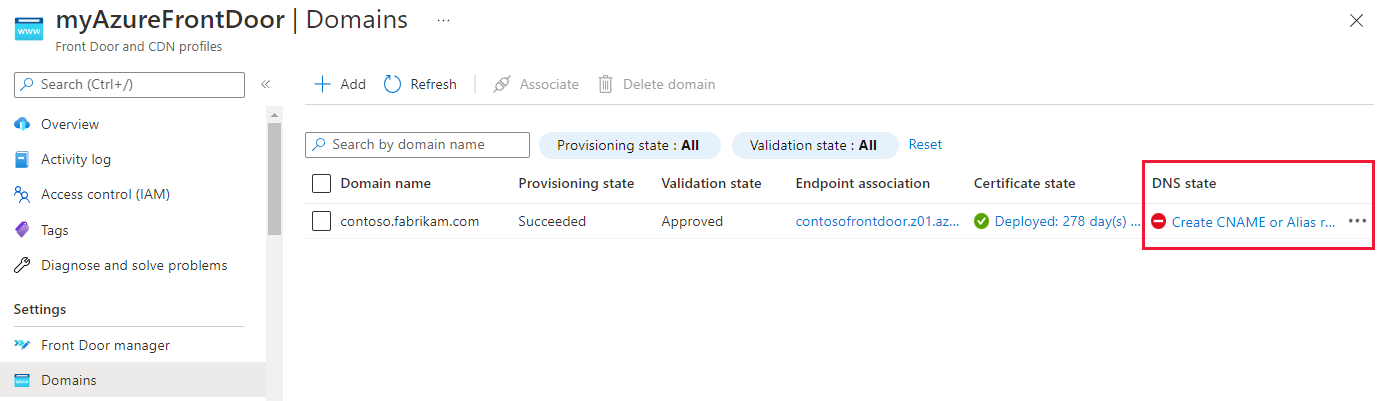
Either add the record to the linked Azure DNS zone or note the required values so that you can add this record manually through your DNS provider.
To expedite creation of a new certificate, refresh the validation token. See the following example of the Update-AzFrontDoorCdnCustomDomainValidationToken Azure PowerShell cmdlet for reference:
Update-AzFrontDoorCdnCustomDomainValidationToken -ResourceGroupName contosorg -ProfileName myAzureFrontDoor CustomDomainName contoso-fabrikam-comAfter this command finishes, update your DNS zone by using the new TXT record value to validate the new certificate.
The custom domain uses a certificate that's deployed from an Azure Key Vault, but the certificate isn't rotated in the Key Vault:
One reason that a certificate might not rotate is that the certificate version isn't the latest when you create the secret in the Front Door profile. For more information, see Certificate autorotation.
Go to Security > Secrets to check the version number that's listed for the certificate.
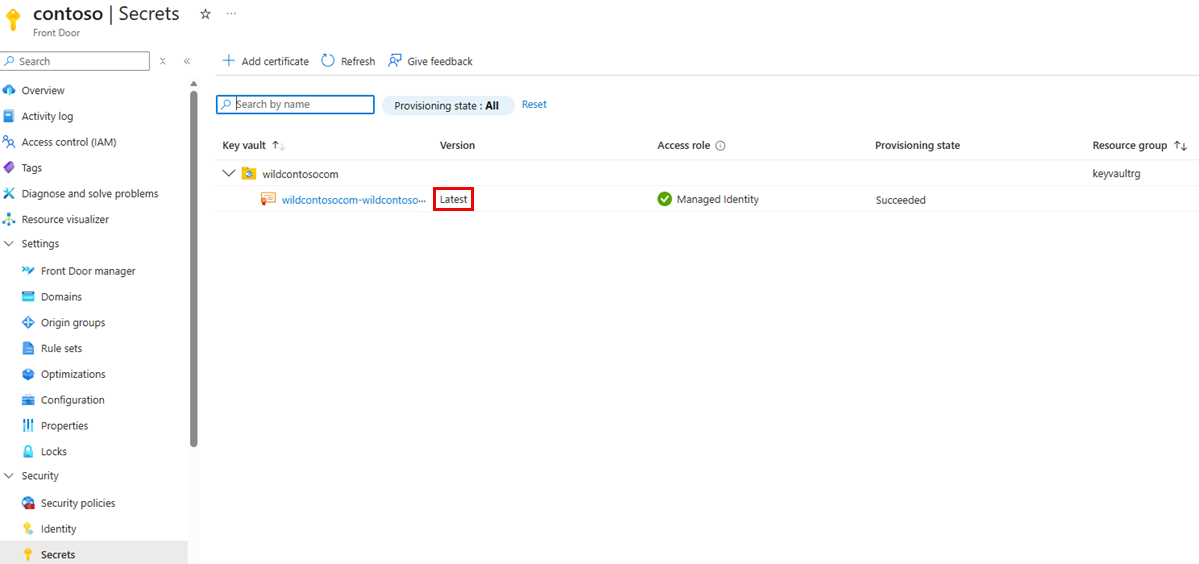
If the listed certificate version isn't the latest, create a new secret in the Front Door profile by using the same Key Vault certificate, and select either Latest or the most recent specific version.
Associate the custom domain with the new secret. After you complete this association, your certificate is deployed within 24 hours.
Another reason that a certificate might not rotate is changes in Key Vault access permissions. For more information, see next section.
Changes in Key Vault access
Symptoms
You experience changes in Key Vault access permissions.
Cause
Front Door might not rotate a certificate that's updated in Key Vault because of changes in Key Vault access permissions.
Troubleshooting
Key Vault permissions use two models. Choose the model that fits your scenario, and check that the permissions are still set on Key Vault.
Use Managed Identity to grant Front Door access to your Key Vault (recommended):
You might initially create your custom domain by using a managed identity model to grant Front Door permissions to get your certificate from your key vault. In this case, follow the instructions in Use managed identities to access Azure Key Vault certificates to make sure that the Managed Identity still has access.
Use Service Principal to grant Front Door access to your Key Vault (legacy method):
You might use this method to initially create your custom domain and deploy the certificate. In this case, follow the instruction in Grant Azure Front Door access to your key vault to make sure that the permissions are still granted.
Mismatches between the Common Name (CN) or Subject Alternate Name (SAN) and the custom domain
Symptoms
Most hostname mismatch problems are caused by a few common conditions:
- The required domain isn't listed in the SAN.
- A wildcard is used incorrectly.
- The root domain is expected to match a wildcard.
This problem can also occur if the new certificate uses a different root that Front Door doesn't accept.
Cause
Similar to any system that uses certificates, Front Door requires that the CN (or SAN, if present) matches the custom domain hostname. It's important to understand how certificates determine which domains they're valid for. An X.509 certificate binds a public key to one or more domain names that use the CN and SAN fields. Historically, the CN specified the primary domain, but modern TLS clients and browsers rely on the SAN field, instead.
Today, if a certificate includes a SAN extension, it becomes the authoritative source for domain validation. Front Door checks whether the hostname (for example, api.contoso.com) matches any entry listed in the SAN. Only if the SAN field is absent does Front Door fall back to evaluating the CN. This condition means that even if the CN matches the hostname, the rotation fails if a SAN exists and doesn't include that hostname.
Wildcard certificates can simplify domain coverage, but they follow strict rules. For example, a wildcard such as *.contoso.com matches api.contoso.com or www.contoso.com, but it doesn't match deeper subdomains such as sub.api.contoso.com or the root domain, contoso.com. Wildcards apply to only a single subdomain level. This limitation can be a common source of confusion.
Troubleshooting
Verify that the issuing CA isn't an internal CA or a self-signed certificate. Make sure that the root for the certificate is from the list of Allowed CAs.