Note
Access to this page requires authorization. You can try signing in or changing directories.
Access to this page requires authorization. You can try changing directories.
Summary
This article describes an issue in which Outlook on the web (OWA), Exchange Control Panel (ECP), or both stop working after you install a security update on Exchange Server. The issue occurs when the update is manually installed without elevated permissions on a server that has User Account Control (UAC) enabled, which can leave Exchange files and configuration settings in an inconsistent state. To resolve the issue, reinstall the security update by using an elevated command prompt and, if necessary, repair the ECP configuration and update Exchange virtual directory files.
Symptoms
After you install a security update on a server that's running Microsoft Exchange Server, either Outlook on the web (OWA) or Exchange Control Panel (ECP), or both applications stop working on the server.
OWA displays the following error message:
Something went wrong
Your request couldn't be completed. HTTP Status code: 500
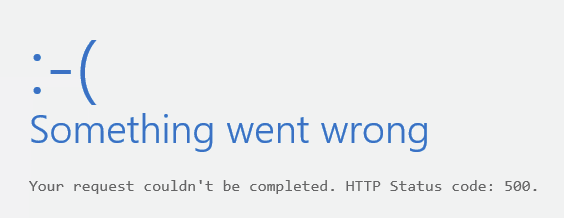
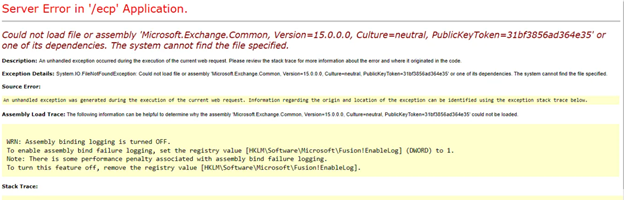
ECP displays the following error message:
Server Error in '/ecp' Application.
Could not load file or assembly 'Microsoft.Exchange.Common, Version=15.0.0.0 …Culture=neutral, PublicKeyToken=31bf3856ad364e54' or one of its dependencies. The system cannot find the file specified.
Cause
These errors occur if the security update was manually installed on a server that has User Account Control (UAC) enabled, but without using elevated permissions.
Resolution
Use elevated permissions to reinstall the security update on the server.
- Select Start, and then type cmd.
- Right-click Command Prompt from the search results, and then select Run as administrator.
- If the User Account Control window appears, select the option to open an elevated Command Prompt window, and then select Continue. If the UAC window doesn't appear, continue to the next step.
- Type the full path of the .msp file for the security update, and then press Enter.
- After the update installs, restart the server.
Check whether you can now access OWA and ECP on the server without getting an error message.
If the ECP error message continues to display, do the following:
Start IIS Manager on the server.
Navigate to Exchange Backend website > ECP Virtual directory.
Select Application settings > BinsearchFolder.
Check the paths to the Exchange directories that are listed. You might see directory paths that resemble the following:
%ExchangeInstallDir%bin;
%ExchangeInstallDir%bin\CmdletExtensionAgents;
%ExchangeInstallDir%ClientAccess\Owa\binReplace the paths with the following paths:
C:\Program Files\Microsoft\Exchange Server\V15\bin;
C:\Program Files\Microsoft\Exchange Server\V15\bin\CmdletExtensionAgents;
C:\Program Files\Microsoft\Exchange Server\V15\ClientAccess\Owa\binNote The paths must point to where Exchange Server is installed. The following examples assume that the program is installed on drive C and that the version is Microsoft Exchange Server 2013. If it is installed on a different drive on your server, or if you're using a different version such as Microsoft Exchange Server 2010, then use the path and version information that's appropriate for your installation.
Navigate to a folder that includes Exchange Server scripts. By default, scripts are located in the following path for Exchange Server 2013:
C:\Program Files\Microsoft\Exchange Server\v15\Bin
Note For Exchange Server 2010, the scripts will be in the V14 folder instead.
Start Exchange Management Shell as an administrator and run the following scripts:
.\UpdateCas.ps1and.\UpdateConfigFiles.ps1.Exit Exchange Management Shell and open a Command Prompt window as an administrator.
Run
iisreset.Restart the server, and verify that you no longer get an error message when you access ECP.