Note
Access to this page requires authorization. You can try signing in or changing directories.
Access to this page requires authorization. You can try changing directories.
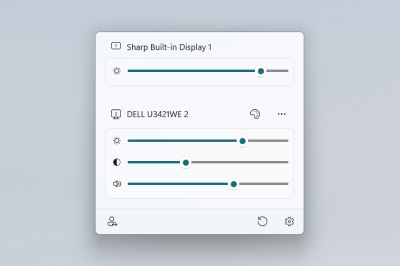
PowerToys Power Display is a display management utility that puts brightness and other monitor controls into a single flyout. It uses DDC/CI to talk to your external monitors, so you can adjust brightness, contrast, volume, input source, rotation, color temperature, and power state without reaching for the buttons on the back of each display. You can also save combinations of settings as profiles and apply them with a single click.
Before you enable Power Display
Power Display talks to your monitors over DDC/CI, which is a well-supported but sometimes flaky channel. PowerToys Settings asks you to confirm before turning the module on for the first time, and before enabling certain per-monitor controls. The same warnings are summarized below so you know what you're agreeing to.
Warning
Power Display reads each connected monitor's DDC/CI capabilities at startup. On a small number of monitors with malformed capability strings, this read can trigger a Windows kernel bug that causes a system crash (BSOD). The underlying issue is in Windows, not in Power Display.
- On affected monitors, the system may crash and restart.
- If a crash is detected, Power Display automatically disables itself the next time PowerToys launches, and you'll need to re-enable the module manually. A warning bar appears in Settings explaining what happened.
If a crash happens, Power Display also adds the offending monitor to its exclusion list so the same probe isn't retried on the next launch. See Monitor discovery and reliability.
Open Power Display
After you enable the module, press the activation shortcut (or click Open Power Display in Settings) to bring up the flyout. The flyout lists each connected monitor and the controls you've enabled for it.
Per-monitor controls
For each monitor, Power Display can show:
- Brightness slider
- Contrast slider
- Volume slider
- Input source control
- Rotation control
- Color temperature switcher
- Power state control
The available controls depend on what your monitor reports through DDC/CI. If a monitor doesn't report capabilities, advanced controls may be limited. Power Display focuses DDC/CI probing on external displays. Built-in laptop panels are detected separately so they aren't unnecessarily polled for capabilities they don't expose.
Brightness, contrast, and volume sliders commit changes after a short debounce, which avoids spamming the monitor with DDC/CI writes as you drag. You can also adjust each slider with the mouse wheel. Power Display automatically rescales slider percentages when a monitor uses a DDC/CI range other than 0–100, so the slider always reflects the actual position.
Controls that ask for confirmation
The following controls are turned off by default per monitor. When you enable any of them, Power Display shows a confirmation dialog that summarizes the risk before applying the change.
Warning
Color temperature. Adjusting color temperature uses DDC/CI to push values your monitor may not fully support.
- Some monitors display incorrect colors or behave unpredictably.
- A small number of monitors retain the new value even after Power Display is closed and may need a factory reset to restore the original profile.
Warning
Power state. Power state control uses DDC/CI to put the monitor into standby or wake it back up.
- Some monitors enter standby but don't wake back up from software. You may need to press the physical power button or reseat the cable.
- Other monitors don't restore the previous state correctly when toggled.
Warning
Input source. Input source control switches the monitor to a different input via DDC/CI.
- If the selected input has no signal, the screen will go black until something is connected.
- After switching, software control may be unavailable until you change inputs again using the monitor's physical buttons.
- Not every monitor reliably exposes all of its inputs over DDC/CI.
Monitor discovery and reliability
Power Display rescans your monitors when the screen wakes from sleep, and briefly locks the controls until the refresh completes. Per-monitor settings (such as which controls are visible, or whether a monitor is hidden) are persisted across restarts, monitor reordering, and transient discovery failures, and are carried forward when a display's stable identifier changes between PowerToys versions.
Some monitors report DDC/CI support but fail or misbehave when probed. Power Display:
- Ships with a built-in monitor exclusion list so known problematic displays are skipped during DDC/CI discovery and logged instead of probed.
- Automatically disables the module if it detects a DDC/CI capability crash, and shows a warning in Settings before you re-enable it. The warning dialog explains what was detected and what to try next.
If a monitor isn't picked up by the standard discovery path, you can turn on Max compatibility mode in Settings. Power Display does an immediate rescan and shows a confirmation dialog before the deeper probe runs.
Warning
Max compatibility mode. This mode ignores your monitor's capabilities string and probes every supported VCP feature directly. Only enable it if a monitor is missing from Power Display.
- The screen may briefly go black or lose signal during discovery.
- The monitor may respond unpredictably, including unwanted changes to brightness, contrast, or input source.
- The monitor may stop responding to DDC/CI altogether until it's power-cycled.
Profiles
Save your favorite combination of brightness, contrast, volume, and color temperature across one or more monitors as a profile (for example, Gaming Mode or Work). Apply a profile from the Settings page or directly from the flyout via the profile switcher button.
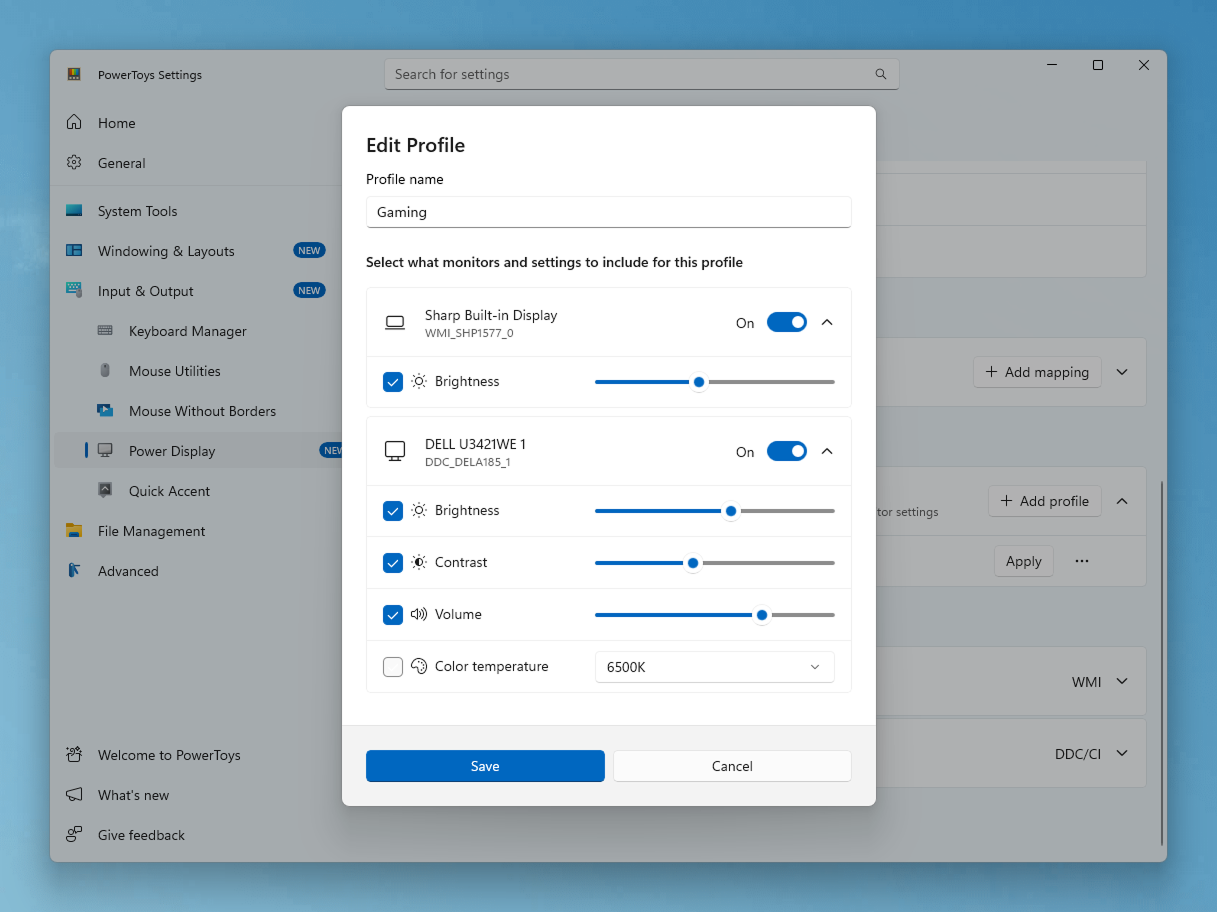
You can also configure Power Display to restore monitor brightness and color temperature when Power Display launches so your preferred settings are reapplied at startup.
Light Switch integration
Power Display integrates with the Light Switch utility so your monitor profiles can follow your Windows theme. When both utilities are enabled, you can pick a Power Display profile to apply when Light Switch transitions Windows into dark mode and a different profile to apply when it transitions to light mode. This lets the brightness, contrast, color temperature, and other monitor settings you've saved in a profile switch automatically alongside the system theme.
Configure this integration from the Light Switch Settings page, under Apply monitor settings to, by selecting a Dark mode profile and a Light mode profile from your saved Power Display profiles. Power Display must be enabled for the profile pickers to be available.
Custom VCP name mappings
Power Display lets you define custom display names for color temperature presets and input sources by mapping monitor VCP codes (for example, 0x14 for color temperature, 0x60 for input source) to a friendlier label. You can scope a mapping to a specific monitor or apply it to all monitors. The VCP capabilities card on each monitor shows the DDC/CI VCP codes and supported values reported by that display, which is useful when authoring mappings or debugging.
Keyboard shortcuts in the flyout
The flyout supports keyboard navigation, and pressing Esc closes it.
Settings
Power Display has the following settings:
| Setting | Description |
|---|---|
| Enable Power Display | Turn the utility on or off. You're asked to confirm the first time you enable it. |
| Activation shortcut | The customizable keyboard shortcut to open the Power Display flyout. |
| Monitor refresh delay | Number of seconds to wait after display changes before refreshing monitors. Increase this if monitors are not detected after hot-plug. |
| Max compatibility mode | Use a broader monitor discovery method that can pick up monitors skipped by the standard path. Triggers an immediate rescan when toggled on. |
| Restore monitor brightness and color temperature when Power Display launches | Reapplies your saved settings when Power Display starts. |
| Show system tray icon | Show a Power Display icon in the Windows system tray. |
| Show profile switcher button | Show the profile switcher button in the Power Display flyout. |
| Show identify monitors button | Show a button that briefly displays a number on each monitor to help you tell them apart. |
| Profiles | Save and apply named combinations of brightness, contrast, volume, and color temperature across selected monitors. |
| Custom VCP name mappings | Define custom display names for color temperature presets and input sources, scoped to a specific monitor or applied to all monitors. |
| Per-monitor toggles | For each connected monitor, choose which controls (contrast, volume, input source, rotation, color temperature, power state) appear in the flyout, and optionally Hide monitor to remove it from the flyout entirely. |
Install PowerToys
This utility is part of the Microsoft PowerToys utilities for power users. It provides a set of useful utilities to tune and streamline your Windows experience for greater productivity. To install PowerToys, see Installing PowerToys.
Collaborate with us on GitHub
The source for this content can be found on GitHub, where you can also create and review issues and pull requests. For more information, see our contributor guide.

Windows developer