Note
Access to this page requires authorization. You can try signing in or changing directories.
Access to this page requires authorization. You can try changing directories.
This article describes how to restore an Azure Cosmos DB account (preview) backed up using Azure portal.
Learn about the supported regions, scenarios, and the limitations for Azure Cosmos DB backup (preview).
Prerequisites
Before you restore from Azure Cosmos DB backups (preview), review the following prerequisites:
Check that you have the required permissions for the restore operation.
Verify that the target Azure Cosmos DB account is empty.
Restore Azure Cosmos DB account
To restore Azure Cosmos DB account, follow these steps:
Go to Resiliency, and then select Overview > Recover.
Alternatively, to restore backup from the Backup vault pane, go to the Backup vault > Overview, and select Restore.
On the Recover pane, select Resource managed by as Azure, Datasource type as Azure Cosmos DB (Preview), and Solution as Azure Backup.
Select the protected item for which you want to restore the backup, and then select Continue.
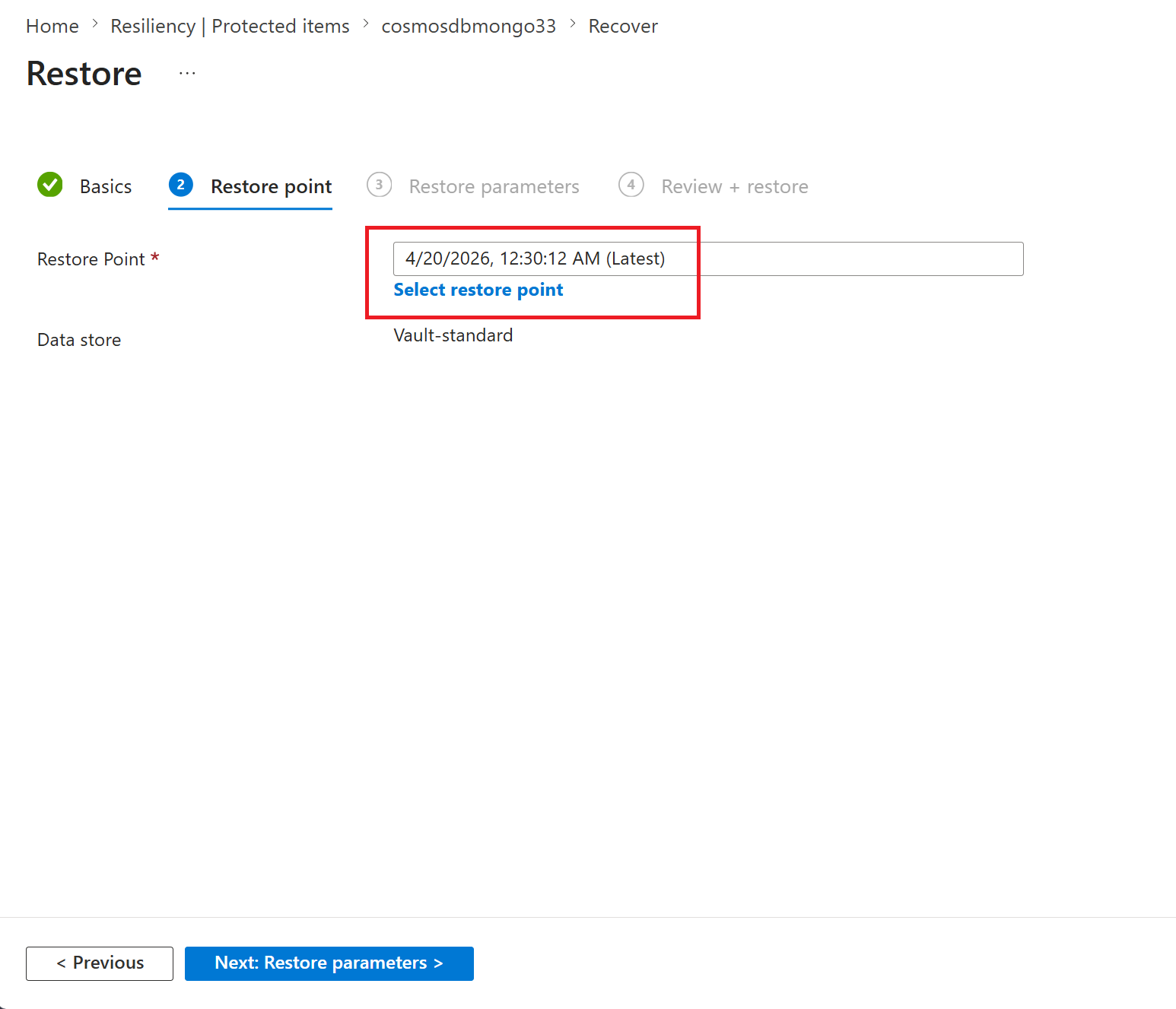
On the Restore pane, on the Restore point tab, click Select restore point and choose the restore point you want to restore.
The latest restore point is pre-populated.
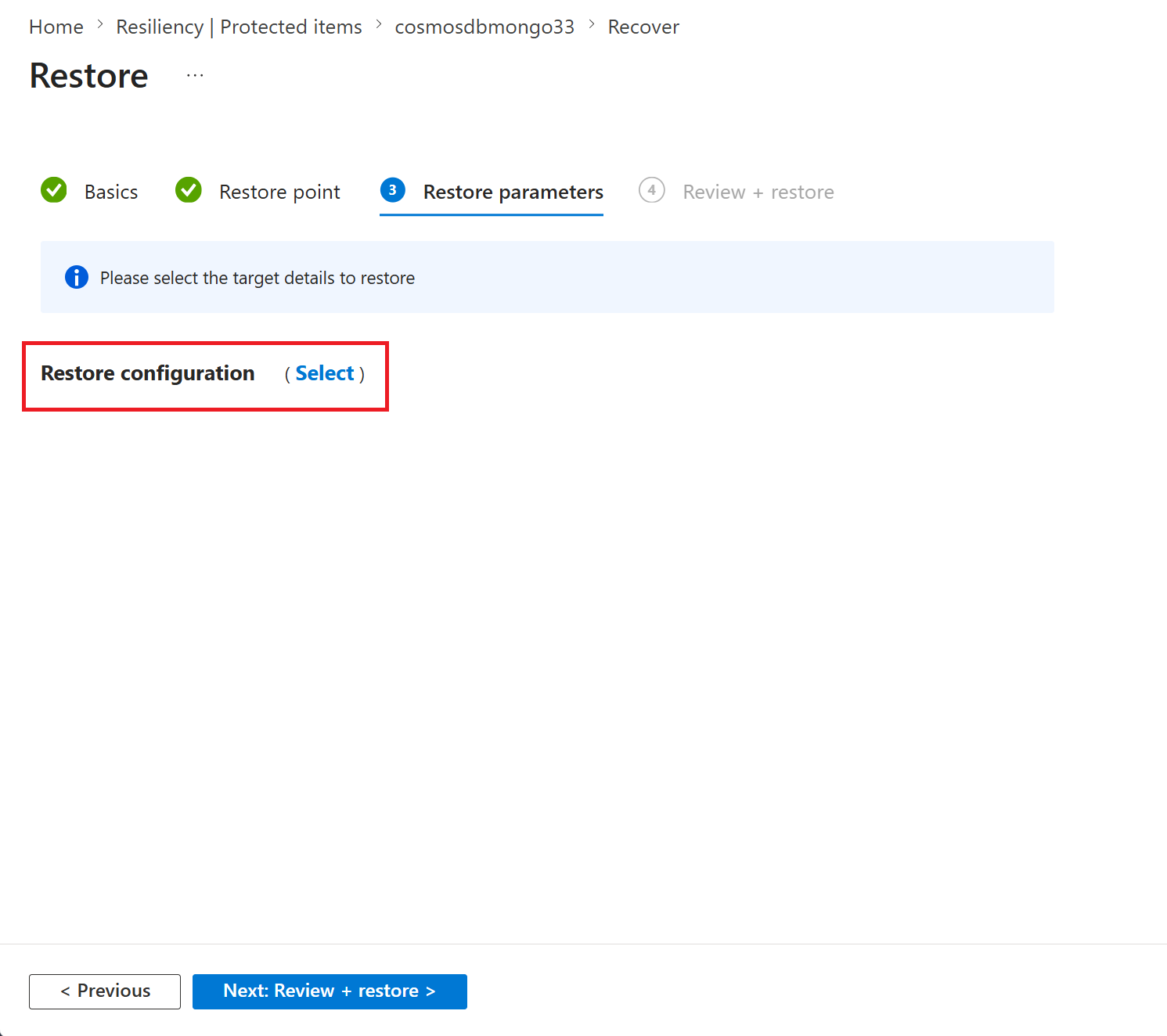
On the Restore parameters tab, for Restore configuration, choose the target Azure Cosmos DB account details by clicking Select.
Select the subscription and resource group and then choose the target Azure Cosmos DB account.
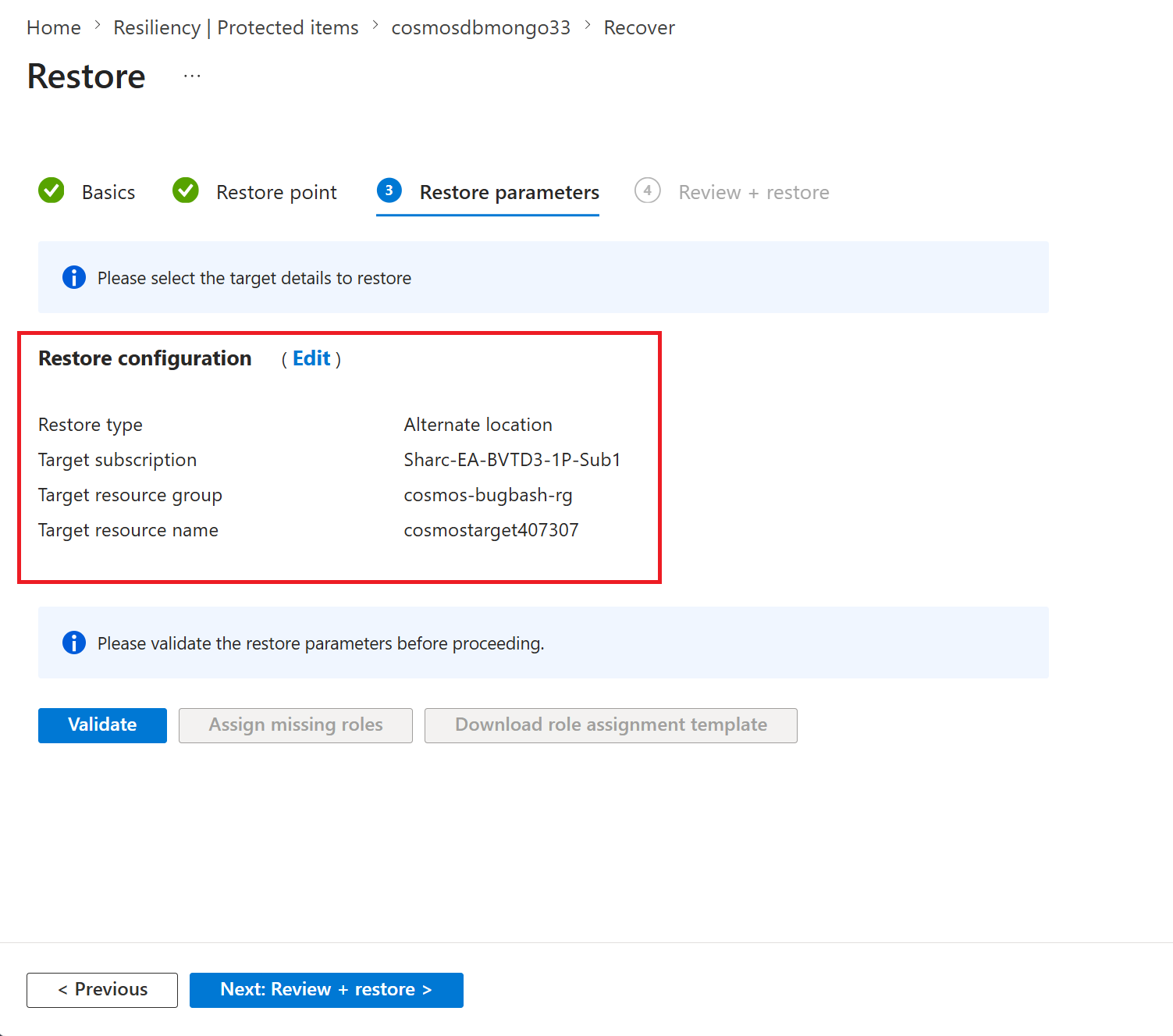
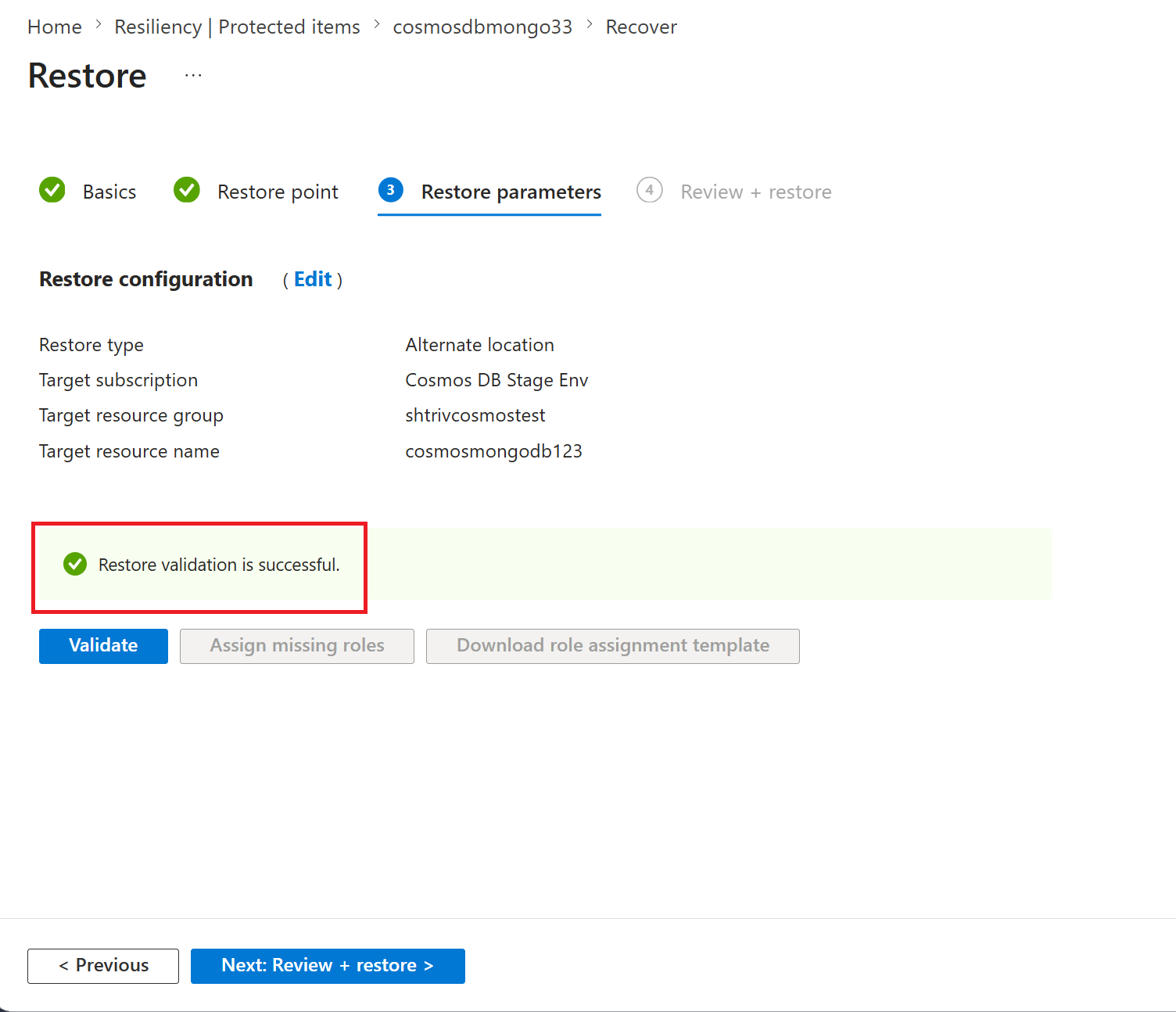
To check the restore parameters permissions before the final review and restore, select Validate. After validation is successful, select Review + restore.
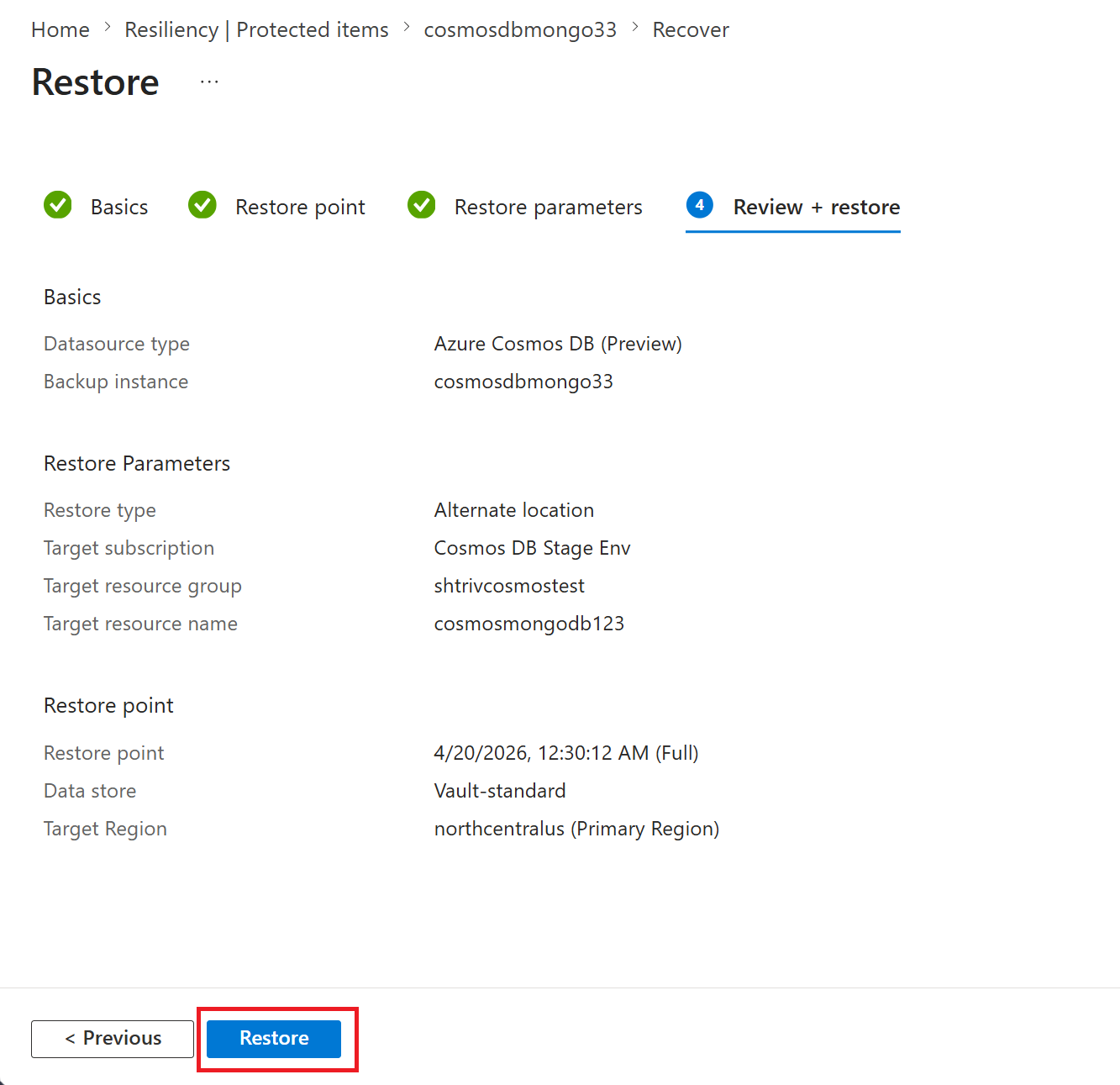
On the Review + restore tab, select Restore to restore the selected Azure Cosmos DB account backup in a target Azure Cosmos DB account.
You can track the restore job under Backup jobs.
Next steps
Manage vaulted backup of Azure Cosmos DB account using Azure portal (preview).