Note
Access to this page requires authorization. You can try signing in or changing directories.
Access to this page requires authorization. You can try changing directories.
Bring public, open-source and high-fidelity indicators of compromise (IOCs) generated by Microsoft Defender Threat Intelligence into your Microsoft Sentinel workspace with the Defender Threat Intelligence data connectors. With a simple one-click setup, use the threat intelligence from the standard and premium Defender Threat Intelligence data connectors to monitor, alert, and hunt.
After March 31, 2027, Microsoft Sentinel will no longer be supported in the Azure portal and will be available only in the Microsoft Defender portal. All customers using Microsoft Sentinel in the Azure portal will be redirected to the Defender portal and will use Microsoft Sentinel in the Defender portal only. Starting in July 2025, many new customers are automatically onboarded and redirected to the Defender portal.
If you're still using Microsoft Sentinel in the Azure portal, we recommend that you start planning your transition to the Defender portal to ensure a smooth transition and take full advantage of the unified security operations experience offered by Microsoft Defender. For more information, see It’s Time to Move: Retiring Microsoft Sentinel’s Azure portal for greater security.
For more information about the benefits of the standard and premium Defender Threat Intelligence data connectors, see Understand threat intelligence.
Prerequisites
Before you install the solution or configure the data connector, make sure you meet the following requirements:
- To install, update, and delete standalone content or solutions in the Content hub, you need the Microsoft Sentinel Contributor role at the resource group level.
- To configure these data connectors, you must have read and write permissions to the Microsoft Sentinel workspace.
- To access threat intelligence from the premium version of the Defender Threat Intelligence data connector, contact sales to purchase the MDTI API Access SKU.
For more information on how to get a premium license and explore all the differences between the standard and premium versions, see Explore Defender Threat Intelligence licenses.
Install the threat intelligence solution in Microsoft Sentinel
To import threat intelligence into Microsoft Sentinel, follow these steps:
For Microsoft Sentinel in the Azure portal, under Content management, select Content hub.
For Microsoft Sentinel in the Defender portal, select Microsoft Sentinel > Content management > Content hub.
Find and select the Threat Intelligence solution.
Select the
 Install/Update button.
For more information about how to manage the solution components, see Discover and deploy out-of-the-box content.
Enable the Defender Threat Intelligence data connector
To enable the data connector, complete the following steps:
For Microsoft Sentinel in the Azure portal, under Configuration, select Data connectors.
For Microsoft Sentinel in the Defender portal, select Microsoft Sentinel > Configuration > Data connectors.
Find and select the standard or premium Defender Threat Intelligence data connector, and then select Open connector page.
Enable the feed by selecting Connect.
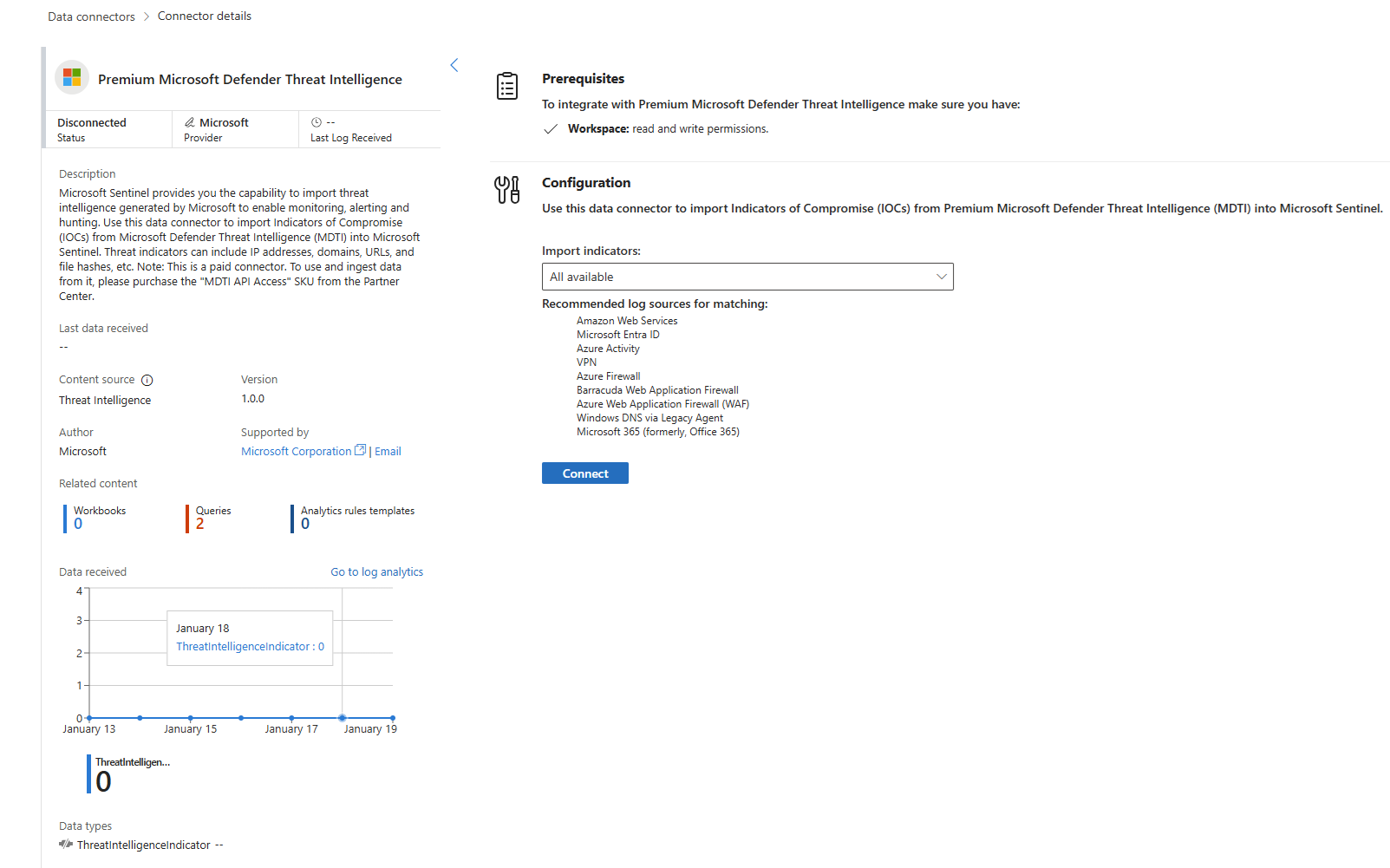
When the data starts to flow into your Microsoft Sentinel workspace, the connector status changes to Connected.
After the connector status displays Connected, the ingested intelligence is available for use in the TI map... analytics rules. For more information, see Use threat indicators in analytics rules.
Find the new intelligence in the management interface or directly in Logs by querying the ThreatIntelligenceIndicator table. For more information, see Work with threat intelligence.
Related content
After you connect the Defender Threat Intelligence data connector, explore these resources to learn more:
- Learn about What is Defender Threat Intelligence?
- Get started with the Defender Threat Intelligence portal.
- Use matching analytics to detect threats.