Note
Access to this page requires authorization. You can try signing in or changing directories.
Access to this page requires authorization. You can try changing directories.
APPLIES TO:  Power BI Desktop
  Power BI service
To get insights, include a Copilot-generated summary for your Power BI report page or full report attachment in your email subscription. All email subscription recipients receive the Copilot summary in the email. Only Standard Subscriptions support this feature.
The Copilot summary appears in the email even when Power BI delivers reports to OneDrive or SharePoint.
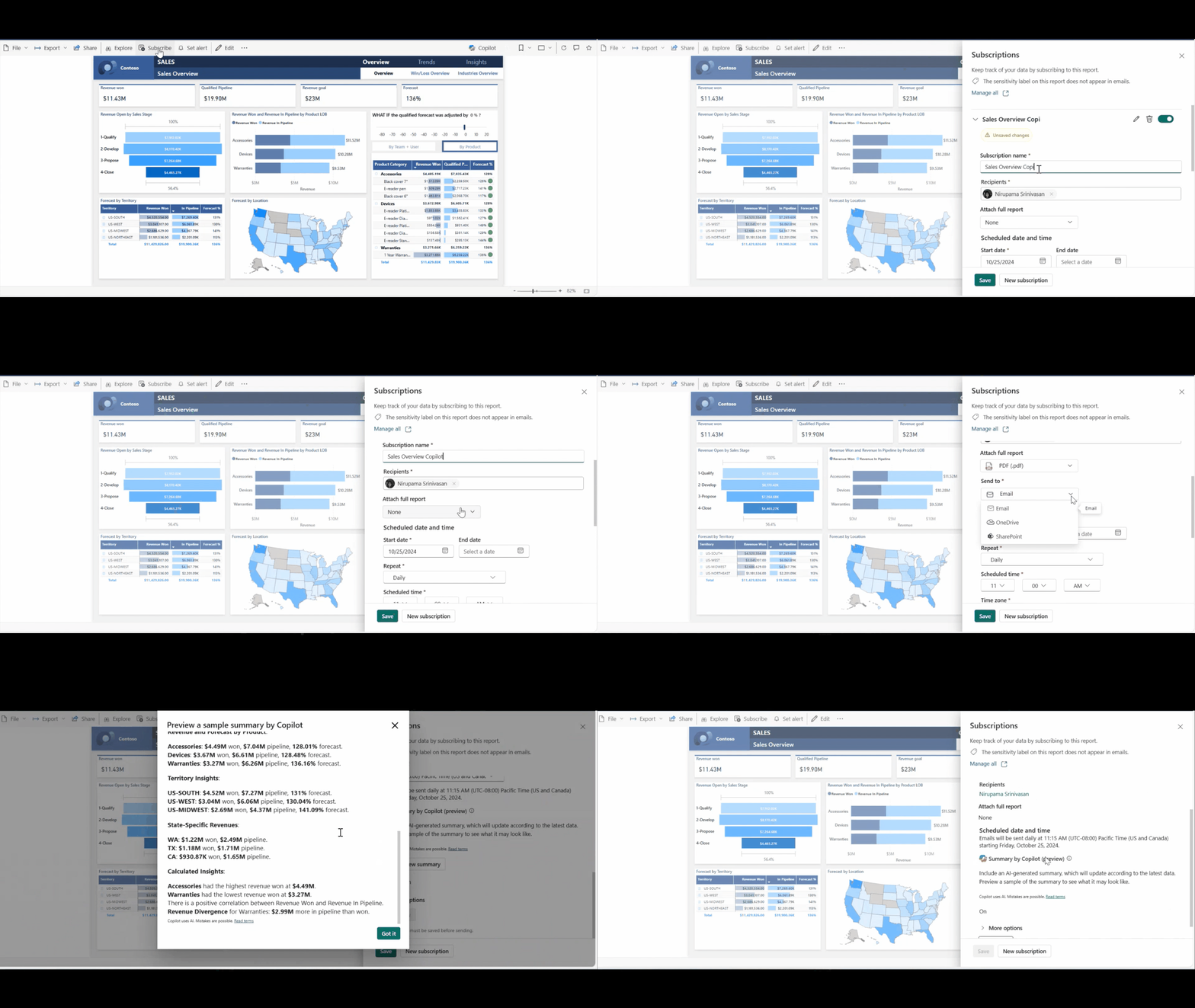
Requirements
How to set up Copilot in email subscriptions
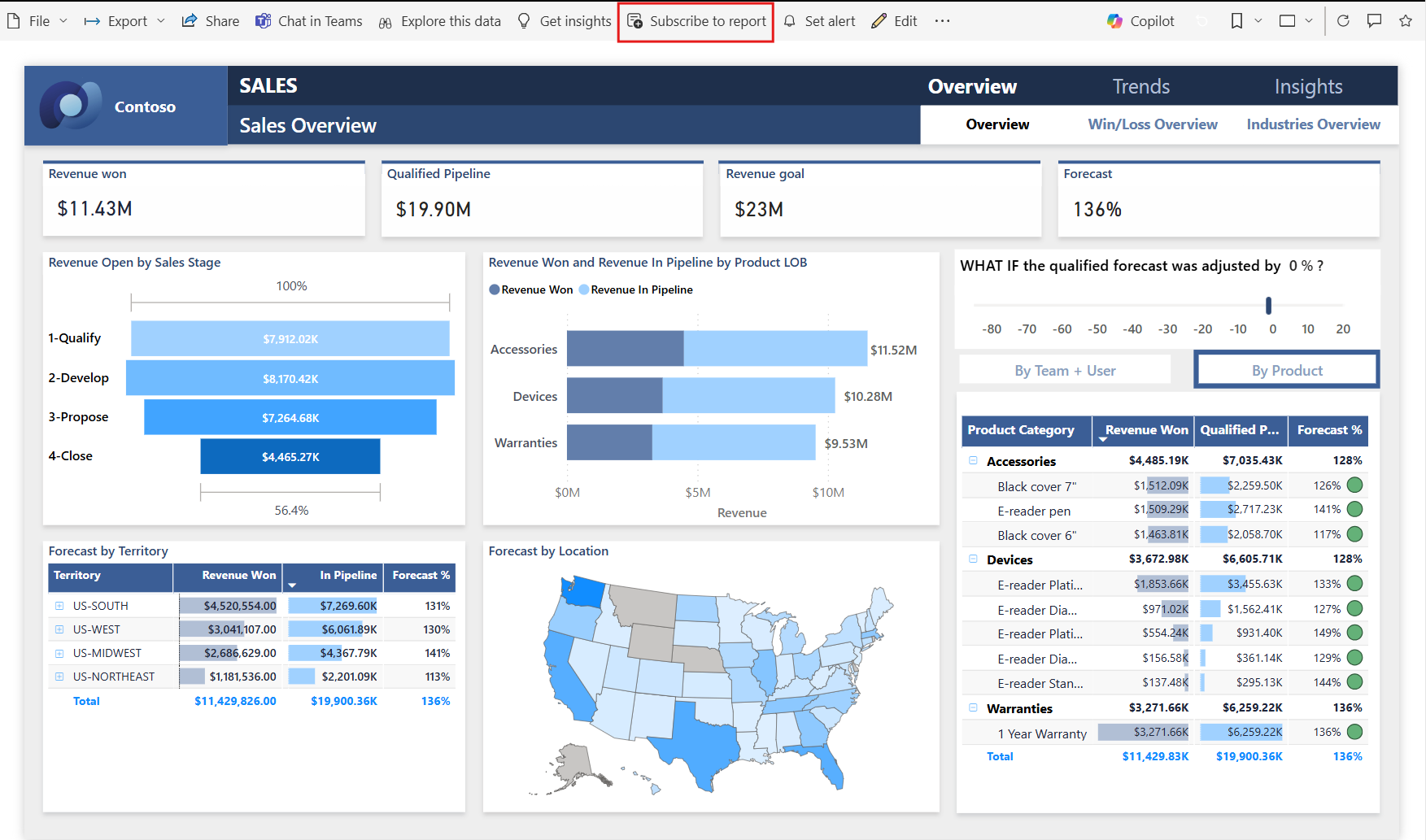
Select Subscribe to report, and then select Create a subscription.
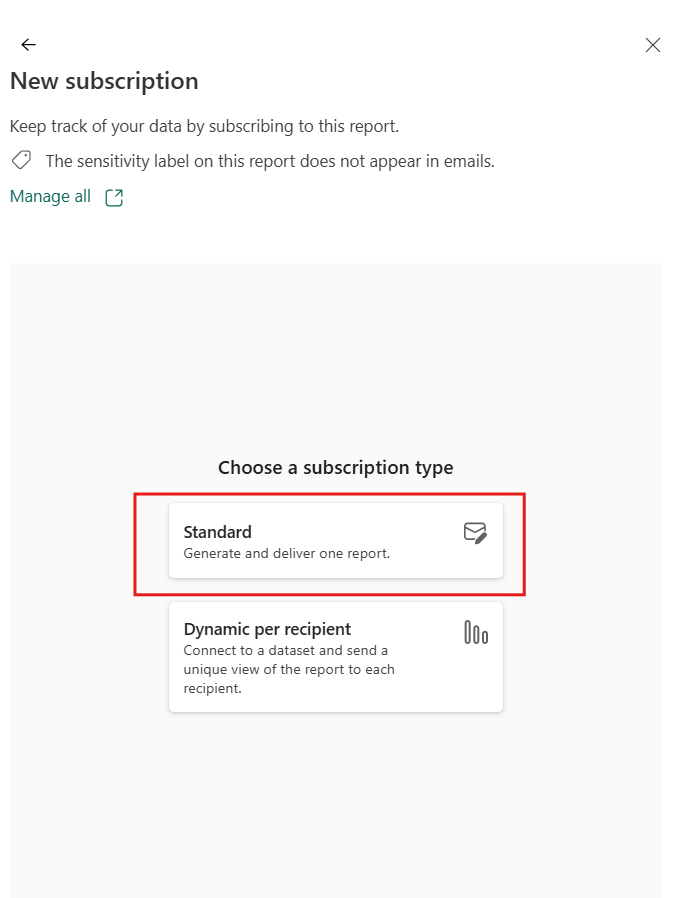
Select Standard Subscription. You can modify the Subscription name and Recipients who should receive the Copilot summary in email.
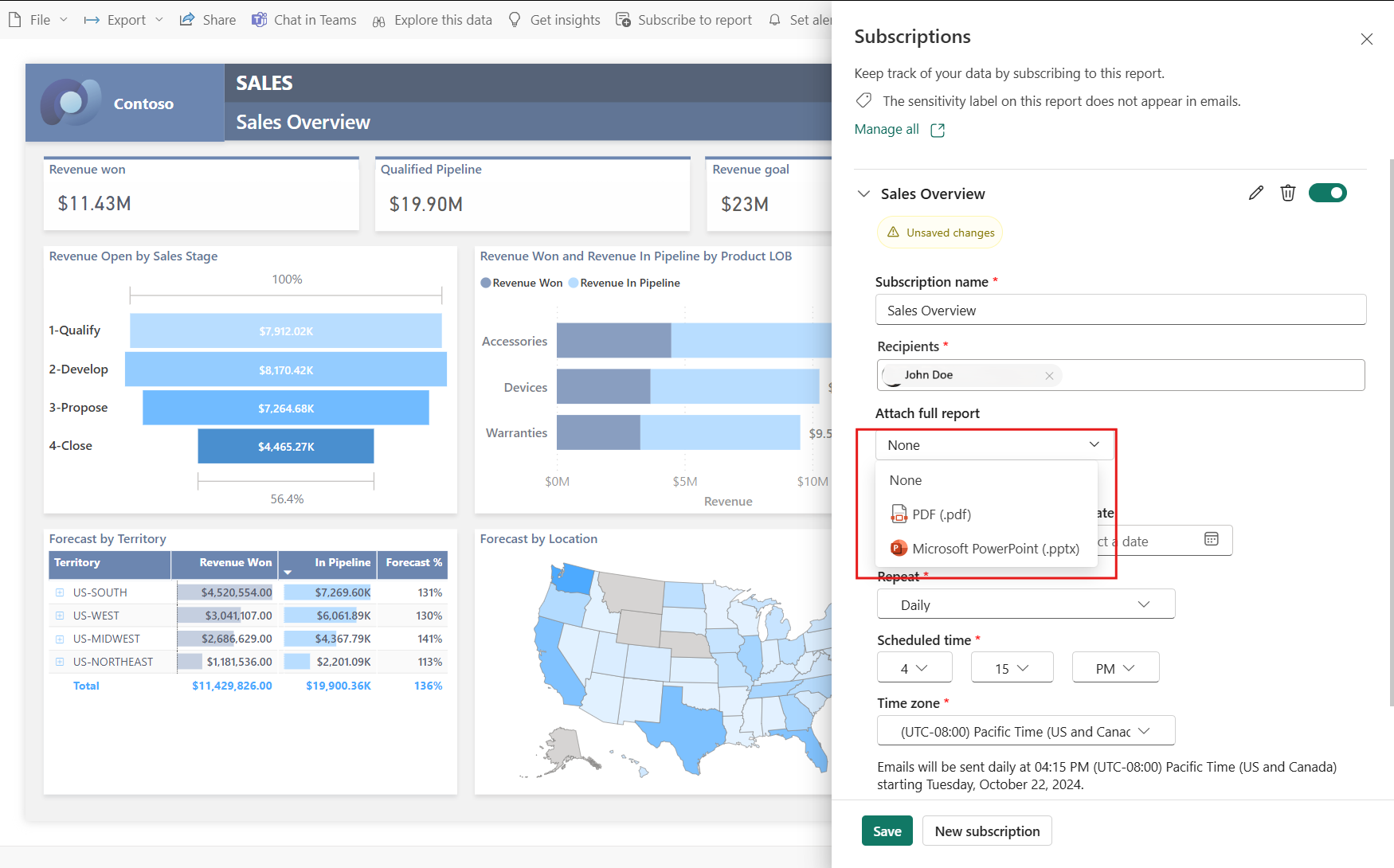
To receive a Copilot summary of the full report instead of a single page, select Attach full report.
You can also deliver the full report to a OneDrive or SharePoint location. Recipients still receive the Copilot summary via email, along with the link to the OneDrive or SharePoint location.
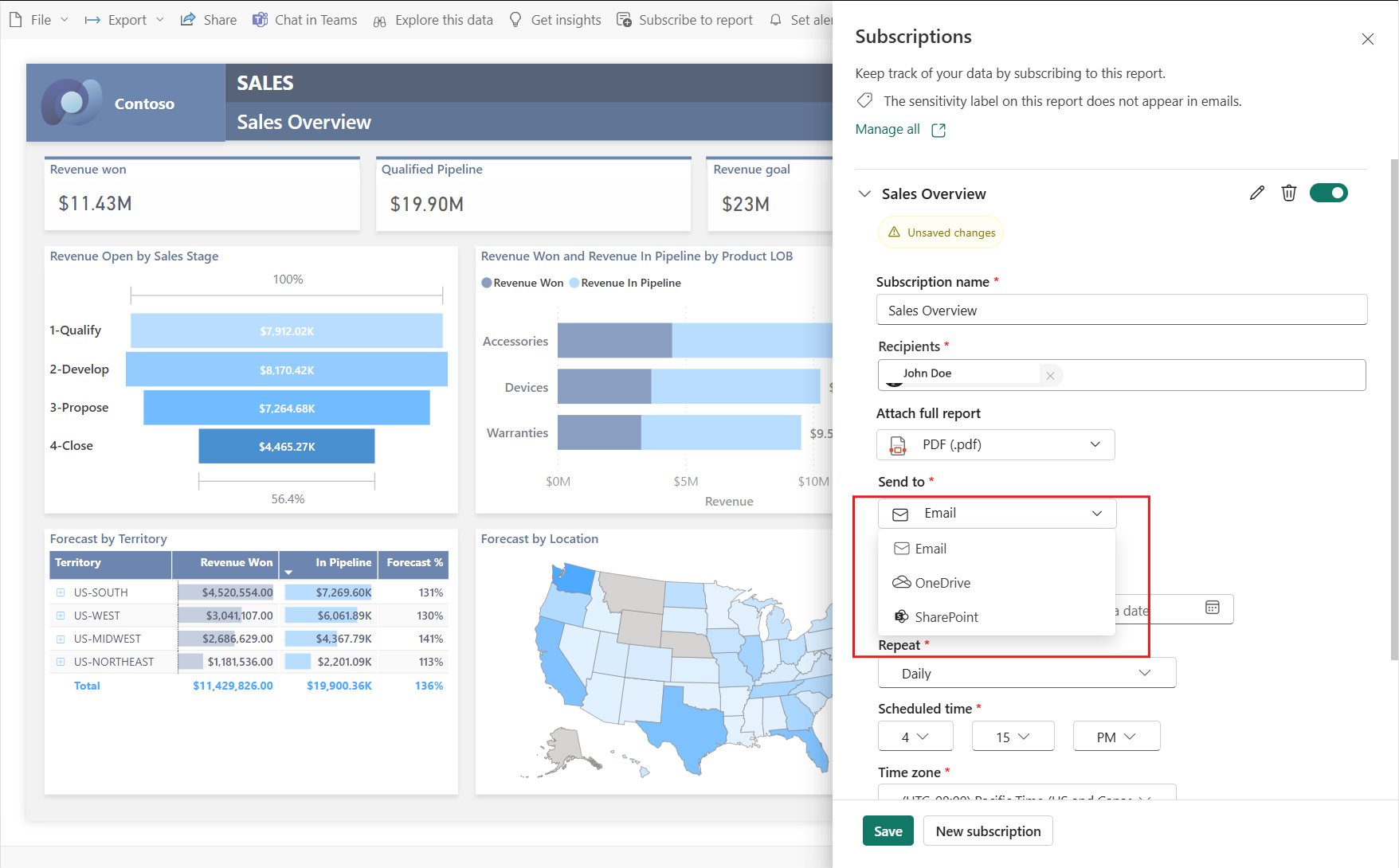
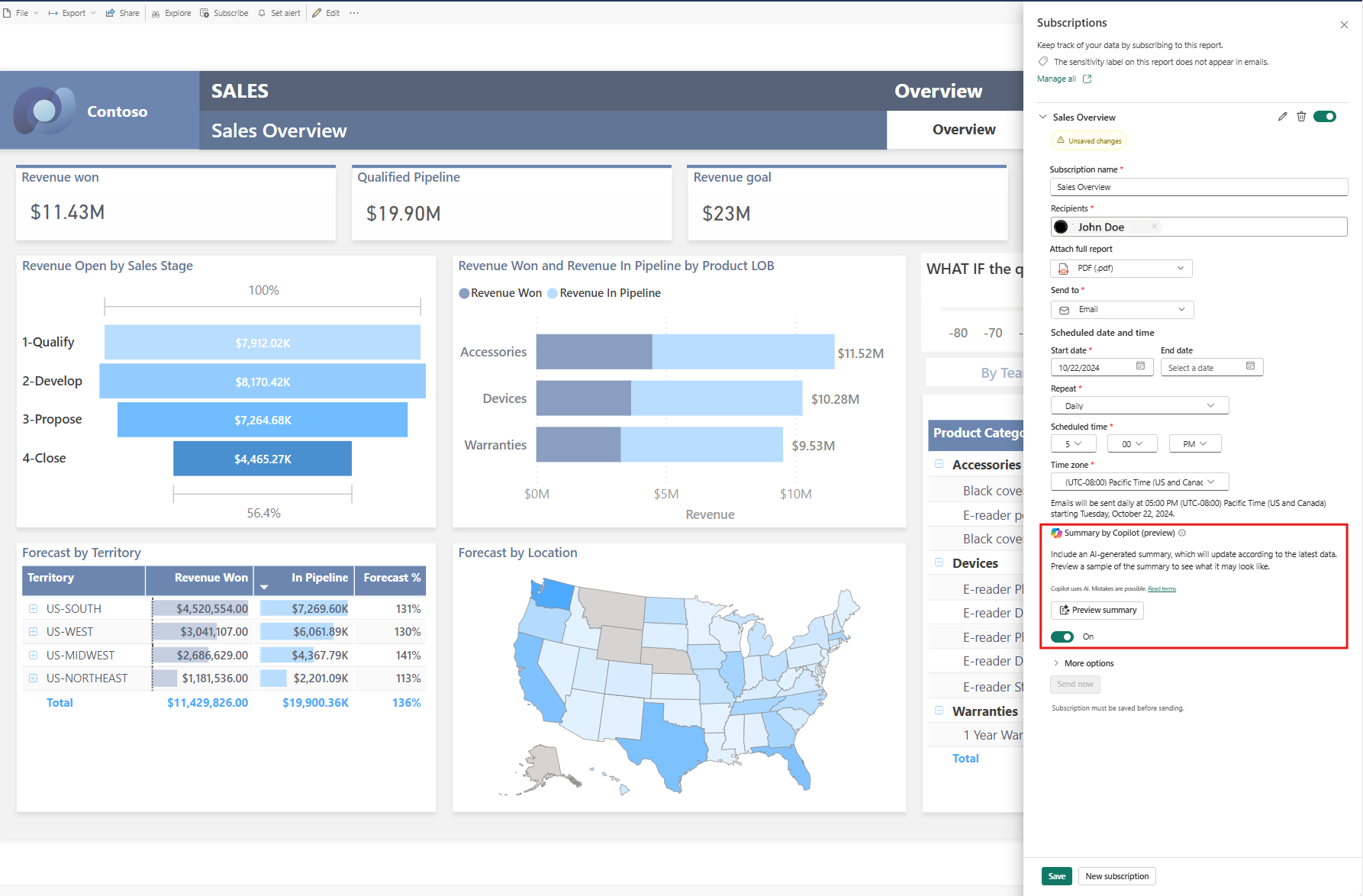
Schedule the delivery of your report by choosing the frequency (Daily, Weekly, Monthly), Start, and End dates. Learn more about creating subscriptions.
In the Summary by Copilot (preview) section, select Preview summary.
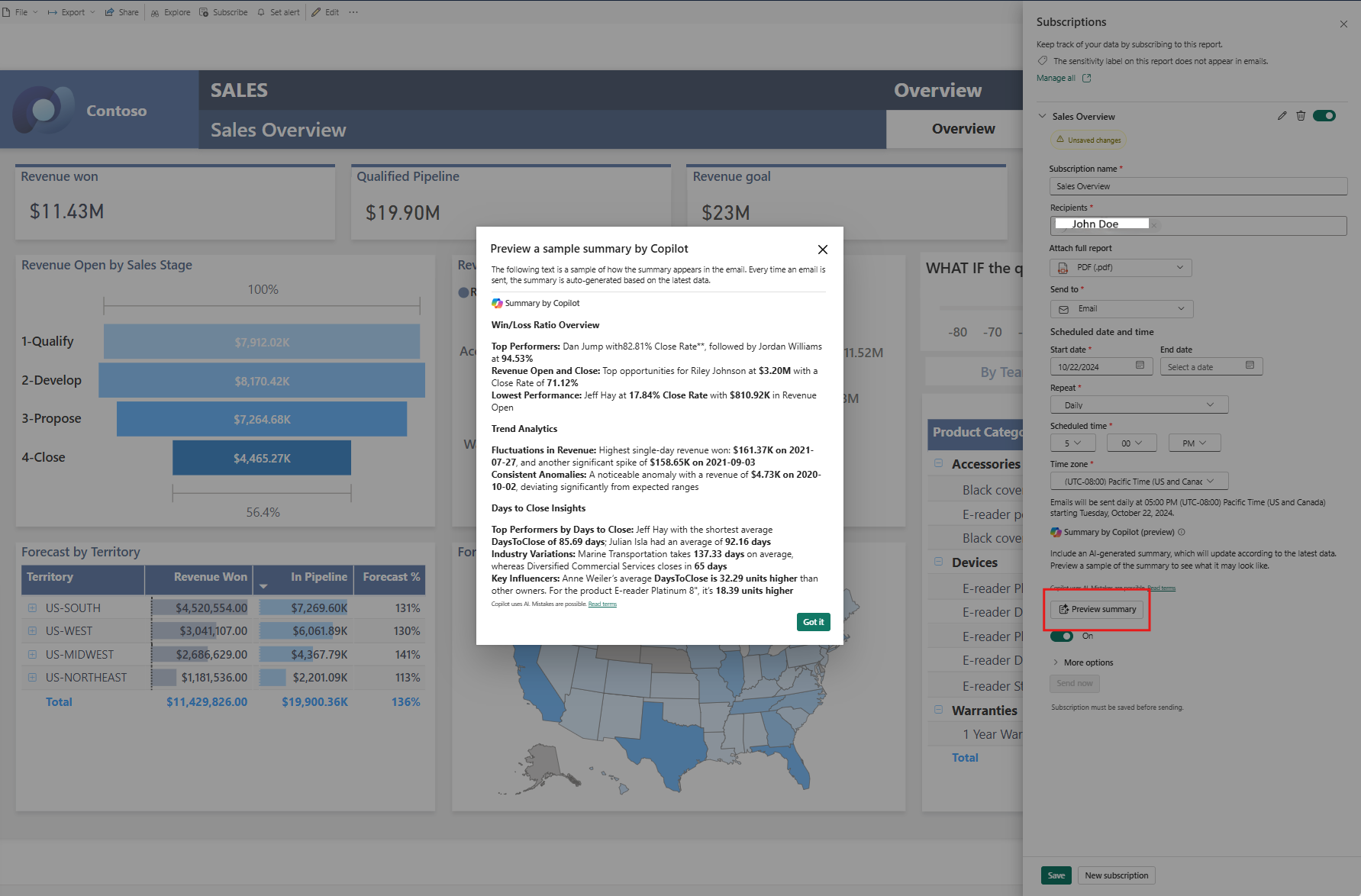
When you select Preview summary, Copilot generates a summary.
Note
The preview displays a point in time summary of the report data. The summary changes based on the subscription schedule and data.
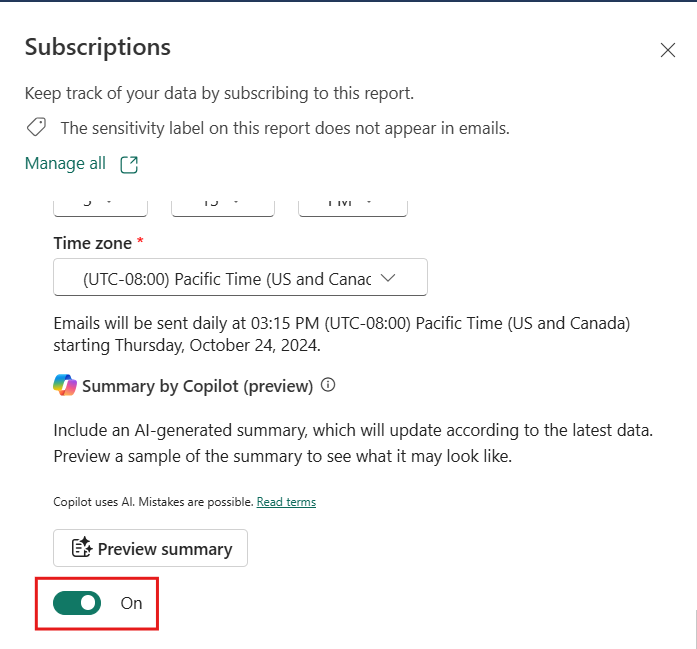
For existing subscriptions, you can opt in to receive Copilot summaries by turning on the toggle.
Note
For new subscriptions that are Copilot eligible, the Copilot summary is enabled by default. To opt out of including Copilot summaries in subscription emails, turn off the toggle.
You can include an email subject, message, an image of a report page, a link to the report in Power BI, and permission to view the report in Power BI.
If you include a message in the email, it appears above the Copilot summary.
Save the subscription.
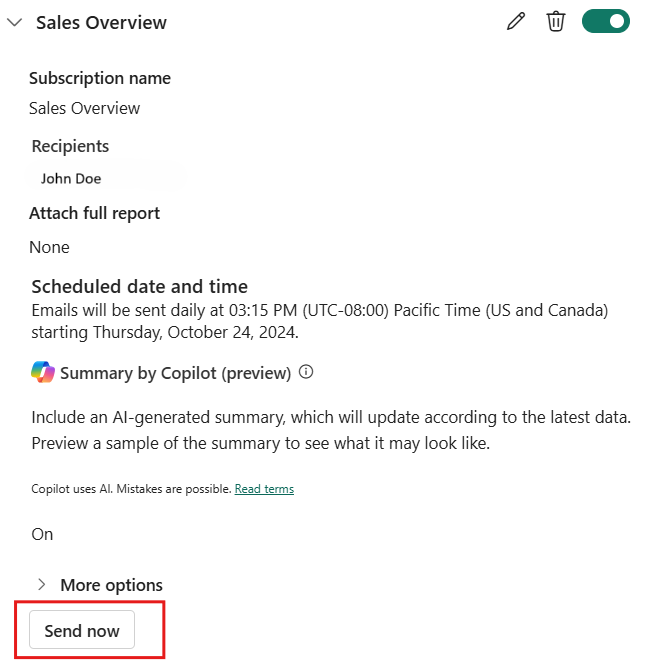
After you save the subscription, you can test it by selecting Send now.
Note
Send now sends the report to all email recipients.
Limitations and considerations
- Copilot doesn't generate email subscription summaries for dynamic per recipient subscriptions, paginated reports, scorecards, and dashboards.
- Copilot runs the summary on behalf of the subscription owner, much like email subscriptions.
- Copilot doesn't support user-defined prompts.
- Your email might not contain a Copilot summary if Copilot takes too long to respond. This behavior usually happens with large reports.
- If you apply filters and select Include my changes when saving your subscription, Copilot generates the summary by using those filters.