Note
Access to this page requires authorization. You can try signing in or changing directories.
Access to this page requires authorization. You can try changing directories.
Azure IoT Hub is designed to collect large volumes of telemetry data from IoT devices for storage or processing in the cloud. In this codeless quickstart, you use the Azure CLI to create an IoT hub and a simulated device. You send device telemetry to the hub and also send messages, call methods, and update properties on the device. You use the Azure portal to visualize device metrics.
This article provides a basic workflow for developers by using the Azure CLI to interact with an IoT Hub application.
Prerequisites
- An Azure subscription. If you don't have one, you can create one for free before you begin.
- The Azure CLI. You can run all commands in this quickstart by using Azure Cloud Shell, an interactive CLI shell that runs in your browser or in an app such as Windows Terminal. If you use Cloud Shell, you don't need to install anything. If you prefer to use the CLI locally, this quickstart requires Azure CLI version 2.36 or later. Run
az --versionto find the version. To install or upgrade, see Install the Azure CLI.
Sign in to the Azure portal
Sign in to the Azure portal.
Regardless of whether you run the CLI locally or in Cloud Shell, keep the portal open in your browser. You use it later in this quickstart.
Open Cloud Shell
In this section, you open an instance of Cloud Shell. If you use the CLI locally, skip to the section Prepare two CLI sessions.
Select Cloud Shell on the menu bar at the upper right in the Azure portal.

If this is your first time using Cloud Shell, you're prompted to create storage, which is required to use Cloud Shell. Select a subscription to create a storage account and an Azure Files share.
Select your preferred CLI environment in the Select environment dropdown list. This quickstart uses the Bash environment. You can also use the PowerShell environment.

Some commands require different syntax or formatting in the Bash and PowerShell environments. For more information, see Tips for using the Azure CLI successfully.
Prepare two CLI sessions
Next, you prepare two Azure CLI sessions. If you use Cloud Shell, run these sessions in separate Cloud Shell tabs. If you use a local CLI client, run separate CLI instances. Use the separate CLI sessions for the following tasks:
- The first session simulates an IoT device that communicates with your IoT hub.
- The second session either monitors the device in the first session or sends messages, commands, and property updates.
To run a command, select Copy to copy a block of code in this quickstart, paste it into your shell session, and run it.
To use the Azure CLI, you must be signed in to your Azure account. All communication between your Azure CLI shell session and your IoT hub is authenticated and encrypted. As a result, this quickstart doesn't need extra authentication that you use with a real device, such as a connection string.
In the first CLI session, run the az extension add command. The command adds the Microsoft Azure IoT extension for Azure CLI to your CLI shell. The IoT extension adds IoT Hub, Azure IoT Edge, and IoT Device Provisioning Service commands specific to the Azure CLI.
az extension add --name azure-iotAfter you install the Azure IoT extension, you don't need to install it again in any Cloud Shell session.
Note
This article uses the newest version of the Azure IoT extension, called
azure-iot. The legacy version is calledazure-cli-iot-ext. You should have only one version installed at a time. You can use the commandaz extension listto validate the currently installed extensions.Use
az extension remove --name azure-cli-iot-extto remove the legacy version of the extension.Use
az extension add --name azure-iotto add the new version of the extension.To see what extensions are currently installed, use
az extension list.Open the second CLI session. If you use Cloud Shell in a browser, use Open new session. If you use the CLI locally, open a second CLI instance.

Create an IoT hub
In this section, you use the Azure CLI to create a resource group and an IoT hub. An Azure resource group is a logical container into which Azure resources are deployed and managed. An IoT hub acts as a central message hub for bidirectional communication between your IoT application and the devices.
In the first CLI session, run the az group create command to create a resource group. The following command creates a resource group named
MyResourceGroupin theeastuslocation.az group create --name MyResourceGroup --location eastusIn the first CLI session, run the Az PowerShell module iot hub create command to create an IoT hub. It takes a few minutes to create an IoT hub.
Replace the
YourIotHubNameplaceholder and the surrounding braces in the following command with the name that you chose for your IoT hub. An IoT hub name must be globally unique in Azure. Use your IoT hub name in the rest of this quickstart wherever you see the placeholder.az iot hub create --resource-group MyResourceGroup --name {YourIoTHubName}
Create and monitor a device
In this section, you create a simulated device in the first CLI session. The simulated device sends device telemetry to your IoT hub. In the second CLI session, you monitor events and telemetry.
To create and start a simulated device:
In the first CLI session, run the az iot hub device-identity create command. This command creates the simulated device identity.
YourIotHubName. Replace this placeholder in the following code with the name that you chose for your IoT hub.simDevice. You can use this name directly for the simulated device in the rest of this quickstart. Optionally, use a different name.
az iot hub device-identity create -d simDevice -n {YourIoTHubName}In the first CLI session, run the az iot device simulate command. This command starts the simulated device. The device sends telemetry to your IoT hub and receives messages from it.
Replace the
YourIotHubNameplaceholder in the following code with the name that you chose for your IoT hub.az iot device simulate -d simDevice -n {YourIoTHubName}
To monitor a device:
In the second CLI session, run the az iot hub monitor-events command. This command continuously monitors the simulated device. The output shows telemetry such as events and property state changes that the simulated device sends to the IoT hub.
Replace the
YourIotHubNameplaceholder in the following code with the name that you chose for your IoT hub.az iot hub monitor-events --output table -p all -n {YourIoTHubName}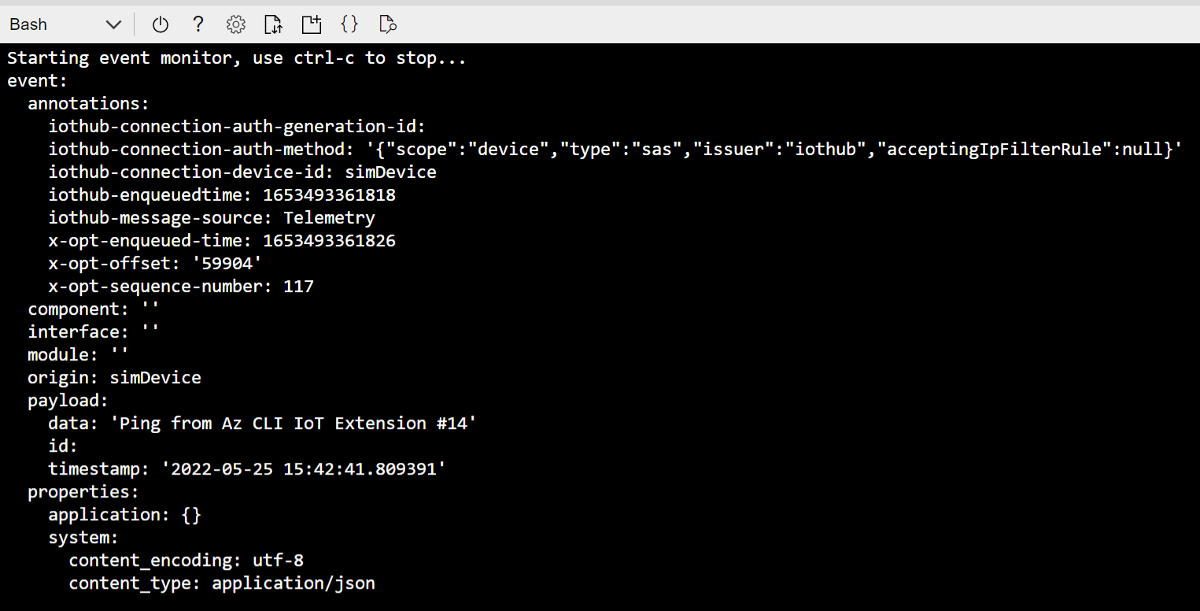
After you monitor the simulated device in the second CLI session, select Ctrl+C to stop monitoring. Keep the second CLI session open to use in later steps.
Use the CLI to send a message
In this section, you send a message to the simulated device.
In the first CLI session, confirm that the simulated device is still running. If the device stopped, run the following command to restart it.
Replace the
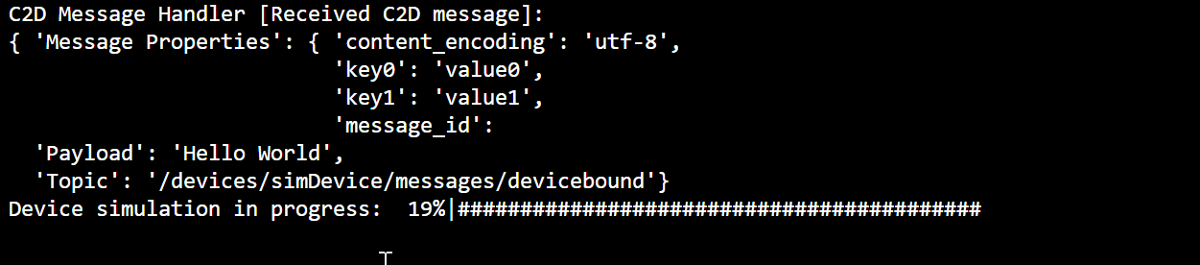
YourIotHubNameplaceholder in the following code with the name that you chose for your IoT hub.az iot device simulate -d simDevice -n {YourIoTHubName}In the second CLI session, run the az iot device c2d-message send command. This command sends a cloud-to-device message from your IoT hub to the simulated device. The message includes a string and two key/value pairs.
Replace the
YourIotHubNameplaceholder in the following code with the name that you chose for your IoT hub.az iot device c2d-message send -d simDevice --data "Hello World" --props "key0=value0;key1=value1" -n {YourIoTHubName}Optionally, you can send cloud-to-device messages by using the Azure portal. To send messages through the Azure portal, browse to the Overview page for your IoT hub, select IoT Devices, select the simulated device, and select Message to Device.
In the first CLI session, confirm that the simulated device received the message.
Use the CLI to call a device method
In this section, you call a direct method on the simulated device.
As you did before, confirm that the simulated device in the first CLI session is running. If not, restart it.
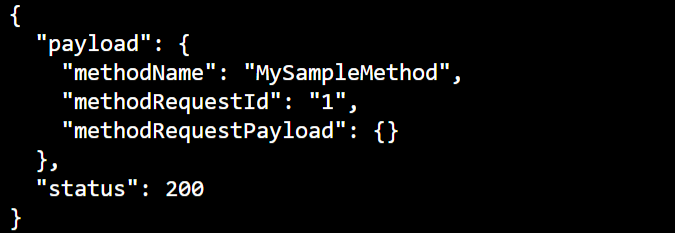
In the second CLI session, run the az iot hub invoke-device-method command. In this example, there's no preexisting method for the device. The command calls an example method name on the simulated device and returns a payload.
Replace the
YourIotHubNameplaceholder in the following code with the name that you chose for your IoT hub.az iot hub invoke-device-method --mn MySampleMethod -d simDevice -n {YourIoTHubName}In the first CLI session, confirm that the output shows the method call.
Use the CLI to update device properties
In this section, you update the state of the simulated device by setting property values.
As you did before, confirm that the simulated device in the first CLI session is running. If not, restart it.
In the second CLI session, run the az iot hub device-twin update command. This command updates the properties to the desired state on the IoT hub device twin that corresponds to your simulated device. In this case, the command sets example temperature condition properties.
Important
If you're using PowerShell in the CLI shell, use the PowerShell version of the command in the following code. PowerShell requires you to escape the characters in the JSON payload.
Replace the
YourIotHubNameplaceholder in the following code with the name that you chose for your IoT hub.az iot hub device-twin update -d simDevice --desired '{"conditions":{"temperature":{"warning":98, "critical":107}}}' -n {YourIoTHubName}az iot hub device-twin update -d simDevice --desired '{\"conditions\":{\"temperature\":{\"warning\":98, \"critical\":107}}}' -n {YourIoTHubName}In the first CLI session, confirm that the simulated device outputs the property update.

In the second CLI session, run the az iot hub device-twin show command. This command reports changes to the device properties.
Replace the
YourIotHubNameplaceholder in the following code with the name that you chose for your IoT hub.az iot hub device-twin show -d simDevice --query properties.reported -n {YourIoTHubName}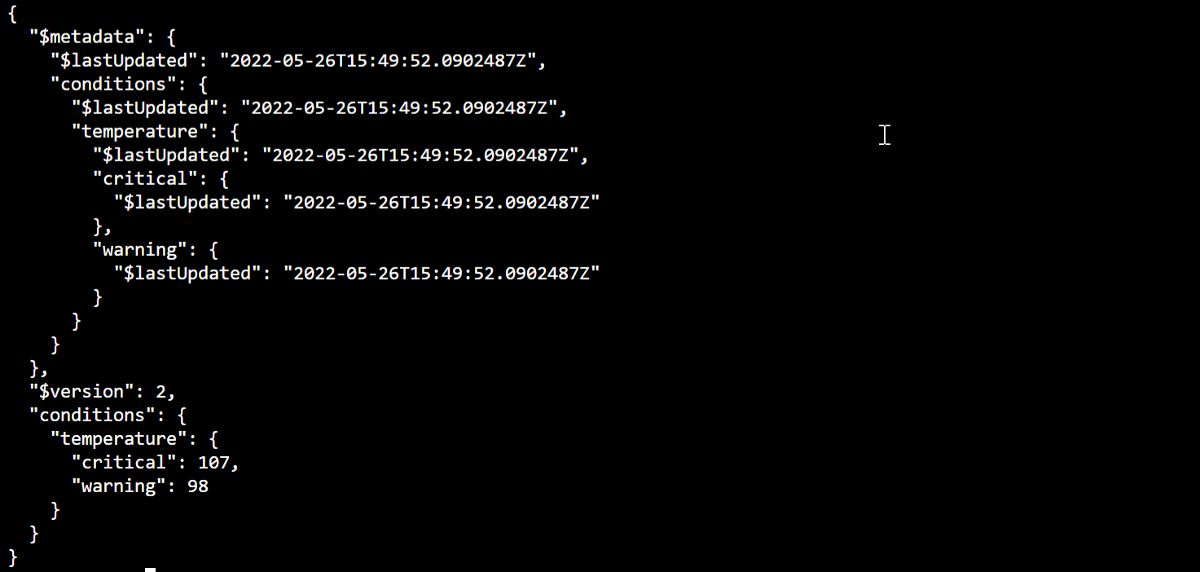
View messaging metrics in the portal
You can manage all aspects of your IoT hub and devices in the Azure portal. In a typical IoT Hub application that ingests telemetry from devices, you might want to monitor devices or view metrics on device telemetry.
To visualize messaging metrics in the Azure portal:
On the service menu in the portal, select All Resources. This tab lists all resources in your subscription, including the IoT hub that you created.
Select the link on the IoT hub that you created. The portal displays the Overview page for the hub.
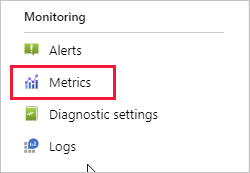
Select Metrics in the left pane of your IoT hub.
In the Scope field, enter your IoT hub name.
In the Metric Namespace field, select IoT Hub standard metrics.
In the Metric field, select Total number of messages used.
Hover your mouse pointer over the area of the timeline in which your device sent messages. The total number of messages at a point in time appears in the lower left corner of the timeline.
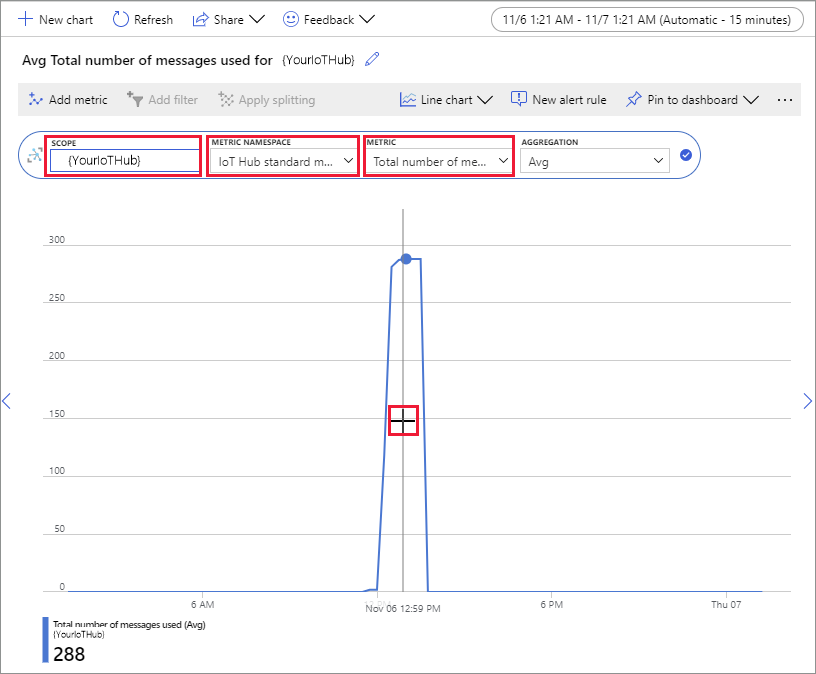
Optionally, use the Metric dropdown list to display other metrics on your simulated device. For example, see C2d message deliveries completed or Total devices (preview).
Clean up resources
If you no longer need the Azure resources that you created in this quickstart, you can use the Azure CLI to delete them.
If you continue to the next recommended article, you can keep the resources that you already created and reuse them.
Important
Deleting a resource group is irreversible. The resource group and all the resources contained in it are permanently deleted. Make sure that you don't accidentally delete the wrong resource group or resources.
To delete a resource group by name:
Run the az group delete command. This command removes the resource group, the IoT hub, and the device registration that you created.
az group delete --name MyResourceGroupRun the az group list command to confirm that the resource group is deleted.
az group list
Summary
In this quickstart, you used the Azure CLI to create an IoT hub, create a simulated device, send and monitor telemetry, call a method, set desired properties, and clean up resources. You used the Azure portal to visualize messaging metrics on your device.
If you're a device developer, the suggested next step is to see the telemetry quickstart that uses the Azure IoT Device SDK for C. Optionally, see one of the available IoT Hub telemetry quickstart articles in your preferred language or SDK.
To learn how to control your simulated device from a back-end application, continue to the next quickstart.