Note
Access to this page requires authorization. You can try signing in or changing directories.
Access to this page requires authorization. You can try changing directories.
Overview
In Microsoft Entra ID, you can use Privileged Identity Management (PIM) to manage just-in-time membership in the group or just-in-time ownership of the group. Use groups to provide access to Microsoft Entra roles, Azure roles, and various other scenarios. To manage a Microsoft Entra group in PIM, you must bring it under management in PIM.
Identify groups to manage
Before starting, you need a Microsoft Entra Security group or Microsoft 365 group. To learn more about group management in Microsoft Entra ID, see Manage Microsoft Entra groups and group membership.
Dynamic groups and groups synchronized from an on-premises environment can't be managed in PIM for Groups.
You need appropriate permissions to bring groups into Microsoft Entra PIM. For role-assignable groups, you need a Microsoft Entra role with microsoft.directory/groupsAssignableToRoles/owners/update and microsoft.directory/groupsAssignableToRoles/members/update permissions, such as Privileged Role Administrator or Global Administrator, or be an active owner of the group. For non-role-assignable groups, you need a Microsoft Entra role with microsoft.directory/groups/owners/update and microsoft.directory/groups/members/update permissions, such as Groups Administrator or Identity Governance Administrator, or be an active owner of the group. Role assignments for administrators can be scoped at directory level or administrative unit level. Built-in and custom Microsoft Entra roles are supported.
Privileged Identity Management doesn't support permissions that start with microsoft.directory/groups.security/ or microsoft.directory/groups.unified/. Use permissions that start with microsoft.directory/groups/ instead.
Privileged Identity Management doesn't support groups in Restricted Management Administrative Units (RMAU).
Note
Administrators and group owners can manage groups through the Groups experience and other interfaces, overriding changes made in Microsoft Entra PIM.
Sign in to the Microsoft Entra admin center with a Microsoft Entra role that has permissions to manage groups as outlined in the previous section.
Browse to ID Governance > Privileged Identity Management > Groups.
View groups that are already enabled for PIM for Groups.
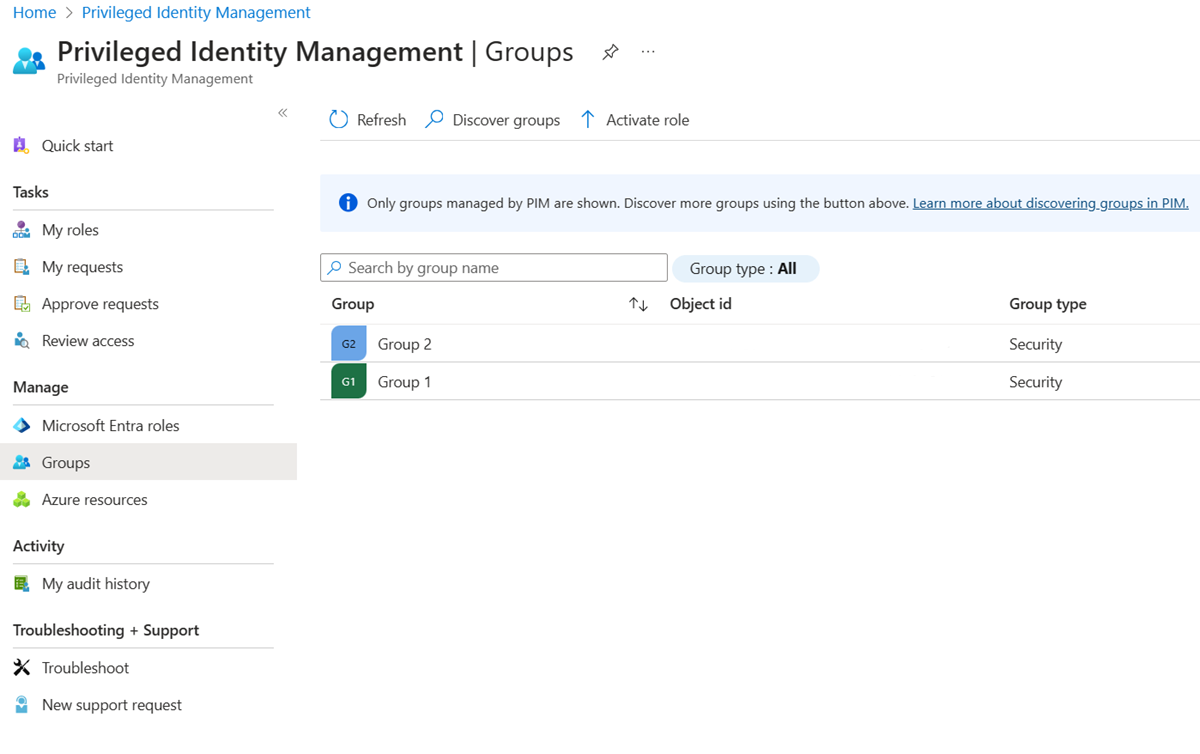
Select Discover groups and select a group that you want to bring under management with PIM.
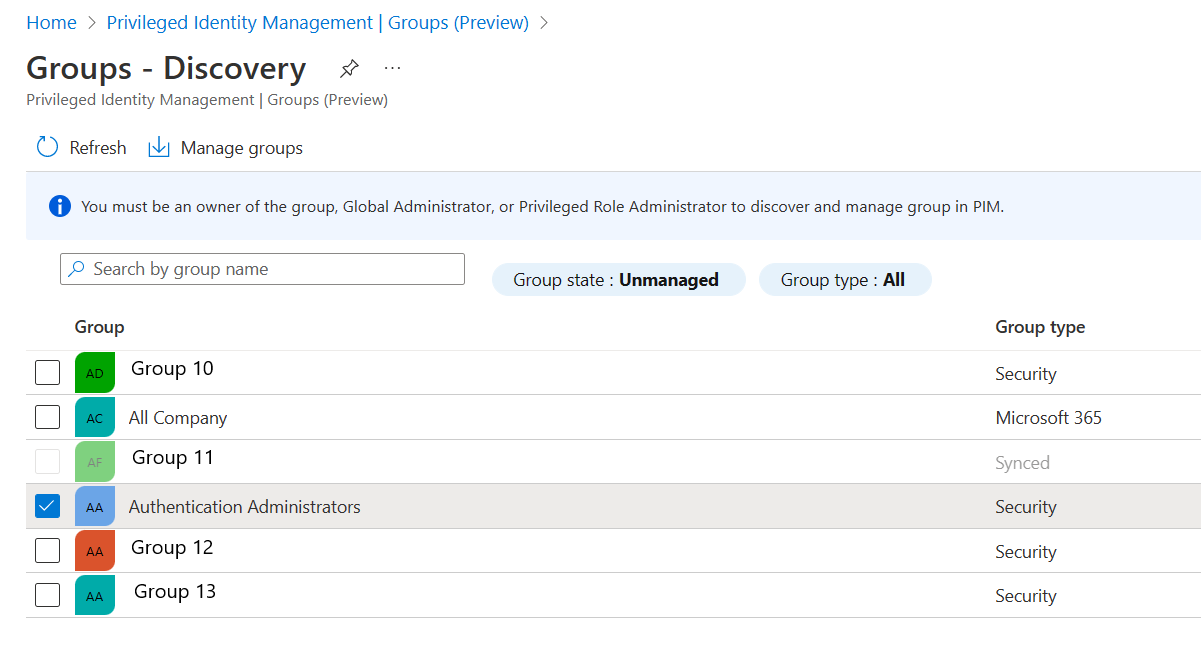
Select Manage groups and OK.
Select Groups to return to the list of groups enabled in PIM for Groups.
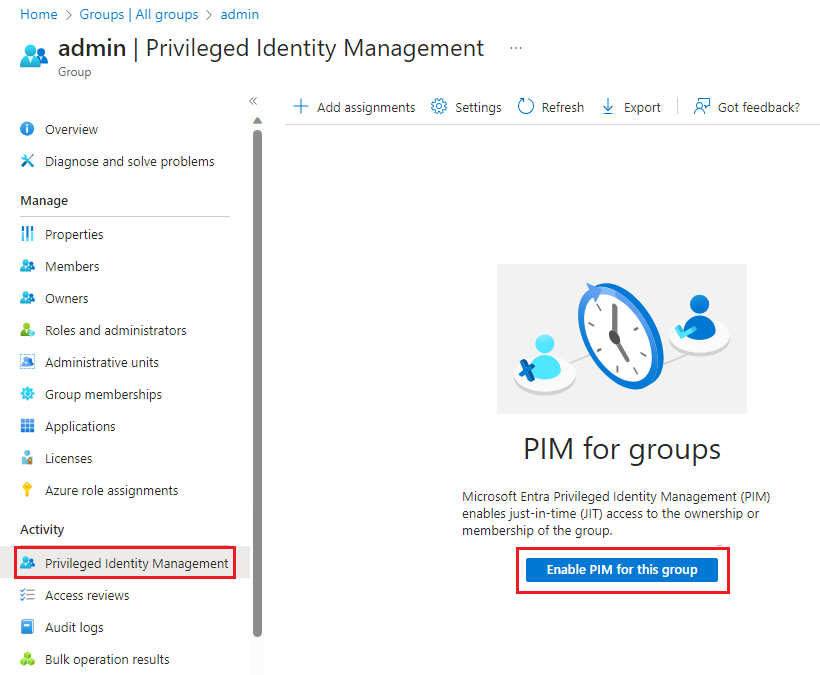
Or, you can use the Groups pane to bring a group under Privileged Identity Management.
Important
Once a group is managed, it can't be taken out of management. This prevents another resource administrator from removing PIM settings. If a group is deleted from Microsoft Entra ID, it might take up to 24 hours for the group to be removed from the PIM for Groups option.