Note
Access to this page requires authorization. You can try signing in or changing directories.
Access to this page requires authorization. You can try changing directories.
This article shows how users can register a synced passkey (FIDO2) by using the Passkey flow. A synced passkey is stored in a passkey provider (such as iCloud Keychain or Google Password Manager) and syncs across the user's devices. For an overview of synced passkeys, see Synced passkeys in Microsoft Entra ID.
Note
Looking to provide passkeys (FIDO2) on behalf of users? Use our APIs.
Prerequisites
You need to configure a password manager on your mobile device to save a synced passkey.
- On your iOS device, you need to set Set Up Codes In to Passwords to manage synced passkeys. Open Settings > General > AutoFill & Passwords. For Set Up Codes In, select Passwords.
- On your Android device, open Settings > Security and privacy > More security settings > Passwords, passkeys, and autofill, and then select a provider.
Register a passkey
To register a passkey on your device, follow these steps:
Open a web browser and sign in to Security info.
Sign in with multifactor authentication (MFA).
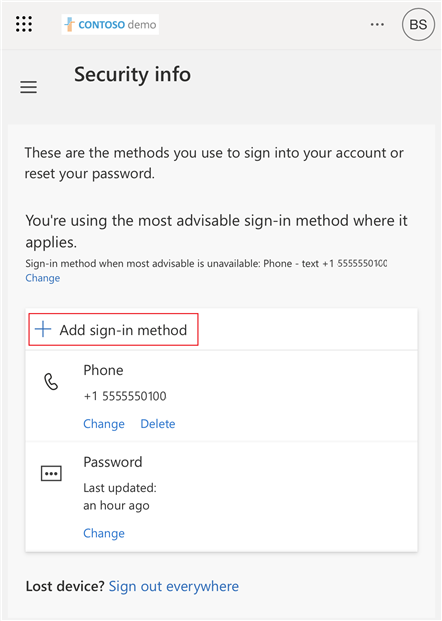
Tap + Add sign-in method.
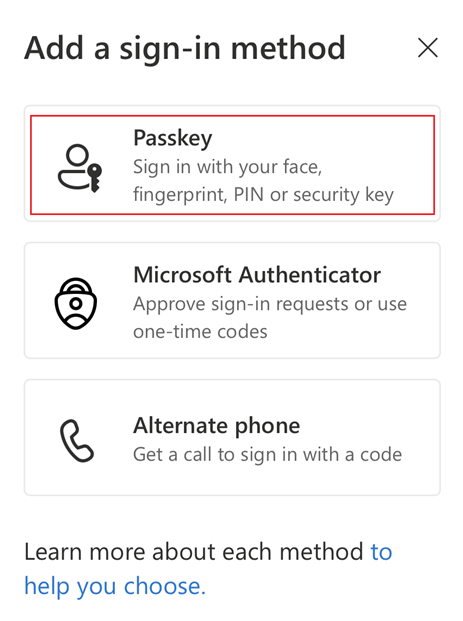
Tap Passkey.
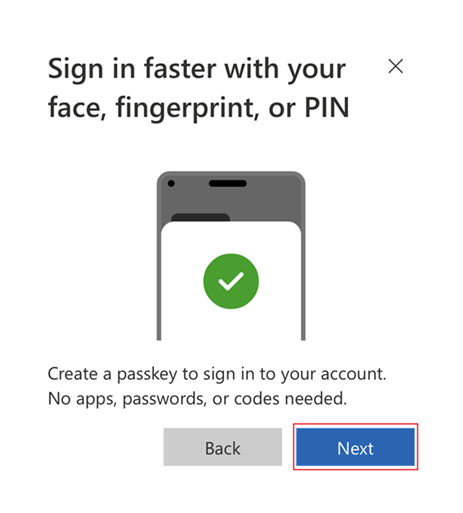
Tap Next.
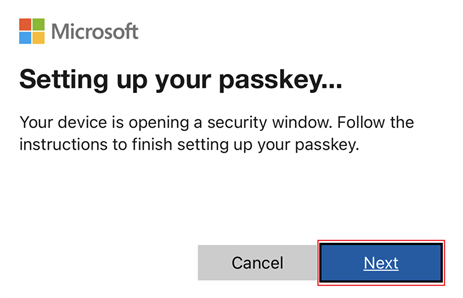
On iOS, tap Next.
On Android, tap Continue.
Note
The steps to enable passkey providers on Android might vary based on the make and model of your device. Search for Passkey on your device settings, or consult your device manufacturer for guidance. If your device runs Android 14 and you can't enable Authenticator as a passkey provider, we recommend that you upgrade to Android 15.
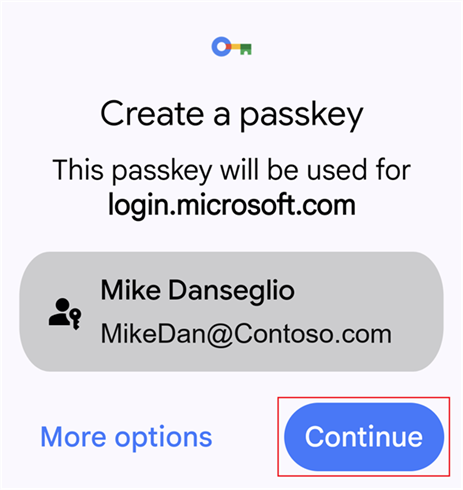
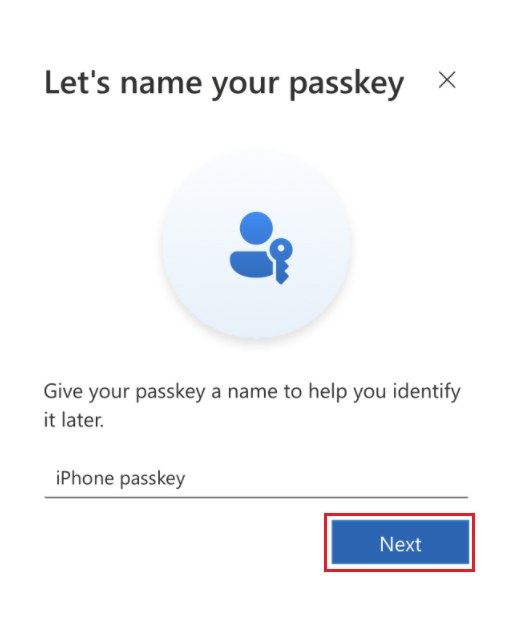
Name your passkey and tap Next.
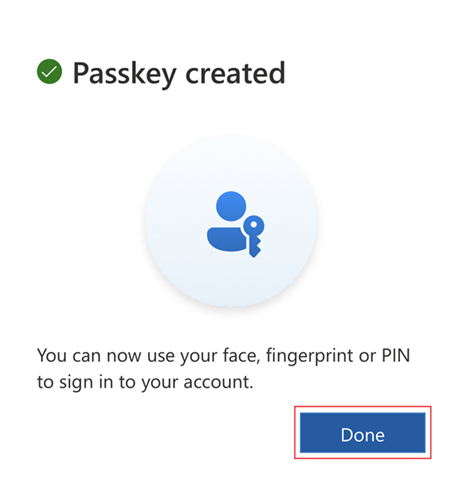
After the passkey is created, tap Done.
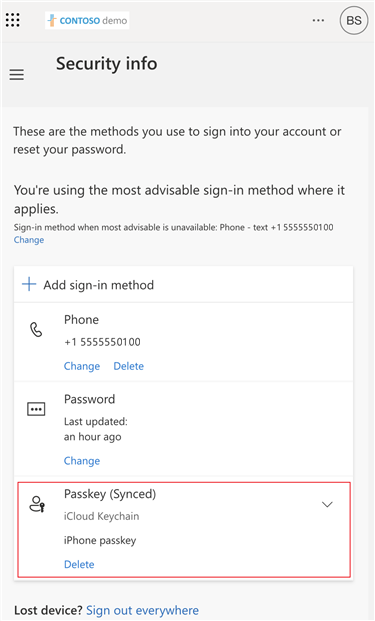
You can see your passkey in Security info.
Related content
To register a passkey on a different type of authenticator, see: