Note
Access to this page requires authorization. You can try signing in or changing directories.
Access to this page requires authorization. You can try changing directories.
Applies to: Exchange Server 2013
You might need to remove public folders that are no longer being used in your organization. To help determine which public folders should be removed, see View statistics for public folders and public folder items.
What do you need to know before you begin?
Estimated time to complete: 5 minutes.
You need to be assigned permissions before you can perform this procedure or procedures. To see what permissions you need, see the "Public folders" entry in the Sharing and collaboration permissions article.
You can't delete a mail-enabled public folder. Before you can delete it, you must first disable email for the public folder. For more information, see Mail-enable or mail-disable a public folder.
For information about keyboard shortcuts that might apply to the procedures in this article, see Keyboard shortcuts for the Exchange admin center in Exchange 2013.
Tip
Having problems? Ask for help in the Exchange forums. Visit the forums at Exchange Server.
Use the EAC to remove a public folder
Navigate to Public folders > Public folders.
In the list view, select the public folder you want to delete. Selecting the folder name displays any subfolders within that folder. At that point, you can select a specific subfolder to remove.
To delete a folder or subfolder, click anywhere on the folder's row except the underlined name of the folder, and then select Delete
 . If you select the underlined name of the folder, the Delete option isn't available to select.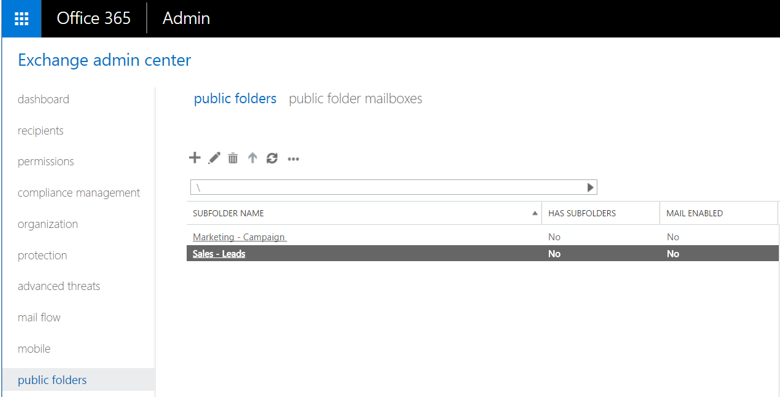
A warning box displays asking if you're sure you want to delete the public folder. Select Yes to continue.
Use the Shell to delete a public folder
This example deletes the public folder Help Desk\Resolved. This command assumes that the Resolved public folder doesn't have any subfolders.
Remove-PublicFolder -Identity "\Help Desk\Resolved"
This example tests the previous command without making any modifications.
Remove-PublicFolder -Identity "\HelpDesk\Resolved" -WhatIf
This example removes the public folder Marketing and all its subfolders because the command runs recursively.
Remove-PublicFolder -Identity "\Marketing" -Recurse:$True
For detailed syntax and parameter information, see Remove-PublicFolder.