Note
Access to this page requires authorization. You can try signing in or changing directories.
Access to this page requires authorization. You can try changing directories.
In Microsoft Intune, use OEMConfig to add, create, and customize OEM-specific settings for Android Enterprise devices. OEMConfig typically configures settings that aren't built in to Intune. Different original equipment manufacturers (OEM) include different settings. The available settings depend on what the OEM includes in their OEMConfig app.
This feature applies to:
- Android Enterprise
To manage Zebra Technologies devices using Android device administrator, use Zebra Mobile Extensions (MX).
This article describes OEMConfig, lists the prerequisites, shows how to create a configuration profile, and lists the supported OEMConfig apps in Intune.
Overview
OEMConfig policies are a special type of device configuration policy similar to app configuration policy. OEMConfig is a standard defined by Google that uses app configuration in Android to send device settings to apps written by OEMs (original equipment manufacturers). This standard allows OEMs and enterprise mobility management service providers (EMMs) to build and support OEM-specific features in a standardized way. Learn more about OEMConfig (opens Google's web site).
Historically, OEMs create features. Then EMMs, like Intune, manually build support for these OEM-specific features. This approach leads to duplicated efforts and slow adoption.
With OEMConfig, an OEM creates a schema that defines OEM-specific management features. The OEM embeds the schema into an app, and then puts this app on Google Play. The EMM service reads the schema from the app, and exposes the schema in the EMM admin console. The console allows administrators to configure the settings in the schema.
When the OEMConfig app installs on a device, it uses the settings configured in the EMM admin console to manage the device. The OEMConfig app executes the device settings, instead of an MDM agent built by the EMM.
When the OEM adds and improves management features, the OEM also updates the app in Google Play. As an administrator, you get these new features and updates (including fixes) without waiting for EMMs to include these updates.
Tip
You can only use OEMConfig with devices that support this feature and have a corresponding OEMConfig app. Consult your OEM for specific details.
Before you begin
When using OEMConfig, be familiar with the following information:
The maximum size of any OEMConfig profile is 500 KB. Any profile that exceeds this limit isn't deployed to the device. When you try to create a new profile that exceeds 500 KB in the Intune admin center, you see the following error message:
Profile is larger than 500KB. Adjust profile settings to decrease the size.To reduce the size, try one or more of the following options:
- Reduce the number of settings configured in the profile.
- In the built-in JSON editor in the Intune admin center, reduce the size of the value entered for the keys.
When working with OEMConfig apps, know that:
The available settings depend on what the OEM includes in their OEMConfig app.
Intune exposes the OEMConfig app's schema so you can configure it. Intune doesn't validate or change the schema provided by the app. So if the schema is incorrect, or has inaccurate data, Intune still sends this data to devices. If you find a problem that originates in the schema, contact the OEM for guidance.
Intune doesn't influence or control the content of the app schema. For example, Intune doesn't have any control over strings, language, the actions allowed, and so on. Contact the OEM for more information on managing their devices with OEMConfig.
At any time, OEMs can update their supported features and schemas within their app, and upload a new app to Google Play. Intune always syncs the latest version of the OEMConfig app from Google Play. Intune doesn't maintain older versions of the schema or the app. If you run into version conflicts, contact the OEM for more information.
When deploying multiple OEMConfig policies to your devices, be aware of the following behaviors:
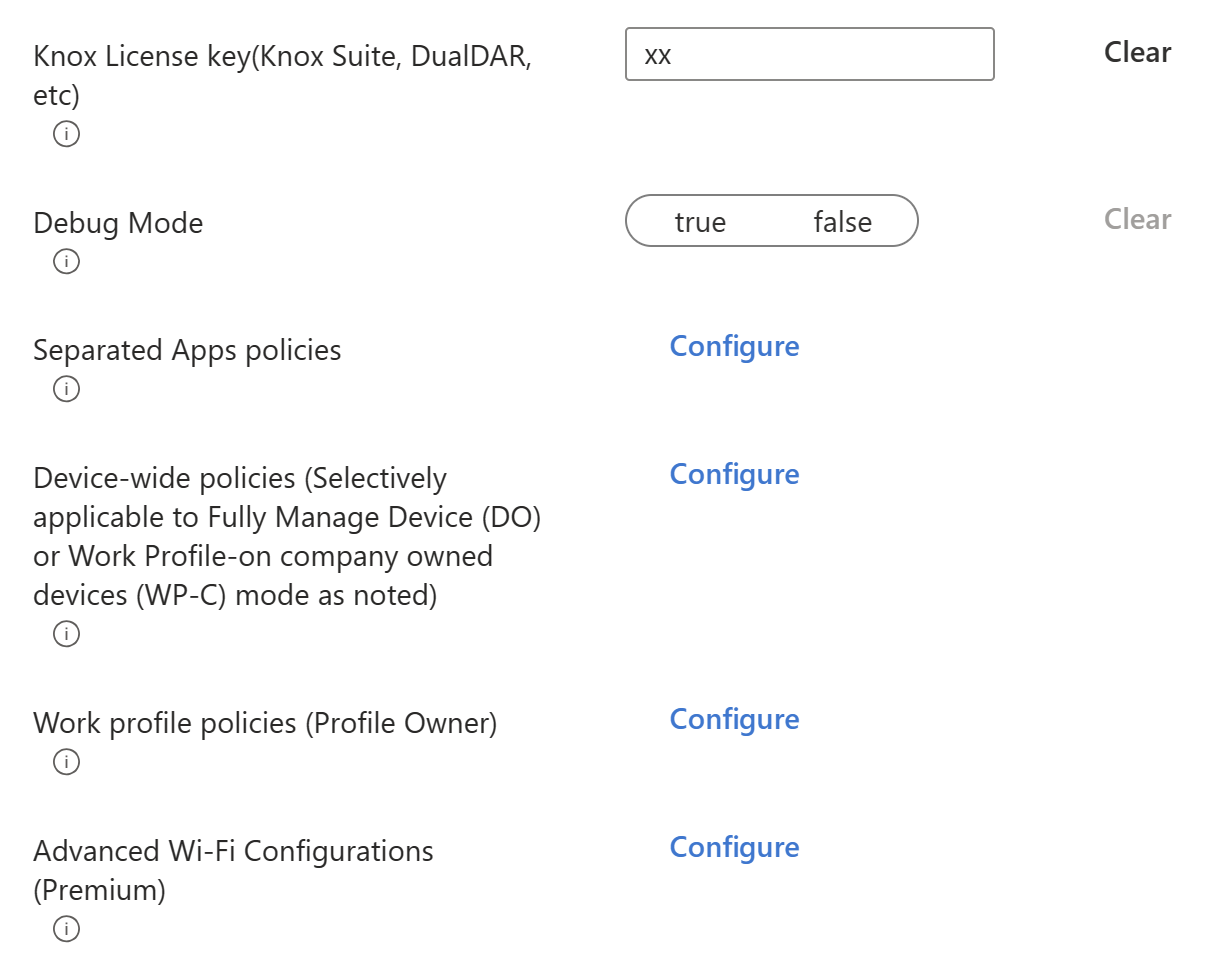
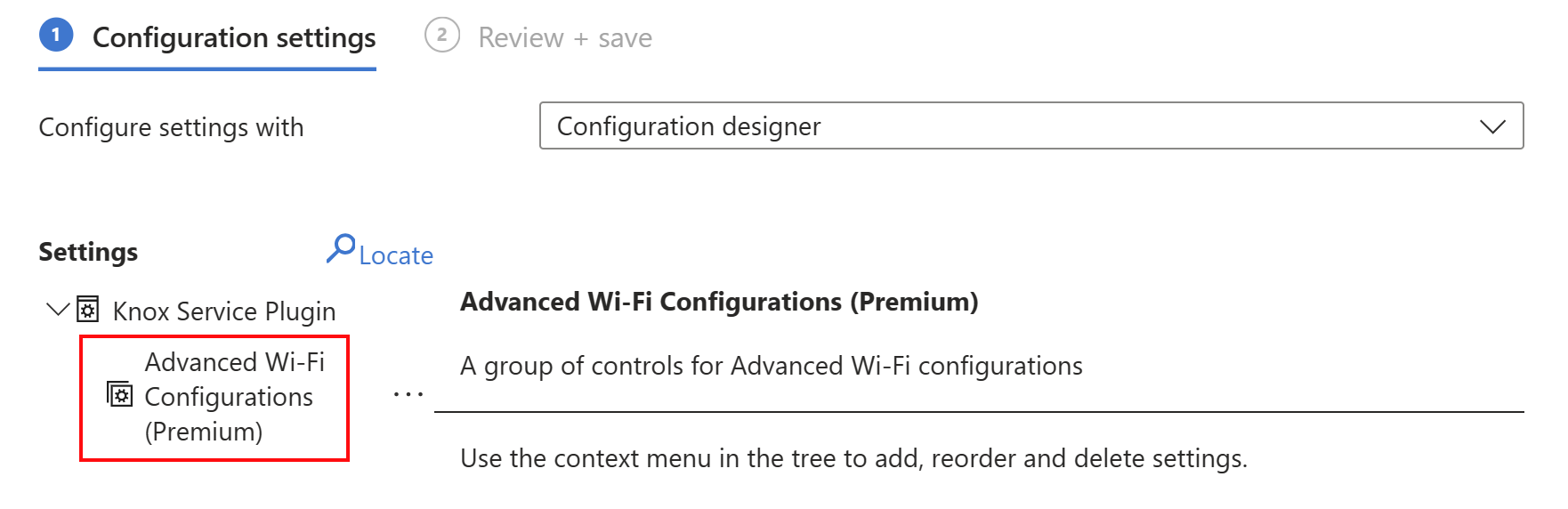
OEMConfig apps have top parent groups or bundles that include a set of settings or controls, like a Wi-Fi configuration. Each top parent group or bundle can only be configured in one profile. If you deploy multiple profiles with the same top parent group or bundle, both profiles go into a Conflict state and neither profile is deployed.
So if you deploy multiple OEMConfig profiles to the same device, the settings in the profiles must belong to different top parent groups or bundles.
The following example shows the top parent groups or bundles available in an OEMConfig app that you can configure in an Intune policy:
The following example shows the Wi-Fi top parent group or bundle configured in the Intune profile:
- On Zebra devices, you can create multiple profiles using the Legacy Zebra OEMConfig app, and assign the profiles to the same device. For more information, see OEMConfig on Zebra devices.
On non-Zebra devices, the OEMConfig model only supports a single policy per device. If you assign multiple profiles to the same device, you can see inconsistent behavior.
Prerequisites
To use OEMConfig on your devices, you need the following requirements:
 Device platform requirements
This feature supports the following platforms:
- Android Enterprise
- Devices must be MDM enrolled in Intune.
 Roles requirements
To create the Intune profile, the Intune admin needs the following role-based access (RBAC) permissions in Intune:
- Mobile apps
- Device Configurations
- Android Enterprise > Read
These permissions are required because OEMConfig profiles use managed app configurations to manage device configurations. You can create a custom role that only includes these permissions.
Step 1 - Get the OEMConfig app
OEMs provide their own OEMConfig app that you use to configure features within the app. To use OEMConfig, the OEM must build the OEMConfig app and upload it to Google Play. If the OEMConfig app isn't available on Google Play, contact the OEM.
Get the OEMConfig app from the Managed Google Play Store, add the app to Intune, and assign the app to your devices.
Confirm that your devices support OEMConfig. OEMConfig apps are specific to the OEM. For example, a Sony OEMConfig app installed on a Zebra Technologies device doesn't do anything.
For a list of supported OEMConfig apps, see Supported OEMConfig apps (in this article).
Get the OEMConfig app from the Managed Google Play Store and add it to Intune. Some OEMs ship the devices with the OEMConfig app preinstalled. If the app isn't preinstalled, get the app from the Managed Google Play store.
For the steps, see Add Managed Google Play apps to Android Enterprise devices with Intune.
Assign the app to your devices. For the steps, see Add Managed Google Play apps to Android Enterprise devices with Intune.
Step 2 - Create an OEMConfig profile
After adding the app to Intune, create an OEMConfig profile to configure the features defined in the app.
Sign in to the Microsoft Intune admin center.
Select Devices > Manage devices > Configuration > Create > New policy.
Enter the following properties:
- Platform: Select Android Enterprise.
- Profile type: Select OEMConfig.
Select Create.
In Basics, enter the following properties:
- Name: Enter a descriptive name for the new profile.
- Description: Enter a description for the profile. This setting is optional, but recommended.
- OEMConfig app: Choose Select an OEMConfig app.
In Associated app, select an existing OEMConfig app you previously added > Select. Be sure to choose the correct OEMConfig app for the devices you're assigning the policy to.
If you don't see any apps listed, then set up Managed Google Play, and get apps from the Managed Google Play store. Add Managed Google Play apps to Android Enterprise devices lists the steps.
Important
If you added an OEMConfig app and synced it to Google Play, but it isn't listed as an Associated app, you might have to contact Intune to onboard the app. See adding a new app (in this article).
Select Next.
In Configure settings, select the Configuration designer or JSON editor:
Tip
Read the OEM documentation to make sure you're configuring the properties correctly. The OEM, not Intune, includes these app properties. Intune does minimal validation of the properties or what you enter. For example, if you enter
abcdfor a port number, the profile saves as-is, and deploys to your devices with the values you configure. Be sure you enter the correct information.Configuration designer: When you select this option, the properties available within the app schema are shown for you to configure.
Context menus in the configuration designer indicate that more options are available. For example, the context menu might let you add, delete, and reorder settings. The OEM makes these options available. Be sure to read the OEM app documentation to learn how these options should be used to create profiles.
Many settings have default values supplied by the OEM. To see if there's a default value, hover over the info icon next to the setting. A tooltip shows the default values for that setting (if applicable), and more details provided by the OEM.
Selecting Clear deletes a setting from the profile. If a setting isn't in the profile, its value on the device doesn't change when the profile is applied.
Use the Locate button to look for settings. In the side panel, type in a keyword to see all the relevant settings and their descriptions. Select any setting to automatically add the setting to the configuration designer tree, if it's not there already. It also automatically opens the tree so you can see the setting.
If you create an empty (unconfigured) bundle in the configuration designer, the bundle is deleted when you switch to the JSON editor.
JSON editor: When you select this option, a JSON editor opens with a template for the full configuration schema embedded in the app. In the editor, customize the template with values for the different settings. If you use the Configuration designer to change your values, the JSON editor overwrites the template with values from the configuration designer.
If you're updating an existing profile, the JSON editor shows the settings that were last saved with the profile.
OEMConfig schemas can be large and complex. If you prefer to update these settings using a different editor, select the Download JSON template button. Use an editor of your choice to add your configuration values to the template. Then, copy and paste your updated JSON into the JSON editor property.
You can use the JSON editor to create a backup of your configuration. After you configure your settings, use this feature to get the JSON settings with your values. Copy and paste the JSON to a file, and save it. Now you have a backup file.
Any changes you make in the configuration designer are also made automatically in the JSON editor. Likewise, any changes you make in the JSON editor are automatically made in the configuration designer. If your input contains invalid values, you can't switch between the configuration designer and JSON editor until you fix the issues.
Select Next.
In Scope tags (optional), assign a tag to filter the profile to specific IT groups, such as
US-NC IT TeamorJohnGlenn_ITDepartment. For more information about scope tags, see Use RBAC and scope tags for distributed IT.Select Next.
In Assignments, select the users or groups that will receive your profile. Assign one profile to each device. The OEMConfig model only supports one policy per device.
The maximum size for an OEMConfig profile is 500 KB. If a profile exceeds this limit, the profile isn't deployed to the device. For more information, see Before you begin (in this article).
For more information about assigning profiles, see Assign user and device profiles.
Select Next.
In Review + create, review your settings. When you select Create, your changes are saved, and the profile is assigned. The policy is also shown in the profiles list.
The next time the device checks for configuration updates, the OEM-specific settings you configured are applied to the OEMConfig app.
Reporting and deployment status
After you deploy your profile, check its status:
In the Microsoft Intune admin center, select Devices > Manage devices > Configuration. A list of all your profiles is shown.
Select your OEMConfig profile. You can get more information on your profile, including successful and failed deployments:
- Overview: Shows the profile assignment statuses. For more information on what the statuses mean, see Monitor device profiles in Microsoft Intune.
- Properties: Shows the settings you configured when you created the profile. You can change the profile name, or update any existing settings.
- Device status: Lists the devices assigned to the profile, and shows if the profile successfully deployed. You can select a specific device to get more details.
- User status: Lists the user names with devices affected by this profile, and if the profile successfully deployed. You can select a specific user to get more details.
You can also see if individual settings in a profile successfully applied. To see the per-setting status of an OEMConfig profile, select Devices > All devices, and choose a device from the list. Then, go to App configuration, and select your OEMConfig profile. Select an individual setting status to get more information.
The maximum size of any OEMConfig profile is 500 KB. Any profile that exceeds this limit isn't deployed to the device. Profiles in a pending state or profiles larger that 500 KB aren't shown. For more details, see Before you begin (in this article).
Note
For Zebra devices, only a single setting row is shown. Selecting the row shows details for all settings in the policy.
Supported OEMConfig apps
Compared to standard apps, OEMConfig apps expand the managed configurations privileges that Google grants to support more complex schemas and functions. OEMs must register their OEMConfig apps with Google. If you don't register, these features might not work as expected.
Intune supports the following OEMConfig apps:
| OEM | Bundle ID | OEM Documentation (if available) |
|---|---|---|
| Archos | com.archos.oemconfig | |
| Ascom | com.ascom.myco.oemconfig | |
| Bartec | com.bartec.oemconfig | |
| Bluebird | com.bluebird.android.oemconfig | |
| Cipherlab | com.cipherlab.oemconfig.common | |
| Crosscall | com.hmct.crosscalloemconfig | |
| Datalogic | com.datalogic.settings.oemconfig | |
| Ecom - Ex-Handy 10 | com.ecom.econfig | |
| Ecom - Smart-Ex 02 | com.ecom.econfig.smart | |
| Elo | com.elotouch.oemconfig | Elo OEMConfig Configurations |
| FCNT | com.fcnt.arrowsconfig | |
| FCNT | com.fcnt.arrowsconfig_test | |
| FCNT - Senior Care | com.fcnt.mobile_phone.seniorcareconfig | |
| FCNT - Schema | com.fcnt.mobile_phone.schematest | |
| Getac | com.getac.app.getacoemconfig | |
| Handheld | com.handheldgroup.oemconfig | |
| Honeywell | com.honeywell.oemconfig | |
| Honeywell - Scanpal EDA | com.honeywell.oemconfig.scanpal | |
| HMDGlobal - 7.2 | com.hmdglobal.app.oemconfig.n7_2 | |
| HMDGlobal - 4.2 | com.hmdglobal.app.oemconfig.n4_2 | |
| HMDGlobal - 5.3 | com.hmdglobal.app.oemconfig.n5_3 | |
| HMDGlobal - OEMConfig | com.hmdglobal.app.oemconfig | |
| imotion | com.iwaylink.oemconfig | |
| Inventus | com.inventus.oemconfig.gen | |
| Janam | com.oemconfig.janam | |
| Kyocera | jp.kyocera.enterprisedeviceconfig | |
| Lenovo | com.lenovo.oemconfig.rel | |
| LG | com.lge.android.oemconfig | |
| Motorola Solutions | com.motorolasolutions.lexoemconfig | |
| Motorola Mobility | com.motorola.oemconfig.rel | Moto OEMConfig Guide |
| Urovo | com.urovo.oemconfigs | |
| Panasonic | com.panasonic.mobile.oemconfig | |
| Pepperl+Fuchs SE | com.ecom.econfig.smart0x | |
| Point Mobile | device.apps.emkitagent | |
| RugGear | com.ruggear.rgoem | |
| Samsung | com.samsung.android.knox.kpu | Knox Service Plugin Admin Guide |
| Seuic | com.seuic.seuicoemconfig | |
| Social Mobile | com.rhinomobility.oemconfig | |
| Sonim | com.sonim.oemappconfig | |
| Spectralink - Barcodes | com.spectralink.barcode.service | |
| Spectralink - Buttons | com.spectralink.buttons | |
| Spectralink - Device | com.spectralink.slnkdevicesettings | |
| Spectralink - Logging | com.spectralink.slnklogger | |
| Spectralink - VQO | com.spectralink.slnkvqo | |
| Sunmi | com.sunmi.oemconfig.V2S | |
| Unitech Electronics | com.unitech.oemconfig | |
| Zebra Technologies | com.zebra.oemconfig.release | Zebra OEMConfig overview This Zebra OEMConfig Powered by MX app supports Android 11.0 and newer. |
| Zebra Technologies | com.zebra.oemconfig.common | Zebra OEMConfig overview This Legacy Zebra OEMConfig app supports Android 11.0 and earlier. |
If you represent an OEM, and an OEMConfig application exists for your devices, but isn't listed in the table, then email IntuneOEMConfig@microsoft.com for onboarding help. OEMs must also register their OEMConfig apps with Google.
Note
Google and Intune must onboard OEMConfig apps before you can configure them with OEMConfig profiles. Once an app is supported, you don't need to contact Microsoft about setting it up in your tenant. Just follow the instructions in this article.
If you experience settings within an OEMConfig app behaving incorrectly, contact the developers of the OEMConfig app. Intune isn't responsible for technical issues with the individual OEMConfig apps.