Note
Access to this page requires authorization. You can try signing in or changing directories.
Access to this page requires authorization. You can try changing directories.
APPLIES TO:  Power BI Desktop
  Power BI service
If you have edit permission for a report, Copilot can create a narrative visual for you on the report page. If you don't have edit permission, you can still use Copilot to get insights about the report by asking questions in the Copilot pane. For more information, see Summarize your report content in the Copilot pane.
Note
Keep the following requirements in mind:
- Your administrator needs to enable Copilot in Microsoft Fabric.
- Your Fabric capacity needs to be in one of the regions listed in this article, Fabric region availability. If it isn't, you can't use Copilot.
- Your administrator needs to enable the tenant switch before you start using Copilot. See the article Copilot tenant settings for details.
- If your tenant or capacity is outside the US or France, Copilot is disabled by default. The one exception is if your Fabric tenant admin enables the Data sent to Azure OpenAI can be processed outside your tenant's geographic region, compliance boundary, or national cloud instance tenant setting. You can find this setting in the Fabric admin portal.
- Copilot in Microsoft Fabric isn't supported on trial SKUs. Only paid SKUs are supported.
- To see the standalone Copilot experience in Power BI, your tenant admin needs to enable the tenant switch.
Sample prompts for narrative visuals
The following examples show prompts that work well for creating narrative visuals with Copilot in Power BI. Each sample prompt includes the narrative that Copilot generated. Your prompts help Copilot understand what you're looking for, but they might not produce exactly what you want on the first try. Refine narratives with follow-up prompts to adjust the tone, formatting, or content.
Note
See the Considerations and limitations section in "Create a narrative with Copilot for Power BI" for features that currently don't work.
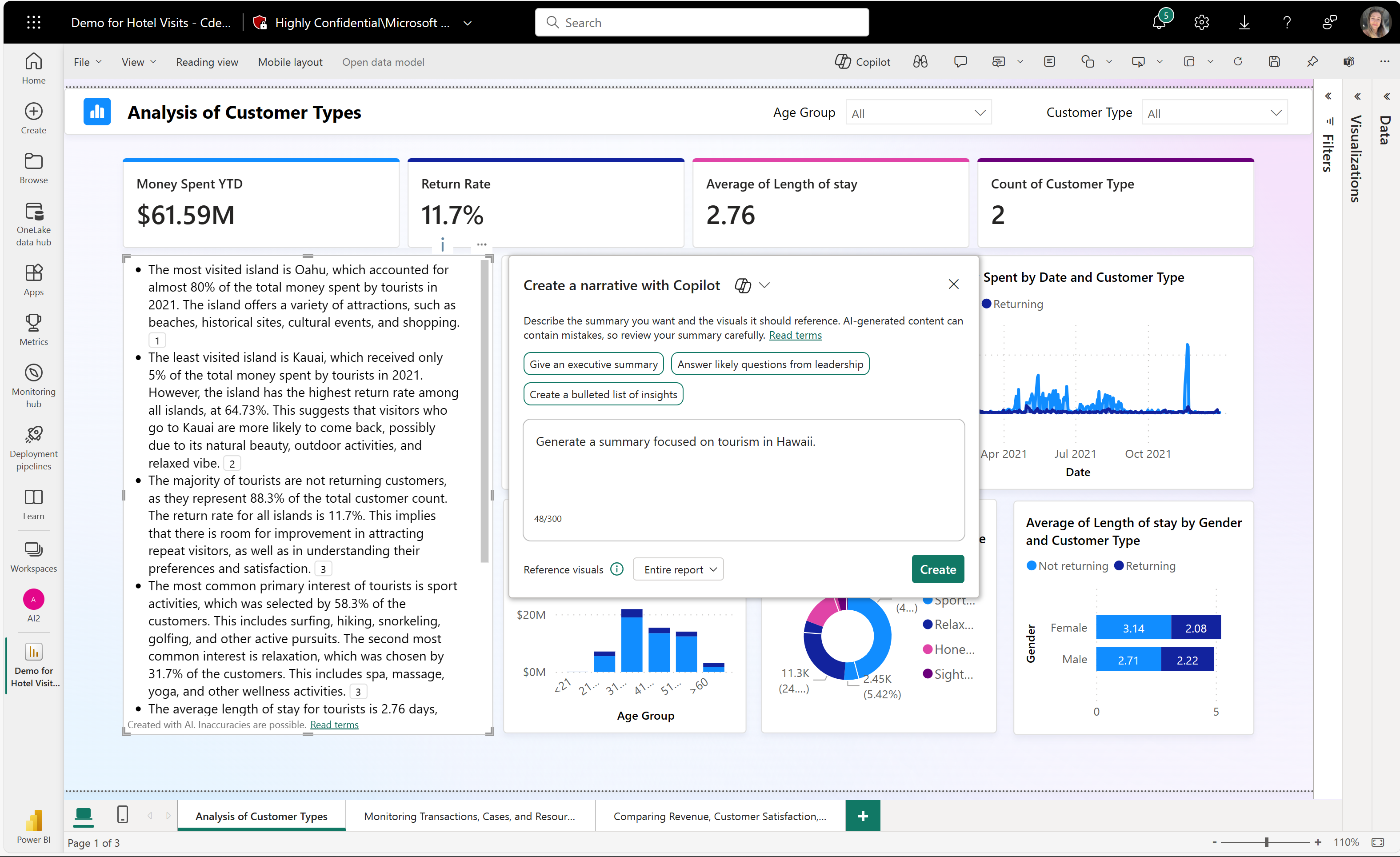
Generate a focused narrative from scratch
Start by creating a narrative focused on one aspect of your data.
Prompt: "Generate a summary focused on tourism in Hawaii."
Refine an existing narrative
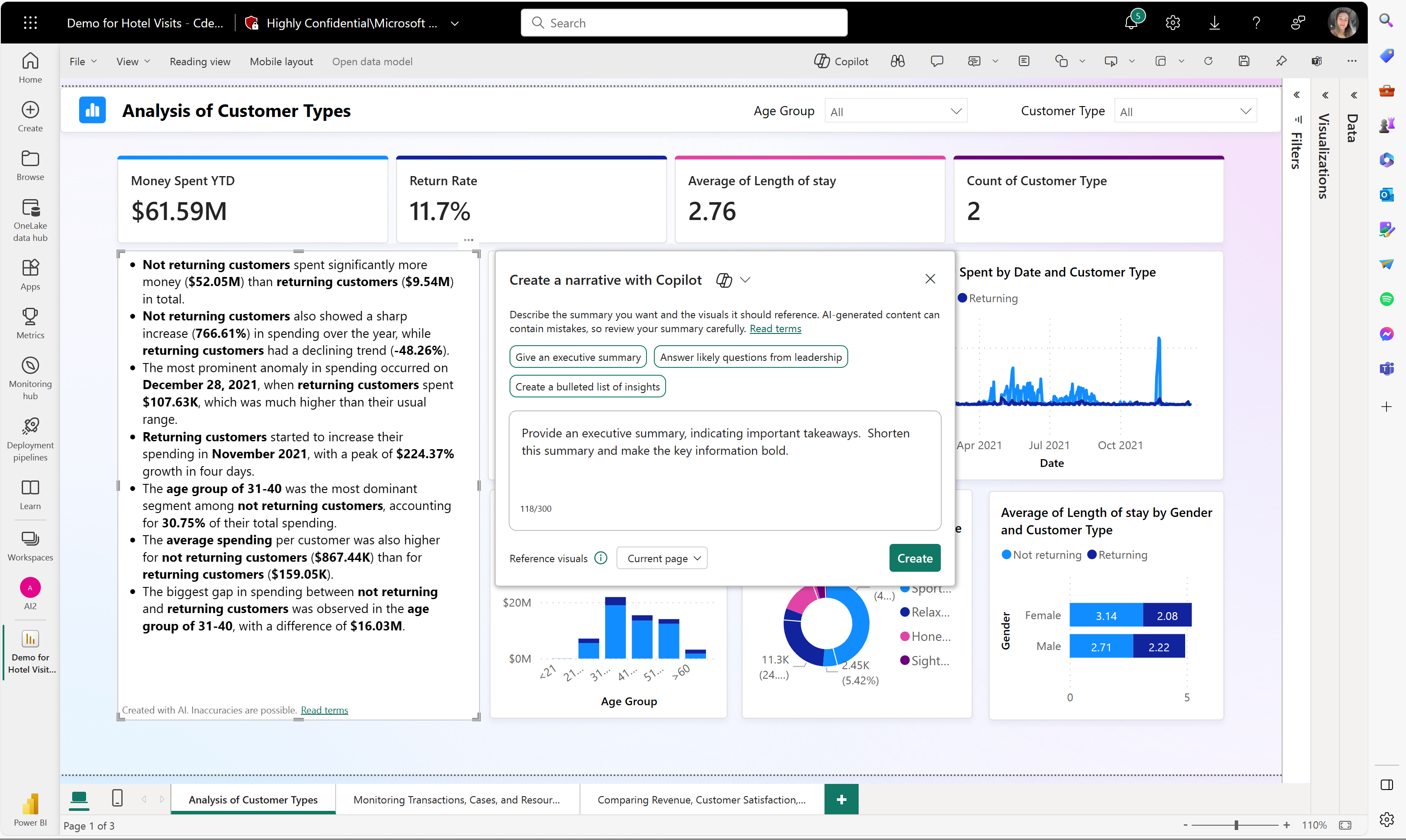
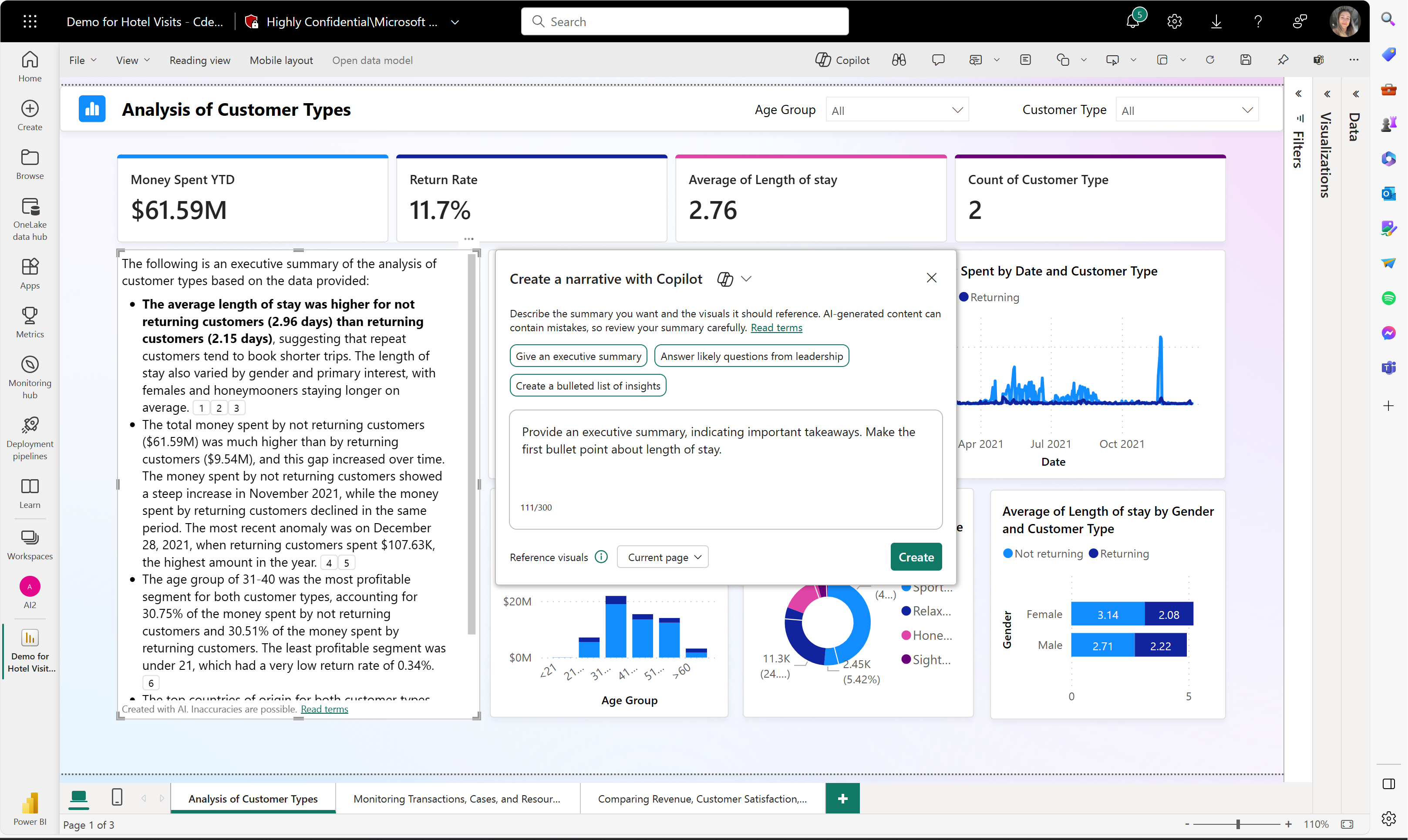
After you create a narrative, modify it by using additional prompts. The following examples show how to iteratively improve a narrative by using the suggested prompt as a starting point:
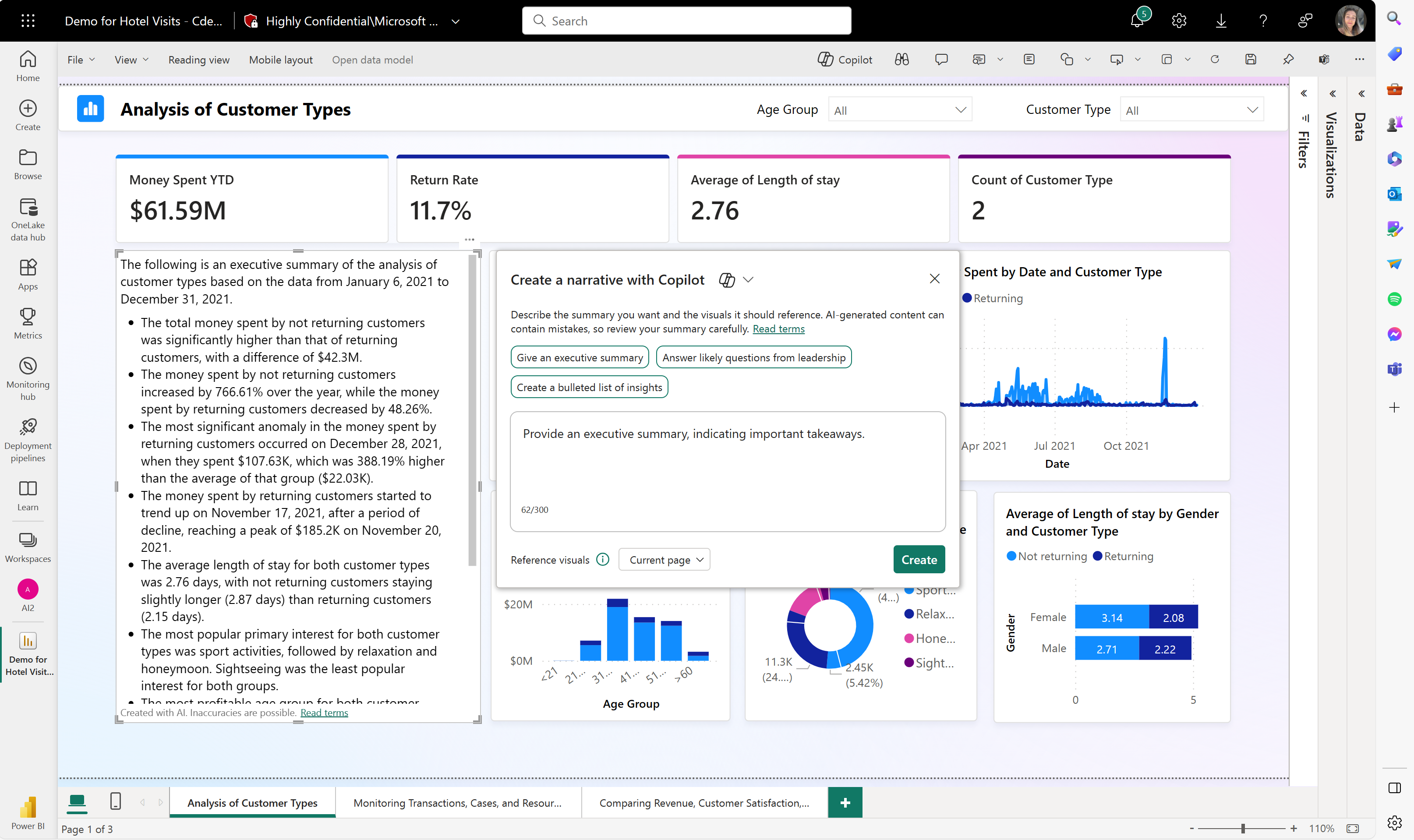
Prompt: "Shorten this summary and make the key information bold."
Prompt: "Make the first bullet point about length of stay."
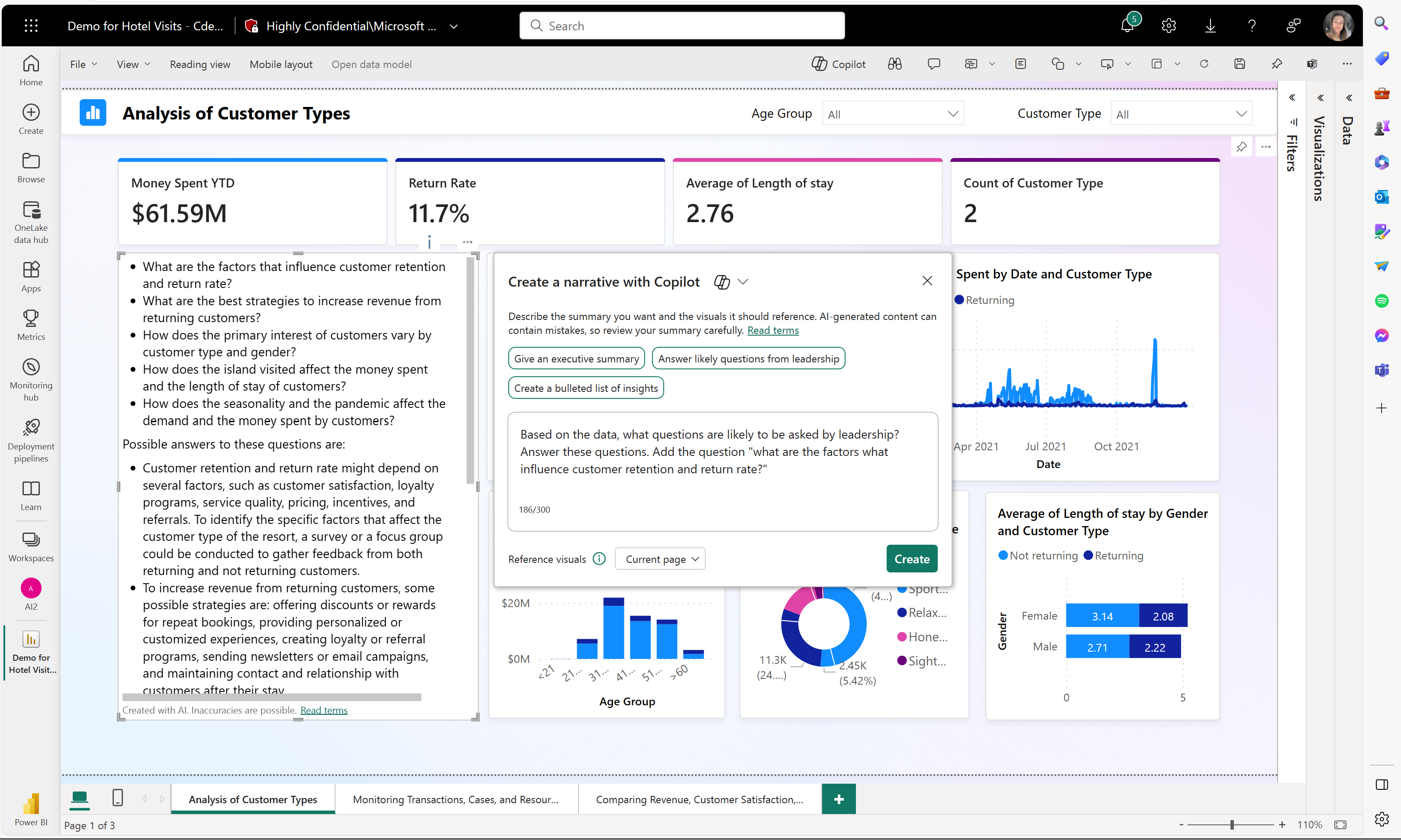
Prompt: "Add the question 'What are the factors that influence customer retention and return rate?'"
Analyze specific relationships in your data
Create narratives that investigate specific aspects of your report.
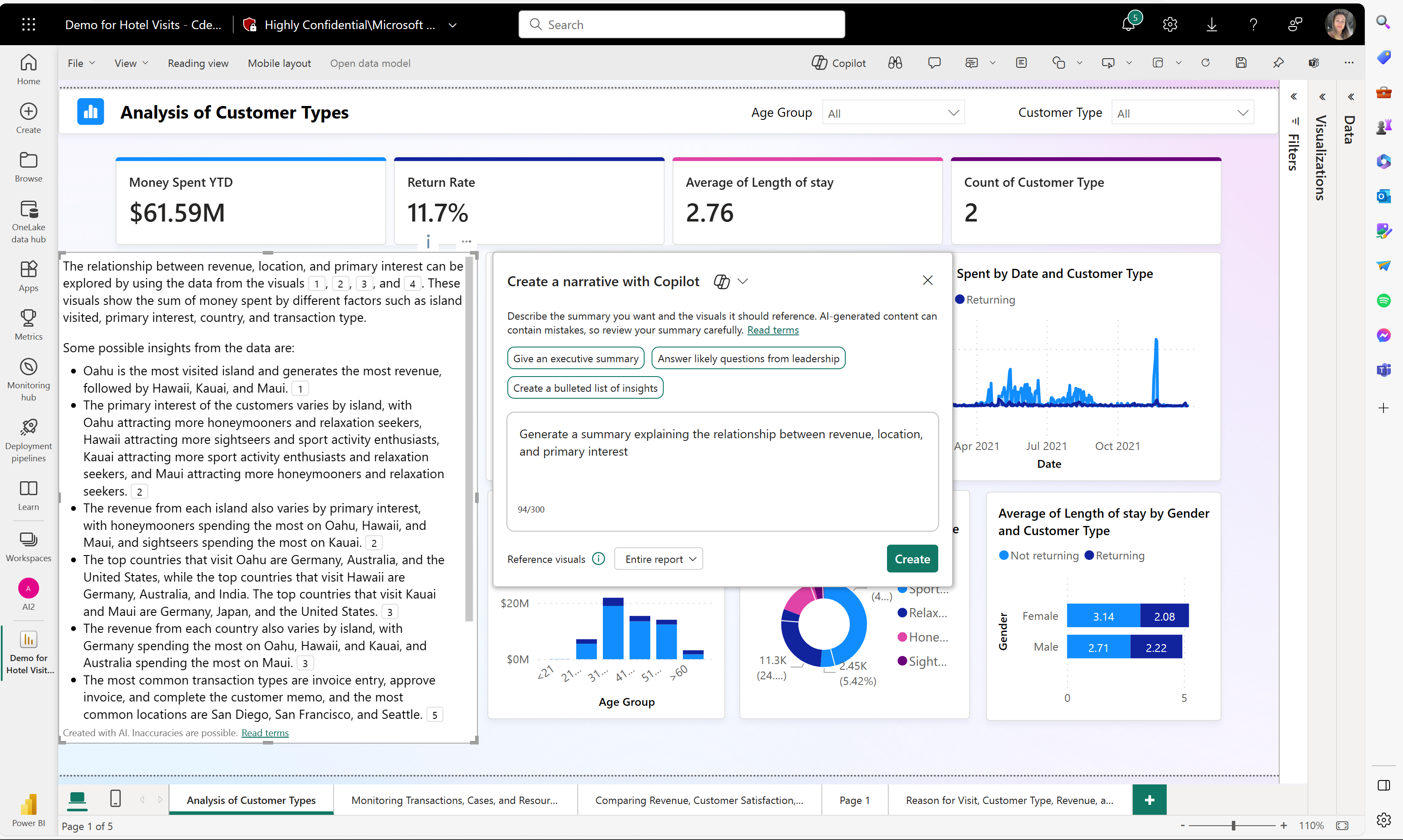
Prompt: "Generate a summary explaining the relationship between revenue, location, and primary interest."
Send feedback
Your feedback about the product is always welcome. During public preview, your feedback helps improve the product even faster.