Note
Access to this page requires authorization. You can try signing in or changing directories.
Access to this page requires authorization. You can try changing directories.
A security baseline is a recommended, role-aware collection of security settings that hardens the servers and virtual machines in your environment. Deploying the Windows Server 2025 security baseline gives you a comprehensive, standardized starting point that aligns with industry-standard security requirements, instead of configuring hundreds of settings by hand.
OSConfig powers the baseline experience. To learn how OSConfig delivers and maintains security configuration across the device lifecycle, see OSConfig overview.
In this article, you install the OSConfig PowerShell module, apply the security baseline that matches your server's role, and verify, customize, and remove the baseline. OSConfig doesn't support versions of Windows Server earlier than Windows Server 2025.
Prerequisites
- A device running Windows Server 2025. OSConfig doesn't support earlier versions of Windows Server.
- Administrator rights on the device. Installing the OSConfig PowerShell module and applying, verifying, or removing baselines all require an elevated PowerShell session.
Why security baselines matter
The security baseline goes beyond checklist compliance. It aims to strengthen protection across five areas, and no control is absolute. The goal is to raise the cost and reduce the likelihood of an attack succeeding. The baseline organizes the settings into five protection categories. Each category maps to common attacker techniques that typically succeed on a default (unhardened) server but are prevented, impaired, or visibly logged on a baseline-hardened server.
Network exposure reduction
The baseline reduces the server's exposed attack surface by disabling legacy protocols, enforcing modern cryptography, and tightening inbound access:
- The baseline enables the Windows Firewall on all profiles (Domain, Private, Public) with a default-deny stance for inbound traffic. Only ports with explicit allow rules remain open.
- The baseline disables SMBv1 on both client and server and enforces a minimum of SMB 3.0.
- The baseline shuts down legacy name-resolution protocols: it disables LLMNR and NetBIOS over TCP/IP, and the system relies exclusively on DNS.
- The baseline reduces anonymous and unauthenticated access: it blocks anonymous SAM enumeration, disables insecure guest logons, and disables the Guest account.
- The baseline restricts TLS to version 1.2 or higher with modern cipher suites and disables IP source routing.
For example, these settings help defend against an attacker running an SMB enumeration tool such as enum4linux, attempting the EternalBlue (MS17-010) exploit against a disabled protocol, or running Responder to poison LLMNR or NetBIOS broadcasts that the hardened server no longer sends.
Credential theft resistance
This baseline helps protect in-memory and on-disk credentials so that an attacker who gains a foothold has a harder time harvesting passwords or hashes:
- Credential Guard uses virtualization-based security (VBS) to help isolate NTLM hashes, Kerberos ticket-granting tickets, and stored domain credentials from the operating system. Credential Guard requires compatible hardware and VBS to be available and enabled.
- LSASS runs as a Protected Process Light (PPL) to help block code injection and memory reads.
- The baseline restricts authentication to NTLMv2, so the system doesn't generate or store legacy LM and NTLMv1 hashes, and it doesn't store passwords with reversible encryption.
- The baseline hardens credential delegation so delegated credentials remain non-exportable, and enforces CredSSP encryption-oracle protection.
For example, these protections aim to make credential-dumping tools such as Mimikatz (sekurlsa::logonpasswords) less effective, because protected memory is harder to read, and extracting the SAM database yields strong NTLMv2 hashes rather than trivially crackable LM hashes.
Lateral movement prevention
This baseline aims to contain breaches by making it harder for attackers to pivot between machines with stolen credentials or sessions:
- Remote UAC filtering strips administrative privileges from local accounts that authenticate over the network, helping defend against pass-the-hash with local admin credentials.
- The baseline requires SMB signing on both clients and servers, helping defend against relay and on-path attacks.
- The baseline signs and encrypts secure channel data to the domain controller, and hardened UNC paths protect NETLOGON and SYSVOL.
- An SMB authentication rate limiter adds a delay after each failed attempt, and the account lockout policy locks accounts after three failed attempts for 15 minutes.
For example, a pass-the-hash attempt with a stolen local admin hash receives only a standard-user token and is denied access to administrative shares, an NTLM relay attempt is impaired because the target requires valid SMB signatures, and brute-force tooling is slowed substantially by the authentication rate limiter.
Persistence and tamper blocking
This baseline makes it harder for attackers to establish long-term footholds or tamper with security mechanisms:
- Secured-core protections build on a Microsoft-signed boot chain, Secure Boot with DMA protection, the UEFI Memory Attributes Table, and kernel-mode hardware-enforced stack protection (kernel shadow stacks) via VBS. The baseline initially enables some of these protections, such as kernel shadow stacks, in audit mode before you switch them to block mode, and several require compatible hardware.
- The baseline enables exploit mitigations such as SEHOP and untrusted-font blocking.
- The baseline disables AutoRun and AutoPlay for all drive types, helping block USB-based malware.
- The baseline reduces insecure installation behaviors - it disables "Always install with elevated privileges" - and blocks consumer Microsoft account authentication.
For example, these settings help prevent a bootkit from loading unsigned boot components and help stop malware on a dropped USB stick from auto-executing, while logging the device insertion.
Auditing and visibility
This baseline ensures the system detects any activity that it doesn't fully block:
- Nearly all advanced audit policy subcategories capture Success and Failure events, and the baseline forces the system to use per-subcategory audit settings.
- The baseline audits logon, credential validation, account management, and sensitive privilege use.
- The baseline audits process creation with command-line capture (Event ID 4688 includes the full command line), so tooling activity leaves a forensic trail.
- The baseline logs file share access, removable storage, and Plug and Play device activity, and the firewall logs dropped and successful connections on all profiles.
- The baseline hardens event log sizes and retention, with the Security log sized to at least 192 MB.
For example, a brute-force attempt generates account lockout and failed-logon events with the source IP and account name, and a privilege-escalation attempt is recorded by sensitive privilege use auditing.
What to expect after applying the baseline
Use the following guidance to plan and carry out a baseline deployment. For at-scale operations, use Azure Policy and Azure Policy machine configuration to monitor and see your compliance score.
Important
After you apply the security baseline, your system's security settings change along with default behaviors. Test carefully before applying these changes in production environments.
You must change your local administrator password after you apply the security baseline for Member server and Workgroup member scenarios.
The following changes are some of the more noticeable ones after you apply the baselines:
You must change the local administrator password. The new password policy must meet the complexity requirements and a minimum length of 14 characters. This rule applies only to local user accounts; when signing in with a domain account, domain requirements prevail.
TLS connections are subject to a minimum of TLS/DTLS 1.2 or higher, which might prevent connections to older systems.
The baseline disables the ability to copy and paste files from RDP sessions. If you need to use this function, run the following command and then restart your device:
Set-OSConfigDesiredConfiguration -Scenario SecurityBaseline/WindowsServer/2025/<ServerRoleBeingApplied> -Name RemoteDesktopServicesDoNotAllowDriveRedirection -Value 0Connections are subject to a minimum of SMB 3.0 or higher. Connecting to non-Windows systems, such as Linux SAMBA, requires support for SMB 3.0, or you must adjust the baseline.
If you're currently configuring the same settings with two different methods, one being OSConfig, expect conflicts. With drift control involved, you must remove one of the sources if the parameters differ, to prevent the settings from constantly changing between sources.
You might run into SID translation errors in specific domain configurations. These errors don't impact the rest of the security baseline definition, and you can ignore them.
Install the OSConfig PowerShell module
Before you can apply a security baseline for the first time, you need to install the OSConfig module from an elevated PowerShell window. Two installation methods are available: online and offline. Follow these instructions for your environment.
Select Start, type PowerShell, hover over Windows PowerShell, and select Run as administrator.
Run the following command to install the OSConfig module:
Install-Module -Name Microsoft.OSConfig -Scope AllUsers -ForceIf you're prompted to install or update the NuGet provider, select Yes.
To verify that the OSConfig module is installed, run the following command:
Get-Module -ListAvailable -Name Microsoft.OSConfig
Available security baseline scenarios
OSConfig identifies each baseline by a scenario name in the form SecurityBaseline/WindowsServer/2025/<Role>. Apply the scenario that matches the role of your device:
| Server role | Scenario name |
|---|---|
| Domain controller | SecurityBaseline/WindowsServer/2025/DomainController |
| Member server | SecurityBaseline/WindowsServer/2025/MemberServer |
| Workgroup member | SecurityBaseline/WindowsServer/2025/WorkgroupMember |
In addition to the role-based security baselines, OSConfig ships companion scenarios you can apply independently:
| Scenario | Scenario name |
|---|---|
| Secured-core | SecuredCore |
| Microsoft Defender Antivirus | Defender/Antivirus/WindowsServer/2025 |
| Windows LAPS | LAPS/WindowsServer/2025/MemberServer |
Note
The Windows LAPS scenario is available for member servers only. For standalone (non-domain-joined) systems, you can use Windows LAPS through Azure Arc-enabled servers.
Manage Windows Server 2025 security baselines
Apply the appropriate security baselines based on the Windows Server role of your device:
- Domain controller (DC)
- Member server (domain-joined)
- Workgroup member server (non-domain-joined)
OSConfig powers the baseline experience. After you apply a baseline, OSConfig automatically protects your security baseline settings from drift, which is one of the key features of its security platform.
Note
For Azure Arc-connected devices, you can apply the security baselines before or after connecting. But if the role of your server changes after the connection, you must delete and reapply the assignment to make sure that the machine configuration platform can detect the role change. For more information about deleting an assignment, see Deletion of guest assignments from Azure Policy.
To apply a baseline, verify that a baseline is in place, remove a baseline, or view detailed compliance information for OSConfig in PowerShell, use the commands on the following tabs.
To apply the baseline for a domain-joined device, run the following command:
Set-OSConfigDesiredConfiguration -Scenario SecurityBaseline/WindowsServer/2025/MemberServer -Default
To apply the baseline for a device that's in a workgroup, run the following command:
Set-OSConfigDesiredConfiguration -Scenario SecurityBaseline/WindowsServer/2025/WorkgroupMember -Default
To apply the baseline for a device that's configured as the DC, run the following command:
Set-OSConfigDesiredConfiguration -Scenario SecurityBaseline/WindowsServer/2025/DomainController -Default
To apply the Secured-core baseline for a device, run the following command:
Set-OSConfigDesiredConfiguration -Scenario SecuredCore -Default
To apply the Microsoft Defender Antivirus baseline for a device, run the following command:
Set-OSConfigDesiredConfiguration -Scenario Defender/Antivirus/WindowsServer/2025 -Default
To apply the Windows LAPS baseline for a member server, run the following command:
Set-OSConfigDesiredConfiguration -Scenario LAPS/WindowsServer/2025/MemberServer -Default
Note
When you apply or remove a security baseline, you must restart the device for changes to take effect.
When you customize a security baseline, you might need to restart the device for changes to take effect, depending on which security features you modify.
During the removal process, when OSConfig reverts security settings, it can't guarantee that these settings return to their premanaged configuration. The outcome depends on the specific settings within the security baseline. This behavior aligns with the capabilities that Microsoft Intune policies provide. To learn more, see Remove a security baseline assignment.
Customize Windows Server 2025 security baselines
After you complete the security baseline configuration, you can modify the security settings while maintaining drift control. Customizing the security values gives you more control over your organization's security policies, depending on your environment's specific needs.
To change the default value of AuditDetailedFileShare from 2 to 3 for your member server, run the following command:
Set-OSConfigDesiredConfiguration -Scenario SecurityBaseline/WindowsServer/2025/MemberServer -Setting AuditDetailedFileShare -Value 3
To verify that the new value is in effect, run the following command:
Get-OSConfigDesiredConfiguration -Scenario SecurityBaseline/WindowsServer/2025/MemberServer -Setting AuditDetailedFileShare
Note
Depending on which security settings you customize, you need to provide certain input. These inputs are:
MessageTextUserLogonMessageTextUserLogonTitleRenameAdministratorAccountRenameGuestAccount
After you provide the necessary input, select the Enter key to proceed.
Security baseline versioning
The OSConfig security baselines are versioned and ship inside the OSConfig PowerShell module. A newer module brings the latest baseline version, which fully supersedes the previous one rather than acting as an incremental patch on top of it. When you apply a scenario, OSConfig configures the complete set of settings defined by the baseline version in the module installed on the device.
The scenario name doesn't include a version token. Applying SecurityBaseline/WindowsServer/2025/MemberServer, for example, always configures the current Windows Server 2025 baseline version present in your installed OSConfig module.
To see which OSConfig module version is installed, run:
Get-Module -ListAvailable -Name Microsoft.OSConfig
Update between versions
To move a device from an older baseline version to a newer one, update the OSConfig module and then reapply the scenario. Because each baseline version fully supersedes the previous one, reapplying brings the device to the complete new set of settings.
Update the OSConfig module to the latest version:
Update-Module -Name Microsoft.OSConfigReapply the scenario that matches the role of your device. For example, for a member server, run:
Set-OSConfigDesiredConfiguration -Scenario SecurityBaseline/WindowsServer/2025/MemberServer -DefaultNote
If an earlier version of the baseline is already applied, you're prompted to remove the previously applied version before OSConfig configures the new one. Confirm the prompt to continue.
Restart the device for the changes to take effect.
Windows Server 2025 security baseline changelog
The current Windows Server 2025 baseline expands coverage over the previous version. The number of settings increases for each server role:
| Server role | Previous version | Current version |
|---|---|---|
| Domain controller | 319 | 347 |
| Member server | 318 | 344 |
| Workgroup member | 294 | 319 |
For the complete list of settings included in each baseline, see the OSConfig security baselines on GitHub.
Provide feedback for OSConfig
If you experience a problem or have a suggestion after applying a security baseline, submit feedback through Feedback Hub. Both Windows Server and the Windows client offer this capability. To open Feedback Hub, select Start, type Feedback Hub, and open the app, or go to the Feedback Hub website. For more information about submitting feedback, see Deeper look at feedback.
To submit OSConfig feedback:
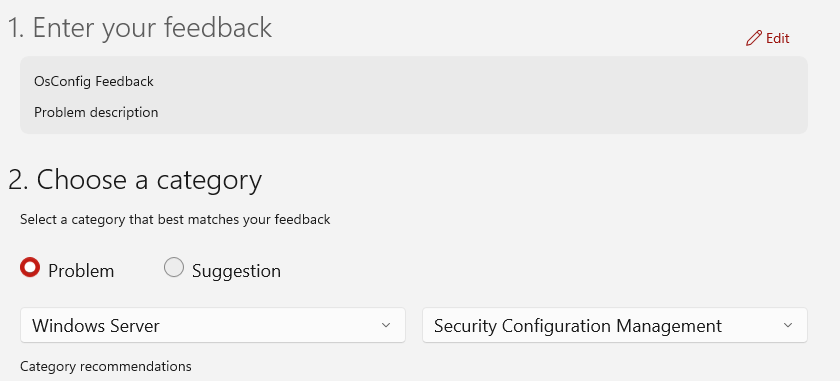
- Under Enter your feedback, provide a clear title and description. Include the installed OSConfig module version (which
Get-Module -ListAvailable -Name Microsoft.OSConfigreturns) so the team can triage your report. - Under Choose a category, select Problem or Suggestion.
- In the category drop-down list, select Windows Server, and then select Security Configuration Management in the secondary drop-down list.
- Add any relevant details or attachments, and then submit your feedback.
The following example shows the Feedback Hub with the Windows Server category and the Security Configuration Management subcategory selected.