Note
Access to this page requires authorization. You can try signing in or changing directories.
Access to this page requires authorization. You can try changing directories.
This article provides guidance for optimizing scalability and performance when you use Azure Event Hubs and Azure Functions together in your applications.
Function grouping
Typically, a function encapsulates a unit of work in an event-processing stream. For instance, a function can transform an event into a new data structure or enrich data for downstream applications.
In Azure Functions, a function app provides the execution context for functions. Function app behaviors apply to all functions that the function app hosts. Functions in a function app are deployed together and scaled together. All functions in a function app must be of the same language.
How you group functions into function apps can affect the performance and scaling capabilities of your function apps. You can group functions according to access rights, deployment, and the usage patterns that invoke your code.
For guidance on Azure Functions best practices for grouping and other design elements, see Best practices for reliable Azure Functions and Improve the performance and reliability of Azure Functions.
The following list provides guidance for grouping functions. The guidance includes considerations about storage and consumer groups.
Host a single function in a function app: If Event Hubs triggers a function, you can isolate that function in its own function app to reduce contention with other functions. Isolation is especially important if the other functions are CPU or memory intensive. This technique helps because each function has its own memory footprint and usage patterns that can directly affect the scaling of the function app that hosts it.
Give each function app its own storage account: Avoid sharing storage accounts between function apps. Also, if a function app uses a storage account, don't use that account for other storage operations or needs. It can be especially important to avoid sharing storage accounts for functions that Event Hubs triggers, because such functions can have a high volume of storage transactions due to checkpointing.
Create a dedicated consumer group for each function app: A consumer group is a view of an event hub. Different consumer groups have different views, which means that the states, positions, and offsets can differ. Consumer groups make it possible for multiple consuming applications to have their own views of the event stream, and to read the stream independently at their own pace and with their own offsets. For more information about consumer groups, see Features and terminology in Azure Event Hubs.
A consumer group is associated with one or more consumer applications, and a consumer application can use one or more consumer groups. In a stream processing solution, each consumer application equates to a consumer group. A function app is a prime example of a consumer application. The following diagram provides an example of two function apps that read from an event hub. Each app has its own dedicated consumer group.
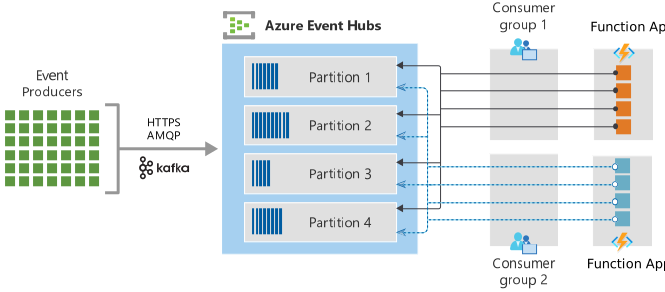
The diagram flow starts with the event producers. Three protocol labels, HTTPS, AMQP, and Kafka, appear to the right of the producers, indicating the supported ingress protocols. A single arrow points from the producers through these protocols into the central component, a large box labeled Azure Event Hubs. Inside the Azure Event Hubs box, there are four partitions. To the right of the Azure Event Hubs box, there are two consumer groups arranged vertically. To the right of the consumer groups, there are eight function apps. Solid arrows point from the top four apps through consumer group 1 and then to all four partitions. Dashed arrows point from the bottom four apps through consumer group 2 and then to all four partitions.
Don't share consumer groups between function apps and other consumer applications. Make each function app a distinct application with its own assigned consumer group to ensure offset integrity for each consumer and to simplify dependencies in an event streaming architecture. This configuration, along with providing each event hub-triggered function with its own function app and storage account, helps set the foundation for optimal performance and scaling.
Function hosting plans
Function apps offer several hosting options. Review their capabilities to choose the best option. For more information, see Azure Functions hosting options. Pay attention to how each option scales.
The Flex Consumption plan is the recommended serverless hosting plan for Azure Functions, including event-driven workloads that are triggered by Event Hubs. It scales each Event Hubs–triggered function on its own instances by using target-based scaling rules for Event Hubs.
The Premium and Dedicated plans are often used to host multiple function apps and functions that are more CPU and memory intensive. With the Dedicated plan, you run your functions in an Azure App Service plan at regular App Service plan rates. All the function apps in these plans share the resources that are allocated to the plan. If functions have different load profiles or unique requirements, it's best to host them in different plans, especially in stream processing applications.
Azure Container Apps provides integrated support for developing, deploying, and managing containerized function apps on Azure Functions. Because of this support, you can use Container Apps to run your event-driven functions in a fully managed, Kubernetes-based environment with built-in support for open-source monitoring, mTLS, Dapr, and KEDA.
Event Hubs scaling
When you deploy an Event Hubs namespace, there are several important settings that you need to set properly to ensure peak performance and scaling. This section focuses on the Standard tier of Event Hubs and the unique features of that tier that affect scaling when you also use Azure Functions. For more information about Event Hubs tiers, see Basic vs. Standard vs. Premium vs. Dedicated tiers.
An Event Hubs namespace corresponds to a Kafka cluster. For information about how Event Hubs and Kafka relate to one another, see What is Azure Event Hubs for Apache Kafka?.
Understanding throughput units (TUs)
In the Event Hubs Standard tier, throughput is classified as the amount of data that enters and is read from the namespace per unit of time. TUs are pre-purchased units of throughput capacity.
TUs are billed on an hourly basis.
All the event hubs in a namespace share the TUs. To properly calculate capacity needs, you must consider all the applications and services, both publishers and consumers. Functions affect the number of bytes and events that are published to and read from an event hub.
The emphasis for determining the number of TUs is on the point of ingress. However, the aggregate for the consumer applications, including the rate at which those events are processed, must also be included in the calculation.
For more information about Event Hubs throughput units, see Throughput units.
Scale up with Auto-inflate
You can enable Auto-inflate on an Event Hubs namespace to accommodate situations where the load exceeds the configured number of TUs. Using Auto-inflate prevents throttling of your application and helps ensure that processing, including the ingestion of events, continues without disruption. Because the TU setting affects costs, using Auto-inflate helps address concerns about overprovisioning.
Auto-inflate is a feature of Event Hubs that's often confused with autoscale, especially in the context of serverless solutions. However, Auto-inflate, unlike autoscale, doesn't scale down when added capacity is no longer needed.
If the application needs capacity that exceeds the maximum allowed number of TUs, consider using Event Hubs Premium tier or Dedicated tier.
Partitions and concurrent functions
When you create an event hub, you need to specify the number of partitions. The partition count remains fixed and can't be changed except from the Premium and Dedicated tiers. When Event Hubs triggers function apps, the number of concurrent instances can equal the number of partitions.
In Consumption and Premium hosting plans, the function app instances scale out dynamically to meet the number of partitions, if scaling is needed. The Dedicated hosting plan runs functions in an App Service plan and requires that you manually configure your instances or set up an autoscale scheme. For more information, see Dedicated hosting plans for Azure Functions.
A one-to-one relationship between the number of partitions and function instances, or consumers, is the ideal target for maximum throughput in a stream processing solution. To achieve optimal parallelism, have multiple consumers in a consumer group. For Azure Functions, this objective translates to many instances of a function in the plan. The result is referred to as partition-level parallelism or the maximum degree of parallelism, as shown in the following diagram.
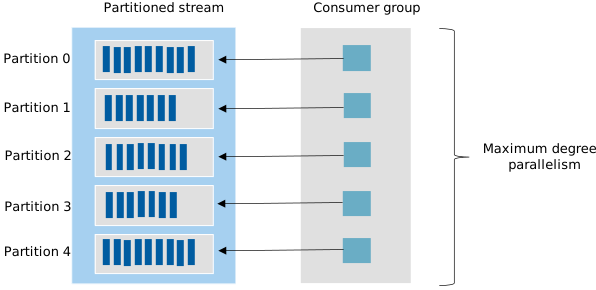
The diagram is divided into two labeled sections: A partitioned stream and a consumer group. Five partitions appear in the stream. Each partition contains vertical bars that represent individual events in the stream. Five consumer groups appear to the right of the partitions, one corresponding to each partition. On the right side, the label maximum degree of parallelism indicates that a one-to-one mapping between partitions and instances represents peak parallelism.
It might seem to make sense to configure as many partitions as possible to achieve maximum throughput and to account for the possibility of a higher volume of events. However, there are several important factors to consider when you configure many partitions:
More partitions can lead to more throughput: Because the degree of parallelism is the number of consumers (function instances), the more partitions there are, the higher the concurrent throughput can be. This consideration is important when you share a designated number of TUs for an event hub with other consumer applications.
More functions can require more memory: As the number of function instances increases, so does the memory footprint of resources in the plan. At some point, too many partitions can deteriorate performance for consumers.
There's a risk of back pressure from downstream services: As more throughput is generated, you run the risk of overwhelming downstream services or receiving back pressure from them. Account for consumer fan-out when you consider the consequences to surrounding resources. Possible consequences include throttling from other services, network saturation, and other forms of resource contention.
Partitions can be sparsely populated: The combination of many partitions and a low volume of events can lead to data that's sparsely distributed across partitions. Instead, a smaller number of partitions can provide better performance and resource usage.
Availability and consistency
When you don't specify a partition key or ID, Event Hubs routes an incoming event to the next available partition. This design provides high availability and helps increase throughput for consumers.
When ordering of a set of events is required, the event producer can specify that a particular partition should be used for all the events of the set. The consumer application that reads from the partition receives the events in the correct order. This trade-off provides consistency but compromises availability. Don't use this approach unless the order of events must be preserved.
For Azure Functions, ordering is achieved when events are published to a particular partition and an Event Hubs-triggered function obtains a lease to the same partition. Currently, the ability to configure a partition with the Event Hubs output binding isn't supported. Instead, use one of the Event Hubs SDKs to publish to a specific partition.
For more information about how Event Hubs supports availability and consistency, see Availability and consistency in Event Hubs.
Event Hubs trigger
This section focuses on the settings and considerations for optimizing functions that Event Hubs triggers. Factors include batch processing, sampling, and related features that influence the behavior of an event hub trigger binding.
Batching for triggered functions
You can configure functions that an event hub triggers to process a batch of events or one event at a time. Processing a batch of events can be more efficient when it reduces some of the overhead of function invocations. Unless you need to process only a single event, configure your function to process multiple events when it's invoked.
Enabling of batching for the Event Hubs trigger binding varies between languages:
JavaScript, Python, and other languages enable batching when the cardinality property is set to many in the function.json file for the function.
In C#, cardinality is automatically configured when an array is designated for the type in the EventHubTrigger attribute.
For more information about how batching is enabled, see Azure Event Hubs trigger for Azure Functions.
Trigger settings
Several configuration settings in the host.json file play a key role in the performance characteristics of the Event Hubs trigger binding for Functions:
maxEventBatchSize: This setting represents the maximum number of events that the function can receive when it's invoked. If the number of events received is less than this amount, the function is still invoked with as many events as are available. You can't set a minimum batch size.
prefetchCount: The prefetch count is one of the most important settings when you optimize for performance. The underlying AMQP channel references this value to determine how many messages to fetch and cache for the client. The prefetch count should be greater than or equal to the maxEventBatchSize value and is commonly set to a multiple of that amount. Setting this value to a number that's less than the maxEventBatchSize setting can hurt performance.
batchCheckpointFrequency: When your function processes batches, this value determines the rate at which checkpoints are created. The default value is 1, which means that there's a checkpoint whenever a function successfully processes a single batch. A checkpoint is created at the partition level for each reader in the consumer group. For information about how this setting influences replays and retries of events, see Event hub-triggered Azure function: Replays and Retries (blog post).
Run several performance tests to determine the values to set for the trigger binding. We recommend that you change settings incrementally and measure consistently to fine-tune these options. The default values are a reasonable starting point for most event processing solutions.
Checkpointing
Checkpoints mark or commit reader positions in a partition event sequence. It's the responsibility of the Functions host to checkpoint as events are processed and the setting for the batch checkpoint frequency is met. For more information about checkpointing, see Features and terminology in Azure Event Hubs.
The following concepts can help you understand the relationship between checkpointing and the way that your function processes events:
Exceptions still count towards success: If the function process doesn't crash while processing events, the completion of the function is considered successful, even if exceptions occurred. When the function completes, the Functions host evaluates batchCheckpointFrequency. If it's time for a checkpoint, it creates one, regardless of whether there were exceptions. The fact that exceptions don't affect checkpointing shouldn't affect your proper use of exception checking and handling.
Batch frequency matters: In high-volume event streaming solutions, it can be beneficial to change the batchCheckpointFrequency setting to a value that's greater than 1. Increasing this value can reduce the rate of checkpoint creation and, as a consequence, the number of storage I/O operations.
Replays can occur: Each time a function is invoked with the Event Hubs trigger binding, it uses the most recent checkpoint to determine where to resume processing. The offset for every consumer is saved at the partition level for each consumer group. Replays happen when a checkpoint doesn't occur during the last invocation of the function and the function is invoked again. For more information about duplicates and deduplication techniques, see Idempotency.
Understanding checkpointing becomes critical when you consider best practices for error handling and retries, a topic that's discussed later in this article.
Telemetry sampling
Functions provides built-in support for Application Insights, an extension of Azure Monitor that provides application performance monitoring capabilities. With this feature, you can log information about function activities, performance, runtime exceptions, and more. For more information, see Application Insights overview.
This capability offers key configuration choices that affect performance. The following list describes some of the notable settings and considerations for monitoring and performance.
Enable telemetry sampling: For high-throughput scenarios, evaluate the amount of telemetry and information that you need. Consider using the telemetry sampling feature in Application Insights to avoid degrading the performance of your function with unnecessary telemetry and metrics.
Configure aggregation settings: Examine and configure the frequency of aggregating and sending data to Application Insights. This configuration setting is in the host.json file along with many other sampling and logging options. For more information, see Configure the aggregator.
When Application Insights is enabled without sampling, all telemetry is sent. Sending data about all events can have a detrimental effect on the performance of the function, especially under high-throughput event streaming scenarios.
Taking advantage of sampling and continually assessing the appropriate amount of telemetry needed for monitoring is crucial for optimum performance. Telemetry should be used for general platform health evaluation and for occasional troubleshooting, not to capture core business metrics. For more information, see Configure sampling.
Output binding
Use the Event Hubs output binding for Azure Functions to simplify publishing to an event stream from a function. The benefits of using this binding include:
Resource management: The binding handles both the client and connection lifecycles for you, and reduces the potential for problems that can arise with port exhaustion and connection pool management.
Less code: The binding abstracts the underlying SDK and reduces the amount of code that you need to publish events. It helps you write and maintain code with fewer boilerplate lines.
Batching: For several languages, batching is supported to efficiently publish to an event stream. Batching can improve performance and help streamline the code that sends the events.
We strongly recommend that you review the list of languages that Functions supports and the developer guides for those languages. The Bindings section for each language provides detailed examples and documentation.
Batching when publishing events
If your function publishes only a single event, configure the binding to return a value. This approach is helpful if the function execution always ends with a statement that sends the event. Use this technique only for synchronous functions that return only one event.
Batching is encouraged to improve performance when sending multiple events to a stream. Batching allows the binding to publish events in the most efficient possible way.
Support for using the output binding to send multiple events to Event Hubs is available in C#, Java, Python, and JavaScript.
Output multiple events with the In-process model (C#)
Use the ICollector and IAsyncCollector types when you send multiple events from a function in C#.
The ICollector<T>.Add() method can be used in both synchronous and asynchronous functions. It runs the add operation as soon as it's called.
The IAsyncCollector<T>.AddAsync() method prepares the events to be published to the event stream. If you write an asynchronous function, you should use IAsyncCollector to better manage the published events.
For examples of using C# to publish single and multiple events, see Azure Event Hubs output binding for Azure Functions.
Output multiple events with the Isolated worker model (C#)
Depending on the Functions runtime version, the Isolated worker model supports different types for the parameters that are passed to the output binding. For multiple events, an array is used to encapsulate the set. We recommend that you review the output binding attributes and usage details for the Isolated model and note the differences between the extension versions.
Throttling and back pressure
Throttling considerations apply to output bindings, not only for Event Hubs but also for Azure services such as Azure Cosmos DB. It's important to become familiar with the limits and quotas that apply to those services and to plan accordingly.
To handle downstream errors with the In-process model, you can wrap AddAsync and FlushAsync in an exception handler for .NET functions in order to catch exceptions from IAsyncCollector. Another option is to use the Event Hubs SDKs directly instead of using output bindings.
If you use the Isolated model for functions, use structured exception handling responsibly to catch exceptions when returning the output values.
Function code
This section covers the key areas to consider when you write code to process events in a function that Event Hubs triggers.
Asynchronous programming
We recommend that you write your function to use async code and avoid blocking calls, especially when I/O calls are involved.
Follow these guidelines when you write a function that runs asynchronously:
All asynchronous or all synchronous: If you configure a function to run asynchronously, make all the I/O calls asynchronous. In most cases, partially asynchronous code is worse than code that's entirely synchronous. Choose either asynchronous or synchronous, and use the option that you choose consistently.
Avoid blocking calls: Blocking calls return to the caller only after the call completes, unlike asynchronous calls, which return immediately. An example in C# is calling Task.Result or Task.Wait on an asynchronous operation.
More about blocking calls
Using blocking calls for asynchronous operations can lead to thread-pool starvation and cause the function process to crash. The crash occurs because a blocking call requires another thread to be created to compensate for the original call, which is waiting. As a result, twice as many threads are needed to complete the operation.
Avoiding this sync over async approach is especially important when Event Hubs is involved, because a function crash doesn't update the checkpoint. The next time the function is invoked, it could end up in this cycle and appear to be stuck or to move along slowly as function executions eventually time out.
Troubleshooting this scenario usually starts with reviewing the trigger settings and running experiments, which can involve increasing the partition count. Investigations can also lead to changing several of the batching options, such as the maximum batch size or prefetch count. The impression is that it's a throughput problem or configuration setting that just needs to be tuned accordingly. However, the core problem is in the code itself, and you need to address it there.
Contributors
Microsoft maintains this article. The following contributors wrote this article.
Principal author:
- David Barkol | AI Apps GBB
To see nonpublic LinkedIn profiles, sign in to LinkedIn.
Next steps
Before you continue, consider reviewing these related articles: