Note
Access to this page requires authorization. You can try signing in or changing directories.
Access to this page requires authorization. You can try changing directories.
This article describes how to restore an Azure Cosmos DB account backed up by using Azure portal.
You can restore to a target Azure Cosmos DB account in the same region as the Backup vault, or to the Azure paired secondary region by using Cross Region Restore.
Prerequisites
Before you restore from Azure Cosmos DB backups by using Azure portal, ensure that you meet the following prerequisites:
- Check the supported scenarios and known limitations.
- Review the access permission if present to assign Cosmos DB Long Term Retention Restore Role on the target Cosmos DB account to the Backup Vault for the restore operation.
- To restore to a secondary region, ensure that the Backup vault uses geo-redundant storage (GRS) and that Cross Region Restore is enabled on the vault.
- For cross region restore, Backup vault's managed identity must have the required permissions on the target Azure Cosmos DB account in the secondary region.
Restore Azure Cosmos DB account
To restore Azure Cosmos DB account, follow these steps:
Go to Resiliency, and then select Overview > Recover.
Alternatively, to restore backup from the Backup vault pane, go to the Backup vault > Overview, and select Restore.
On the Recover pane, select Resource managed by as Azure, Datasource type as Azure Cosmos DB, and Solution as Azure Backup.
Select the protected item for which you want to restore the backup, and then select Continue.
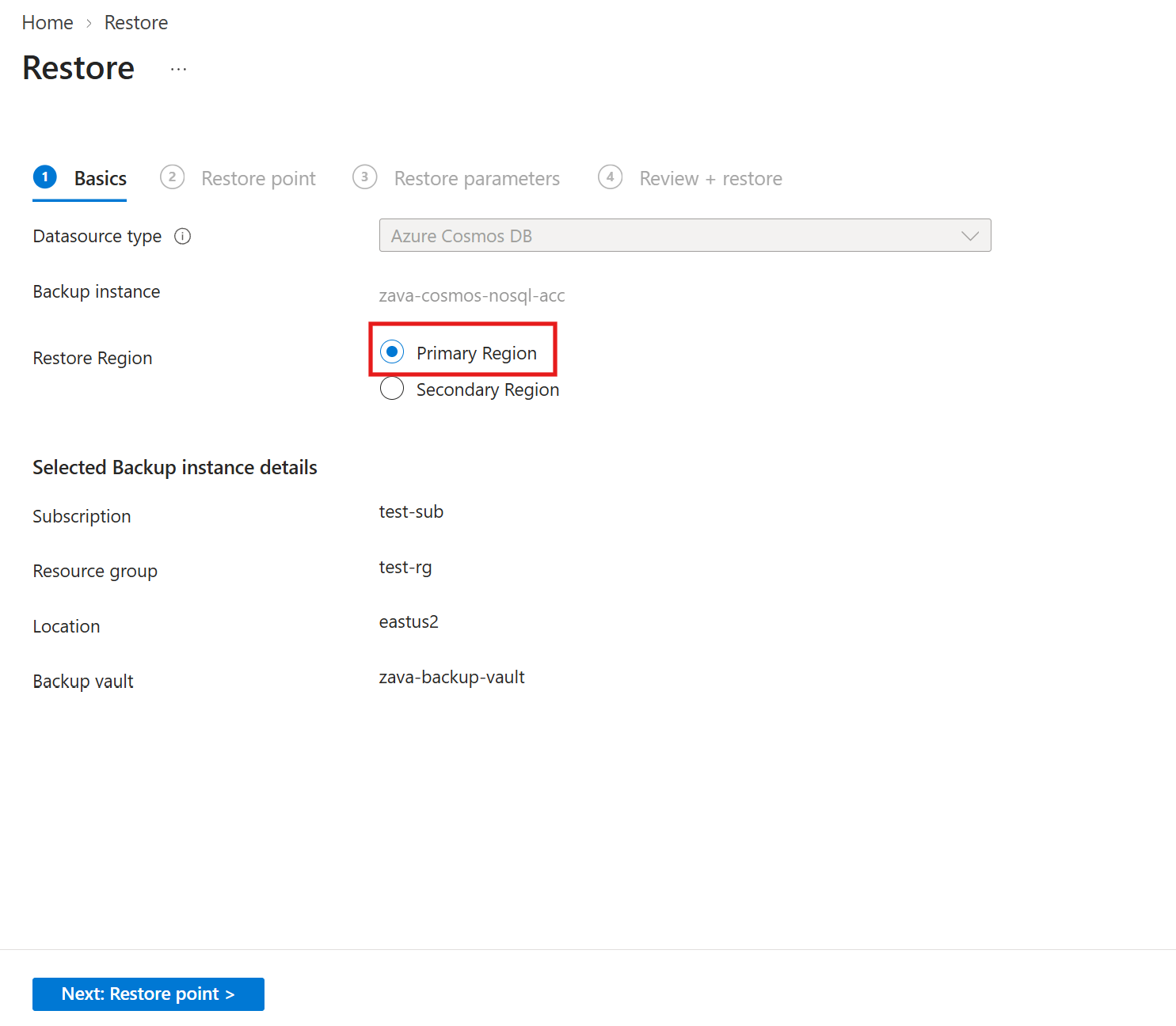
On the Basics pane, select restore region as Primary region.
Note
Select restore region as Secondary region, to restore backup to the Azure paired region. For more information, see Restore Azure Cosmos DB account to a secondary region.
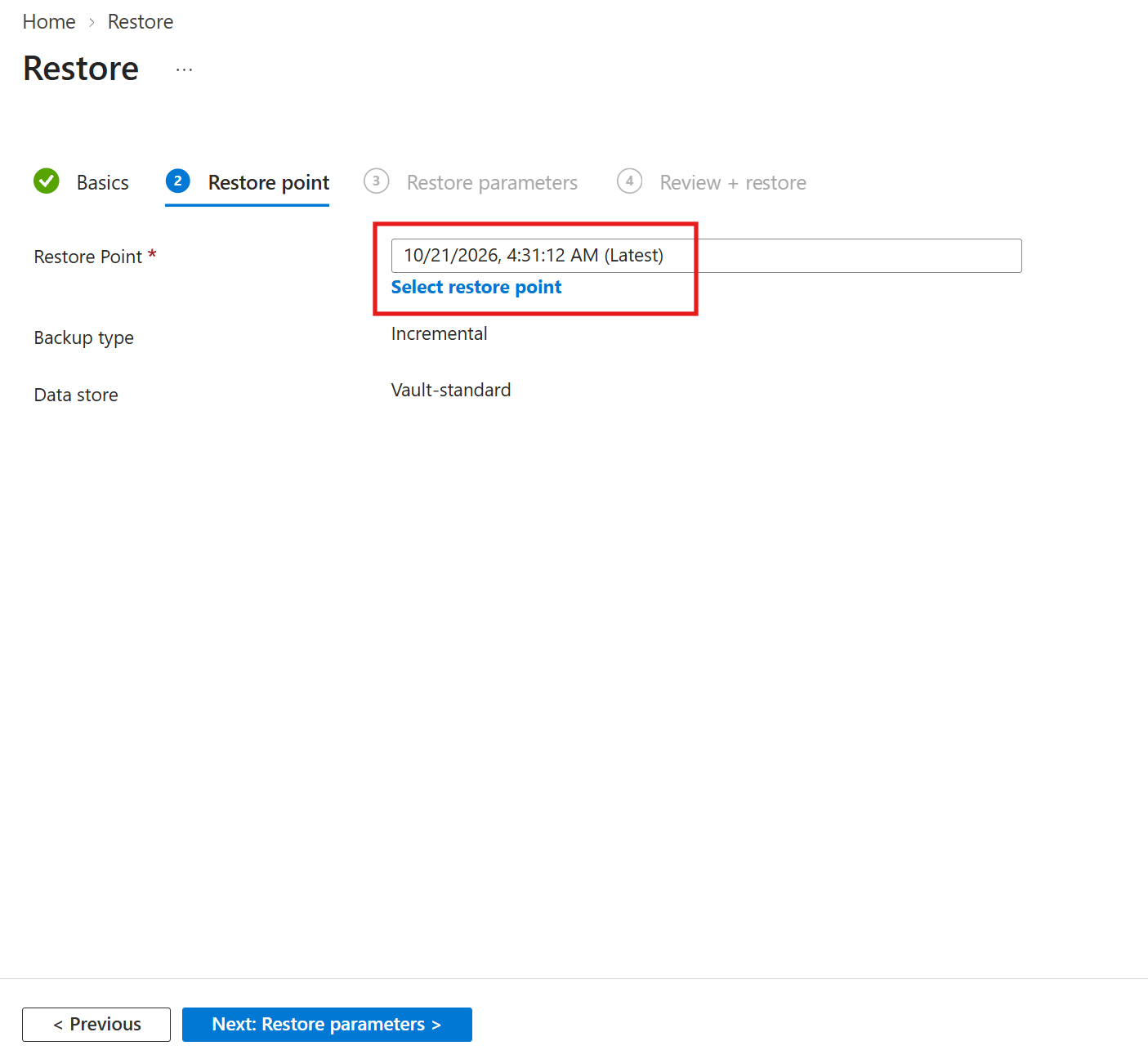
On the Restore pane, on the Restore point tab, select Select restore point and choose the restore point you want to restore.
The latest restore point is pre-populated.
Note
When you select an incremental recovery point, Azure Backup automatically restores the full backup chain - the parent full backup and every incremental backup up to the point you select. Azure Backup verifies that all dependent recovery points are present before the restore begins. Restores from an incremental recovery point can take longer than restores from a full backup because the chain is reconstructed.
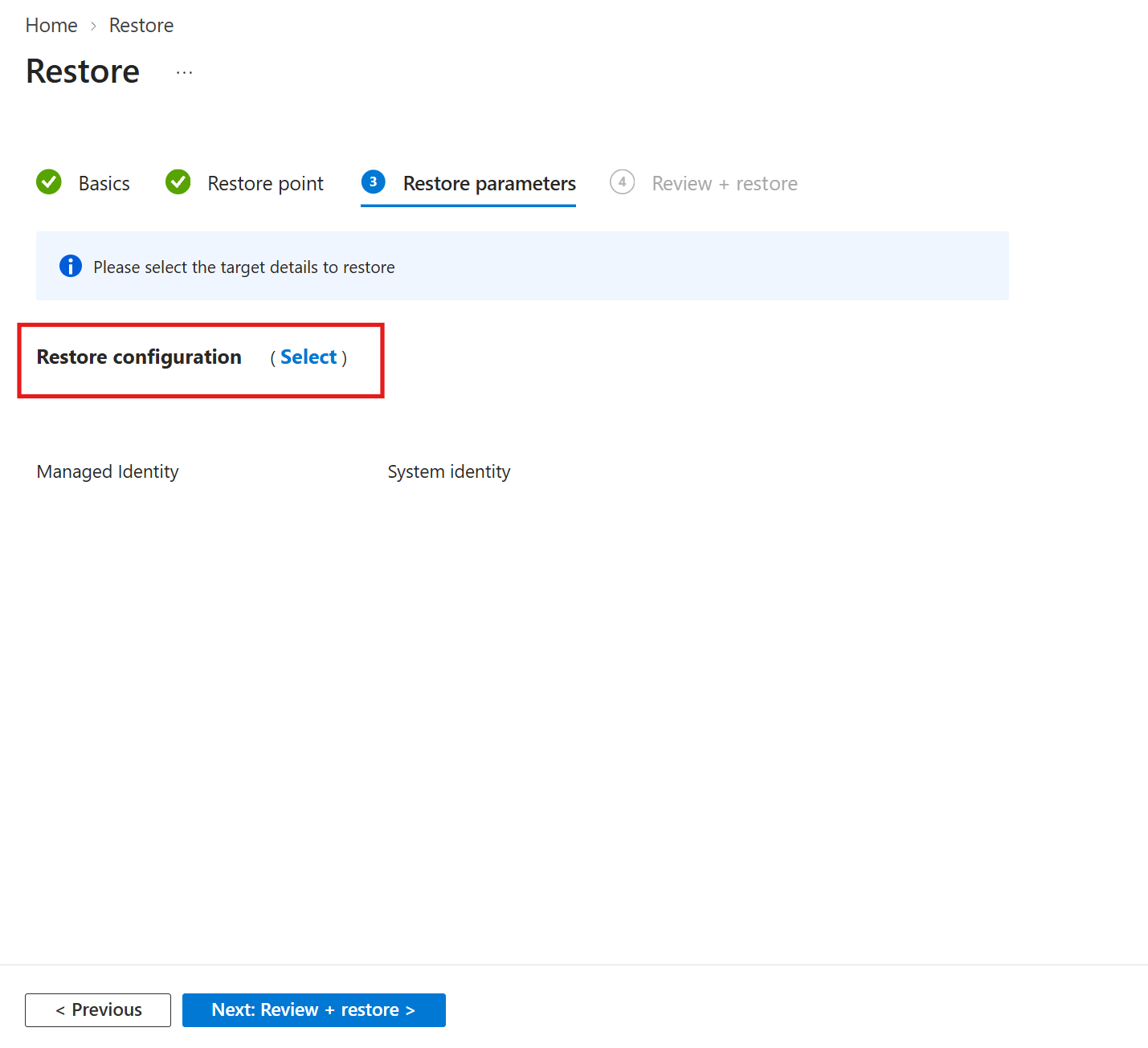
On the Restore parameters tab, for Restore configuration, choose the target Azure Cosmos DB account details by selecting Select.
Select the subscription and resource group and then choose the target Azure Cosmos DB account.
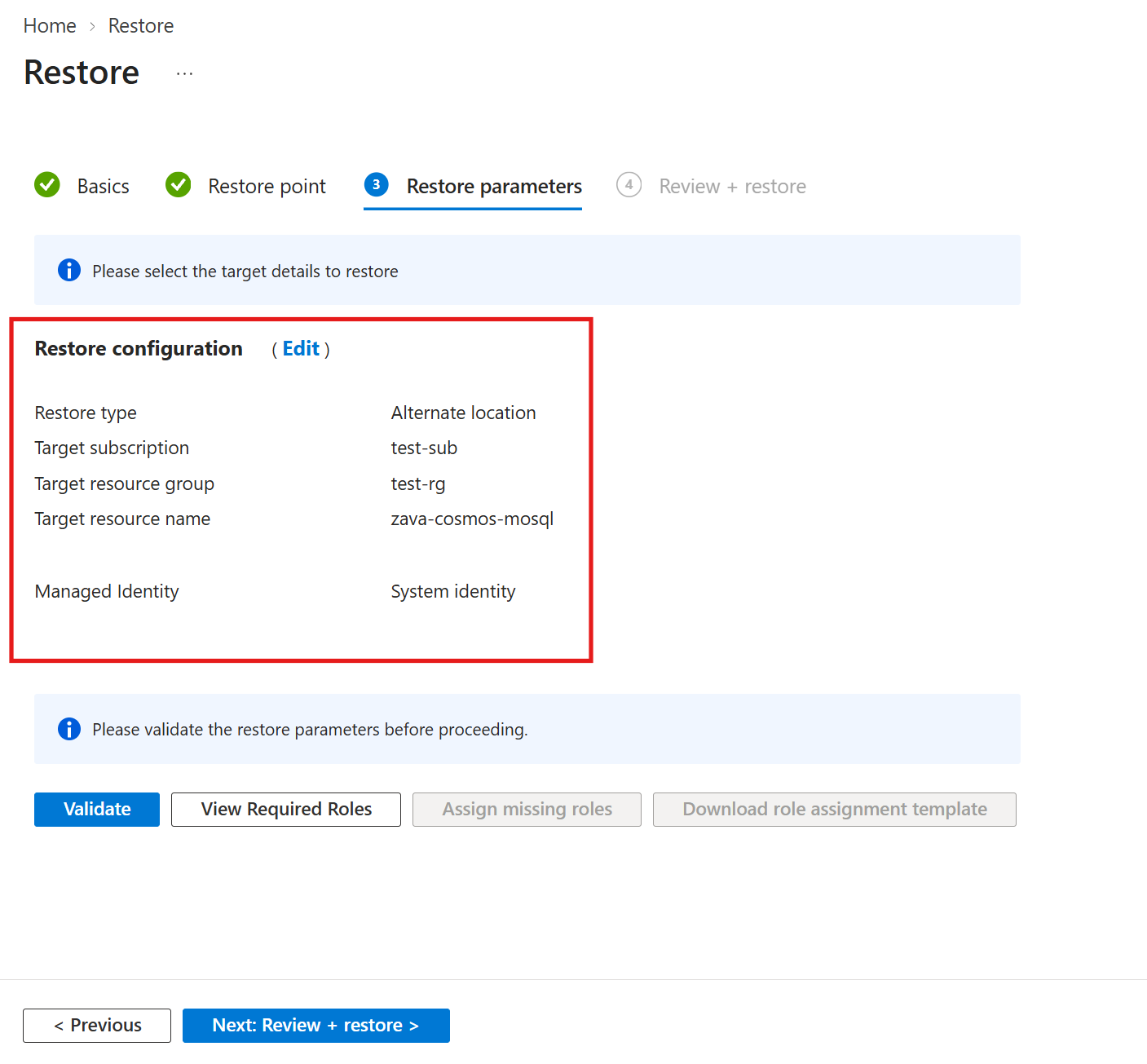
To check the restore parameters permissions before the final review and restore, select Validate. After validation is successful, select Review + restore.
On the Review + restore tab, select Restore to restore the selected Azure Cosmos DB account backup in a target Azure Cosmos DB account.
You can track the restore job under Backup and recovery > Jobs.
Restore Azure Cosmos DB account to a secondary region
Use Cross Region Restore to restore vaulted backups of an Azure Cosmos DB account to the Azure paired region.
To restore an Azure Cosmos DB account to the secondary region, follow these steps:
Go to Resiliency, and then select Overview > Recover.
Select Datasource type as Azure Cosmos DB, and select the protected item that you want to restore.
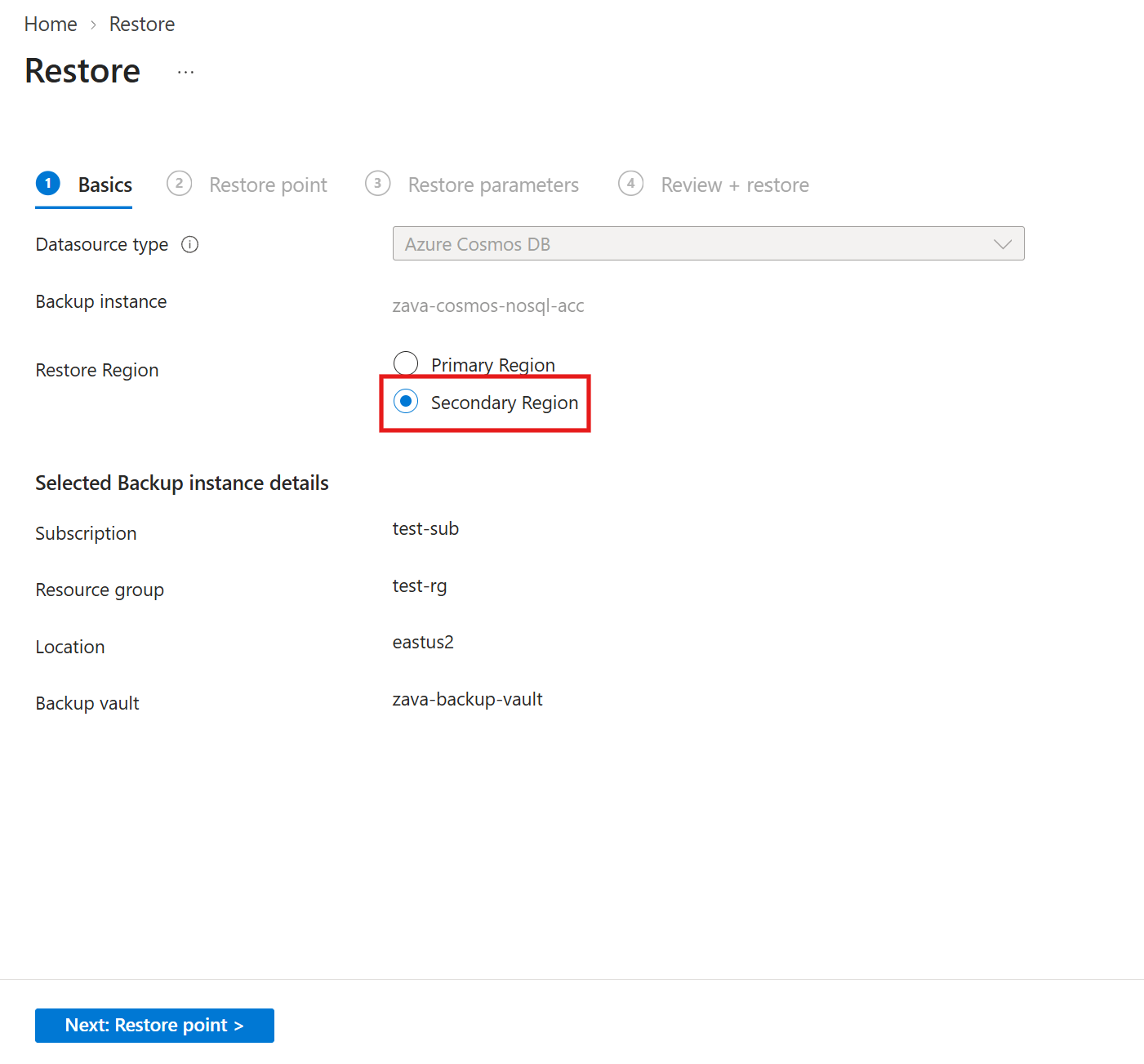
On the Basics pane, select Restore to secondary region.
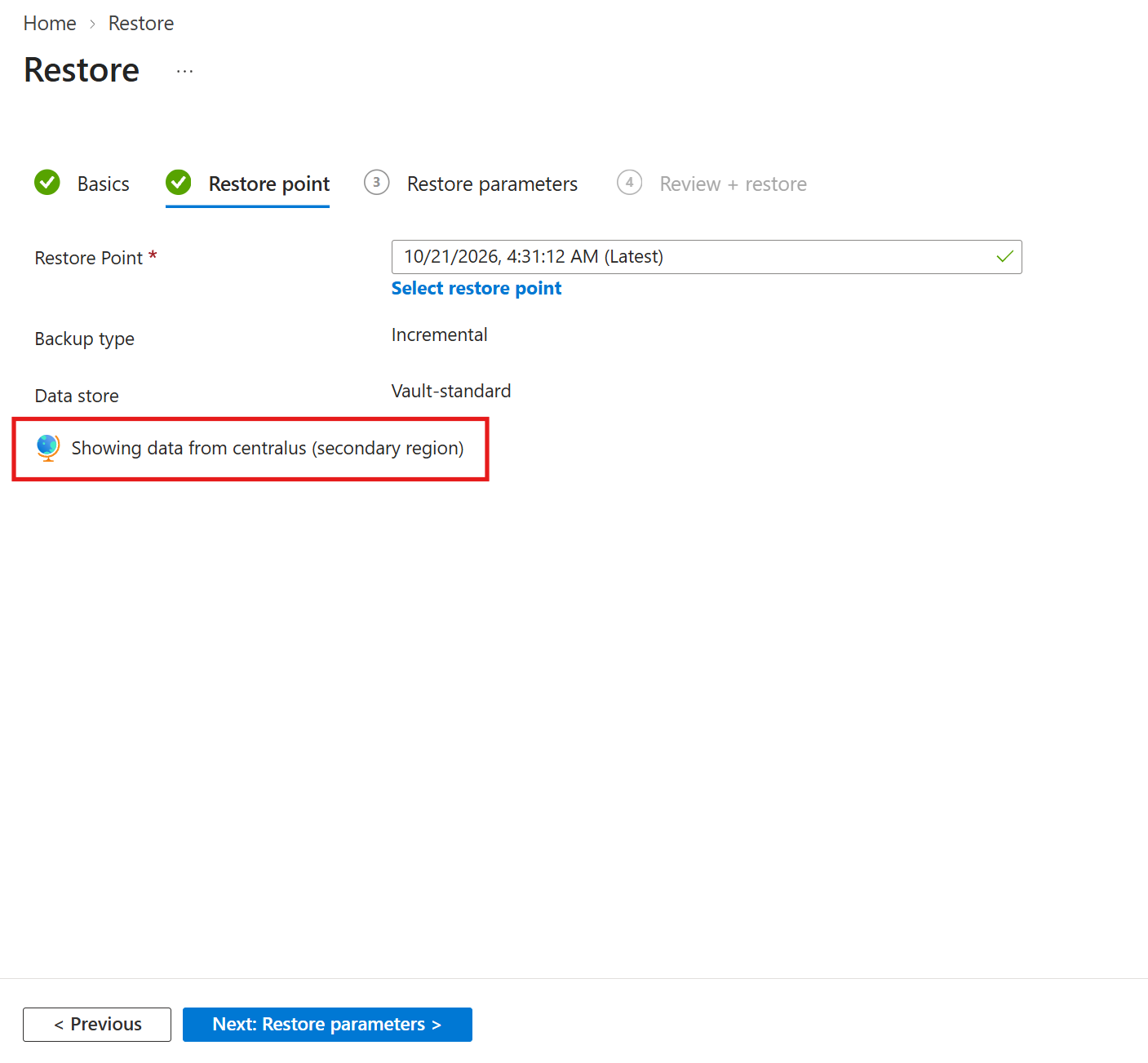
On the Restore point tab, select the restore point. You see only recovery points that are available in the secondary region.
Note
Recovery points replicate asynchronously to the secondary region. A recovery point can take up to 12 hours after it's created in the primary region to become available in the secondary region.
On the Restore parameters tab, select the subscription, resource group, and target Azure Cosmos DB account in the secondary region.
Note
The deployment region and the primary write region of the target Azure Cosmos DB account must be same as the secondary region of the Backup vault.
Select Validate to check the permissions, and then select Review + restore.
On the Review + restore tab, select Restore.
To monitor the restore, go to Backup and recovery > Jobs, and filter Datasource type to Azure Cosmos DB.
Next steps
Manage vaulted backup of Azure Cosmos DB account by using Azure portal.