Note
Access to this page requires authorization. You can try signing in or changing directories.
Access to this page requires authorization. You can try changing directories.
After you develop a notebook interactively on AI Runtime, you can run the same notebook on serverless GPU compute as a recurring job. Create the schedule from the notebook or from the Jobs & Pipelines UI, or define the job in code with the Jobs API or Declarative Automation Bundles.
To run training code from a directory instead of a notebook, or to build multi-task GPU and CPU pipelines, see Schedule GPU workloads and compose tasks. For scheduling options that apply to all notebooks, see Create and manage scheduled notebook jobs.
Requirements
- A notebook that runs on AI Runtime. See AI Runtime Notebook quickstart.
- To run a scheduled job with a workspace base environment, such as the Databricks AI environment, a workspace admin must turn on the Serverless workspace base environment support in Jobs preview. See Manage Azure Databricks previews.
Note
Scheduled AI Runtime jobs don't support adding dependencies through the Environments panel. Install dependencies in the notebook instead, for example with %pip install. Notebook jobs can run for up to two days, so checkpoint long training runs to Unity Catalog volumes and restart from the latest checkpoint. See the AI Runtime limitations and Checkpoint with Distributed Checkpoint (DCP).
Schedule from the notebook
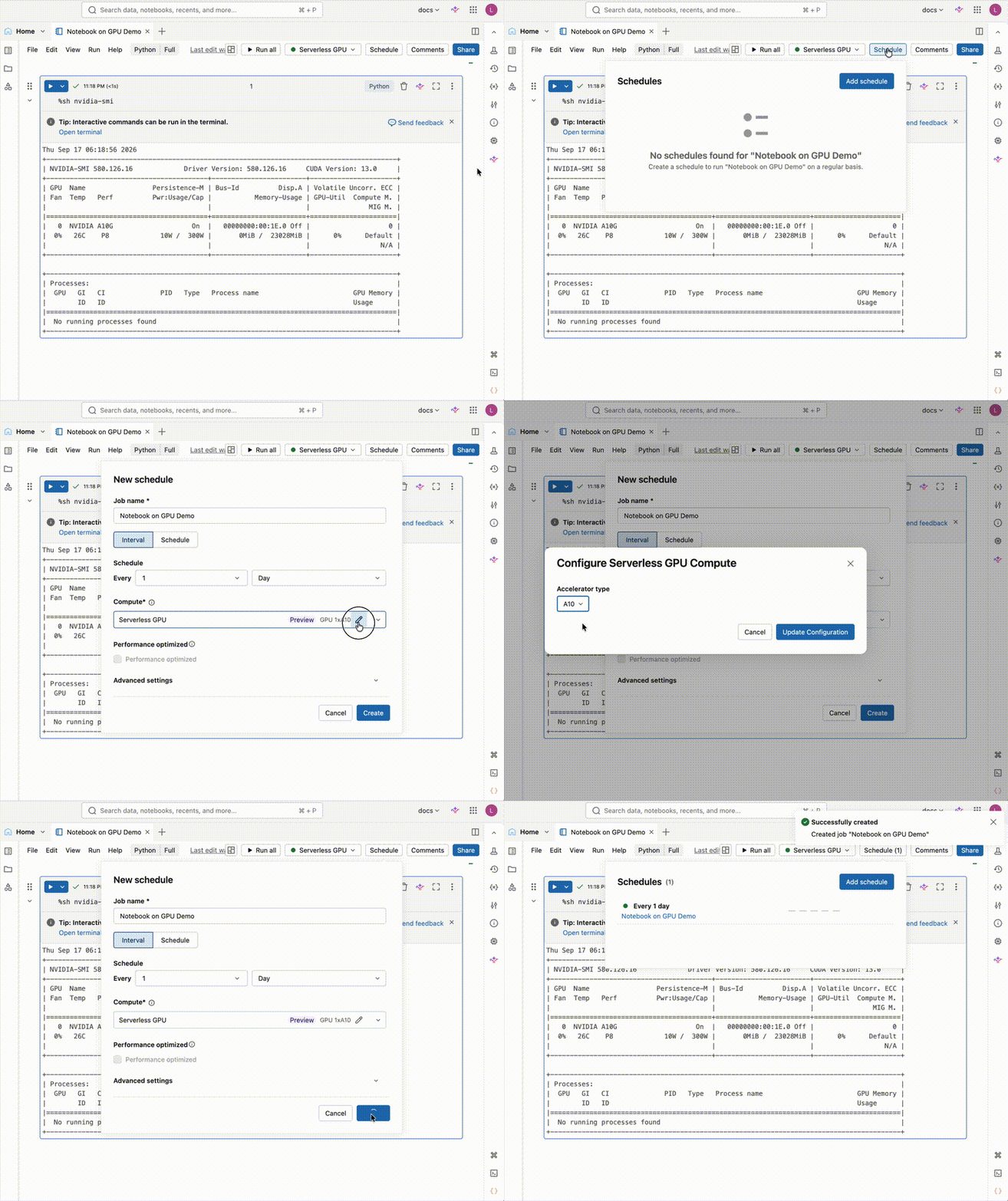
- Open the notebook that you want to run on a schedule.
- Click
 Schedule in the upper-right corner of the notebook.
- If the notebook already has jobs, click Add schedule.
- In the New schedule dialog, enter a Job name, set the Schedule, and select Serverless GPU for Compute.
- Click Create.
Note
A schedule created from the notebook does not store the GPU type or the base environment in the job. Each run uses the notebook's environment at run time, so changing the accelerator or base environment in the notebook's Environment panel also changes what the scheduled job runs on. The job definition returned by the Jobs API or exported to a bundle shows a notebook task without a compute block. To pin the GPU type and base environment in the job itself, create the job from the Jobs & Pipelines UI, the Jobs API, or Declarative Automation Bundles.
Schedule from the Jobs & Pipelines UI
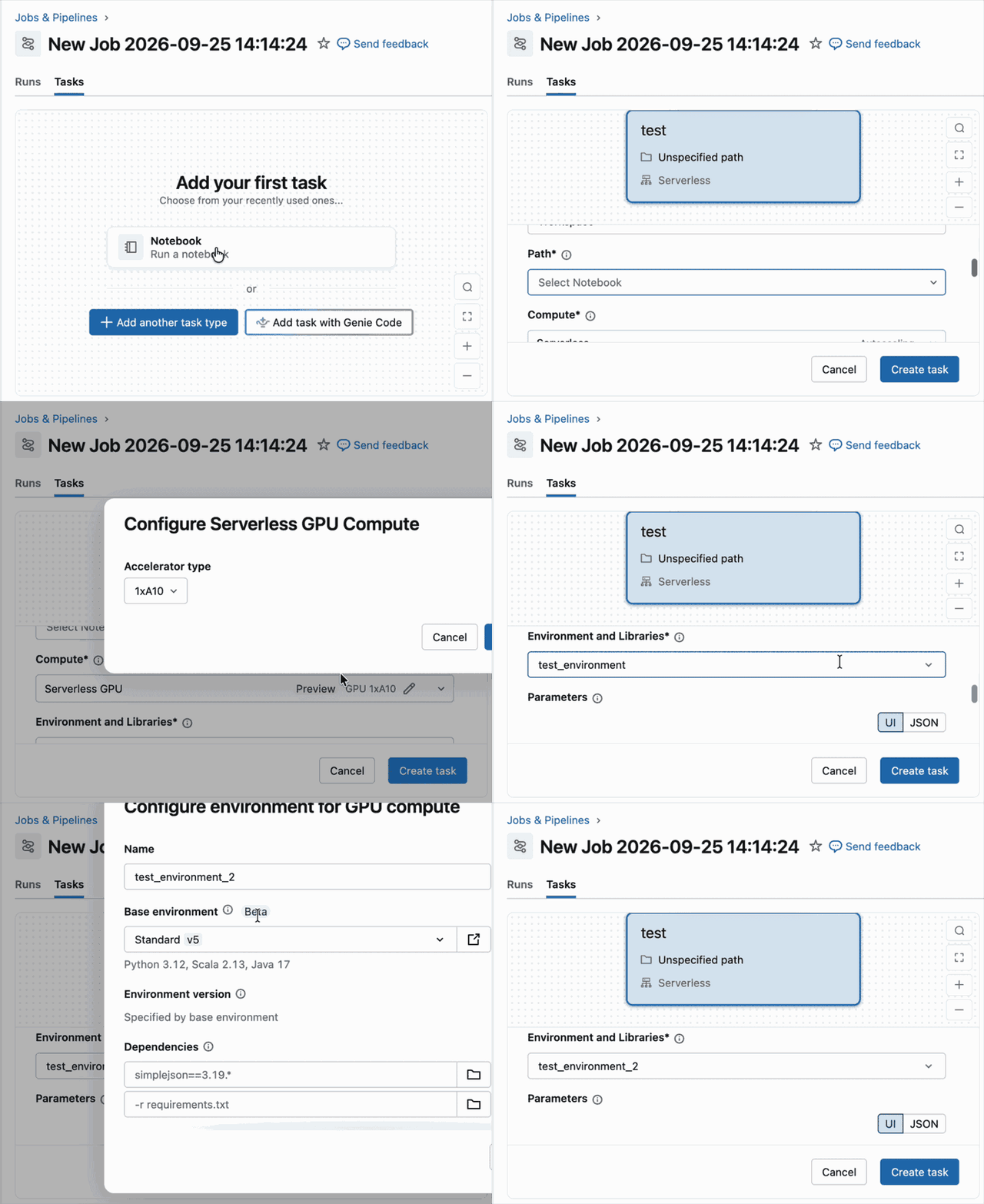
You can also create and schedule the job from the Jobs & Pipelines UI. For step-by-step instructions, see Configure and edit Lakeflow Jobs.
When you select Serverless GPU as the task's compute, the UI creates a job environment that uses the Standard base environment, which does not include PyTorch. To run the notebook on the Databricks AI environment, in Environment and Libraries, click the edit icon next to the environment and set Base environment to AI.
Define the job with the Jobs API or Declarative Automation Bundles
To automate deployment, define the notebook job with the Jobs API or Declarative Automation Bundles. Select the GPU type with hardware_accelerator in the task's compute block. For valid values, see Add tasks to jobs in Declarative Automation Bundles. The Databricks AI environment runs only on GPU compute, so a task that uses it must also set hardware_accelerator. The Jobs API accepts a task that sets base_environment to an AI environment without a compute block, but the run fails when it starts with the error The selected GPU base environment is incompatible with the selected accelerator (CPU).
The following Declarative Automation Bundles configuration runs a notebook daily on 8xH100 GPUs with the Databricks AI environment. Set base_environment to an AI environment identifier, such as databricks_ai_v6, in the environment spec, and reference that environment from the task's environment_key:
Important
Running a scheduled job that uses a workspace base environment, including the Databricks AI environment, is in Beta.
resources:
  jobs:
    sample_job:
      name: sample_job_aiv6_h100

      trigger:
        periodic:
          interval: 1
          unit: DAYS

      environments:
        - environment_key: aiv6
          spec:
            base_environment: databricks_ai_v6

      tasks:
        - task_key: notebook_task
          notebook_task:
            notebook_path: /Workspace/Users/<username>/<notebook-name>
          environment_key: aiv6
          compute:
            hardware_accelerator: GPU_8xH100
Use the Standard environment
To use the Standard environment instead, set environment_version in the environment spec rather than base_environment:
environments:
  - environment_key: default
    spec:
      environment_version: '6'
Note
The Standard environment (version 5 and above) does not include PyTorch, so add it to the environment's dependencies or install it in the notebook, for example with %pip install.