Note
Access to this page requires authorization. You can try signing in or changing directories.
Access to this page requires authorization. You can try changing directories.
Important
This article applies to government clouds. If you're using commercial clouds, see the Verify SQL machine protection article.
After you enable protection for SQL virtual machines (VMs) with the Defender for SQL Servers on Machines plan, verify that your SQL servers are protected. This article shows how to check protection status for multiple Azure VMs, Azure Arc-enabled VMs, and individual SQL server VMs in government cloud environments.
Verify protection on multiple Azure VMs
Get the Defender for SQL Servers on Machines protection status report for all SQL VMs in a specified Azure subscription by running the Get-SqlVMProtectionStatusReport.ps1 PowerShell script. The script applies to Azure VMs only.
Verify protection on multiple Azure Arc-enabled VMs
Verify protection status across multiple Azure Arc-enabled VMs. Run the following query in Azure Resource Graph to identify unprotected instances.
In the Azure portal, search for and select Azure Resource Graph.
Copy and run the following query to identify Azure Arc-enabled VMs that aren't in a protected state.
resources
| where type == "microsoft.azurearcdata/sqlserverinstances"
| extend SQLonArcProtection= tostring(properties.azureDefenderStatus)
| extend ProtectionStatusLastUpdate = tostring(properties.azureDefenderStatusLastUpdated)
| project name, SQLonArcProtection, ProtectionStatusLastUpdate, resourceGroup, location, type, tenantId, subscriptionId, properties
| order by ['name'] asc
Review the results, checking the SQLonArcProtection status. Any result that doesn't state
Protectedindicates that the SQL Server VM, or Azure Arc-enabled SQL Server isn't protected.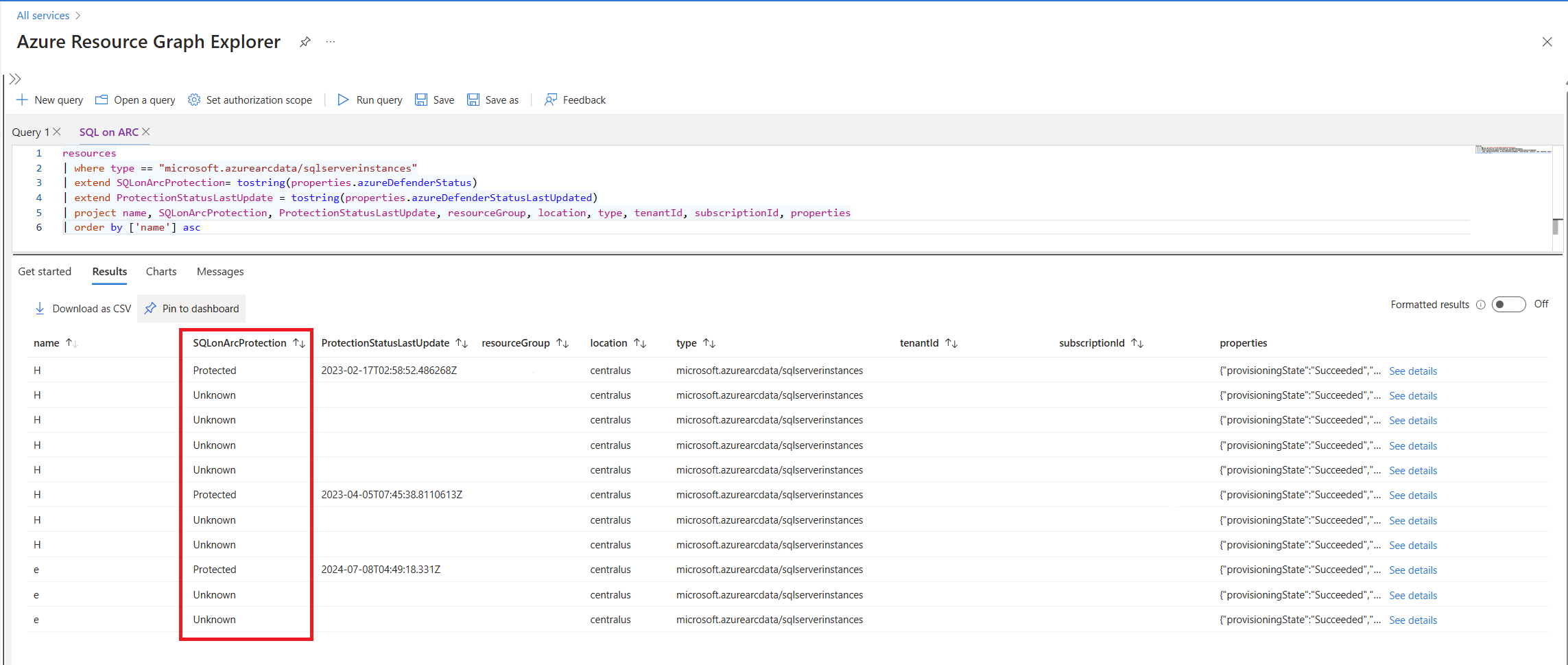
If the
ProtectionStatusLastUpdatefield doesn't show a date within the last day, the machine might not be protected. To confirm, verify the protection on a single SQL server VM. In the Azure portal, check the Protection status under Security > Defender for Cloud.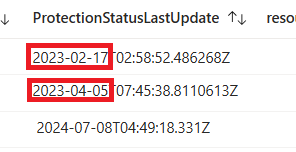
The script can return the following possible protection statuses:
- Protected: Defender for SQL actively protects the instance. Ensure the information isn't outdated by checking the Last Update field.
- Not Protected: Defender for SQL encountered issues while protecting the instance. This status indicates that some intervention is required to enable successful protection.
- Inactive: Defender for SQL runs on the machine, but the SQL instance is either paused or stopped.
- Empty or Unknown: The protection status couldn't be retrieved or doesn't exist on the machine. In this case, assume that the instance isn't protected by Defender for SQL.
Verify protection on a single SQL server VM
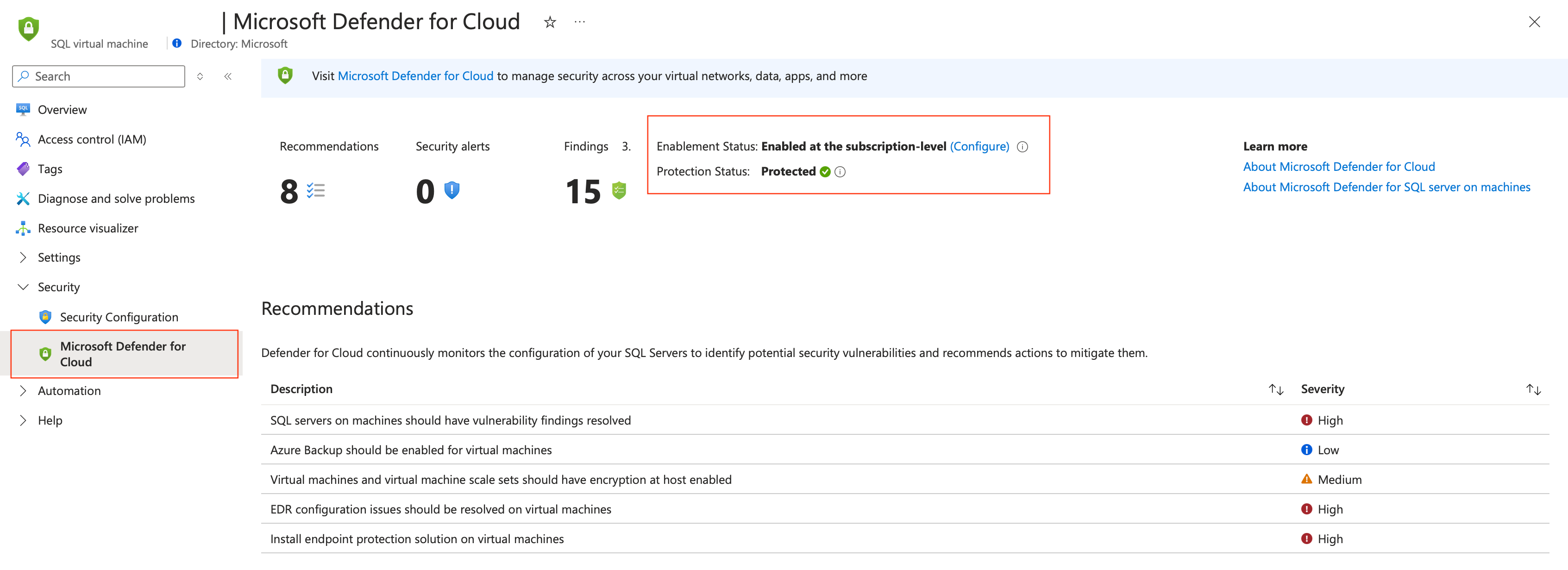
To verify protection for a single SQL server VM, follow these steps in the Azure portal.
Depending on the resources in your environment, search for and select SQL virtual machines or SQL Server - Azure Arc.
Locate and select the relevant resource.
Under the Security tab, select Defender for Cloud.
Check the Protection status. If the status is Protected, the deployment was successful.
Troubleshoot unprotected machines
If databases aren't protected, follow the instructions in Troubleshoot SQL machine protection issues.