Note
Access to this page requires authorization. You can try signing in or changing directories.
Access to this page requires authorization. You can try changing directories.
Security overview provides a single pane of glass to view a summary of your organization's security risk and Advanced Security enablement status. All organizations, regardless of whether they have an Advanced Security-enabled repository, can see the security overview tab in their organization settings.
GitHub Advanced Security for Azure DevOps works with Azure Repos. To use GitHub Advanced Security with GitHub repositories, see GitHub Advanced Security.
About security overview
All members of the organization who have access to view organization settings can view the security overview. The security overview includes three tabs:
- Risk — shows the distribution of total alerts and of alerts by severity across all projects and repositories with Advanced Security enabled.
- Coverage — shows the enablement status of Advanced Security features across all repositories in your organization.
- Alerts — shows individual alerts across all repositories in your organization, with filtering and search capabilities.
Risk tab
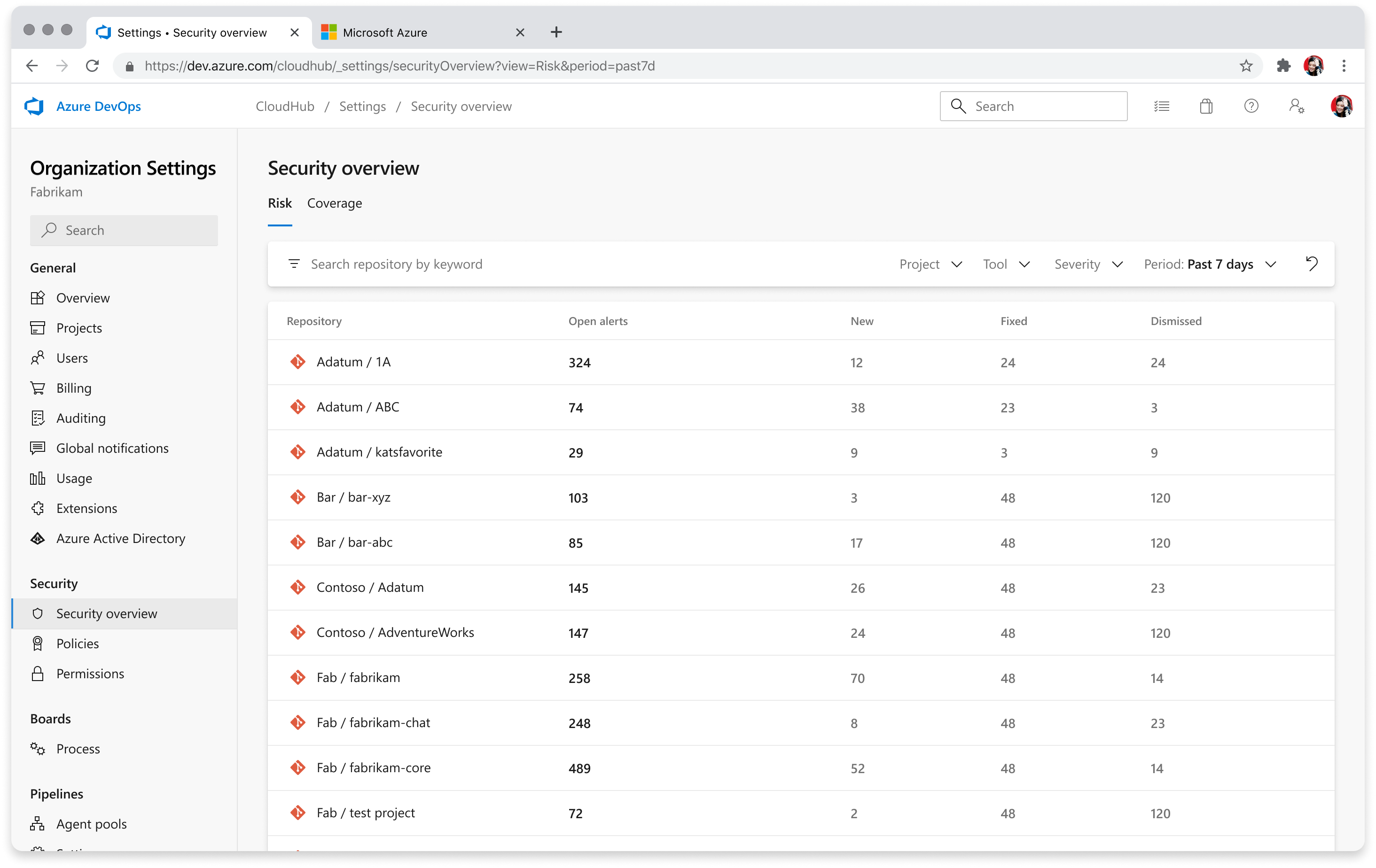
To access the security overview for your organization, go to Organization settings > Security overview. The default view is the Risk tab, which shows a summary of security alerts across your organization.
In the Risk view, only repositories with Advanced Security enabled appear. The reported alert counts are only for alerts discovered on the default branch for each repository. Disabled and deleted repositories are automatically excluded from results.
You can sort by each of the column headers in the table (Open, New, Dismissed, Fixed) and modify your query using the search bar for keywords or drop-down filters for project, tool, and time-bound. The time-bound will default to showing results from the past seven days. Any filters applied will also be pushed as a URL parameter to facilitate sharability of your query.
You can export results from the Risk tab to a CSV file for offline analysis or reporting.
Coverage tab
Under the Coverage tab, the security overview shows all repositories in your enterprise, regardless of their enablement status. The results automatically exclude disabled and deleted repositories. For any repositories that have Advanced Security enabled, the overview includes a breakdown of each tool:
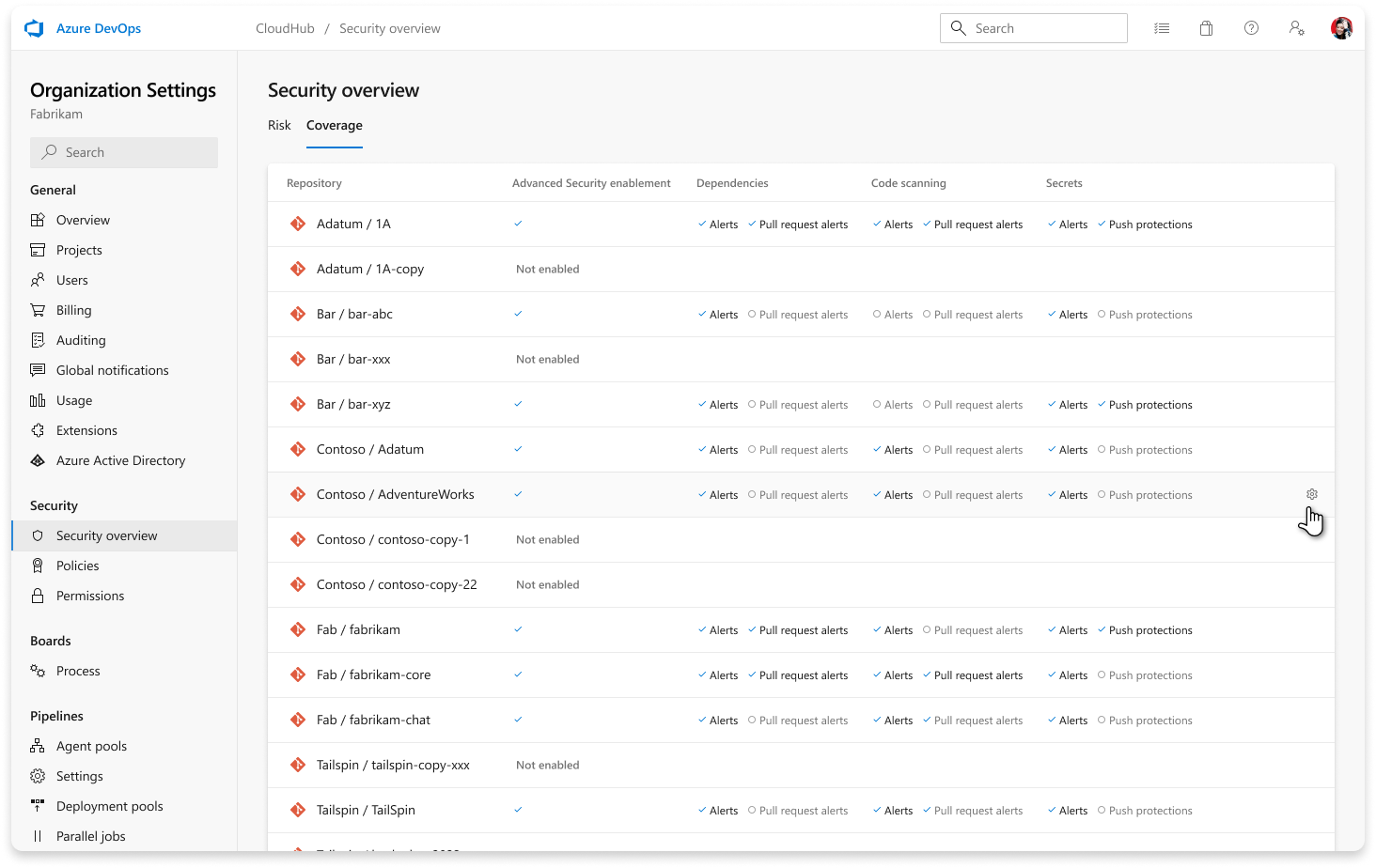
Dependency scanning, code scanning, and secret scanning alerts are enabled once a SARIF result file gets successfully submitted to Advanced Security. In other words, a successful scan regardless of alert discovery on any branch for a repository lights up coverage for that particular tool and repository. The enablement status doesn't consider recency of the scan. There may be up to a 24-hour delay for recent enablement events after selecting Enable all at the organization or project level.
Hovering on a specific repository and selecting the cog icon directs you to that repository's settings pane where you can enable Advanced Security. For more information about configuring Advanced Security features, see Configure GitHub Advanced Security.
You can export results from the Coverage tab to a CSV file.
Alerts tab
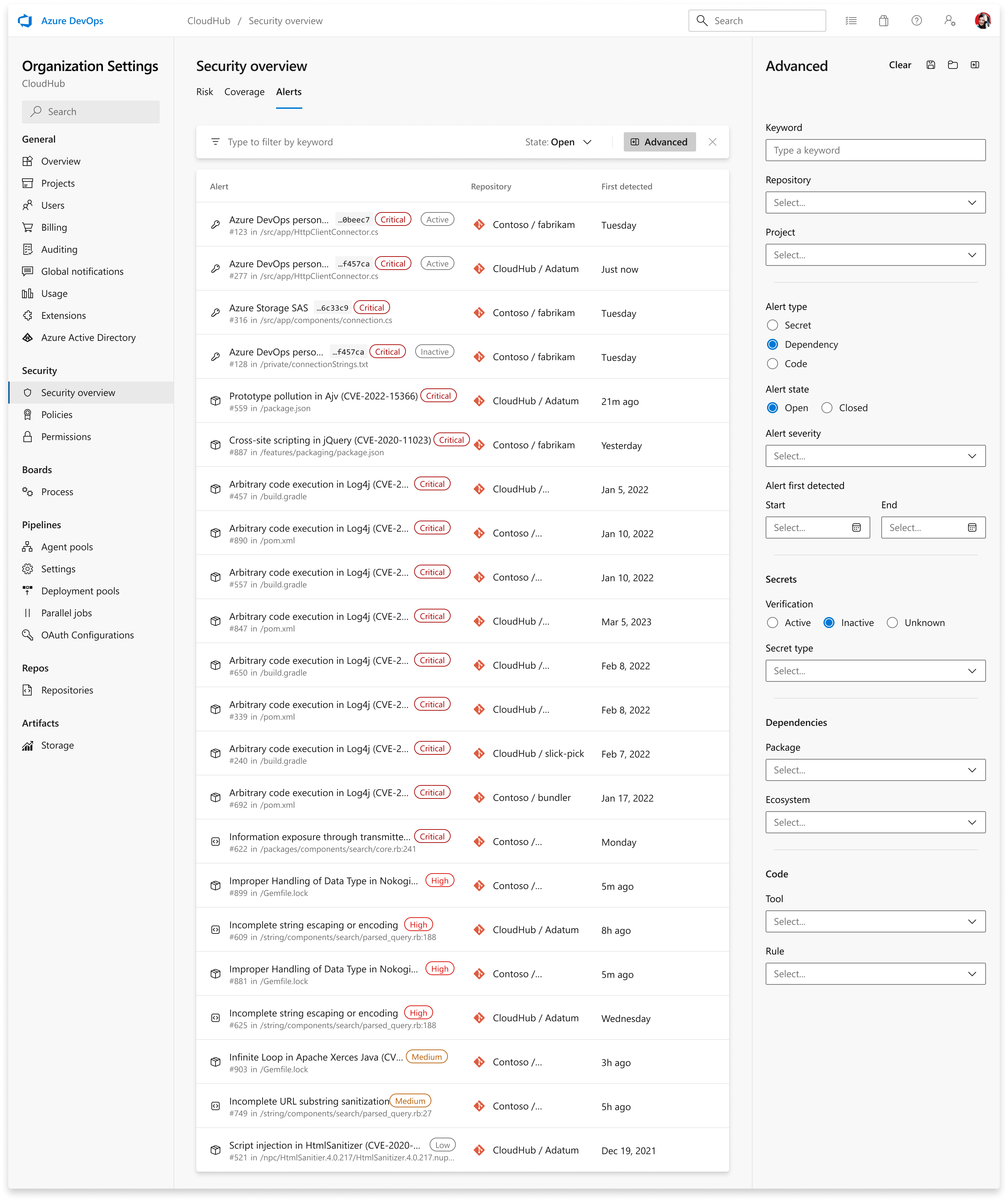
The Alerts tab gives you a combined view of individual security alerts across all repositories in your organization. Instead of navigating to each repository individually, you can search, filter, and prioritize alerts from one centralized dashboard.
Filtering and search
The Alerts tab supports filtering by:
- Tool — filter by alert source, such as code scanning, dependency scanning, or secret scanning.
- Severity — filter by alert severity level, such as critical, high, medium, or low.
- State — filter by alert state, such as open, dismissed, or fixed.
- Project — filter by Azure DevOps project.
- Repository — filter by specific repository.
- Time-bound — filter alerts by when they were introduced.
When you select a specific tool, you see specific filters. For secrets, these filters include validity and secret type. For dependencies, these filters include package and ecosystem. For code, these filters include tool and rule.
Export
You can export up to the first 1,000 alerts from the Alerts tab to a CSV file for offline analysis, reporting, or integration with other tools. The export respects your currently applied filters.
Security campaigns
Security campaigns let you create and share filtered views of alerts to coordinate remediation efforts across teams. Use filters to focus on specific vulnerability types, severity levels, or repositories, and then share the campaign view with your team by using the URL.
The page applies filters as URL parameters. You can easily share a specific filtered view with your team by copying the URL.

Campaigns are useful for:
- Sprint-based remediation — create a campaign for all critical alerts in a specific project to track remediation progress during a sprint.
- Tool-specific triage — filter to a specific scanning tool to review and triage all alerts from that source.
- Cross-repo coordination — share a filtered view with engineers across multiple repositories to drive down a specific class of vulnerability.