Note
Access to this page requires authorization. You can try signing in or changing directories.
Access to this page requires authorization. You can try changing directories.
Install Microsoft Foundry Toolkit for Visual Studio Code from the Visual Studio Marketplace or the Extensions view. When you finish, the Foundry Toolkit view is available in Visual Studio Code.
Prerequisites
- Visual Studio Code.
- The .NET Runtime. Foundry Toolkit depends on this runtime.
For a complete Foundry development environment, install
Foundry DevPack instead of
installing Foundry Toolkit by itself. DevPack installs Foundry Toolkit,
azd and azd ai, Foundry Canvas, and Microsoft Foundry Skill to provide a
smoother workflow across your editor, terminal, and coding agent. For the full
setup, see Prepare your development environment.
Install Foundry Toolkit
Install the extension from the Visual Studio Marketplace or from within Visual Studio Code.
Install from the Visual Studio Marketplace
- Open the Microsoft Foundry Toolkit for Visual Studio Code extension page.
- Select Install, and follow the prompt to open Visual Studio Code.
- In Visual Studio Code, complete the installation. Reload the window if prompted.
- Confirm that the Foundry Toolkit icon appears in the Activity Bar.
Install manually from Visual Studio Code
Use the Extensions view to find and install the extension without leaving Visual Studio Code.
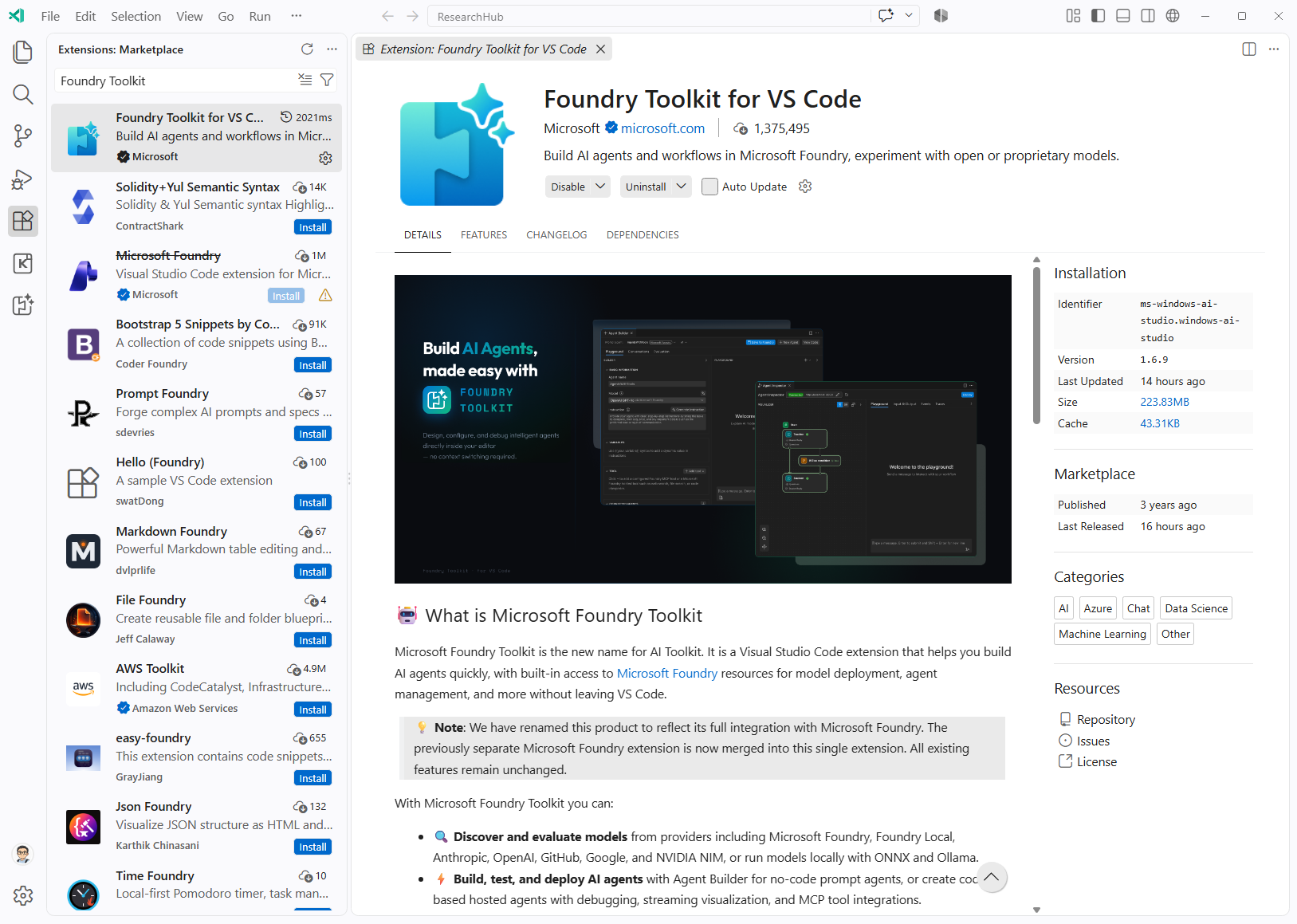
- In the Activity Bar, select Extensions.
- Search for Foundry Toolkit for VS Code.
- In the search results, select the extension published by Microsoft.
- Select Install.
- Reload the window if prompted.
- Confirm that the Foundry Toolkit icon appears in the Activity Bar.
After installation, open What's New under Help And Feedback in Foundry Toolkit to review the features and changes in the installed version.
Confirm the installation
Confirm that the extension activated successfully.
- Select Foundry Toolkit in the Activity Bar.
- Confirm that My Resources, Developer Tools, and Help And Feedback appear in the Foundry Toolkit view.
Clean up
This procedure doesn't create Azure resources. If you installed Foundry Toolkit only to evaluate it, open Extensions, find Foundry Toolkit for Visual Studio Code, and select Uninstall. Uninstalling the extension doesn't delete any Azure resources.