Note
Access to this page requires authorization. You can try signing in or changing directories.
Access to this page requires authorization. You can try changing directories.
This article describes how you can use Azure Migrate to define applications running in your datacenter by logically grouping servers and workloads as an application entity. These applications can be used to plan and execute the migrations more efficiently. Azure Migrate now supports the automatic discovery of applications by grouping of inventory discovered using Collector.
Current limitations
- Defining applications using CSV import is currently not supported for projects set up with private endpoint connectivity.
- Auto discovery of applications is currently only supported for collector-based inventory and not appliance or CSV import based inventory.
Before you start
Ensure that you have an Azure Migrate project.
Review the requirements based on your environment and the appliance you're setting up to perform discovery of servers and workloads:
Environment Requirements Servers running in VMware environment Review VMware requirements
Review appliance requirements
Review port access requirements
Review agentless dependency analysis requirementsServers running in Hyper-V environment Review Hyper-V host requirements
Review appliance requirements
Review port access requirements
Review agentless dependency analysis requirementsPhysical servers or servers running on other clouds Review server requirements
Review appliance requirements
Review port access requirements
Review agentless dependency analysis requirementsReview the Azure URLs that the appliance needs to access in the public and government clouds.
Deploy and configure the Azure Migrate appliance
- Deploy the Azure Migrate appliance to start discovery. To deploy the appliance, you can use the deployment method as per your environment. After deploying the appliance, you need to register it with the project and configure it to initiate the discovery.
- When you set up the appliance, provide the following details in the appliance configuration manager:
- The details of the source environment (vCenter Servers/Hyper-V hosts or clusters/physical servers) which you want to discover.
- Server credentials, which can be domain/ Windows (nondomain)/ Linux (nondomain) credentials. Learn more about how to provide credentials and how the appliance handles them.
Add credentials and initiate discovery
Go to the appliance configuration manager, complete the prerequisite checks and registration of the appliance.
Go to the Manage credentials and discovery sources panel.
In Step 1: Provide credentials for discovery source, select on Add credentials to provide credentials for the discovery source that the appliance uses to discover servers running in your environment.
In Step 2: Provide discovery source details, select Add discovery source to select the friendly name for credentials from the dropdown, specify the IP address/FQDN of the discovery source.
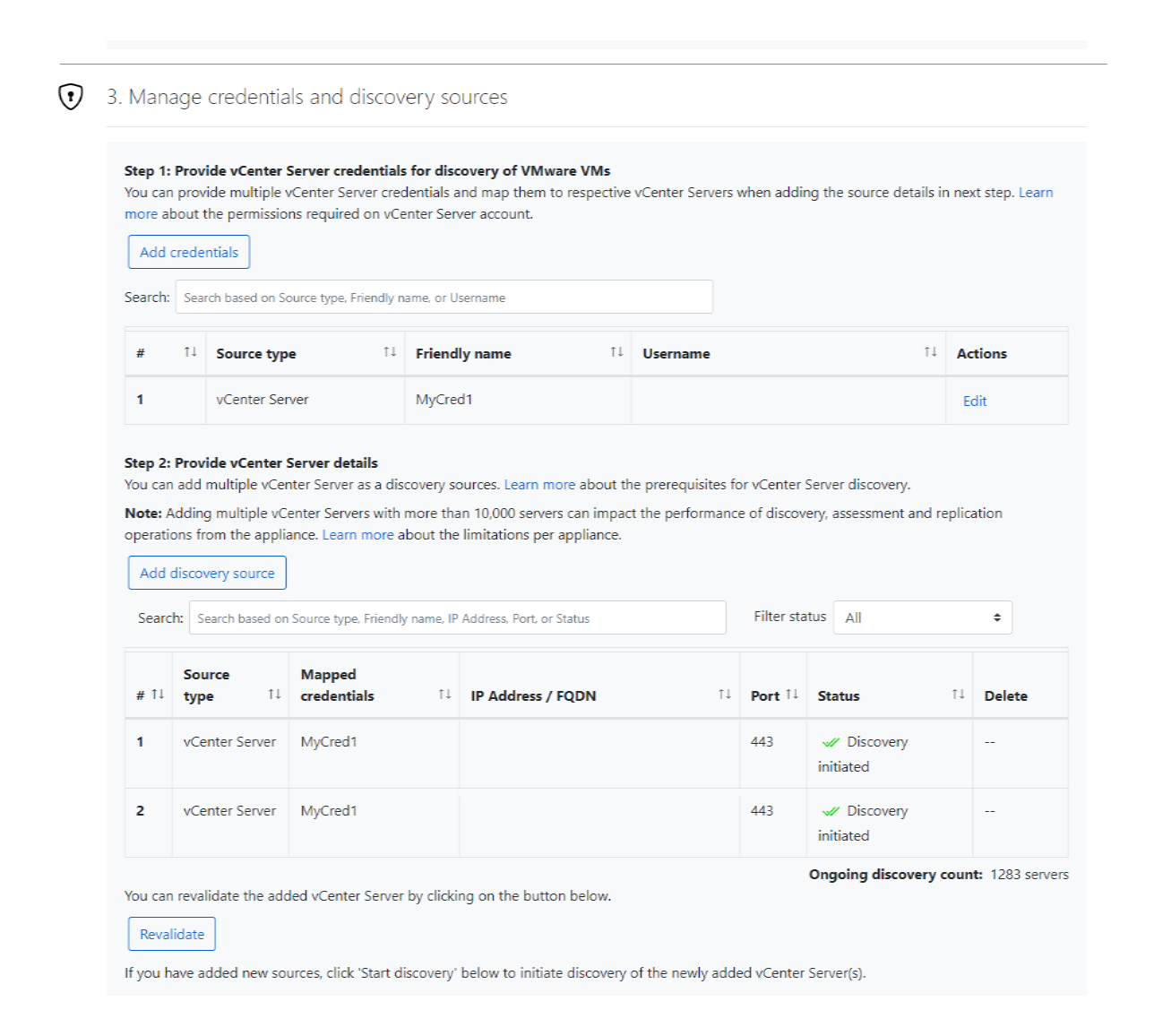
In Step 3: Provide server credentials to perform guest discovery of installed software dependencies and workloads, select Add credentials to provide multiple server credentials to perform guest-based discovery like software inventory, agentless dependency analysis, and discovery of databases and web applications.
Select on Start discovery, to initiate discovery.
After you initiate discovery, appliance performs the discovery of configuration and performance metadata of servers in your datacenter. This metadata discovery is followed by discovery of installed software, network dependencies and workloads such as databases and web applications. For gathering network dependencies between the servers, Azure Migrate automatically enables agentless dependency analysis on servers where the validation checks succeed.
Review inventory & server dependencies
- After the completion of discovery, you can go to your Azure Migrate project and review all the discovered inventory in All inventory under Explore inventory.
- You can review the collected dependency data in your project through Dependency analysis under Explore applications. Here you can visualize dependencies across all discovered servers in your Azure Migrate project.
- The visualization shows logically spread server nodes with their connections, indicating their network affinity to help you identify applications running in your datacenter. Learn more
- You can add or edit tags on the servers, you identify to be part of the same application group. Tags can help you define application entity in the Azure Migrate project.
Add applications
You can start identifying the applications running in your datacenter. Here are the steps you can follow to get started:
- You can either go to Overview and select Add application from the All inventory summary card or you can go to Applications under Explore applications and select Add application from there.
- The applications can be inventoried in one of three ways- select Add application if you want to define application through Portal or select Import > Import applications to import the application details at scale using a CSV file.
- Select Add applications > Auto discover applications to automatically discover applications.
- Azure Migrate groups discovered workloads into applications using server naming patterns, inferred environments, and server roles. This process can take up to one hour.
- Auto-discovered applications are created with the Managed by property set to System. When you review and modify application grouping, properties, or tags, the property is updated to User.
Create new application
Select Add applications> Create new application, start by providing basic details of an application like Name, Description and Type. You can choose to provide same name for the application as on-premises, add a description that helps the service understand about the application and choose between Custom or Packaged for application type.
Note
The application Name also allows for alphanumeric and special characters except
','and'\'. The type Packaged refers to the Commercial-off-the-shelf (COTS) applications you are running in your datacenter.In the next step, you can link the workloads that are hosting this application. You can select Link workloads to go to the All inventory view, which helps you select the workloads that you want to add to this new application.
You can scope the All inventory view by searching for specific workloads or filtering workloads by Category, Type, OS name etc. and Add the selected workloads.
Note
The Application column in the All inventory view indicates if a workload has already been grouped as part of another application. A workload can be shared between multiple applications.
In the next step, you can specify properties associated with the application. Here are the properties you can add:
Property Required Description Values Business criticality Yes Specify the criticality of the application to your business Choose from High, Medium, Low Complexity Yes Specify the complexity in terms of workloads and dependencies Choose from High, Medium, Low Publisher No (Optional) Specify the names of the publisher of application (Packaged) or its workloads (custom) For example, SAP if it's a Packaged application or Microsoft if it's a Custom application running on .NET IIS web application and SQL database Technology stack No (Optional) Specify the technology used like runtimes, frameworks, languages etc. For example, .NET, SQL, MySQL, Tomcat etc. Note
The Properties can help identify the application uniquely and can be used to filter and perform scoped migration planning for different types of applications.
After adding the properties, you can add tags to the application you are creating. You can use tags to group and visualize similar applications based on specific tags, such as environment, department, or datacenter etc.
In the final step, you can review the details of the application and proceed to Create the application.
Import applications
If you want to define applications at scale, you can select Import> Import applications which opens a side pane where you can follow the steps.
You can define applications by adding the application names against the discovered servers and workloads in the prescribed template which is an export of all discovered inventory.
You can select Export all inventory which downloads a CSV file with the details of all discovered inventory across servers, databases and web applications.
In the exported CSV, you can add names of the applications, a workload is a part of. You can add more than one name if the workload is shared amongst multiple applications. For instance, if a database- "SQLDB01" is shared by 2 applications, then you can add- "App01, App02" under Application name column in the same row.
Note
The Application name(s) are case-sensitive. The application name also allows for alphanumeric and special characters except
','and'\'. In each import operation, you can add up to 500 workloads per application and 200 applications. To import more applications, run multiple import operations with up to 200 applications per operation.After adding the application names to the file, you can browse and select the CSV file.
If the selected file passes the validation checks, you can select Import to upload the details of the applications, as added in the CSV file.
After the import is complete, you can see the import status and review the no of applications created and check the error file if any failures occur.
Note
The All inventory export contains a column named 'App ARM ID Name(s)' which is the ARM representation of the application resource- do not add/edit any values in the column as that can lead to errors in importing the application grouping. Currently, import applications only supports adding workloads to an application and not to removing any associated workloads from existing applications. To remove a workload, use the portal experience to review and edit the specific application.
Import application properties
When the application is defined using import, a warning icon appears next to the application name to indicate that mandatory properties need to be updated. You can update these properties individually by selecting the application in the Applications view, or update them at scale using Import> Import application properties.
You can update the properties of application(s) in the prescribed template, which is an export of applications inventory.
You can select Export applications, which downloads a CSV file with the details of all the applications you have defined so far using portal or import experiences.
In the exported CSV, you can add properties for applications that were defined through a CSV import. You can also edit the properties of applications that were defined using the portal experience.
You can use this CSV file to add or edit the Type, Description, and Tags associated with the application.
Note
Don't edit the App ARM ID column in the CSV file. You can add application properties across multiple import operations but avoid triggering multiple imports in parallel.
The following values are supported in the CSV file:
Property Required Description Values Business criticality Yes Specify the criticality of the application to your business Choose from High, Medium, Low Complexity Yes Specify the complexity in terms of workloads and dependencies Choose from High, Medium, Low Publisher No (Optional) Specify the names of the publisher of application (Packaged) or its workloads (custom) For example, SAP if it's a Packaged application or Microsoft if it's a Custom application running on .NET IIS web application and SQL database Technology stack No (Optional) Specify the technology used like runtimes, frameworks, languages etc. For example, .NET, SQL, MySQL, Tomcat etc. If the file passes validation checks, select Import to upload the application details captured in the CSV file.
After the import completes, review the import status, the number of applications processed, and the error file if any failures occur.
Review applications
After defining the applications, you can review the applications any time from the Applications view.
- In the Applications view, the applications are sorted by their Creation Time so that the recently defined applications show on top of the table.
- You can use the prefiltered cards to switch between Custom and Packaged applications.
- In this view, you can see the application names with Type, Workloads (count), Properties and Tags.
- You can scope the view using search or by applying filter on one or more application attributes.
- You can also select one or more applications to Create assessment, Sync code changes, Add or edit tags or Delete applications.
Update applications
You can select any application name to review and update the basic details, added workloads, properties or tags. Here are the steps you can follow:
- After selecting an application, you are taken to the Overview of the application. Here you can Sync code changes for the application or Edit the basic details such as Description and Type of the application.
- In the Overview, you can review the distribution of linked workloads by type and by OS support status.
- You can go to Activity logs from left menu to review the activities performed on the application.
- You can review the Workloads to add or remove any workloads any time after the application was defined.
- You can also review and update the Properties or Tags associated with the application.
Auto-discovered applications
Azure Migrate now supports automatic application discovery by grouping servers discovered through the Collector, Appliance, or CSV import.
To start automatic discovery, go to Add Applications > Auto discover applications. You can run this process only once, and it might take up to one hour depending on the total number of discovered workloads. Each auto-discovered application represents a logical grouping of servers (and workloads running on those servers) automatically identified using server-naming patterns, inferred environments, and derived server roles. You can review these applications from the Applications view.
- The view shows Applications which are either Managed by system (auto-discovered applications) or user (manually added applications through portal or import).
- You can scope the system-defined applications from the view and filter by Confidence score which is a system assigned score to represent the accuracy of the application grouping. The user-defined (manually created) applications do not have a confidence score value so it is set to '-'.
- Just like user-defined (manually created) applications, you can review and update the auto-discovered applications as well.
- If you update the application grouping, basic details, properties or tags, the Managed by property will be changed from 'system' to 'user'.
- You can select one or more auto-discovered applications to Create assessment, Add or edit tags or Delete applications.
Delete applications
- You can select one or more applications from the Applications view to delete the unwanted applications.
- When you select Delete, a side pane opens with the names of applications you want to delete.
- Before deleting the applications, you should ensure that they are not part of any Assessment or Migration Wave as that can lead to change in assessment computation and execution planning for the workloads associated with the applications.
- The delete action cleans up the application resource and ungroups the workloads associated with this application.
- You can confirm to "delete" the applications to proceed. Please note that this operation will permanently clean up the application resource and there is no way to retrieve it again.
- After deleting the applications, you can refresh the Applications view for the change to take effect.
Next steps
- Build Business case
- Create Application assessment