Note
Access to this page requires authorization. You can try signing in or changing directories.
Access to this page requires authorization. You can try changing directories.
Attack surface reduction (ASR) rules target risky software behavior on Windows devices that attackers commonly exploit through malware (for example, launching scripts that download files, running obfuscated scripts, and injecting code into other processes). This article describes how to enable and configure ASR rules.
For best results, use enterprise-level management solutions like Microsoft Intune or Microsoft Configuration Manager to manage ASR rules. ASR rule settings from Intune or Configuration Manager overwrite any conflicting settings from group policy or PowerShell on startup.
Prerequisites
For more information, see Requirements for ASR rules.
Configure ASR rules in Microsoft Intune
Microsoft Intune is the recommended tool for configuring and distributing ASR rule policies to devices. Requires Microsoft Intune Plan 1 (included in subscriptions like Microsoft 365 E3 or available as a standalone add-on).
In Intune, endpoint security policies are the recommended method to deploy ASR rules, although other methods are also available in Intune as described in the following subsections.
Configure ASR rules and exclusions in Intune using endpoint security policies
To configure ASR rules using a Microsoft Intune Endpoint Security Attack surface reduction policy, see Create an endpoint security policy (opens in a new tab in the Intune documentation). When creating the policy, use these settings:
Important
Microsoft Defender for Endpoint management supports device objects only. Targeting users isn't supported. Assign the policy to Microsoft Entra device groups, not user groups.
- Policy type: Attack surface reduction
- Platform: Windows
- Profile: Attack Surface Reduction Rules
- Configuration settings:
Attack surface reduction: Typically, you can enable the standard protection rules in Block or Warn mode without testing. You should test other ASR rules in Audit mode before you switch them to Block or Warn mode. For more information, see the ASR rules deployment guide.
After you set the rule mode to Audit, Block, or Warn, an ASR only per rule exclusions section appears where you can specify exclusions that apply to that rule only.
Attack surface reduction only exclusions: Use this section to specify exclusions that apply to all ASR rules.
To specify per-ASR rule exclusions or global ASR rule exclusions, use either of the following methods:
Select Add. In the box that appears, enter the path or path and filename to exclude. For example:
C:\folder%ProgramFiles%\folder\file.exeC:\path
Select Import to import a CSV file that contains the names of files and folders to exclude. The CSV file uses the following format:
AttackSurfaceReductionOnlyExclusions
"C:\folder"
"%ProgramFiles%\folder\file.exe"
"C:\path"
...
Tip
Double quotation marks around the values are optional, and are ignored (aren't used in the values) if you include them. Don't use single quotation marks around the values.
For more information about exclusions, see File and folder exclusions for ASR rules.
Enable controlled folder access, Controlled folder access protected folders, and Controlled folder access allowed applications: For more information, see Protect important folders with controlled folder access.
Configure ASR rules in Intune using custom profiles with OMA-URIs and CSPs
Although endpoint security policies are recommended, you can also configure ASR rules in Intune using custom profiles that contain Open Mobile Alliance – Uniform Resource (OMA-URI) profiles using a Windows Policy configuration service provider (CSP).
For general information about OMA-URIs in Intune, see Deploy OMA-URIs to target a CSP through Intune, and a comparison to on-premises.
In the Microsoft Intune admin center at https://intune.microsoft.com, select Devices > Manage devices > Configuration. Or, to go directly to the Devices | Configuration page, use https://intune.microsoft.com/#view/Microsoft_Intune_DeviceSettings/DevicesMenu/~/configuration.
On the Policies tab of the Devices | Configuration page, select Create > New policy.

In the Create a profile flyout that opens, configure the following settings:
- Platform: Select Windows 10 and later.
- Profile type: Select Templates.
- In the Template name section that appears, select Custom.
Select Create.

The custom template wizard opens. On the Basics tab, configure the following settings:
- Name: Enter a unique name for the template.
- Description: Enter an optional description.
When you're finished on the Basics tab, select Next.
On the Configuration settings tab, select Add.

In the Add row flyout that opens, configure the following settings:
Name: Enter a unique name for the rule.
Description: Enter an optional, brief description.
OMA-URI: Enter the Device value from the AttackSurfaceReductionRules CSP:
./Vendor/MSFT/Policy/Config/Defender/AttackSurfaceReductionRulesData type: Select String.
Value: Use the following syntax:
<RuleGuid1>=<ModeForRuleGuid1> <RuleGuid2>=<ModeForRuleGuid2> ... <RuleGuidN>=<ModeForRuleGuidN>- GUID values for ASR rules are available at ASR rules.
- The following rule modes are available:
0: Off1: Block2: Audit5: Not configured6: Warn
For example:
75668c1f-73b5-4cf0-bb93-3ecf5cb7cc84=2
3b576869-a4ec-4529-8536-b80a7769e899=1
d4f940ab-401b-4efc-aadc-ad5f3c50688a=2
d3e037e1-3eb8-44c8-a917-57927947596d=1
5beb7efe-fd9a-4556-801d-275e5ffc04cc=0
be9ba2d9-53ea-4cdc-84e5-9b1eeee46550=1
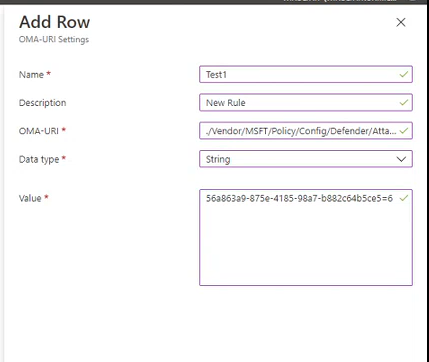
When you're finished on the Add row flyout, select Save.
Tip
At this point, you could also add global ASR rule exclusions to the custom profile instead of creating a separate profile just for exclusions. For instructions, see the next subsection Configure global ASR rule exclusions in Intune using custom profiles with OMA-URIs and CSPs.
Back on the Configuration settings tab, select Next.
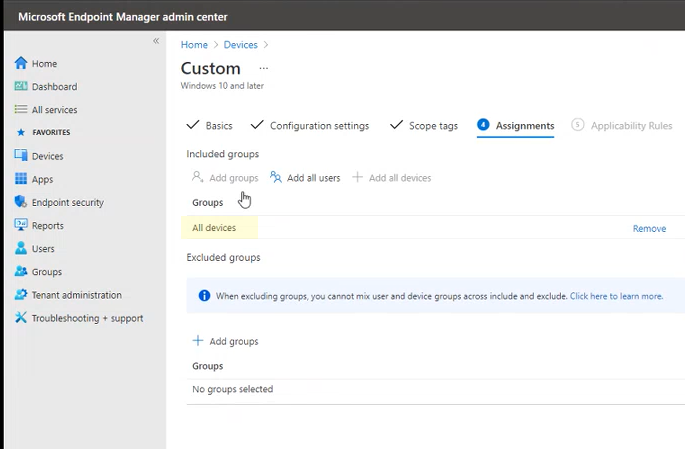
On the Assignments tab, configure the following settings:
- Included groups section: Select one of the following options:
- Add groups: Select one or more groups to include.
- Add all users
- Add all devices
- Excluded groups section: Select Add groups to specify any groups to exclude.
When you're finished on the Assignments tab, select Next.
- Included groups section: Select one of the following options:
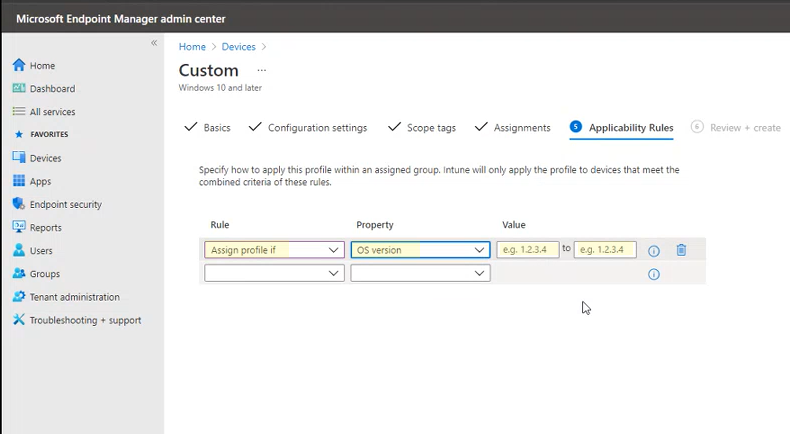
On the Applicability rules tab, select Next.
You can use the OS edition and OS version properties to define the types of devices that should or shouldn't get the profile.
On the Review + create tab, review the settings. You can use Previous or select a tab to go back and make changes.
When you're ready to create the profile, select Create on the Review + create tab.
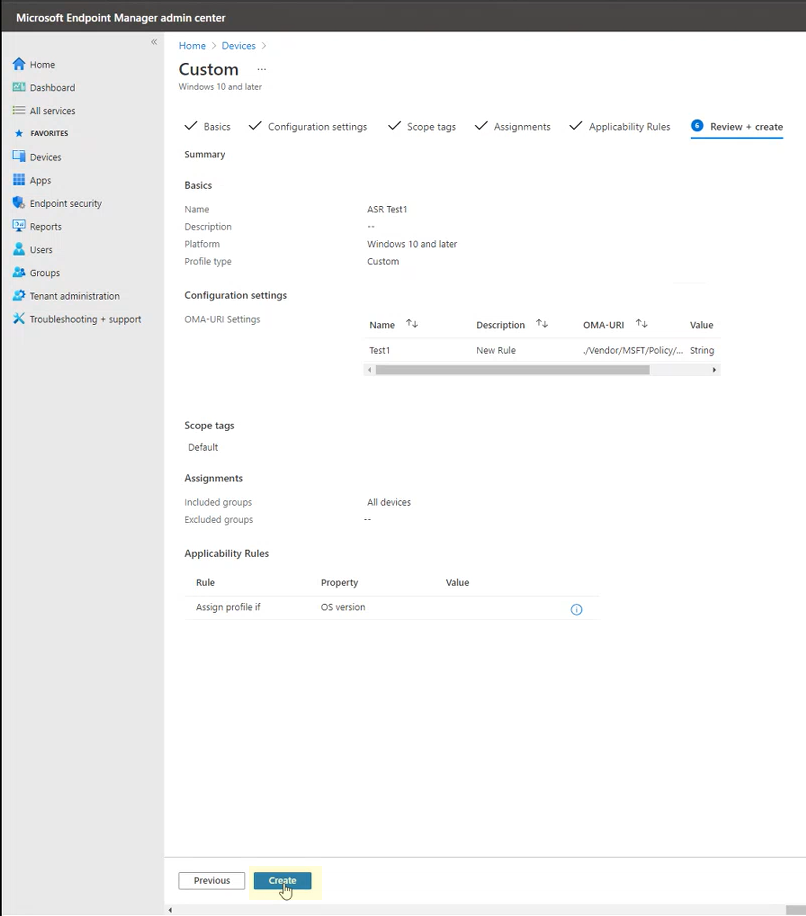


You immediately return to the Policies tab of the Devices | Configuration page. You might need to select Refresh to see the policy.
ASR rules are active within minutes.
Configure global ASR rule exclusions in Intune using custom profiles with OMA-URIs and CSPs
The steps to configure global ASR rule exclusions in Intune using a custom profile are very similar to the ASR rule steps in the previous section. The only difference is in Step 5 (the Configuration settings tab) where you enter the information for ASR rule exceptions:
On the Configuration settings tab, select Add. In the Add row flyout that opens, configure the following settings:
- Name: Enter a unique name for the rule.
- Description: Enter an optional, brief description.
- OMA-URI: Enter the Device value from the AttackSurfaceReductionOnlyExclusions CSP:
./Device/Vendor/MSFT/Policy/Config/Defender/AttackSurfaceReductionOnlyExclusionsData type: Select String.
Value: Use the following syntax:
<PathOrPathAndFilename1>
<PathOrPathAndFilename1>
...
<PathOrPathAndFilenameN>
For example:
C:\folder
%ProgramFiles%\folder\file.exe
C:\path
When you're finished on the Add row flyout, select Save.
Back on the Configuration settings tab, select Next.
The rest of the steps are the same as configuring ASR rules.
Configure ASR rules in any MDM solution using the Policy CSP
The Policy configuration service provider (CSP) enables enterprise organizations to configure policies on Windows devices using any mobile device management (MDM) solution, not just Microsoft Intune. For more information, see Policy CSP.
You can configure ASR rules using the AttackSurfaceReductionRules CSP with the following settings:
OMA-URI path: ./Vendor/MSFT/Policy/Config/Defender/AttackSurfaceReductionRules
Value: <RuleGuid1>=<ModeForRuleGuid1>|<RuleGuid2>=<ModeForRuleGuid2>|...<RuleGuidN>=<ModeForRuleGuidN>
- GUID values for ASR rules are available at ASR rules
- The following rule modes are available:
0: Off1: Block2: Audit5: Not configured6: Warn
For example:
75668c1f-73b5-4cf0-bb93-3ecf5cb7cc84=2|3b576869-a4ec-4529-8536-b80a7769e899=1|d4f940ab-401b-4efc-aadc-ad5f3c50688a=2|d3e037e1-3eb8-44c8-a917-57927947596d=1|5beb7efe-fd9a-4556-801d-275e5ffc04cc=0|be9ba2d9-53ea-4cdc-84e5-9b1eeee46550=1
Note
Be sure to enter OMA-URI values without spaces.
Configure global ASR rule exclusions in any MDM solution using the Policy CSP
You can use the Policy CSP to configure global ASR rule path and path and filename exclusions using the AttackSurfaceReductionOnlyExclusions CSP with the following settings:
OMA-URI path: ./Device/Vendor/MSFT/Policy/Config/Defender/AttackSurfaceReductionOnlyExclusions
Value: <PathOrPathAndFilename1>=0|<PathOrPathAndFilename1>=0|...<PathOrPathAndFilenameN>=0
For example, C:\folder|%ProgramFiles%\folder\file.exe|C:\path
Configure ASR rules and global ASR rule exclusions in Microsoft Configuration Manager
For instructions, see the attack surface reduction information in Create and deploy an Exploit Guard policy.
Warning
There's a known issue with the applicability of attack surface reduction on Server OS versions which is marked as compliant without any actual enforcement. Currently, there's no defined release date for when this will be fixed.
Important
If you're using "Disable admin merge" set to true on devices, and you're using any of the following tools/methods, adding ASR rules per-rule exclusions or local ASR rule exclusions don't apply:
- Defender for Endpoint Security Settings Management (Disable Local Admin Merge) Windows policies tab of the Endpoint security policies page in the Microsoft Defender portal at https://security.microsoft.com/policy-inventory?osPlatform=Windows
- Microsoft Intune (Disable Local Admin Merge)
- The Defender CSP (DisableLocalAdminMerge)
- Group Policy (Configure local administrator merge behavior for lists)
To modify this behavior, you need to change "Disable admin merge" to false.
Configure ASR rules and exclusions in group policy
Warning
If you manage your computers and devices with Intune, Microsoft Configuration Manager, or other enterprise-level management software, the management software overwrites any conflicting group policy settings on startup.
In Centralized Group Policy, open the Group Policy Management Console (GPMC) on your Group Policy management computer.
In the GPMC console tree, expand Group Policy Objects in the forest and domain containing the GPO you want to edit.
Right-click on the GPO, and then select Edit.
In the Group Policy Management Editor, go to Computer configuration > Administrative templates > Windows components > Microsoft Defender Antivirus > Microsoft Defender Exploit Guard > Attack Surface Reduction.
In the details pane of Attack Surface Reduction, the available settings are:
- Configure Attack Surface Reduction rules
- Exclude files and paths from Attack surface reduction rules
- Apply a list of exclusions to specific attack surface reduction (ASR) rules
To open and configure an ASR rule setting, use any of the following methods:
- Double-click on the setting.
- Right-click on the setting, and then select Edit
- Select the setting, and then select Action > Edit.
Tip
You can also configure Group Policy locally on individual devices by using the Local Group Policy Editor (gpedit.msc). Navigate to the same path: Computer configuration > Administrative templates > Windows components > Microsoft Defender Antivirus > Microsoft Defender Exploit Guard > Attack Surface Reduction.
The available settings are described in the following subsections.
Important
Quotation marks, leading spaces, trailing spaces, and extra characters aren't supported in any of the ASR rule-related values in group policy.
Group Policy paths before Windows 10 version 2004 (May 2020) might use Windows Defender Antivirus instead of Microsoft Defender Antivirus. Both names refer to the same policy location.
Configure ASR rules in group policy
In the details pane of Attack Surface Reduction, open the Configure Attack Surface Reduction rules setting.
In the setting window that opens, configure the following options:
- Select Enabled.
- Set the state for each ASR rule: Select Show....
In the Set the state for each ASR rule dialog that opens, configure the following settings:
- Value name: Enter the GUID value of the ASR rule.
- Value: Enter one of the following rule mode values:
0: Off1: Block2: Audit5: Not configured6: Warn

For more information, see ASR rule modes.
Repeat this step as many times as necessary. When you're finished, select OK.

Configure global ASR rule exclusions in group policy
The paths or filenames with paths you specify are used as exclusions for all ASR rules.
In the details pane of Attack Surface Reduction, open the Exclude files and paths from Attack surface reduction rules setting.
In the setting window that opens, configure the following options:
- Select Enabled.
- Exclusions from ASR rules: Select Show....
In the Exclusions from ASR rules dialog that opens, configure the following settings:
- Value name: Enter the path or path and filename to exclude from all ASR rules.
- Value: Enter
0.
The following types of value names are supported:
- To exclude all files in a folder, enter the full folder path. For example,
C:\Data\Test. - To exclude a specific file in a specific folder (recommended), enter the path and filename. For example,
C:\Data\Test\test.exe.
Repeat this step as many times as necessary. When you're finished, select OK.
Configure per-ASR rule exclusions in group policy
The paths or filenames with paths you specify are used as exclusions for specific ASR rules.
Note
If the Apply a list of exclusions to specific attack surface reduction (ASR) rules setting isn't available in your GPMC, you need version 24H2 or later of the Administrative Templates files in your Central Store.
In the details pane of Attack Surface Reduction, open the Apply a list of exclusions to specific attack surface reduction (ASR) rules setting.
In the setting window that opens, configure the following options:
- Select Enabled.
- Exclusions for each ASR rule: Select Show....
In the Exclusions for each ASR rule dialog that opens, configure the following settings:
- Value name: Enter the GUID value of the ASR rule.
- Value: Enter one or more exclusions for the ASR rule. Use the syntax
Path1\ProcessName1>Path2\ProcessName2>...PathN\ProcessNameN. For example,C:\Windows\Notepad.exe>c:\Windows\regedit.exe>C:\SomeFolder\test.exe.
Repeat this step as many times as necessary. When you're finished, select OK.
Configure ASR rules in PowerShell
Warning
If you manage your computers and devices with Intune, Configuration Manager, or another enterprise-level management platform, the management software overwrites any conflicting PowerShell settings on startup.
On the target device, use the following PowerShell command syntax in an elevated PowerShell session (a PowerShell window you opened by selecting Run as administrator):
<Add-MpPreference | Set-MpPreference | Remove-MpPreference> -AttackSurfaceReductionRules_Ids <RuleGuid1>,<RuleGuid2>,...<RuleGuidN> -AttackSurfaceReductionRules_Actions <ModeForRuleGuid1>,<ModeForRuleGuid2>,...<ModeForRuleGuidN>
Set-MpPreference overwrites any existing rules and their corresponding modes with the values you specify. To see the list of existing values, run the following command:
$p = Get-MpPreference;0..([math]::Min($p.AttackSurfaceReductionRules_Ids.Count,$p.AttackSurfaceReductionRules_Actions.Count)-1) | % {[pscustomobject]@{Id=$p.AttackSurfaceReductionRules_Ids[$_];Action=$p.AttackSurfaceReductionRules_Actions[$_]}} | Format-Table -AutoSizeTo add new rules and their corresponding modes without affecting any existing values, use the Add-MpPreference cmdlet. To remove the specified rules and their corresponding modes without affecting other existing values, use the Remove-MpPreference cmdlet. The command syntax is identical for the three cmdlets.
GUID values for ASR rules are available at ASR rules.
Valid values for the AttackSurfaceReductionRules_Actions parameter are:
0orDisabled1orEnabled(Block mode)2orAuditModeorAudit5orNotConfigured6orWarn
The following example configures the specified ASR rules on the device:
- The first two rules are enabled in Block mode.
- The third rule is disabled.
- The last rule is enabled in Audit mode.
Set-MpPreference -AttackSurfaceReductionRules_Ids 26190899-1602-49e8-8b27-eb1d0a1ce869,3b576869-a4ec-4529-8536-b80a7769e899,e6db77e5-3df2-4cf1-b95a-636979351e5,01443614-cd74-433a-b99e-2ecdc07bfc25 -AttackSurfaceReductionRules_Actions Enabled,Enabled,Disabled,AuditMode
Configure global ASR rule exclusions in PowerShell
On the target device, use the following PowerShell command syntax in an elevated PowerShell session:
<Add-MpPreference | Set-MpPreference | Remove-MpPreference> -AttackSurfaceReductionOnlyExclusions "<PathOrPathAndFilename1>","<PathOrPathAndFilename2>",..."<PathOrPathAndFilenameN>"
Set-MpPreference overwrites any existing ASR rule exclusions with the values you specify. To see the list of existing values, run the following command:
(Get-MpPreference).AttackSurfaceReductionOnlyExclusionsTo add new exceptions without affecting any existing values, use the Add-MpPreference cmdlet. To remove the specified exceptions without affecting any other values, use the Remove-MpPreference cmdlet. The command syntax is identical for the three cmdlets.
The following example configures the specified path and path with filename as exclusions for all ASR rules on the device:
Set-MpPreference -AttackSurfaceReductionOnlyExclusions "C:\Data\Test","C:\Data\LOBApp\app1.exe"