Note
Access to this page requires authorization. You can try signing in or changing directories.
Access to this page requires authorization. You can try changing directories.
When you receive items at a warehouse that uses warehouse management processes (WMS), use an item arrival journal to register the inventory and update the on-hand quantities. A receiving clerk typically performs this task. This article walks through the process of creating an arrival journal from a purchase order, adding journal lines, validating, and posting the journal.
Prerequisites
To work through this scenario using the sample records and values specified in this article, use a system where the standard demo data is installed, and select the USMF legal entity before you begin.
You can also work through this scenario by substituting values from your own data, provided that you have the following data available:
- A confirmed purchase order with an open purchase order line.
- The item on the line must be stocked. It must not use product variants, and must not have tracking dimensions.
- The item must be associated with a storage dimension group that has warehouse management processes enabled.
- The warehouse must be enabled for WMS, and the location that you use for receiving must be license plate–controlled.
Create an item arrival journal header that uses warehouse management
To register the arrival of items against a purchase order, create an item arrival journal, link it to the purchase order, and then add lines for the items you're receiving. The following steps walk through this process:
Ensure your system contains a confirmed purchase order that fulfills the requirements outlined in the previous section. This scenario uses a purchase order for company USMF, vendor account 1001, warehouse 51, with an order line for 10 PL (10 pallets) of item number M9200.
Make a note of the purchase order number that you'll use.
Go to Inventory management > Journal entries > Item arrival > Item arrival.
On the Action Pane, select New.
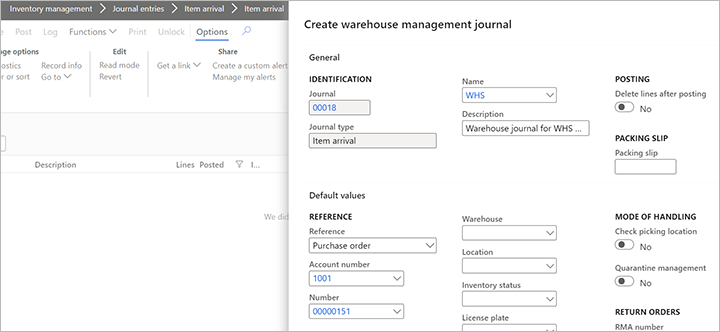
The Create warehouse management journal dialog box opens. Set the following fields:
- Name – Select a journal name. If you're using USMF sample data, select WHS. If you're using your own data, the journal you choose must have Check picking location set to No and Quarantine management set to No.
- Reference – Select Purchase order.
- Account number – Select the vendor account (for example, 1001).
- Number – Select the purchase order number that you identified for this exercise.
The following screenshot shows the Create warehouse management journal dialog box.
Select OK to create the journal header.
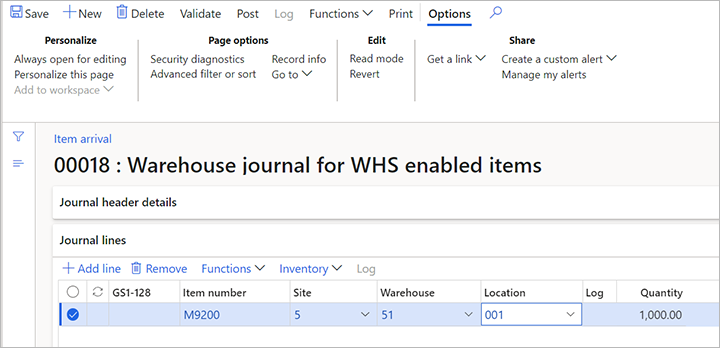
In the Journal lines section, select Add line and set the following fields:
- Item number – Select the item (for example, M9200). The Site, Warehouse, and Quantity fields are automatically set based on the inventory transaction data for the 10 pallets (1,000 ea.).
- Location – Select the receiving location (for example, 001). This specific location doesn't track license plates.
The following screenshot shows a completed journal line.
Note
The Date field determines the date on which the on-hand quantity of this item is registered in inventory.
The Lot ID is populated by the system if it can be uniquely identified from the information provided. Otherwise, you must enter it manually. This is a required field that links this registration to a specific source document line.
On the Action Pane, select Validate. This checks that the journal is ready to post. If the validation fails, fix the errors before you can post the journal.
In the Check journal dialog box, select OK.
Review the message bar. A message should confirm that the operation was completed.
On the Action Pane, select Post.
In the Post journal dialog box, select OK.
Review the message bar. A message should confirm that the operation completed.
On the Action Pane, select Functions > Product receipt to update the purchase order line and post a product receipt.
