Note
Access to this page requires authorization. You can try signing in or changing directories.
Access to this page requires authorization. You can try changing directories.
With Explicit Forward Proxy, you can use the secure web and AI gateway capabilities of Microsoft Entra Internet Access without installing the Global Secure Access client. Explicit Forward Proxy works with any browser that supports proxy automatic configuration (PAC).
Important
The Explicit Forward Proxy feature is currently in preview. This information relates to a prerelease product that might be substantially modified before release. Microsoft makes no warranties, expressed or implied, with respect to the information provided here.
Prerequisites
- Ensure that you have the following Microsoft Entra admin roles:
- The Global Secure Access Administrator role to manage the Global Secure Access features
- The Conditional Access Administrator role to create and manage Microsoft Entra Conditional Access policies
- Complete the guide for getting started with Global Secure Access.
- Review the Explicit Forward Proxy concepts and Explicit Forward Proxy session management concepts.
- Enable the Internet Access traffic-forwarding profile.
- Configure Transport Layer Security (TLS) inspection.
Enable Explicit Forward Proxy
You can enable and manage Explicit Forward Proxy by using the Microsoft Entra admin center:
Sign in to the Microsoft Entra admin center.
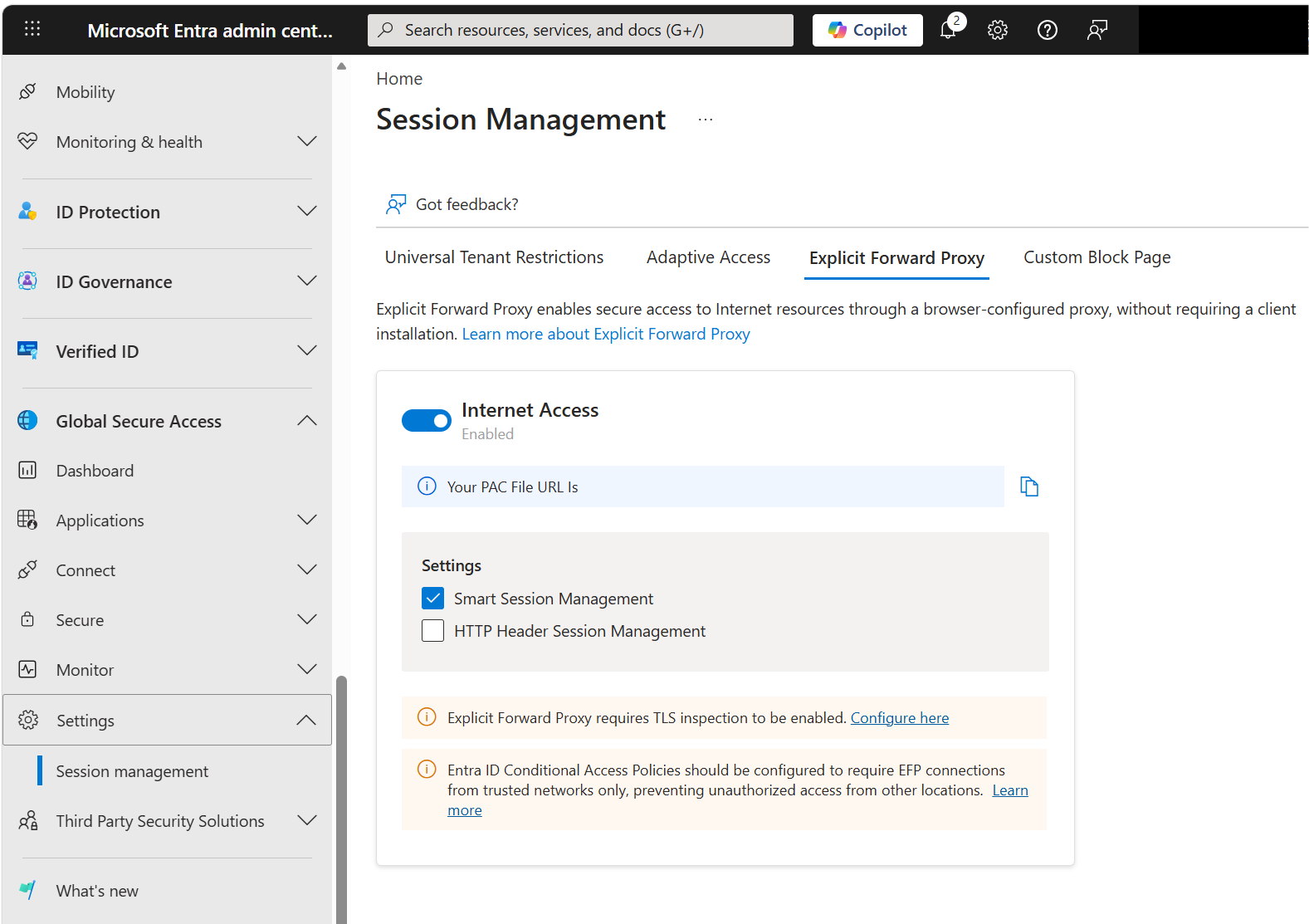
Go to Global Secure Access > Session management, and then select the Explicit Forward Proxy tab.
Set the Internet Access toggle to Enabled. By default, smart session management is enabled when you enable Explicit Forward Proxy.
Optionally, enable HTTP header session management. For more information, see Configure HTTP header session management.
Important
Explicit Forward Proxy session management relies on IP affinity as one of the session management anchors. We recommend that you configure a Conditional Access policy that restricts the use of Explicit Forward Proxy to networks you trust. For more information, see Explicit Forward Proxy session management and Configure a Conditional Access policy for Explicit Forward Proxy.